
Single Ladies Dog AI Trend: Make It with Your Pet
The Single Ladies dog AI trend puts your pet in the center of a standing studio dance, with two backup dancers behind it. Make one from a single photo in the Put a ring on it dog tool, or follow the checks below.
Open the dog tool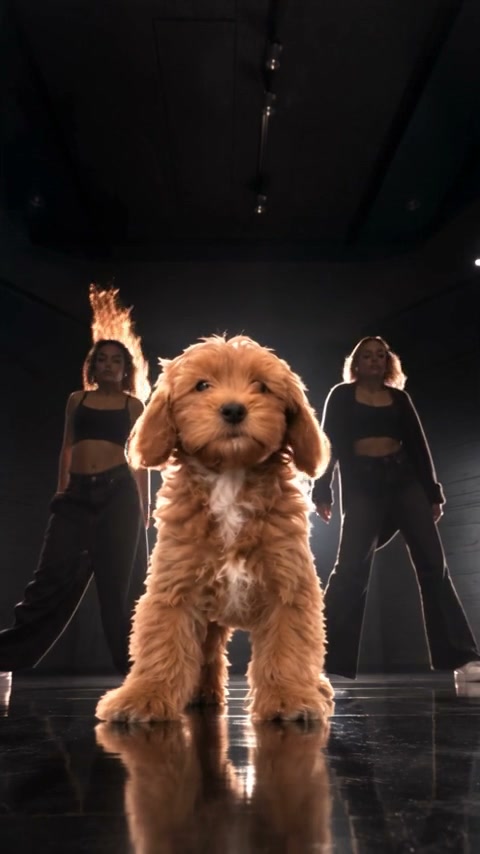
From Single Ladies to a pet taking center stage
The name points back to Beyoncé’s 2008 music video, Single Ladies (Put a Ring on It). The pet version gives that pop-star attitude an unexpected lead: a dog standing upright, performing between two human backup dancers.
The contrast is the joke. A familiar pet takes a serious place in a polished dance routine, with its face and fur making the performance feel personal. The studio clip shown here is an AI pet adaptation; it is a different video from the original music video. A confirmed first creator of this particular dog version has not been established.
Give your pet a stage personality
The household diva
Choose the pet whose expression already says they run the house. A recognizable face and a familiar coat can make the serious stage performance funnier than a costume.
The quiet dog gets the spotlight
Use a clear photo of your usually laid-back dog for an unexpected performer. You do not need a photo of it dancing: the prepared video provides the movement.
One solo for each pet
For a multi-dog household, give each dog its own video using a separate photo. The template casts one animal at a time, so each gets the same center-stage role.
How your pet joins the dance
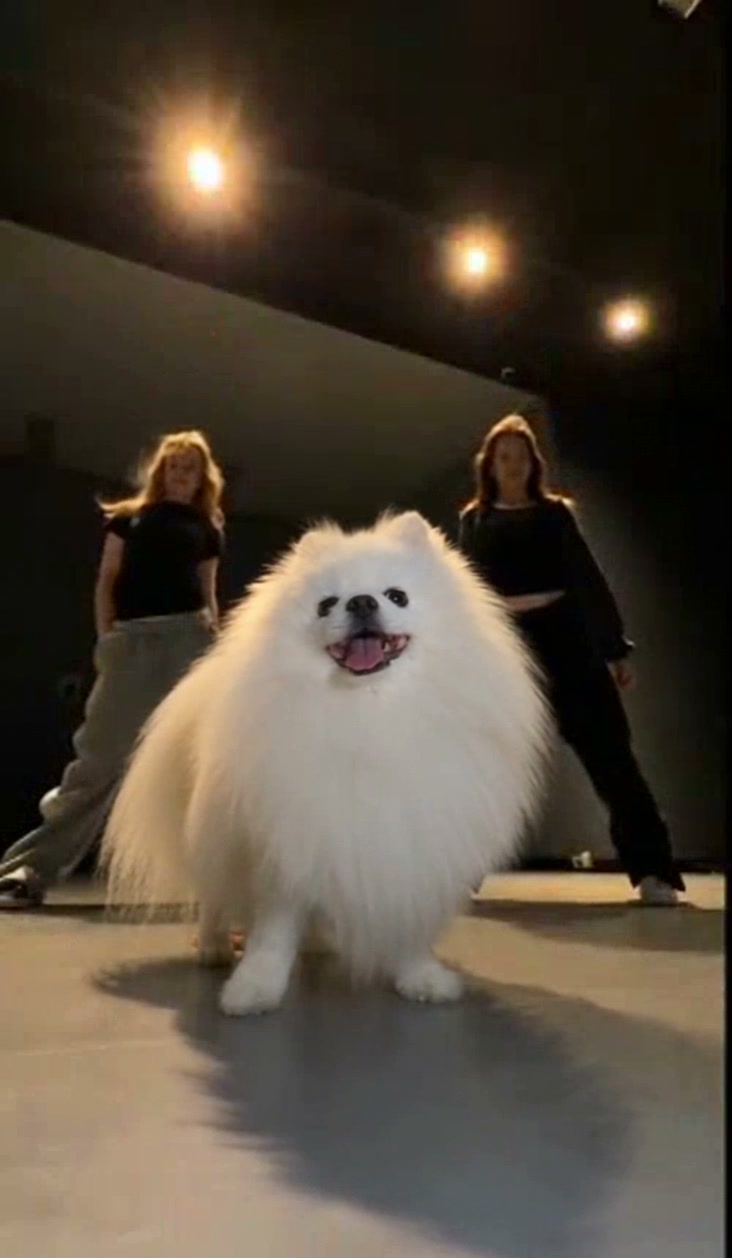
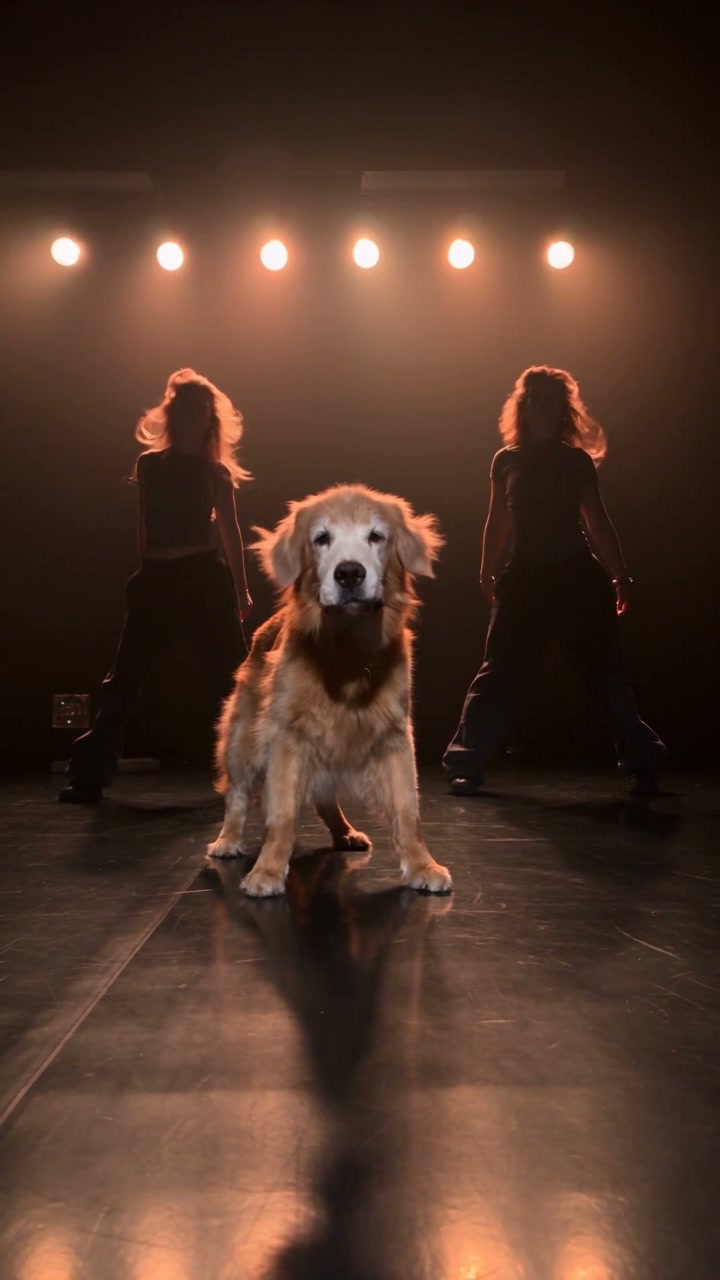
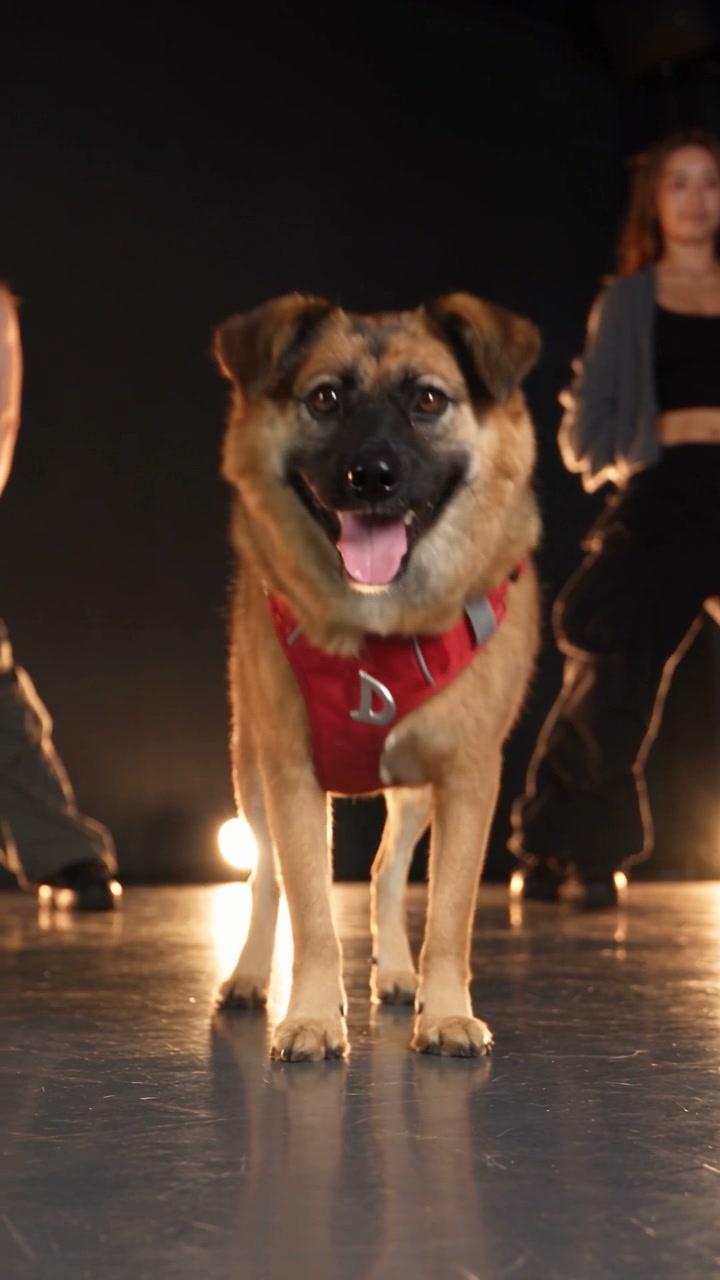
Your photo replaces only the center dog. The two women, the room, the lighting, the choreography, the camera, the framing, and the timing stay with the reference. You do not upload the dancers, and there is no second photo slot.
What your photo is for
It supplies the center animal: face, coat, and body. The dancers and the studio come from the reference, not from this photo.
A ready-made dance for your pet
The background, two backup dancers, and performance are already prepared. Add your pet photo to create this version without setting up the scene or writing a prompt. For more creative control, use the homepage workspace described below.
Choose one photo of your pet
Show one standing body
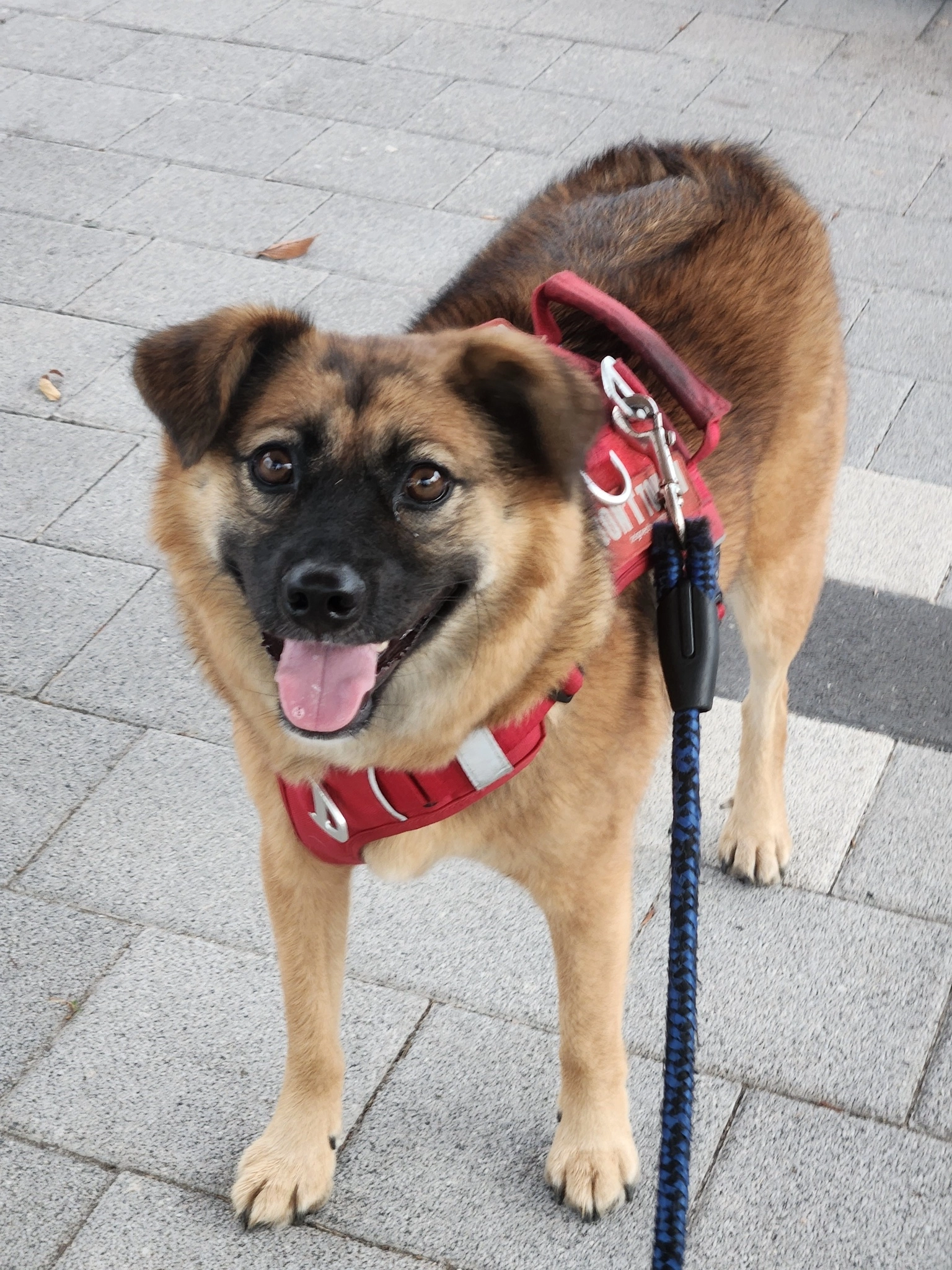
Use one pet, with the face, coat, chest, legs, and paws visible. Even light and a little space around the ears and feet give the edit something to follow. Compare the photo with the standing reference: a sleeping animal curled into a ball says very little about its body.
Leave the extras out
Skip collages, group photos, motion blur, and anything covering the face. The everyday background can stay. The template supplies the studio. Use a photo you have permission to transform.
Use a JPG, PNG, or WebP. After it uploads, check the preview and any warning on the slot before you generate.
How to make your Single Ladies dog video
Open Put a ring on it dog. The model is Seedance 2.5 Edit. You choose the photo and the resolution. The reference supplies the performance.
1Preview the prepared dance
Open the tool and play the prepared studio dance. This guide uses the standing dog with two backup dancers; other Single Ladies pet clips may use a different routine. The video and prompt are ready for you.
2Add the one photo
Use the slot labeled Pet photo · Photo 1. Upload one photo, check the preview, and use Replace if you want a different one. Generate stays off until that photo is in and the reference video is ready. Uploading alone does not start the job.
3Set the resolution
The loaded reference is about 19 seconds. Duration and framing follow that reference. There is no separate length or aspect control. In Settings, choose 480p, 720p, or 1080p. The preset starts at 480p. Read the credit estimate beside Generate before you continue.
4Generate, then watch the job
Sign in, read the estimate beside Generate, and click it. Follow the result in My creations. If a job is already processing, check that entry before you submit again. Another click can start another generation.
Check the opening, the overlap, and the last second
A clean first frame can hide a problem later. Play the result from start to finish before you download it.
The opening does not match the reference
Check firstLook for your pet’s face and coat, both women, and the same studio. The room and the dancers should still be the ones in the reference.
NextTry one clearer photo of a single pet and review the complete result.
Bodies merge where they overlap
Check firstPause when the center animal crosses in front of a dancer. Check faces, hands, and whether two bodies join.
NextLook for a photo that cuts off paws or shows two animals. Try one animal with the chest, legs, and head visible.
The pet changes near the end
Check firstWatch the last second for a different face, coat, or body, and for a dancer who no longer matches the reference.
NextIf you try again, change one thing. Keep the earlier file until you have checked the replacement.
Want to customize more?
The ready-made template handles the dance, background, backup dancers, and prompt for you. Upload one pet photo to make this version with fewer steps. The original reference soundtrack is included.
For a different background, supporting cast, or performance, open the Motion Transfer workspace on the homepage. Upload your own motion video and reference images, choose a compatible model, and adjust the prompt to describe what should change and what should stay. Available inputs depend on the selected model.
What to expect from AI video generation
AI video results can vary, even with the same photos and prompt. Your pet’s face, paws, and body shape may shift during the dance, especially when it overlaps the dancers. Consistency remains a limitation of current AI video models, so a good result may take more than one attempt.
Start with clear reference images and review the full video. If something looks wrong, change one image or instruction at a time. Another attempt can produce a different result, but it does not guarantee an improvement.
Before you generate
Does Single Ladies dog always mean this routine?
Public pages use the Single Ladies dog name for more than one routine. This guide follows only the standing studio clip in the tool: one dog in the center and two backup dancers. A sitting dog or a different gesture is not this template.
Can I use a cat, or two pets?
Use one pet in the single photo slot. Results can vary. Dogs match this standing reference more closely. Other animals are not verified. Two pets in one photo, or a second photo, are not part of this setup.
Why is Generate unavailable?
Generate stays off until one photo is in the slot and the reference video is ready. Uploading a photo does not start the job. If you turn Custom prompt on, the box cannot be empty.
Make your pet’s Single Ladies dog video
Use the loaded reference when your one photo is ready.
Open the dog tool