Create a video

Required photos2
Settings
Mode
Video length22s
Resolution

Bing Bing Bing Kicking AI Video Generator

Add two pet photos and make a Bing Bing Bing Kicking AI video with playful kicks toward the camera.

0:00 / —:—
0:00 / —:—

Bing Bing Bing Kicking AI pet video ideas

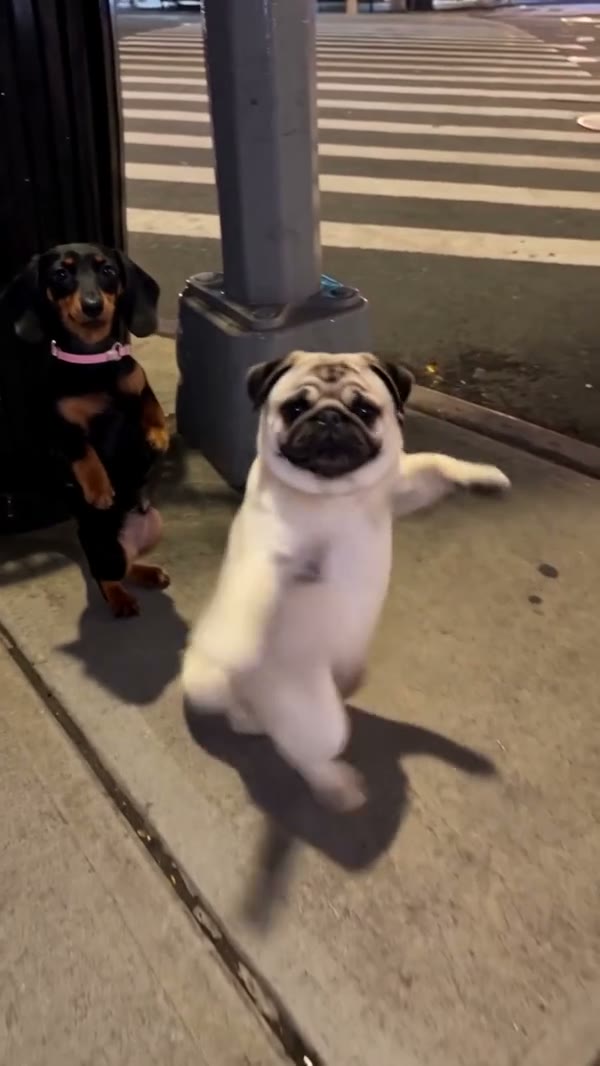
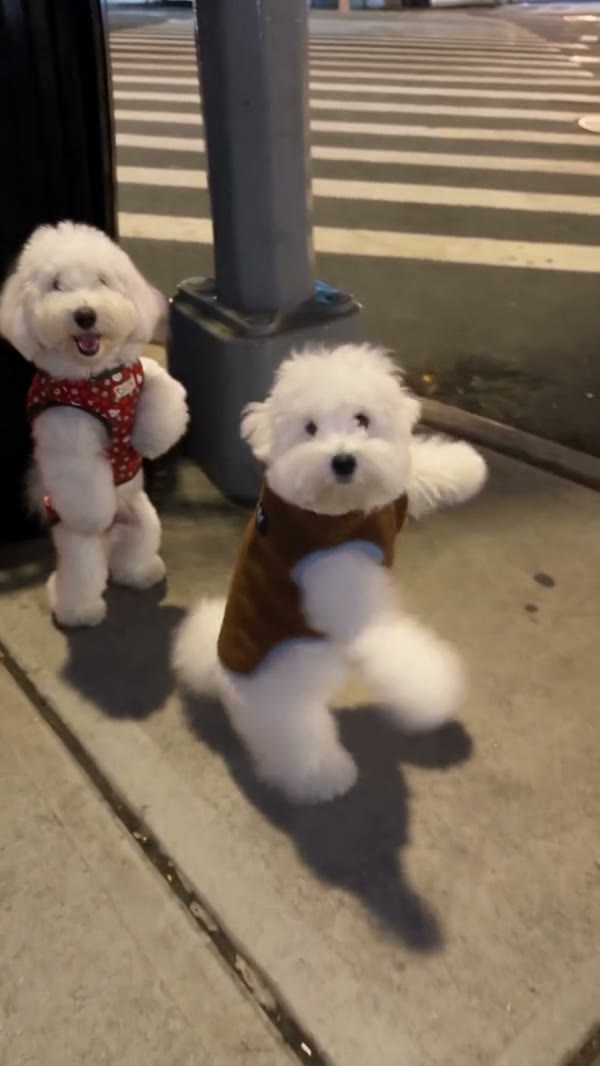
These community clips were created elsewhere and show different cats and dogs. Your result can vary.

What is Bing Bing Bing Kicking AI?

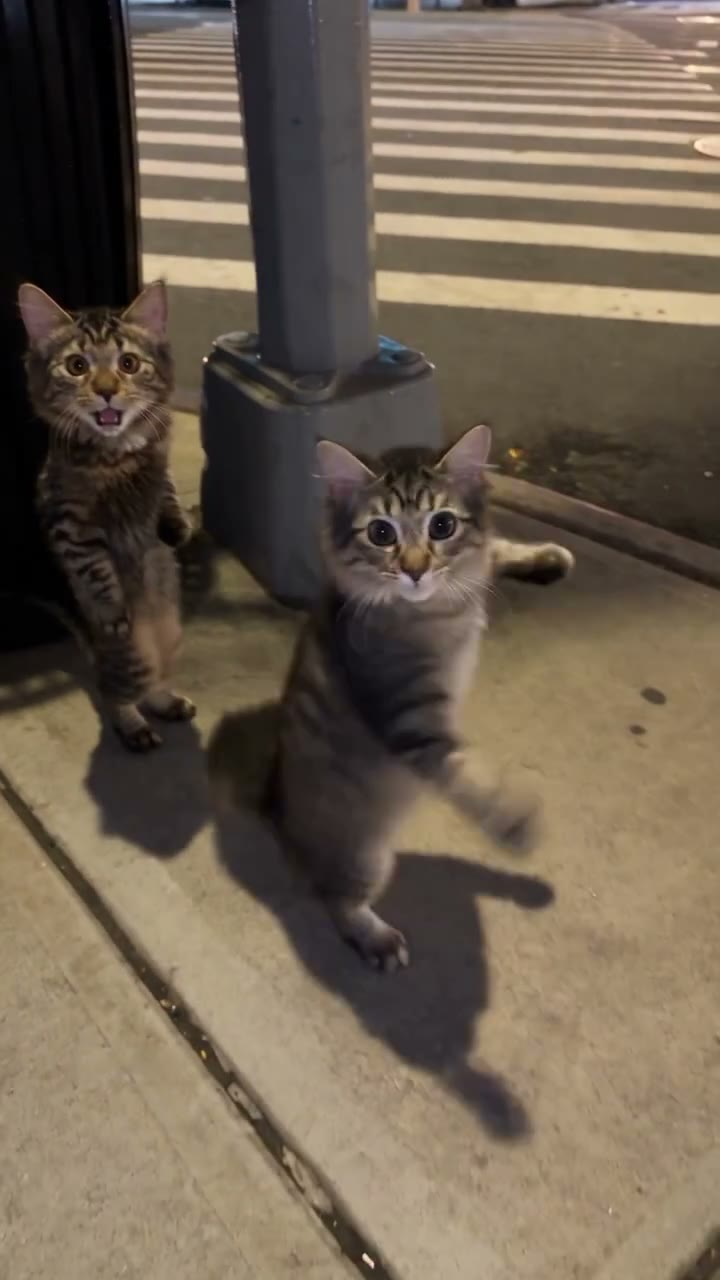
Bing Bing Bing Kicking AI is a two-pet video template for a playful street-side kicking scene. The prepared reference shows two cats taking turns stepping and moving their paws toward the camera on a sidewalk at night. Upload a separate photo for each pet: the first guides the cat on the viewer’s left at the beginning, and the second guides the cat on the right. The reference supplies the scene, action, camera and sound. The Bing Bing Bing Kicking AI video generator creates a new interpretation, so the animals and their movements can vary from the preview.

Bing Bing Bing Kicking AI

How to make a Bing Bing Bing Kicking AI video

Choose two pets, check the reference and review your result.

  1. STEP 1

    Choose the first Bing Bing Bing Kicking AI pet

    Upload a clear pet photo as Photo 1. It guides the animal on the viewer’s left at the start of the reference.

  2. STEP 2

    Add the right pet

    Add a separate image as Photo 2 for the animal on the right. Show each pet’s face and body, and use photos you have permission to use.

  3. STEP 3

    Choose a mode and generate

    Preview Bing Bing Bing Kicking AI, select a mode and check the displayed credits. Sign in to generate, then watch and download the finished clip in My creations.

The Bing Bing Bing Kicking AI street scene

Two separate photos guide the animals while the prepared reference supplies the action.

Cast your Bing Bing Bing Kicking AI pets

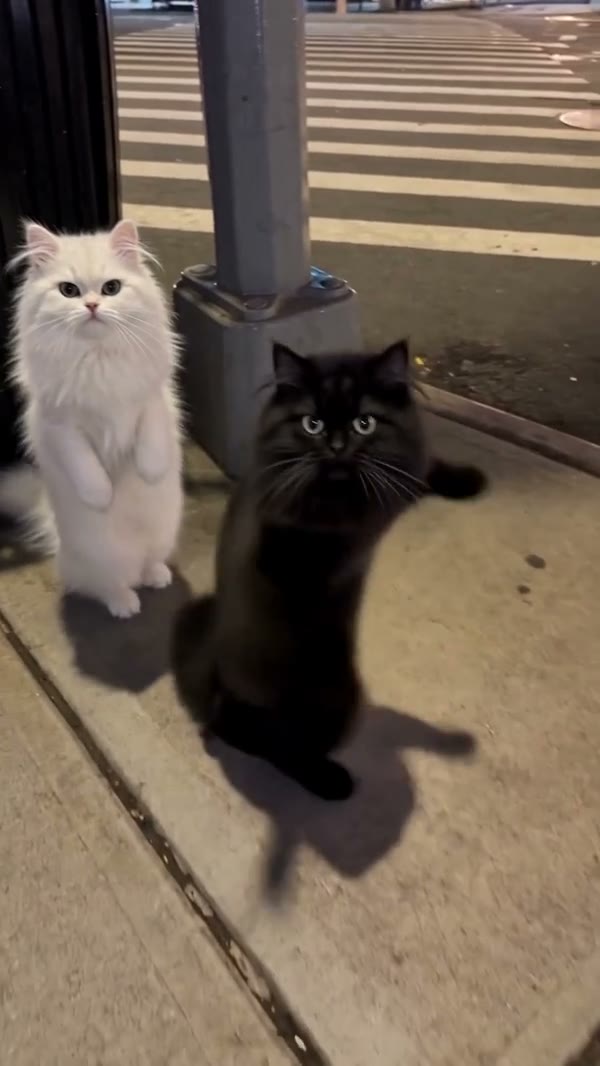
Give each animal its own photo in Bing Bing Bing Kicking AI. Photo 1 follows the cat on the left at the start; Photo 2 follows the cat on the right. They move around and approach the lens, so the labels describe their opening positions rather than fixed places throughout the clip. Choose pictures with clear faces, ears, coat markings and enough of each body to guide the movement. A single group photo does not fill both required slots. You can use a clear photo of the same pet twice for a matching pair, although the model may still give the two characters different details.
Cast your Bing Bing Bing Kicking AI pets

Follow the kicks and close approaches

The Bing Bing Bing Kicking AI reference begins beside a street crossing. The cats step forward, lift their paws and legs, and come close to the camera before returning to the wider view. The full source repeats this sequence; its second half is not a new location or a different dance. The nighttime sidewalk, light pole and handheld viewpoint follow the prepared reference. There is no separate control for the background, camera or choreography on this page. Generated paws and legs can look different as the subjects turn, overlap or move close to the lens.

Follow the kicks and close approaches

Make a Bing Bing Bing Kicking AI pet video

Use Bing Bing Bing Kicking AI to imagine your own pets in a funny paired performance without filming them doing the action. The supplied reference is vertical and about 22 seconds long. Economy and Standard use its first 14.9 seconds; Original follows the full reference, including the repeated action. The supplied community examples show cats and dogs, but they were created elsewhere and are inspiration rather than verified results from this page. When your video is ready, watch the whole clip to check each animal’s identity, body, paws and continuity before downloading or sharing.

Make a Bing Bing Bing Kicking AI pet video

Choose your Bing Bing Bing Kicking AI pair

The two photo slots give you control over the animals in the prepared scene.

Two cats

The reference features two cats. Distinct markings and clear faces can help guide each Bing Bing Bing Kicking AI role through the close-ups.

A pair of dogs

The community examples show dog pairs in the same street action. Dog photos can be used for Bing Bing Bing Kicking AI, though body proportions and paw movements may vary.

One pet in both roles

Try the same photo in both slots for a paired look, or choose two different pets. Keep one clearly visible subject in each upload so the roles are easy to identify.

Prepare photos for Bing Bing Bing Kicking AI

A few simple choices make the two roles easier to distinguish.

Use one subject per image

Choose separate images rather than a collage. A clear view of each pet’s face, ears, fur and body gives Bing Bing Bing Kicking AI more useful visual guidance.

Keep recognizable markings visible

Good lighting and an unobstructed face help the model interpret coat colors and features. Sunglasses, heavy filters and crowded backgrounds can hide details you want to keep.

Check the moving result

The scene is an AI interpretation, not a recording of your pets. Review both animals across the kicks and close-ups; fur, paws, proportions and placement can change between frames.

Bing Bing Bing Kicking AI questions

Photo slots, the street reference, sound and generation.

How many photos does Bing Bing Bing Kicking AI need?

Two photos are required, one for each pet. Photo 1 guides the left animal and Photo 2 guides the right animal at the beginning of the reference.

Can Bing Bing Bing Kicking AI use cat and dog photos?

Yes. The reference features two cats and the community examples include dogs. Choose a separate clear photo for each role. The AI may interpret different breeds, bodies and paws differently.

Can one pet appear twice in Bing Bing Bing Kicking AI?

You can upload the same pet photo in both required slots. The model makes two characters from the two references, but identical appearance is not guaranteed.

How long is a Bing Bing Bing Kicking AI video?

Original follows the roughly 22-second reference. Economy and Standard use the first 14.9 seconds with a 15-second generation setting. The full reference repeats its opening action.

Does Bing Bing Bing Kicking AI include sound?

The selected reference segment has audio, which the template is configured to restore after video generation. There is no separate music upload on this page; check that you have the necessary rights before sharing audio.

Can I choose another street or change the kicks?

This page uses a fixed reference for the street, camera and movements. It does not offer separate scene or choreography controls, and the model can still vary details in the output.

Are the example videos generated on this page?

The main preview is the supplied reference. The additional cat and dog examples are community clips created elsewhere. They show possible variations rather than a guaranteed result from this generator.

What if my Bing Bing Bing Kicking AI pets look different?

Try sharper images with the faces and bodies visible, and use one subject per photo. Fast motion, overlapping animals and a close camera can still change the look of paws or markings, so check the complete result.

Does Bing Bing Bing Kicking AI use credits?

Generation requires an account and sufficient credits. The Generate button shows the estimate for the selected settings; adding photos and previewing the reference do not start a generation.

Where can I find my finished video?

Open My creations after the task finishes. Play the Bing Bing Bing Kicking AI result, check both roles and the sound, and use the available download control.

Make a Bing Bing Bing Kicking AI video

Choose two pet photos and bring your pair into the street scene.

Bing Bing Bing Kicking AI