Create a video

Entrance lead · Photo 1
Settings
Mode
Video length17s
Resolution

Damon Salvatore AI Video Generator

Your entrance, your look, that knowing smile. Use Damon Salvatore AI with one photo to put your character into the church entrance and the close-ups that follow, with the reference soundtrack.

0:00 / —:—

What is Damon Salvatore AI?

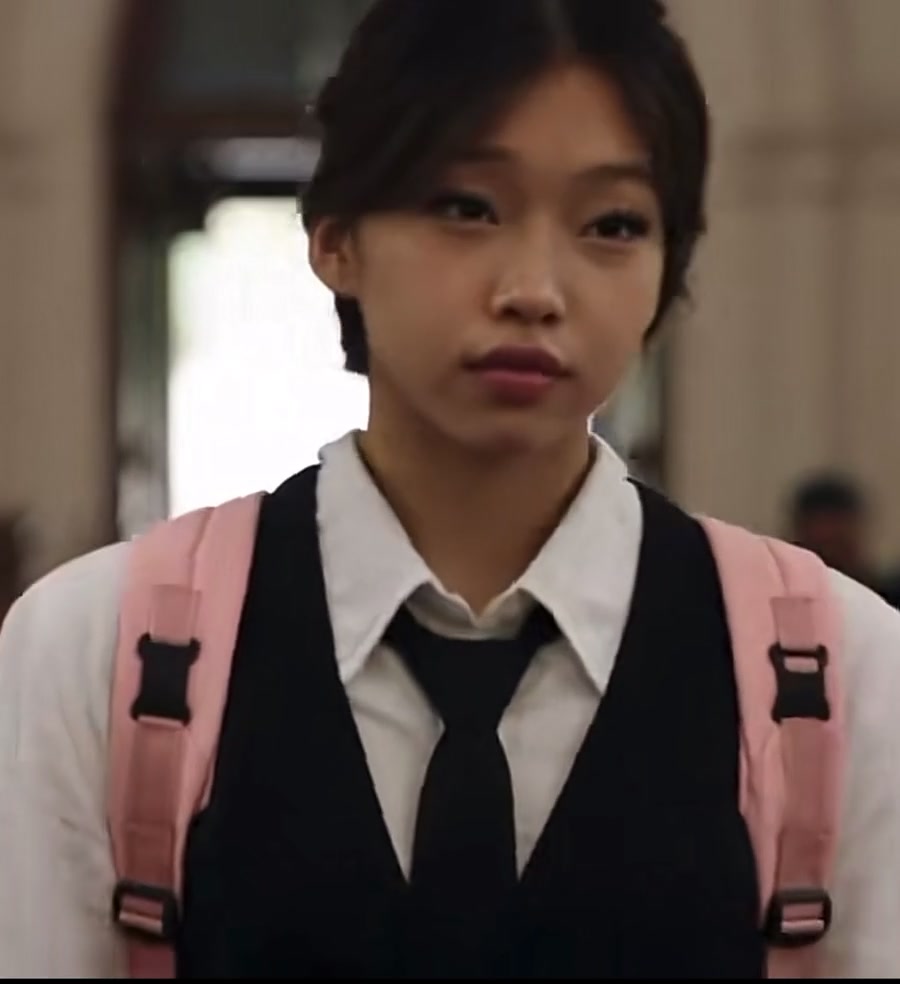
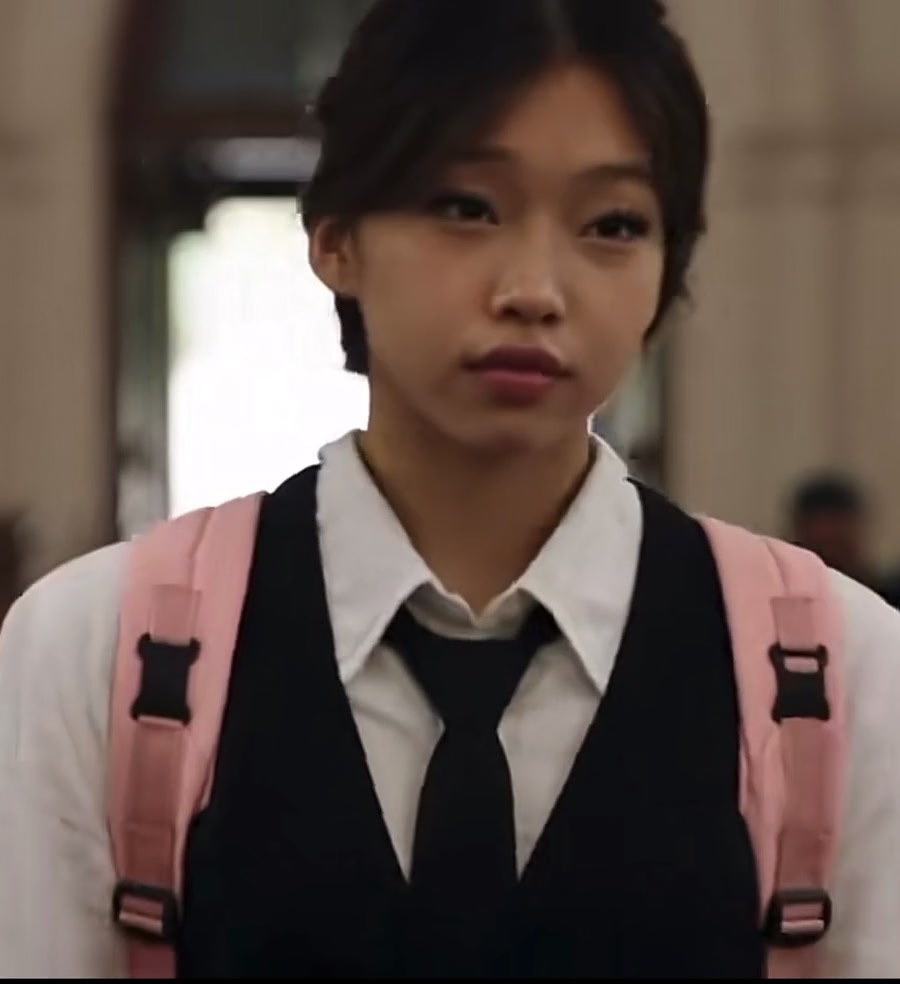
Damon Salvatore AI is a photo-to-video tool for the church entrance and smirk edit associated with the Damon Salvatore trend. This prepared remake opens with an aisle, a guest turning around and a hand at the water basin, then follows the lead entering and smiling. Car, dark close-up and kitchen shots complete the full edit. Upload one person photo to replace the lead’s full appearance, hair, body and clothing across those scenes. Damon Salvatore AI keeps the other guests, locations, camera cuts and reference sound. You choose the person and a generation mode; the sequence is already prepared.

A character enters a church, makes a hand gesture and smiles, followed by car and close-up scenes

How to make a Damon Salvatore AI video

The reference and instructions are ready. Start with the person you want in the scene.

  1. STEP 1

    Add your Damon Salvatore AI lead

    Upload one clear photo of a person. Show their face, hair and outfit. No second photo, motion recording or written prompt is needed.

  2. STEP 2

    Choose a Damon Salvatore AI mode

    Pick Economy, Standard or Original and an available resolution. Preview the selected version and review the credit quote before generating.

  3. STEP 3

    Review your Damon Salvatore AI edit

    Open the finished result in My creations. Watch the entrance, expressions and scene changes with sound, then download the video.

One photo, one character, several scenes

Bring your chosen appearance into the entrance, car and close-up sequence.

Make the entrance your own

Damon Salvatore AI puts your chosen person in the doorway and follows them into the church. A standing photo showing the face, hairstyle and clothes is enough; you do not need to film a walk or recreate the setting. The photo replaces the lead, while the other guests stay with the scene. Use this for a character introduction, a playful personal entrance or a short dramatic edit built around a familiar reaction.
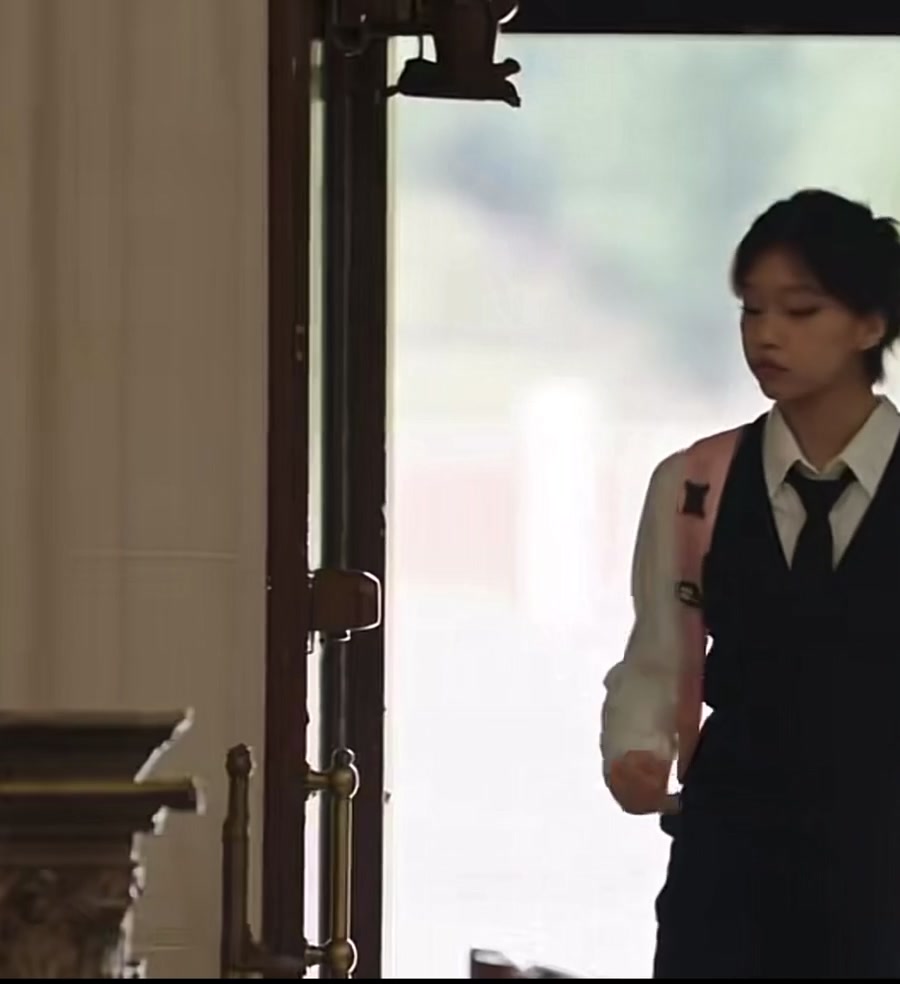
The main character entering through the church doorway

Carry one look across the cuts

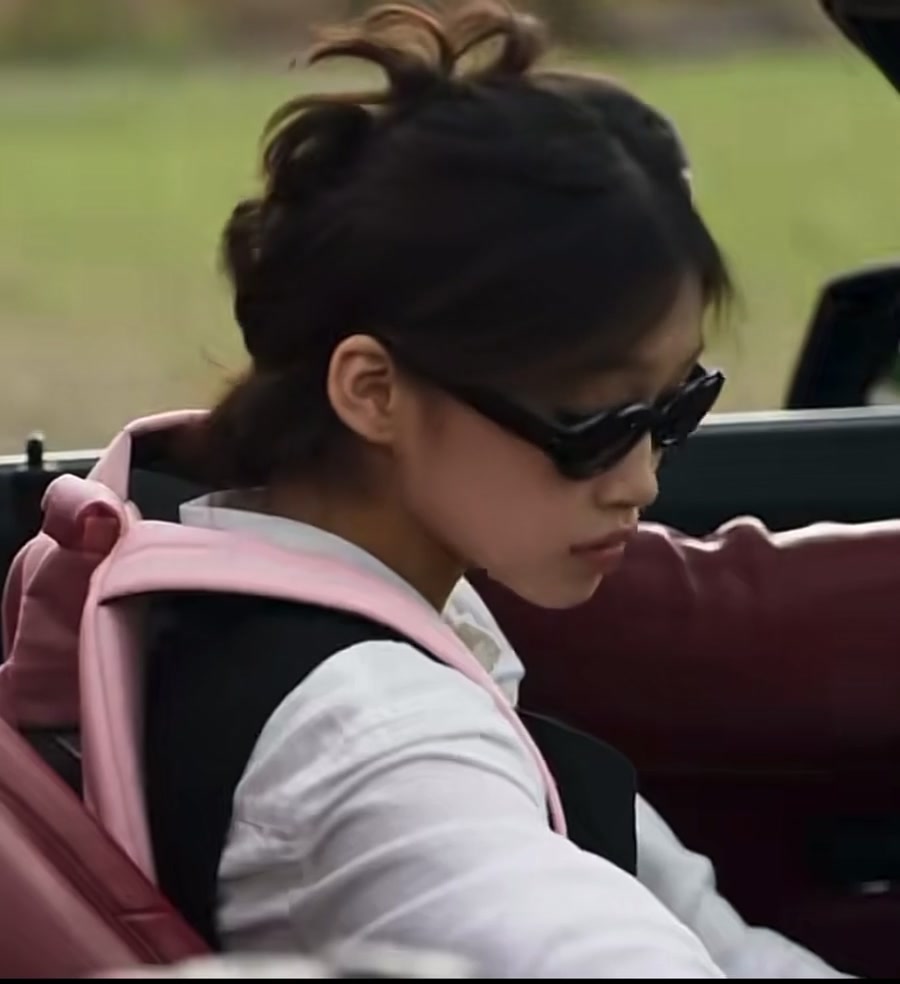
The same photo guides the church scene, car shot and later close-ups in Damon Salvatore AI. Clothing is part of the replacement, so choose the outfit you want to carry into the edit. There is no separate costume upload. The scene’s actions and props remain, including the sunglasses moment in the car. Small accessories, logos and clothing details may change between shots. Damon Salvatore AI aims to keep one recognizable character throughout; review the transitions before sharing your result.

The same lead in the car shot wearing sunglasses

Keep the gesture and the payoff

Damon Salvatore AI follows the reference’s hand movement, head turns and shift into a smile. Original keeps the complete ending; Economy and Standard use the opening excerpt from the same video. Expressions and timing can vary in the generated result. Watch the preview for your selected mode to see which moments it includes.

The church entrance closes on the lead’s smile

What you control in Damon Salvatore AI

Your photo provides the person. The prepared sequence provides the performance and setting.

One required person photo

Damon Salvatore AI has one lead slot. The whole look comes from that image, including visible clothes. There are no optional guest, vehicle or background slots.

A full or shorter sequence

Original follows the full reference, about 17 seconds. Economy and Standard use a prepared excerpt of about 15 seconds. No clip selection or manual trimming is required.

Resolution and a visible quote

Select an available resolution and read the quote on Generate. Damon Salvatore AI includes the reference soundtrack; there is no separate music picker or expression control.

Damon Salvatore AI credits and plans

The Generate button shows the quote for your selected mode and resolution. Sign in with enough credits to submit. Plan examples elsewhere may use different models or video lengths.

Starter

For your first ideas.

$8.3/month

$100.0 charged yearly

2,400 credits/year

Up to 400 images

GPT Image 2Nano Banana Pro

Up to 133 videos

Seedance 2.5Kling 3.0 Motion Control
  • Up to 4K images and HD videos, depending on the model
  • Image editing, video creation & motion transfer
  • Watermark-free image & video downloads
  • Generation history in your account
Popular40% OFFSave $238.8

Pro

For a steady creative flow.

$30.0/month$49.9/month

$360.0 charged yearly

21,600 credits/year

Up to 3,600 images

GPT Image 2Nano Banana Pro

Up to 1,200 videos

Seedance 2.5Kling 3.0 Motion Control
  • Up to 4K images and HD videos, depending on the model
  • Image editing, video creation & motion transfer
  • Watermark-free image & video downloads
  • Generation history in your account
  • Use credits across image and video models
Best Value50% OFFSave $599.8

Business

For more creations, more often.

$49.9/month$99.9/month

$599.0 charged yearly

48,000 credits/year

Up to 8,000 images

GPT Image 2Nano Banana Pro

Up to 2,666 videos

Seedance 2.5Kling 3.0 Motion Control
  • Up to 4K images and HD videos, depending on the model
  • Image editing, video creation & motion transfer
  • Watermark-free image & video downloads
  • Generation history in your account
  • Use credits across image and video models

Basic

$0

Try before you subscribe

  • 18 one-time signup credits
  • Generation history included
  • Watermarked previews & downloads
  • Up to 3 images or 1 video
  • Watermark-free downloads require payment

Prices in USD; taxes and total shown at checkout. Subscriptions renew automatically; cancel in Billing settings. Subscription credits expire each period; one-time credits never expire.

Refunds: request within 72 hours. Used purchased credits and applicable non-refundable processing costs (up to 6%) are deducted. Terms · Refund Policy

Damon Salvatore AI questions

Choose a photo, understand the sequence and know what to check in the result.

How do I make a Damon Salvatore AI video?

Upload one person photo, select a mode and resolution, review the quote and generate. Your Damon Salvatore AI result appears in My creations for playback and download. The church entrance, scene cuts and reference sound are already prepared.

What photo works for Damon Salvatore AI?

Choose one clearly visible person with their face, hair and outfit in view. A standing or waist-up photo gives more clothing information than a tight headshot. Crop other people out of a group image. Avoid heavy shadows and hands covering the face, because the edit includes close views of the expression.

Does Damon Salvatore AI change the clothing too?

Yes. The photo guides the lead’s complete appearance and clothing across the sequence. Pick the outfit in the photo before uploading; there is no separate wardrobe field.

Can I replace the guest who turns around?

This Damon Salvatore AI page replaces only the person entering the church and appearing in the later montage. The seated guest who turns back and the surrounding people stay in the reference.

Is this only the Damon Salvatore church scene?

The full Damon Salvatore AI reference includes the church entrance followed by car, dark close-up and kitchen shots. Watch the preview to see the exact sequence.

How do the Damon Salvatore AI modes differ?

Original uses the complete reference of about 17 seconds. Economy and Standard use the same opening excerpt of about 15 seconds: the church entrance, car shot and part of the dark close-up. The final kitchen shot is only in Original. All modes use the same source sequence, with the matching reference audio.

Do I need to choose a video length?

No. Damon Salvatore AI prepares the length for each mode. There is no trim control and no motion-video upload on this fixed-play page. If the ending matters to your edit, choose Original and check its preview before submitting.

Does Damon Salvatore AI include sound?

The finished clip includes audio from the reference used by your selected mode. You do not need to upload a song or write an audio prompt. Listen to the preview first. After download, you can make your own audio changes in a video editor.

What should I check before sharing?

Replay your Damon Salvatore AI result from the doorway through the last included shot. Check that the same person remains the lead, clothing stays recognizable and hands look natural near the face. Watch the car transition and the smile closely. Timing and small details can vary, so a clearer photo may help on a later attempt.

How much does Damon Salvatore AI cost?

Use the quote beside Generate for the current mode and resolution. Each new submission uses credits. Replaying the preview or downloading a finished Damon Salvatore AI result does not start another generation.

Create your Damon Salvatore AI edit

Choose your photo and bring one consistent look into the entrance and the smile.

A character enters a church, makes a hand gesture and smiles, followed by car and close-up scenes