Create a video

ModelSeedance 2.5

Configured for this template

Burning Bridges reference · 29.0s

Lead · @Image 1
Background · optional

0 / 5 photos · One person per photo. Leave empty to keep the original crowd.

Burning Bridges AI Video Generator

Make a Burning Bridges AI video from one lead photo. Add background photos only for the people you want to change. The loaded source keeps the performance, the room, and the soundtrack.

Source clip of a lead performer holding a metal cup in a crowded room with warm pendant lights

Burning Bridges AI guide: choose your lead, add a supporting cast, and make the video.

What is Burning Bridges AI?

Burning Bridges AI turns a lead photo into the central character of a crowded indoor performance. Optional background photos can change the supporting cast, one photo per person. The reference supplies the handheld camera, gestures, metal cup, warm chandelier light, and room. Explore the community adaptations below for different faces, outfits, and cast ideas, then upload your photos to create your own Burning Bridges AI video.

Burning Bridges AI community adaptation with a black-shirted lead holding a metal cup

Make a Burning Bridges AI video in three steps

Upload your lead photo, optionally add a supporting cast, then generate, preview, and download your video.

  1. STEP 1

    Add the lead photo

    Upload one photo of the person who should lead the Burning Bridges AI clip, including the clothes you want seen. The reference video is already loaded. Background photos stay closed until this photo exists.

  2. STEP 2

    Add background photos only if you need them

    Add up to 5 background photos to Burning Bridges AI, one person per photo. Replace a photo in place if it is wrong. An empty group keeps the original crowd.

  3. STEP 3

    Generate, preview, and download

    Click Generate to create your Burning Bridges AI video. When it is ready, open My creations to watch it with the original soundtrack, then download your favorite version.

Choose who appears in Burning Bridges AI

Explore Burning Bridges AI community adaptations, then choose your lead and supporting cast. Your generation uses the original performance loaded in the upload panel.

Your Burning Bridges AI lead, your look

The lead photo is the only required picture. It defines the whole person in front: face, hair, skin, body, clothes, and accessories that are actually visible. Burning Bridges AI does not keep the source actor’s body and paste on a new face, and it does not add glasses or a fixed outfit. A clear photo with the face and enough of the torso is more useful than a tight crop that hides the clothes. The lead stays the first image. If background photos are already attached, remove those first or use Replace so the lead does not move.
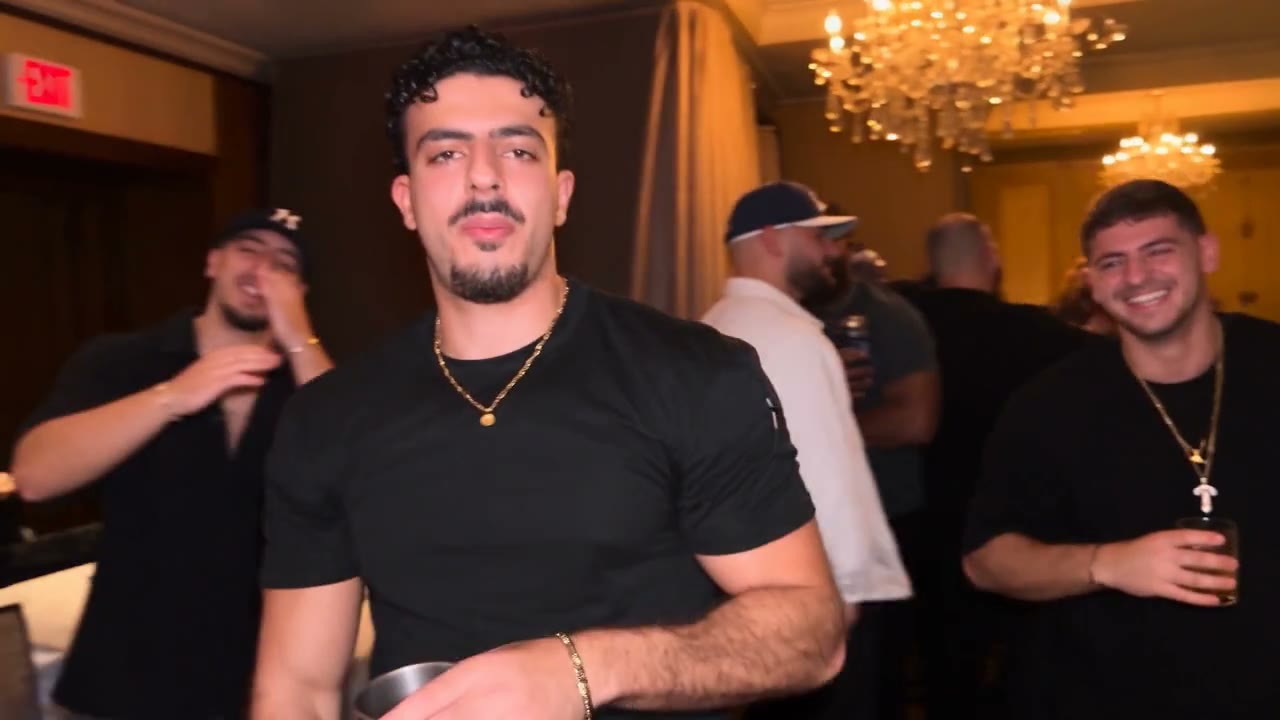
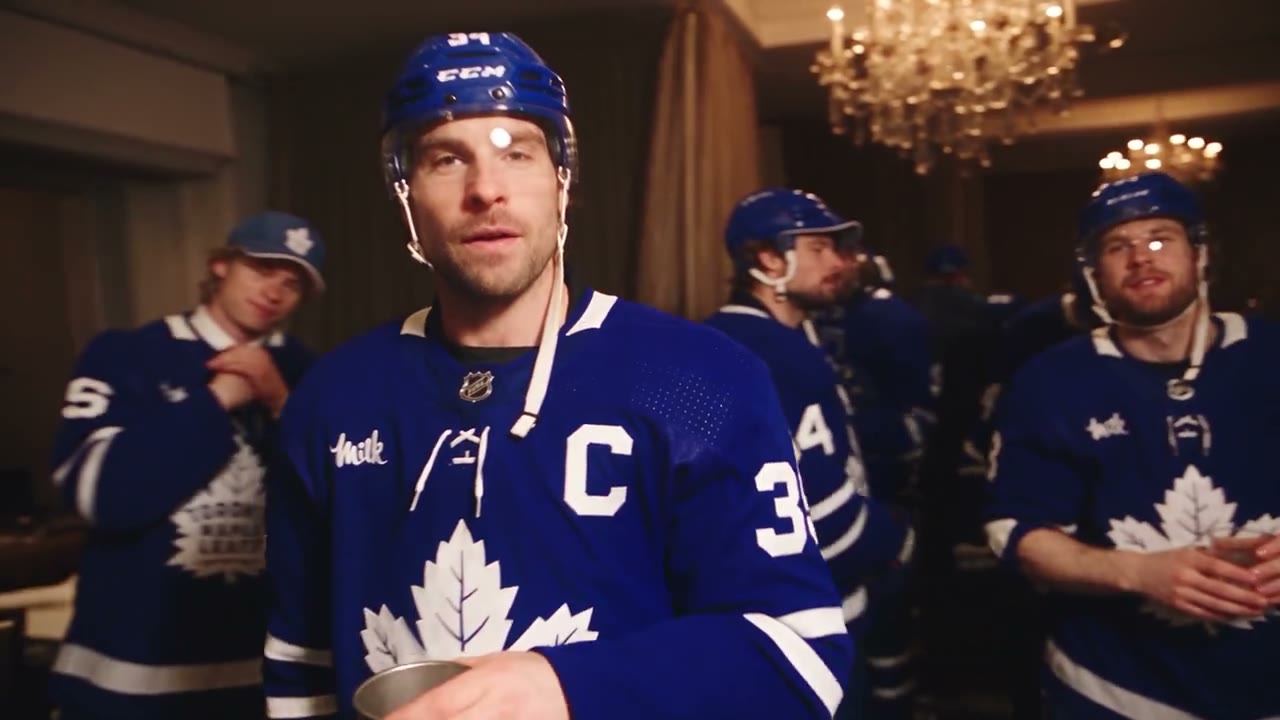
A different lead and party cast · community adaptation

Choose your Burning Bridges AI supporting cast

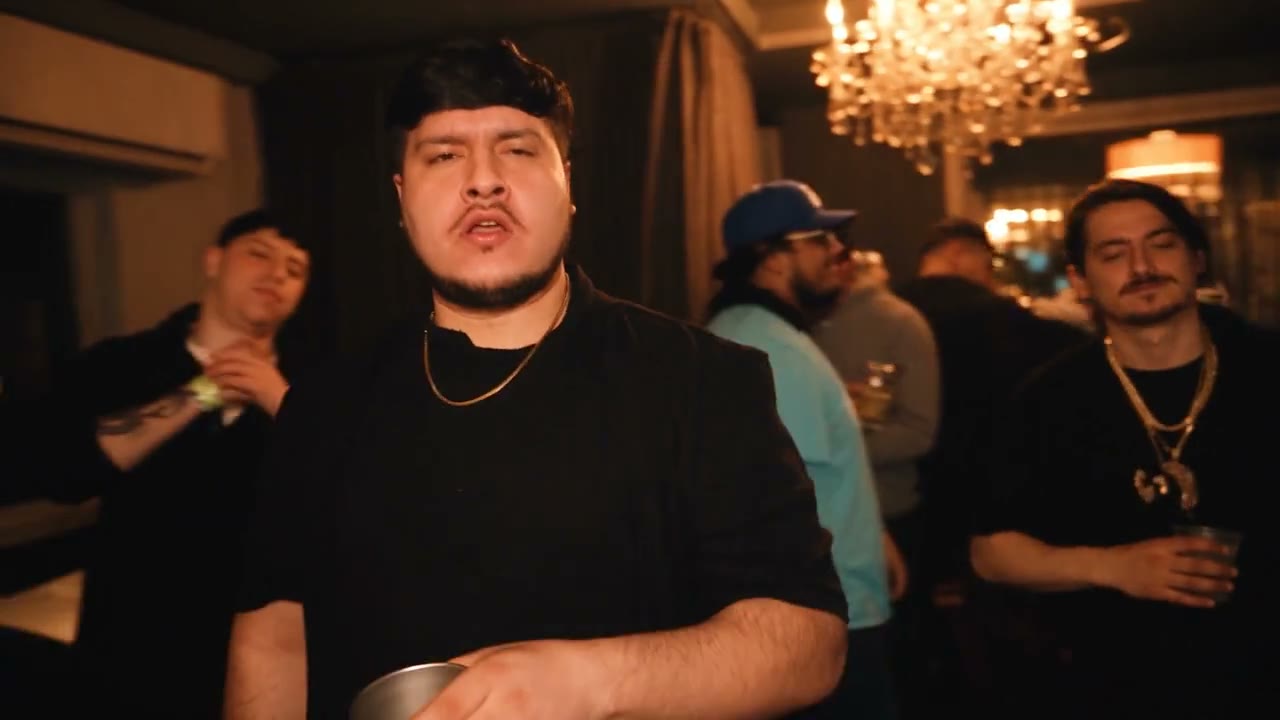
Keep the original crowd or add up to 5 optional background photos in one upload group. Each photo should show one different person. The blue-jersey community video shows how a coordinated cast changes the feel of Burning Bridges AI. Your background photos start at the second image and are assigned by first appearance, then left to right when several people share a frame. The upload limit is capacity, not a requirement to fill every slot. Extra photos do not add guests; people without a photo should stay unchanged. Crowded frames, turned faces, and overlapping bodies can still confuse the match, so use only the photos you need.

Blue jerseys across the cast · community adaptation

Keep the Burning Bridges AI performance

Burning Bridges AI follows this source for the camera path, the timing, the gestures, the lip movement, and the way people interact. The room stays a crowded indoor space with warm dim light and pendant lights, and the metal cup stays in the action. Your photos choose who is present. They do not restage the party, change the length, or add a new camera move. The clip is about 29 seconds in a 16:9 frame. There is no length picker. If a hand crosses the face or the cup covers part of the body, review that moment. The instruction asks the edit to hold identity and contact, but that request is not a promise of a clean result.

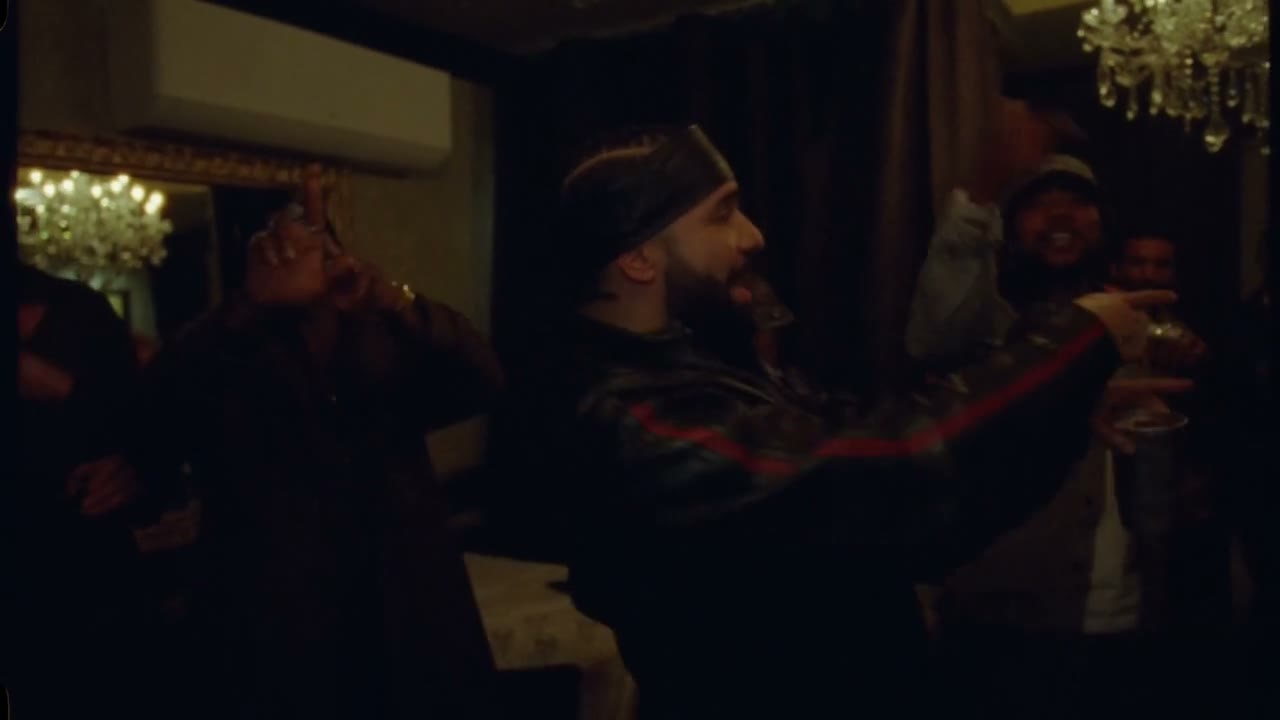
Source frame of the lead pointing while other people remain in the warm room
Performance from the source clip · about 29 seconds

Burning Bridges AI with the original sound

The finished Burning Bridges AI video is meant to keep the soundtrack that belongs to this reference clip. Use the reference-video player in the upload panel to hear the source; the other page previews stay muted. This page does not transcribe the audio and does not name a song or claim a license for it. If a completed result is missing sound, use the audio retry on that result instead of paying for another generation. Publish the soundtrack only where you have permission. Template access does not confirm that permission.

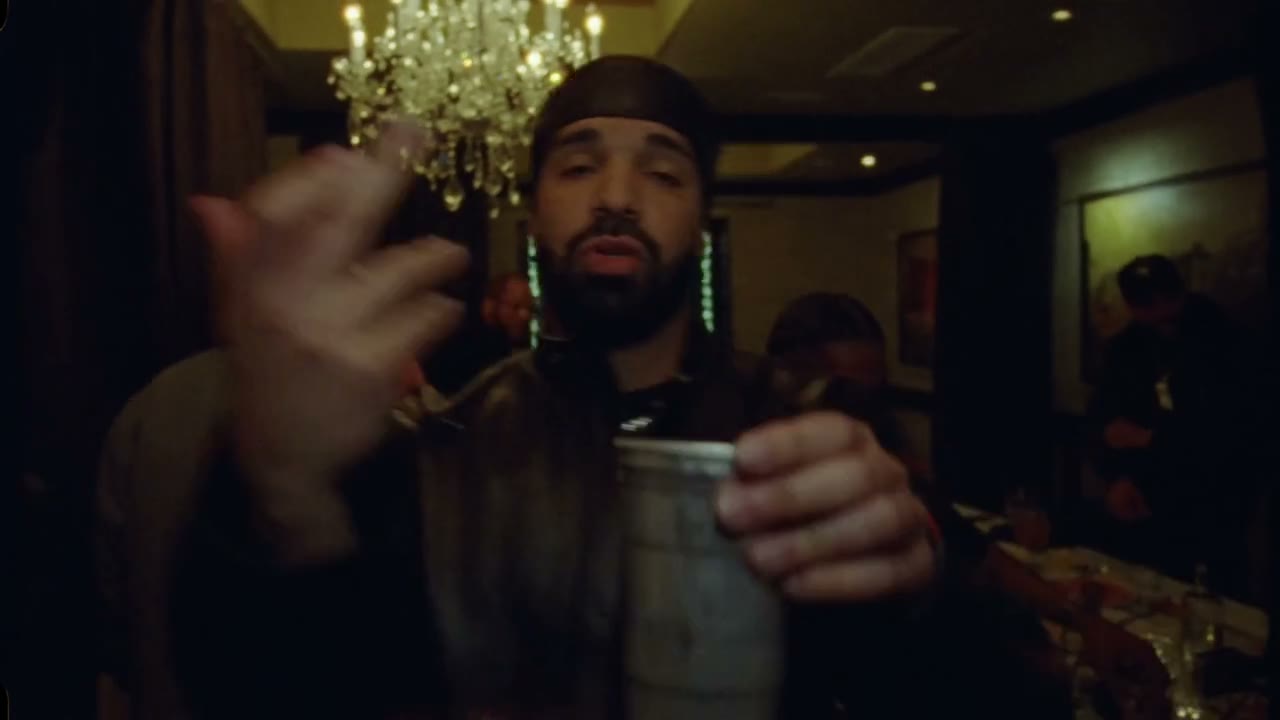
Close source frame of the lead with a metal cup, used only to show the reference scene
Same source · soundtrack stays with this reference

Plan your Burning Bridges AI cast

Burning Bridges AI is useful when you want one protagonist, and optionally a few distinct people behind them, inside this existing party performance. It is a weak fit when you need a new location, a new dance, or a guaranteed likeness.

A solo change is the default

Use only the lead photo when the background people can stay as filmed. That is the smallest Burning Bridges AI cast. You do not have to fill the second upload group, and an empty group is a valid submission once the lead is present.

Supporting photos stay distinct

Add a separate photo for each background person you care about. Do not reuse the lead photo for someone behind them. Similar faces, profile views, and heavy overlap make it easier for identities to blend. If you cannot tell the people apart in the source, fewer photos are safer than a full set.

Clothes come from the photo you upload

There is no outfit grid and no glasses requirement. The visible clothing in each Burning Bridges AI photo is the clothing reference. A photo that hides the outfit leaves that part open. Small jewelry, logos, and lettering can still change, so inspect them in the result.

What stays fixed in Burning Bridges AI

You choose the lead and any supporting people. The performance, the frame, and the soundtrack stay with the source.

Lead first, then optional people

The first image is always the lead. Later images are background people in the order you added them. Burning Bridges AI does not turn the second photo into a second lead.

About 29 seconds, 16:9

A Burning Bridges AI video follows this landscape source. Output length and frame follow the reference. There is no length picker and no 4K option. Trim a download in your own editor if you need a shorter cut.

Resolution changes the estimate

Burning Bridges AI starts at 480p. Settings can move to 720p or 1080p. A higher resolution changes the estimate and the file detail. It does not lock identity, hands, or the crowd.

The reference soundtrack stays attached

The finished video is set up to keep this reference’s soundtrack. Page previews start muted. A missing soundtrack on a finished result has its own audio retry. Do not start a second paid generation only to hear the clip.

Credits are confirmed before Generate

Preparing photos spends no generation credits. Generating is not free. Signup credits may not cover the job. Use the estimate beside Generate, not a general plan table, as the price for this clip.

Burning Bridges AI pricing

Check the Burning Bridges AI estimate beside Generate. Plan counts below cover other models and settings. This clip can cost more. The live estimate is the price for this job.

Starter

For your first ideas.

$8.3/month

$100.0 charged yearly

2,400 credits/year

Up to 400 images

GPT Image 2Nano Banana Pro

Up to 240 videos

Seedance 2.5Kling 3.0 Motion Control
  • Up to 4K images and HD videos, depending on the model
  • Image editing, video creation & motion transfer
  • Watermark-free image & video downloads
  • Generation history in your account
Popular40% OFFSave $238.8

Pro

For a steady creative flow.

$30.0/month$49.9/month

$360.0 charged yearly

21,600 credits/year

Up to 3,600 images

GPT Image 2Nano Banana Pro

Up to 2,160 videos

Seedance 2.5Kling 3.0 Motion Control
  • Up to 4K images and HD videos, depending on the model
  • Image editing, video creation & motion transfer
  • Watermark-free image & video downloads
  • Generation history in your account
  • Use credits across image and video models
Best Value50% OFFSave $599.8

Business

For more creations, more often.

$49.9/month$99.9/month

$599.0 charged yearly

48,000 credits/year

Up to 8,000 images

GPT Image 2Nano Banana Pro

Up to 4,800 videos

Seedance 2.5Kling 3.0 Motion Control
  • Up to 4K images and HD videos, depending on the model
  • Image editing, video creation & motion transfer
  • Watermark-free image & video downloads
  • Generation history in your account
  • Use credits across image and video models

Basic

$0

Try before you subscribe

  • 18 one-time signup credits
  • Generation history included
  • Watermarked previews & downloads
  • Up to 3 images or 1 video
  • Watermark-free downloads require payment

Prices in USD; taxes and total shown at checkout. Subscriptions renew automatically; cancel in Billing settings. Subscription credits expire each period; one-time credits never expire.

Refunds: request within 72 hours. Used purchased credits and applicable non-refundable processing costs (up to 6%) are deducted. Terms · Refund Policy

Burning Bridges AI questions

Photo order, an empty background, clothes, length, sound, credits, drift, and rights.

How many photos does Burning Bridges AI need?

One lead photo is required. You can add 0–5 background photos in the optional group, for up to 6 photos in total. Each background photo should show one different person. Add the lead first; the counter shows how many background slots you have used. Fewer photos are fine, and extra photos do not create more people. You need an account and enough credits before Generate can start.

Can I use Burning Bridges AI with just one photo?

The lead changes and the other people stay as they are in the source. An empty background is a normal Burning Bridges AI submission. It does not invent new guests and it does not copy the lead into the crowd.

Can I replace my Burning Bridges AI lead photo later?

Replace keeps that photo in the same position. If background photos are attached, the lead cannot be deleted until those photos are removed. That stop exists so a background photo is not promoted into the lead slot. Removing a background photo leaves the remaining photos in their current order.

Does Burning Bridges AI choose the outfit?

No. The photo you upload is the outfit reference, including clothes and accessories that are visible. The page does not ask for glasses, a brand, or a luxury look. Hidden clothing and tiny logos can still be interpreted loosely. Check the result rather than assuming the wardrobe is locked.

How long is a Burning Bridges AI video, and does it have sound?

The edit follows the source: about 29 seconds, landscape 16:9, with no length picker. The finished video is meant to keep the reference soundtrack. Players on this page start muted. If a completed result has no sound, use the audio retry in My creations instead of generating again.

Is Burning Bridges AI free?

Watching the source and preparing photos does not spend credits. Generating is not free. It requires an account and enough credits for the estimate beside Generate. Signup credits may not cover this clip. The plan table on this page is not a fixed price for the job.

Can Burning Bridges AI keep every face exact?

No. The edit does not promise a locked identity, perfect lip movement, stable hands, or a particular generation speed. A crowded room, a hand in front of the face, and the metal cup are all places where the picture can drift. Watch the whole clip before you download. This site has not published a measured pass rate for this template.

Which photos can I use for Burning Bridges AI?

Use yourself, a consenting adult, or a character you may transform. Do not impersonate someone. Community adaptations offer cast ideas; they do not grant permission to use the people shown. Use only photos, footage, and soundtracks you have permission to transform and share.

How is this different from Hotel Lobby, Raindance, or STORM II?

Hotel Lobby and Raindance each recast two performers in a different scene. STORM II uses one lead photo and one crowd look for a synchronized bow. Burning Bridges AI uses one lead plus optional photos of distinct people in this indoor party performance. For a scene you describe yourself, use the AI video generator.

Where can I download my Burning Bridges AI video?

Find your Burning Bridges AI result in My creations or video history. Check the lead, the people behind them, the cup, and the room, then listen before you use the download control on that result.

Try the Burning Bridges AI video generator

Start your Burning Bridges AI video with one lead photo. Choose your supporting cast, generate your version, and download it with the original sound.

Source clip of a lead performer holding a metal cup in a crowded room with warm pendant lights