
Car Jump AI Trend: Make the Seated Stunt with Two Photos
The car jump AI trend on this page seats one person in a folding chair while a vehicle jumps behind them. Make it from two photos in the Car Jump AI tool, or use the checks below.
Open the car jump tool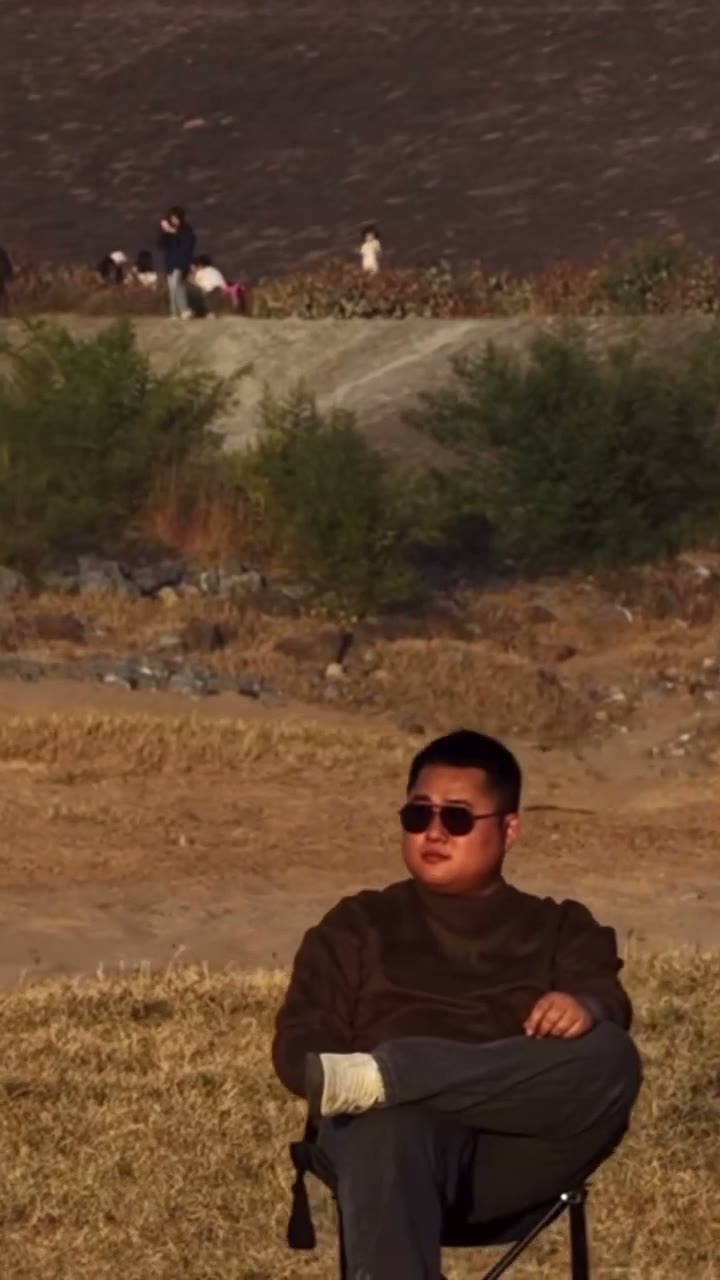
What is the car jump AI trend?
A calm person in a folding chair, a vehicle launching behind them, and an almost absurd lack of reaction: that contrast is the car jump meme. It gives an ordinary portrait the feel of an action-film stunt without asking you to film one.
In this version, the person stays in the chair as the vehicle jumps and passes behind them. Your two photos cast the person and the vehicle; the prepared reference supplies the action. Treat the stunt as fiction and do not attempt it in real life.
Choose the person and vehicle as a pair
You and your own car
Use a recognizable photo of yourself and a clear view of your car. The familiar vehicle makes the impossible scene feel like a personal joke, even if the model changes small details such as badges.
The unbothered friend
Cast the friend who stays calm in every situation, with their permission. Their relaxed appearance plays against the movement behind the chair; a straightforward outfit keeps attention on the contrast.
An action-character cameo
Pair an original character with a vehicle that suits their look. Start with a car, SUV, or pickup whose shape reads clearly in the reference, and keep both images in a compatible visual style.
Photo 1 is the person, Photo 2 is the vehicle
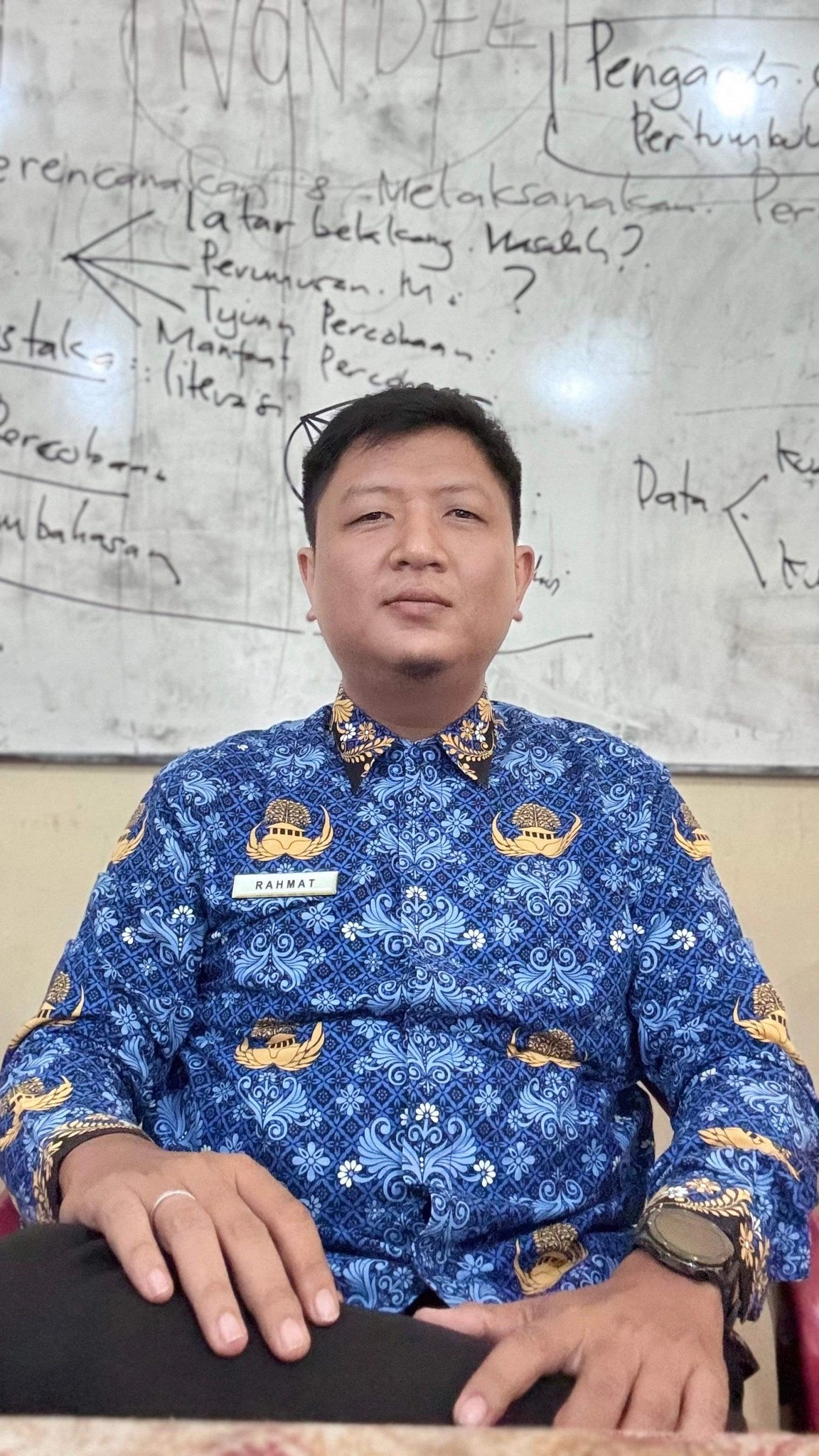
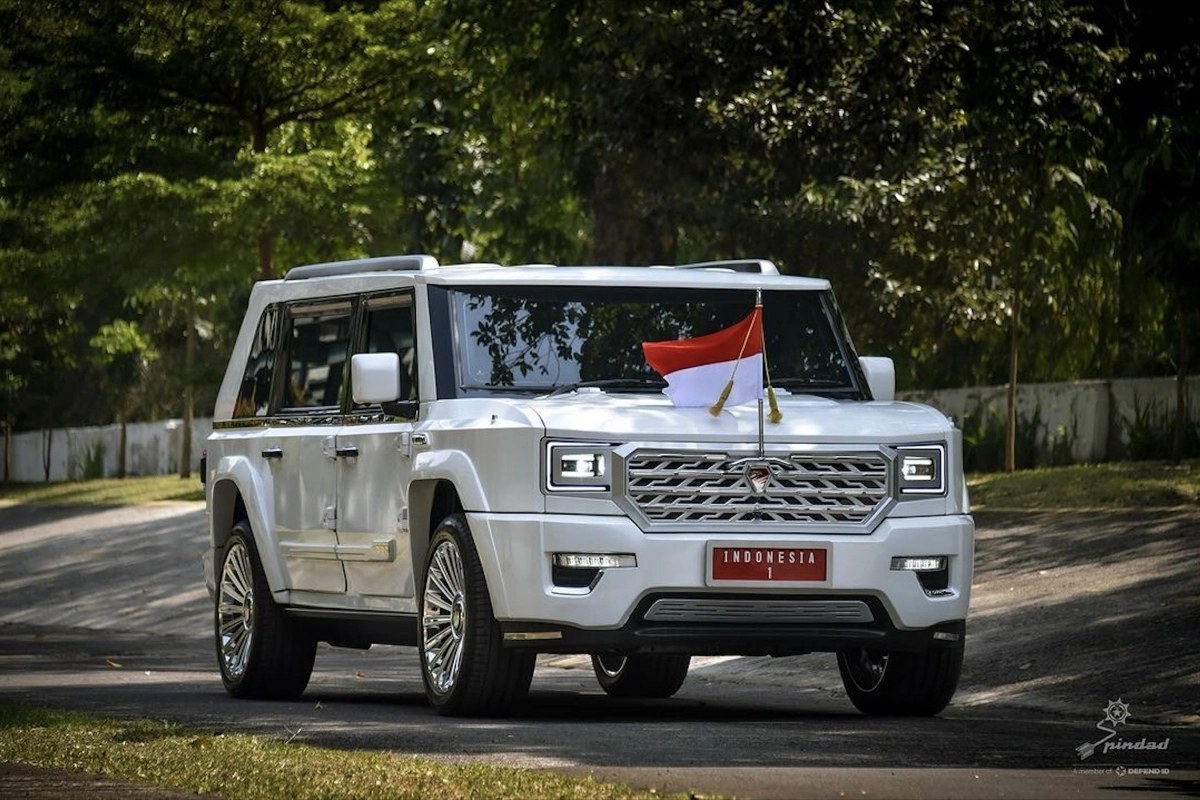
Photo 1 replaces the person in the chair, including the hand they raise when the vehicle launches. Photo 2 replaces the pickup that jumps behind the chair. You do not upload the field or the camera move.
What Photo 1 is for
It supplies the seated person: face, hair, clothing, and visible build. The chair and the field come from the reference, not from this photo.
What Photo 2 is for
It supplies the vehicle that jumps. The reference vehicle is a pickup seen from the front. Your photo can be a different vehicle, as in the SUV example. Badges, plates, and small trim can change.
Choose the two photos
One person, with the body visible
Use one person you have permission to transform. Do not impersonate someone. Show the face, torso, and arms. A face-only crop leaves the outfit unspecified. Keep the face and hair easy to see.
A vehicle the jump can follow
Use a vehicle photo you have permission to transform. A front or front three-quarter view is easier to follow than a side-only photo. Keep the body, wheels, lamps, and grille in the frame.
Use a JPG, PNG, or WebP. After each file uploads, check the preview and any warning on that slot before you generate.
How to make your car jump video
Open Car Jump AI. The model is Seedance 2.5 Edit. You choose the two photos and the resolution. The reference supplies the performance.
1Preview the stunt
Play the prepared reference to see the seated pose, jump, and camera movement. The motion clip and prompt are already loaded, so you can focus on choosing the person and vehicle.
2Add the person, then the vehicle
Use the slot labeled Person · Photo 1, then Vehicle · Photo 2. Both photos are required. If a file is in the wrong slot, remove photos from the last slot first so the order stays person, then vehicle. Use Replace for a different file. Generate stays off until both photos are in and the reference video is ready. Uploading alone does not start the job.
3Set the resolution
The loaded reference is about 12 seconds. Duration and framing follow that reference. There is no length picker. In Settings, choose 480p, 720p, or 1080p. The preset starts at 480p. A higher resolution changes the credit estimate beside Generate and the detail in the file. It does not change who sits or how the vehicle moves.
4Generate, then watch the job
Sign in if prompted, read the estimate beside Generate, and click it. Follow the result in My creations. If a job is already processing, check that entry before you submit again. Another click can start another generation.
Check the launch, the vehicle, and the pass
Play the result from the start before you download it. Results can vary. An exact face, the requested sunglasses, a badge, a plate, or real vehicle physics is not guaranteed.
The face slips when the hand goes up
Check firstPause when the vehicle launches and the seated person raises a hand. Look at the face, hair, clothing, and the hand. Black sunglasses are requested. The face can still drift when the hand crosses it.
NextTry one clearer photo of a single person, with the face and torso unobstructed. Leave Photo 2 in place.
The vehicle changes through the jump
Check firstWatch the body, wheels, lamps, and grille from the launch, through the landing, and while the vehicle passes behind the chair. A changed badge or plate is expected. A vehicle that changes shape, or leaves the path of the reference, is not.
NextReplace Photo 2 with a front or front three-quarter photo that includes the wheels. Leave Photo 1 in place so you change one input.
The person leaves the chair
Check firstThe person should stay seated. The vehicle should pass behind them. The outdoor setting and the camera should still match the reference.
NextIf the vehicle covers the person or the chair disappears, try a clearer vehicle photo and keep the same reference so you can compare the change.
Want to customize more?
The ready-made template comes with the motion reference and prompt prepared. Upload the role photos shown above to make this version with fewer steps. The original reference soundtrack is included.
For a different background, supporting cast, or performance, open the Motion Transfer workspace on the homepage. Upload your own motion video and reference images, choose a compatible model, and adjust the prompt to describe what should change and what should stay. Available inputs depend on the selected model.
What to expect from AI video generation
AI video results can vary, even with the same photos and prompt. Faces, hands, vehicle details, and the motion of the jump may change or look unnatural in some frames. Consistency remains a limitation of current AI video models, so a good result may take more than one attempt.
Start with clear reference images and review the full video. If something looks wrong, change one image or instruction at a time. Another attempt can produce a different result, but it does not guarantee an improvement.
Before you make the jump
Does every car jump tutorial match this clip?
Public pages use the car jump name for more than one clip. This guide follows only the loaded reference: one person in a folding chair and one vehicle that jumps behind them. A vehicle-only stunt, or a prompt that builds a new scene from a portrait, is not this template.
Which photo goes in which slot?
Photo 1 is the seated person. Photo 2 is the vehicle. Both are required. The reference video is already loaded. If a file is in the wrong slot, remove photos from the last slot first so the order stays person, then vehicle.
Why is Generate unavailable?
Generate stays off until both photos are in their slots and the reference video is ready. Uploading a photo does not start the job. If you turn Custom prompt on, the box cannot be empty.
Make the seated car jump with your two photos
Use the loaded reference when both photos are ready.
Open the car jump tool