What is the AI Image Generator on Motion Transfer?
The AI image generator makes a new still from a prompt, or from a prompt plus reference images. Choose among GPT Image, Nano Banana, Seedream, and Z-Image models; GPT Image 2.5 Sunburst is the default. The result is an image you can review, download, and, if you want, send on to Image to Video. Use it for still pictures; the video tools are available separately.
Which model does the AI image generator use?
The AI image generator offers GPT Image 2, GPT Image 2.5 Flare and Sunburst, GPT Image 1.5, Nano Banana, Nano Banana 2 and Pro, Seedream 4.5 and 5.0, and Z-Image. Open the model picker to choose one. Z-Image starts from text; the other models also support image references. Settings and estimates follow your selection.
Can I use reference images with the AI image generator?
Use Text to image when the subject can be described. On a model that supports references, choose Image reference and add JPEG, PNG, or WebP stills to guide a product, character, or place. Limits vary by model and appear beside the upload control. Z-Image accepts text only. Describe what may change, such as the background, lighting, or material.
How much does the AI image generator cost?
The AI image generator calculates credits from the selected model, output settings, and number of images, up to four. The estimate beside Generate shows the total for your current request and changes when you switch models or settings. Editing a prompt does not spend credits. Review the estimate and sign in before starting a generation.
Are the example images made by this generator?
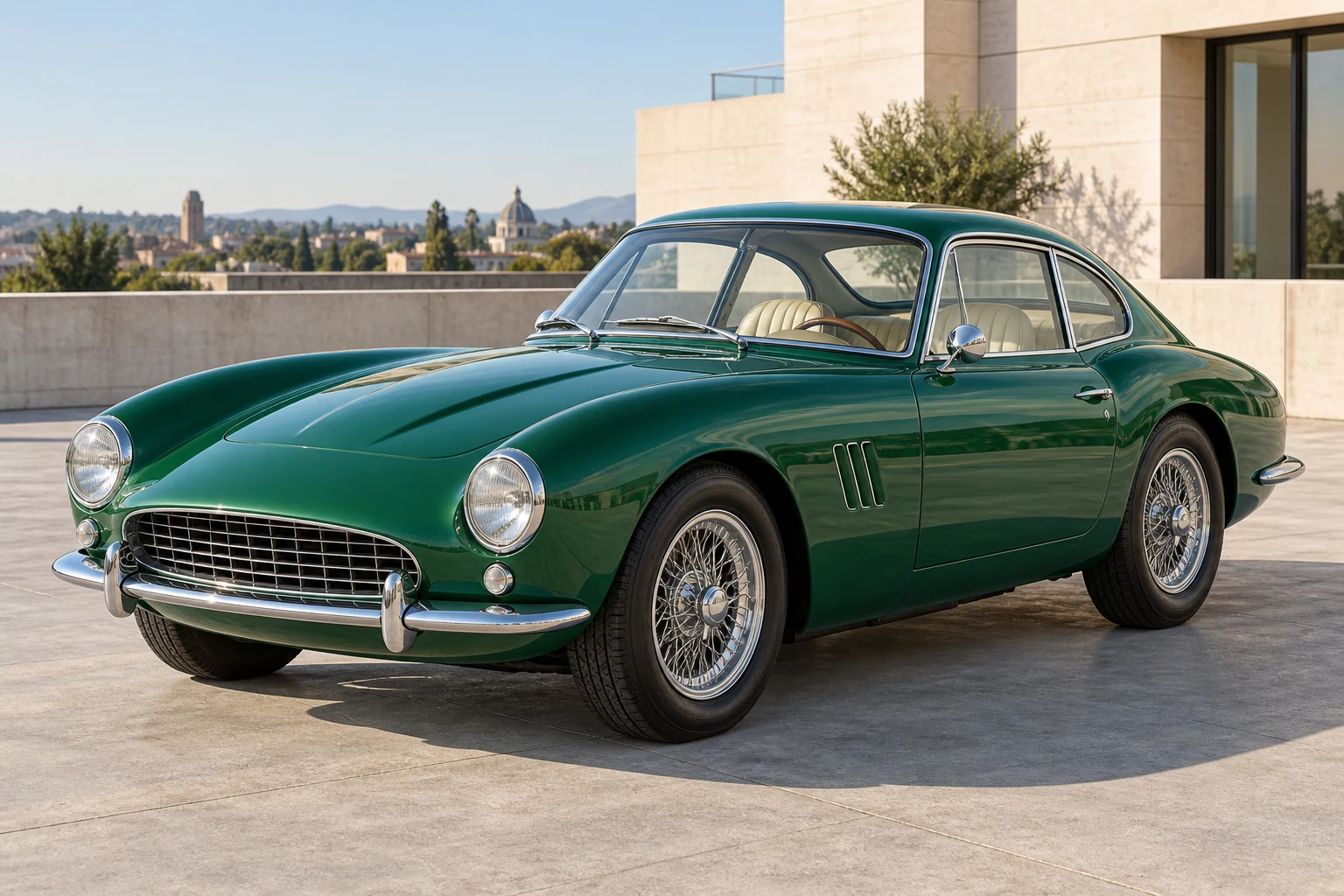
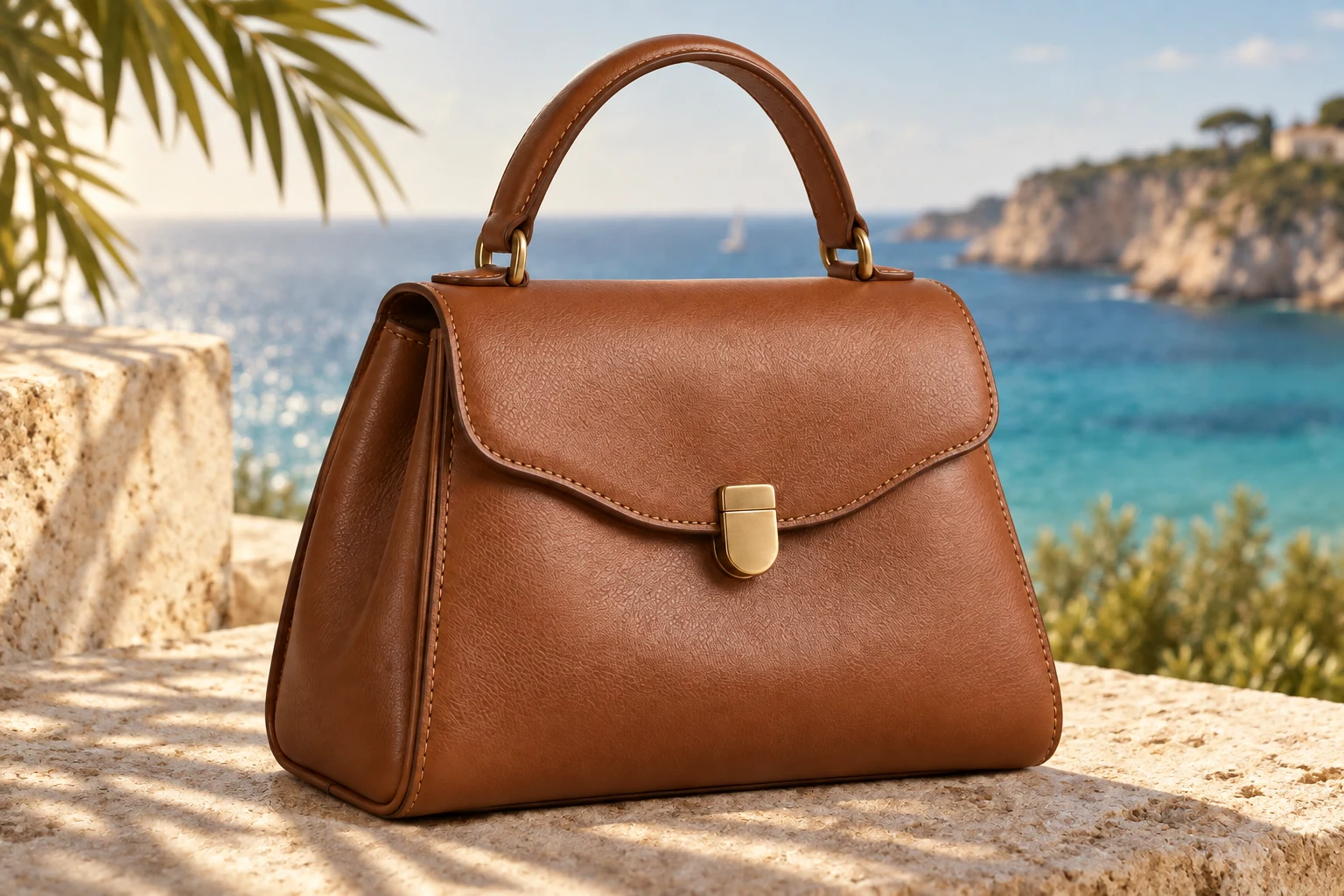
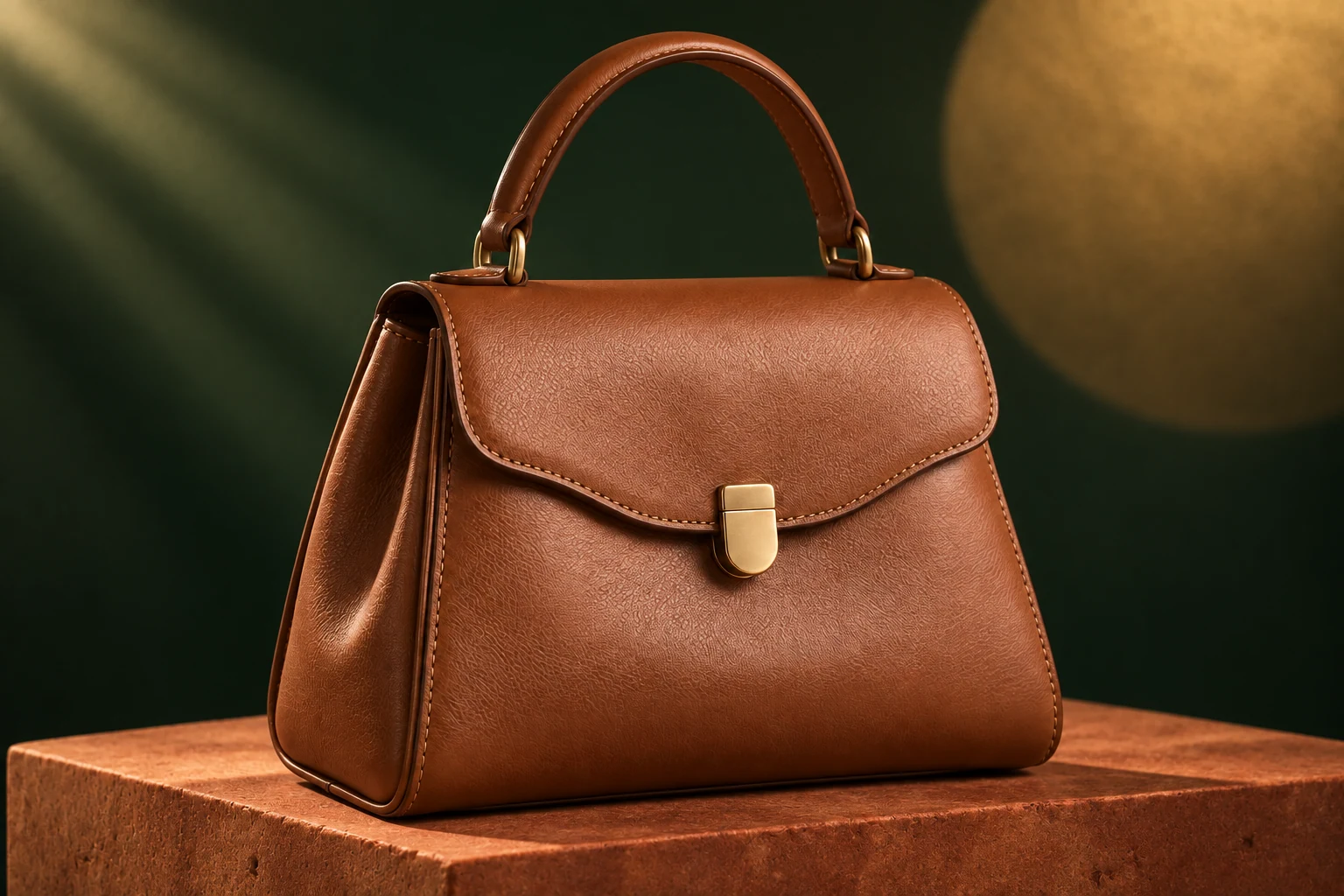
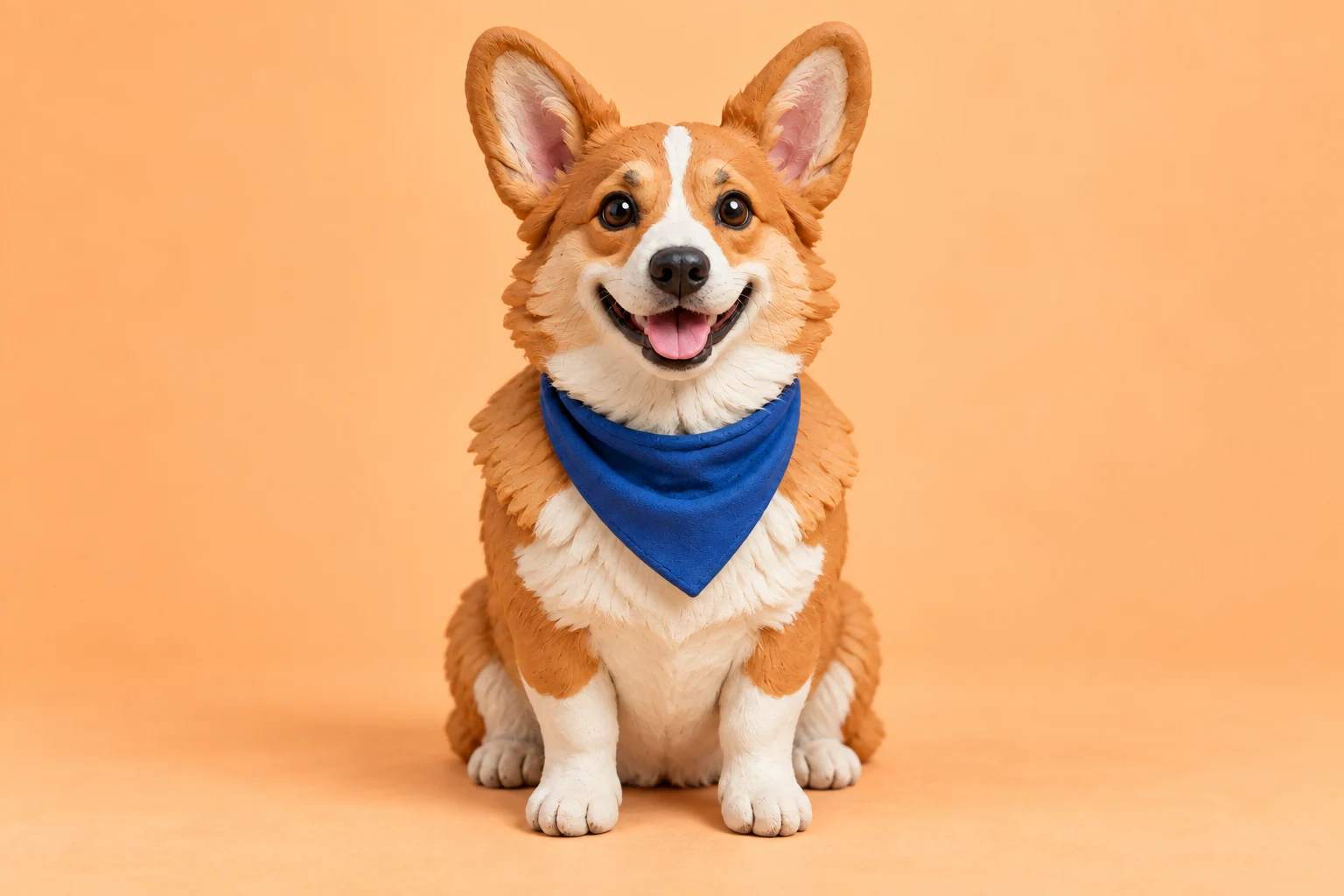
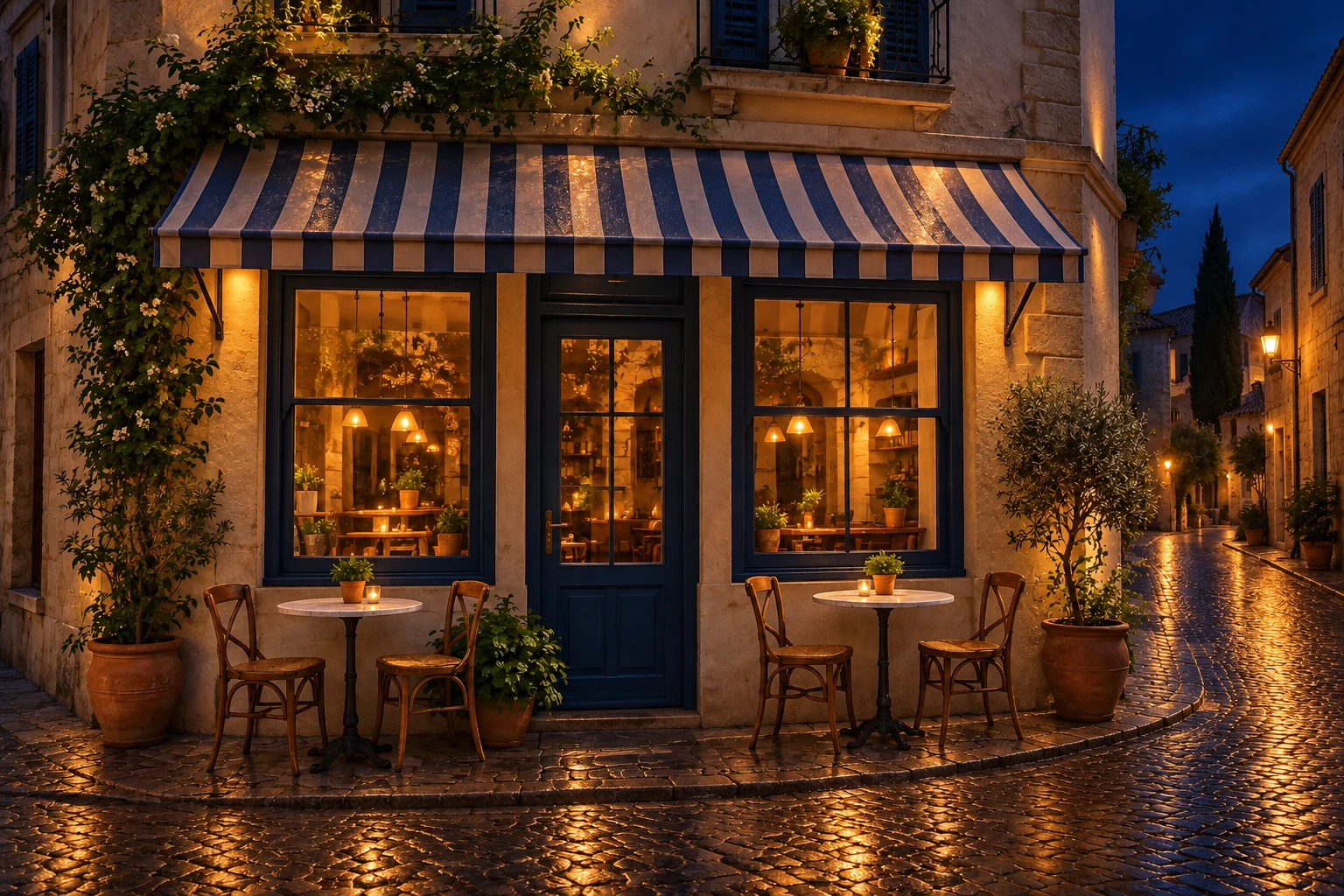
The pictures on this page are AI-created illustrative examples of product, character, and place imagery. They were not produced by this generator on Motion Transfer. They show creative directions to explore with an AI image generator; your own results depend on the prompt, references, and settings.
Which output settings does the AI image generator offer?
Open Settings in the AI image generator to choose a supported aspect ratio, resolution, and image count. You can request up to four images at once. The current credit estimate reflects the whole request, so check it again after changing the output settings.
Where are my AI image generator results saved?
The result appears on this page. Signed-in images can be opened again from image history, available through View all in My creations. From a finished image you can continue to Image to Video. That handoff prepares a draft and waits for you to submit. It does not generate a clip on its own.
Can I publish AI image generator results?
You can download a finished result. Publishing it, including any commercial use, depends on the terms of service, your rights in the prompt and the references, and a look at the actual image. This page does not add a separate license. The acceptable use rules still forbid pornography and real face swaps.
How is this different from Image to Video and the homepage?
This page stops at a still. Image to Video starts from one picture and asks for motion. The AI Video Generator can also start from text or a wider reference set. The homepage studio is the place for a character photo plus an action clip. Use the page that matches the input you already have.