What do I need to start an Image to Video request?
Use a starting image and a prompt describing its motion. A photo, illustration, or generated still can provide the visual direction. The upload control checks the selected model’s media requirements. You can prepare the form before signing in, then sign in when prompted to submit.
Which models can I use for Image to Video?
The default is Seedance 2.0 Mini. The model picker also offers the other published Seedance models, MiniMax H3, Grok Imagine Video, Kling 3.0 and Turbo, and Veo 3.1 options. Available input modes and settings depend on your selection. Dedicated motion-control models remain in the homepage studio, where a character photo and an action clip have separate roles.
How much does Image to Video cost?
Each submitted generation uses credits. The estimate beside Generate reflects the selected model and settings; changing duration, resolution, or supported sound options can change that number. Review it after choosing your setup. Uploading an image, editing the prompt, and opening a saved-image draft do not start a generation.
Can I send a generated image to Image to Video?
Yes. Choose Image to Video from a finished image to open a starting-image draft. Review the attached picture, write a motion prompt, and check the model and settings. The handoff prepares the request and waits for your submission.
Will Image to Video preserve every detail in my picture?
The source guides the result, but generated motion can alter faces, lettering, product edges, or background details. New camera angles can also reveal areas absent from the still. Begin with a clear image and a focused action, then review the complete clip. For precise branding or identity details, inspect the result before including it in a campaign or publishing it.
Can I choose the video length, shape, and sound?
Open Settings to see the options supported by your chosen model. Seedance 2.0 Mini offers 480p and 720p, with durations from 4 to 15 seconds. Other models offer different combinations. A sound option appears where supported, and its setting is included in the estimate.
Are these clips generated from one image on this page?
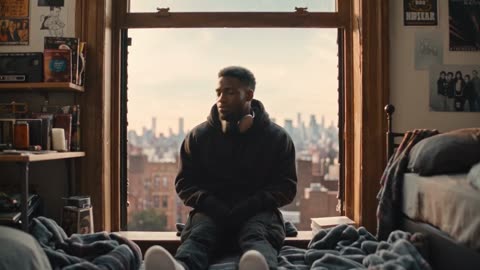
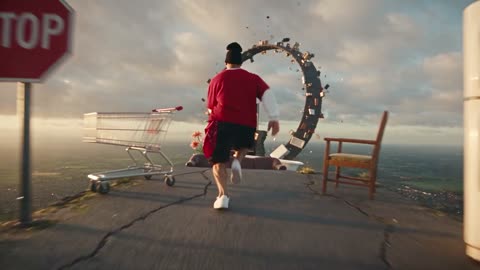
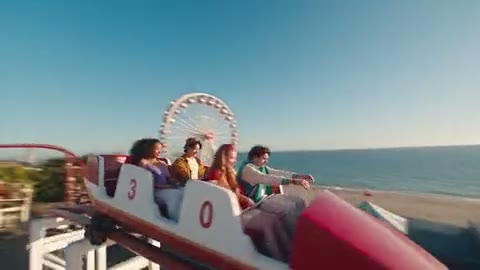
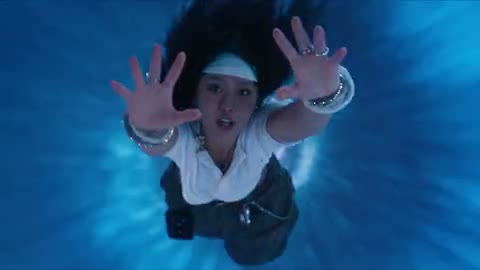
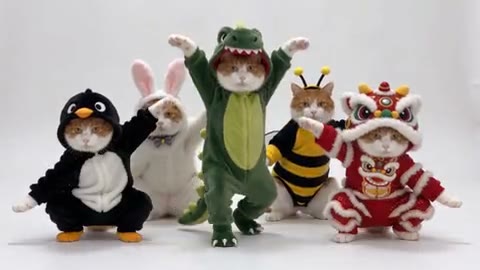
The displayed clips are licensed illustrative examples, including examples made with additional motion references. They demonstrate creative directions rather than a single-image benchmark or a promise of identical output. Your Image to Video result depends on your own starting image, prompt, model, and settings.
How is Image to Video different from motion transfer?
Image to Video starts from a picture and motion you describe. Motion transfer uses a recorded action clip to guide a character photo; use the homepage studio when the performance already exists. For a scene you want to invent entirely from text, open the AI Video Generator.
Where can I find and use the finished video?
Your clip appears in My creations, with playback and download controls. View all opens video history so you can revisit available results. Before publishing, review visual details and confirm you have the necessary rights to your inputs and intended use under the applicable terms. Showcase examples do not grant you a license to reuse their footage.