
AI Video Trends
Find your next video idea. Preview a trend, then make it your own with your photos.
Find a scene. Give it your own character.
Explore AI video trends through the performance, the cast, and the mood. These examples show different ways to bring your photos into a prepared scene.
Put your character in the spotlight
A familiar gesture becomes a different story when your character takes the lead. Photo-based AI video trends use your reference image to guide the replacement appearance while the selected clip supplies the performance, camera movement, and setting. Start with a solo scene when you want one subject to carry the moment: a prop reveal, a close-up reaction, or a confident pose. Choose a clear photo with the features and outfit you want represented, then check the tool’s role description. A crowded scene can still have just one replaceable lead; the people around them do not automatically become extra photo slots.
Try this character-led scene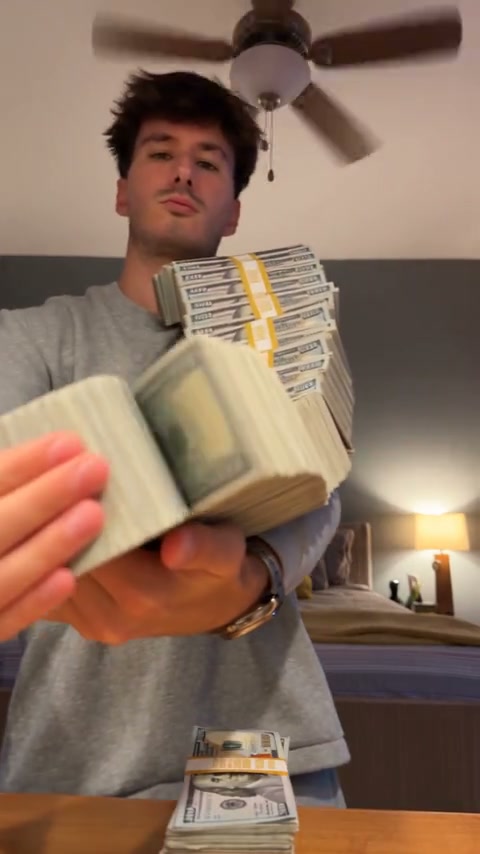
Bring pets and partners into the performance
Playful reactions and coordinated movements give pet videos and character duets their personality. Choose a close-up routine to focus on one expressive face, or a paired performance when the interaction is part of the fun. Multi-character AI video templates assign photos to specific roles, so keep each reference distinct and follow the upload labels. A foreground character and a background dancer can move or overlap during the clip; their initial positions are only the starting point. Some tools provide a fixed cast, while others allow optional supporting photos. Open the selected tool to see which arrangement it supports before preparing your images.
Explore this two-character routine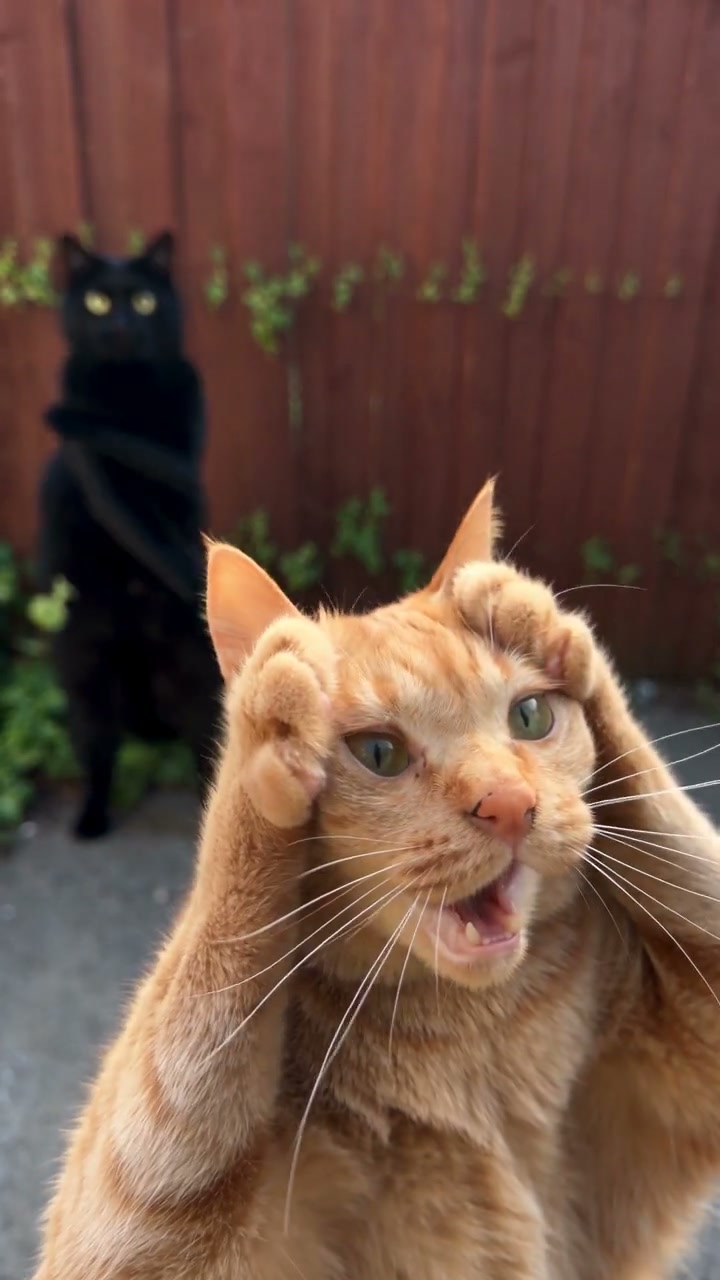
Choose the movement and mood that fit your idea
A sports sequence, a dance, and a cinematic reveal can give the same character very different energy. Compare the whole scene when browsing AI video trends: the opening pose, the camera path, the main action, and the ending all shape the result. A wide shot gives space to movement and scenery, while a close-up draws attention to expressions and gestures. Keep the complete frame visible when previewing so you can judge what matters. The selected tool supplies its prepared reference; your photos personalize the roles it supports. Choose the atmosphere first, then use the matching guide if you need more detailed photo advice.
Try this cinematic scene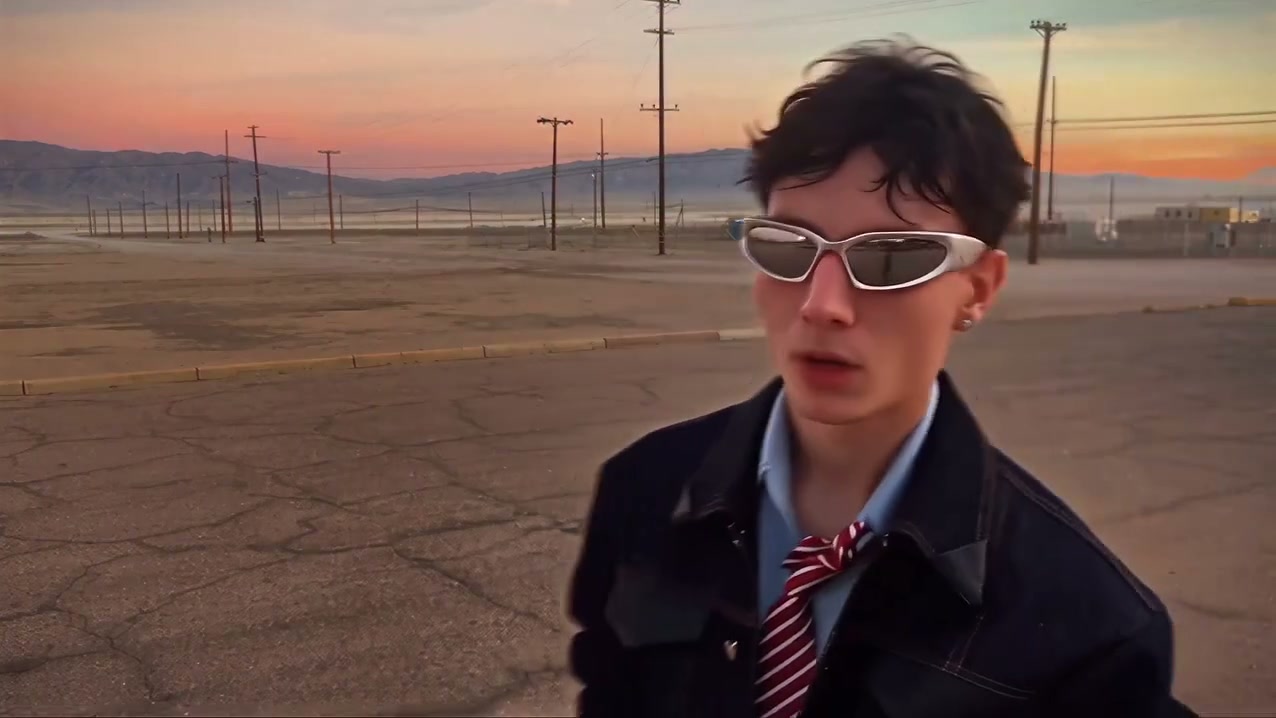
How to make an AI trend video
Start with the effect you want to recreate, then prepare the photos for that specific template.
Step 1
Find and preview a trend
Search by the name you know, including aliases such as Single Ladies Dog or Daijoubu. Use a category to narrow the collection. Hover over a card on desktop, or use its play button to open a full-frame preview. Watch the whole action and check how many characters change, what props matter, and whether the framing fits your idea.
Step 2
Open the tool and add your photos
Select Use this trend to reach the matching tool. Fixed-trend pages already provide their reference clip and prepared prompt. Upload photos into the labeled roles, then choose the available settings. Check the displayed credit estimate before submitting. Browsing this directory or watching a preview does not submit a generation task.
Step 3
Preview your result and download
Generate from the tool, then open the completed video in My creations. Watch it once at normal speed and again around overlaps, turns, and prop interactions. Check the intended identity, the full movement, and the soundtrack. Download the completed result after reviewing it; a gallery example shows the type of effect to explore, not a guarantee of an identical result from your photos.
AI video trends: questions before you create
A few practical details to help you move from a preview to the right tool.
What are AI video trend templates?
They are starting points for recreating a particular performance or visual idea with your own photo references. A fixed trend supplies a reference sequence and prepared instructions, while you provide the character images for its labeled roles. This directory brings those tools together so you can compare the movement before uploading. The specific tool page explains what changes and which parts of the original scene should remain.
Can I make an AI trend video with just one photo?
Yes, several fixed trends use a single photo, including Money Spread, Ozil Goal, and Bulin 47. Other templates require two or more images because they assign separate character roles. Check the upload panel on the selected tool rather than assuming every card uses the same number. If you only have one suitable image, start with a single-character workflow instead of repeating it across unrelated roles.
Which AI video trends work with pet photos?
The Pets category includes pet-centered options such as Daijoubu Dog Dance, Single Ladies Dog, and Smalltown Boy. Pick the routine first, then prepare the number of photos it requests. A clear face or muzzle, visible fur details, and an uncluttered image make the reference easier to interpret. Movement still needs to adapt to the character’s anatomy, so check paws, limbs, and overlapping bodies in the completed video.
Do these trend videos keep the reference soundtrack?
The fixed-trend workflows in this collection are configured to generate the visual result without model-generated audio and then restore the reference soundtrack. That does not mean a muted gallery preview has lost its sound. Directory previews start muted; open the preview player to listen where audio is available, and check your completed video in My creations. General video tools and community template workflows can have different audio settings.
Do I need to write a prompt or upload the source video?
Fixed-trend tool pages load a prepared reference and prompt for the selected effect, so you can start by adding your own character photos. The photo slots and available controls belong to that workflow. If you want to use a different source performance, return to the main motion-transfer workspace and choose or upload a reference there. Opening a different trend changes the target scene; a search result itself does not apply inputs.
Does previewing a trend use generation credits?
Browsing the directory, searching, filtering, and playing its examples do not create generation jobs. A new video is submitted from the tool page, where you can see the current credit estimate for the selected settings. Costs can differ between clips and output settings, so use that estimate rather than a price inferred from a preview’s length. Review the available plans if you need more credits.
Why can a trend have more than one name?
People may recognize the same routine by a song phrase, a character, or the name used in a community post. Search includes known aliases, and related names appear beneath the relevant card. For example, Daijoubu Dog Dance is linked with Otsukare Summer Dog. Keeping those names together helps you find the corresponding tool without treating each name as a completely different video effect.
Will my result look exactly like the preview?
The preview shows a version of the selected performance. Your photos and the generation result determine how the replacement characters appear, and details can vary. Look especially at faces during turns, hands around props, feet during fast movement, and subjects passing in front of one another. Use a clear reference photo and review the complete result before downloading or sharing. Only upload images and use outputs you have permission to use.
Find the movement. Make it your own.
Explore the AI video trends above, preview the full scene, and choose the tool that fits your photos.