Create a video

Main character · Photo 1

Phone Stuck to Train AI Video Generator

Upload one photo and put your character into the Phone Stuck to Train AI performance. Keep the platform run, moving camera, and original sound—without filming beside a train.

What is Phone Stuck to Train AI?

Phone Stuck to Train AI turns your character photo into a short subway performance. The clip begins beside a silver train, then switches to a camera facing the platform. As that viewpoint moves away, the performer gestures, mouths along, and runs to stay in view before falling behind. Your photo supplies the new character; the loaded video supplies the sequence. You can make this train-window-style edit at home, with no filming, phone mounting, or trip to a station.

Phone Stuck to Train AI performance from the train window viewpoint

Make a Phone Stuck to Train AI video in three steps

The performance is ready. Add your photo, generate, and preview the finished clip.

  1. STEP 1

    Upload one person

    Add a clear photo in Photo 1. Include the face, hair, and desired outfit. Use Replace to choose a different picture before generating.

  2. STEP 2

    Generate your video

    Sign in and select Generate when your photo is ready. The button shows the credit cost. Uploading a picture by itself does not start a paid generation.

  3. STEP 3

    Preview and download

    Open My creations, play your Phone Stuck to Train AI result with sound, and download the clip you want to keep. Watch the running sequence as well as the opening.

Your character in the Phone Stuck to Train AI scene

One appearance reference, the same platform performance, and a moving vertical frame.

Bring your complete look to the platform

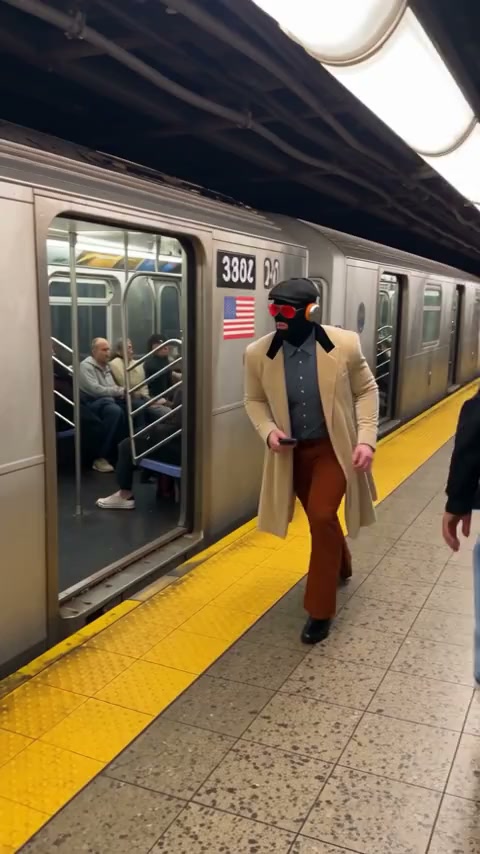
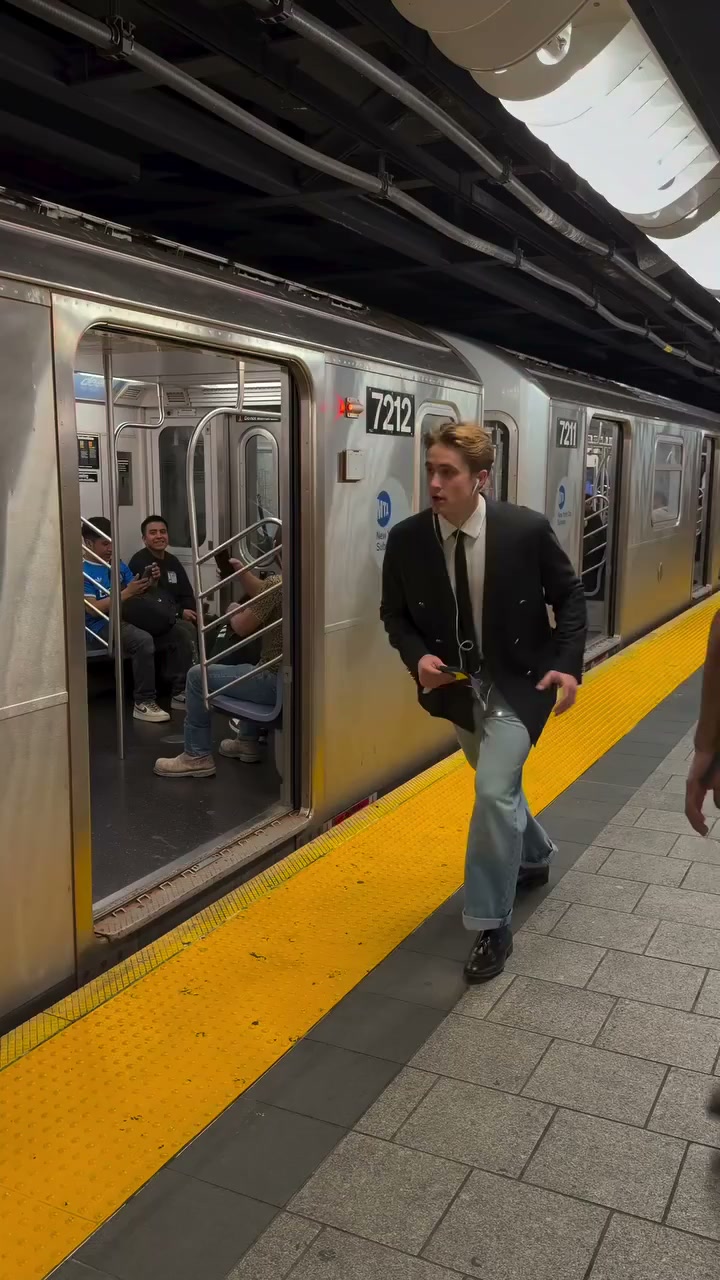
Phone Stuck to Train AI uses one picture for the whole performer: face, hairstyle, body proportions, clothing, and accessories. Choose a clear single-person photo with the outfit and as much of the body visible as possible. The original blazer and tie do not define your result. A casual outfit, a dressed-up portrait, or a character costume can each give the same scene a different feel. Your photo can have an everyday background; the subway setting comes from the video.
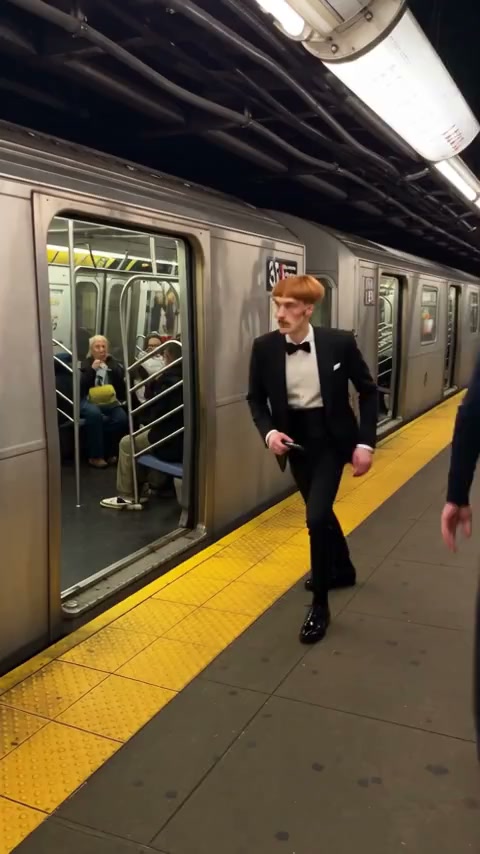
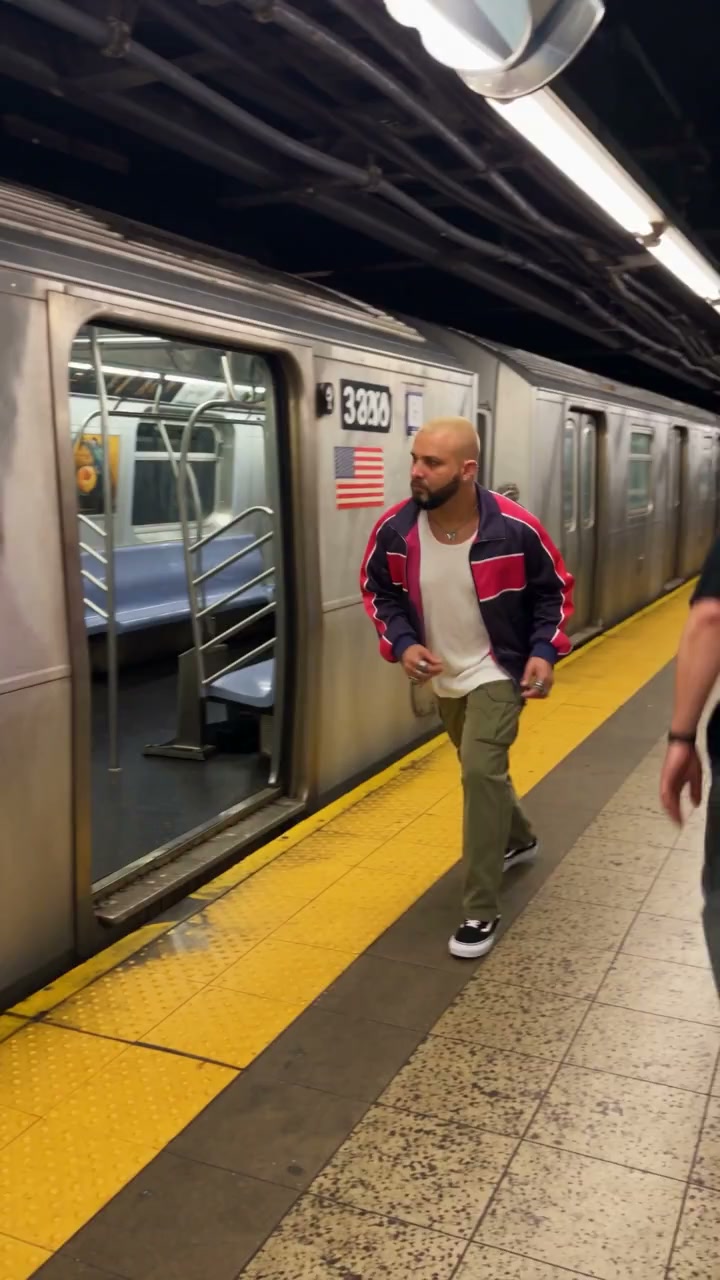
Bring your complete look to the platform

Keep the phone-on-train perspective

The appeal of Phone Stuck to Train AI is the moving viewpoint. The opening shows the performer beside the window; the next shot looks back toward the platform as the train moves. The prepared edit follows those shots, framing, and changes in distance. Station pillars, passengers, and the train remain part of the scene. You do not need to describe a camera rig or recreate the setup. This template follows the supplied clip rather than inventing a new railway location.

Keep the phone-on-train perspective

Follow the run from close-up to exit

Phone Stuck to Train AI carries the character through the gestures, turns, lip movements, and run along the platform. The subject becomes smaller as the camera pulls ahead and eventually leaves the frame. That change of scale gives the clip its finish. A strong opening portrait alone does not show the whole result: play through the faster movement and final exit to see whether the face, clothes, and body remain consistent. Fine details can change during motion blur.

Follow the run from close-up to exit

Choose your take on Phone Stuck to Train AI

Use this template when you want the existing subway sequence with a different lead. The photo changes the character’s look while the reference sets the performance.

A personal trend clip

Put yourself into the platform performance using a photo you already have. You do not need to copy the running pose in your picture. Share it as an AI edit, without recreating the risky train-window setup in real life.

A costume or character edit

Give an original character or an authorized costume portrait the same gestures and moving-camera moment. A single, coherent appearance is easier to specify than a collage. Keep essential clothing visible in the reference image.

A different look in the same scene

Try a clearly photographed outfit against the subway backdrop. Phone Stuck to Train AI uses the clothes shown in your image, with no separate wardrobe upload. Each new generation is a separate request; downloading an existing result does not generate another clip.

What your Phone Stuck to Train AI clip includes

The template supplies the scene and performance so you can focus on your character.

One character photo

One upload defines the lead’s full appearance. Background passengers do not need reference photos and are intended to stay unchanged. Use the main workspace if you want a different cast or source video.

A vertical moving shot

Phone Stuck to Train AI follows the roughly 14-second portrait reference. The camera changes and departure timing come from that clip; this page does not offer a new shot list, aspect ratio, or custom duration.

Original sound included

The finished clip uses the reference soundtrack. No music upload is required. Body examples play muted; listen using the reference player or open your completed video in My creations. Check the sound before sharing.

Results ready to revisit

Find completed Phone Stuck to Train AI videos in My creations or video history. Play the saved result again to check movement, then use its download control. Keep your own downloaded copy of clips you want to retain.

Phone Stuck to Train AI credits and plans

Generation uses credits. The loaded reference and selected resolution determine the cost shown on Generate. Plan examples may use other models or video lengths.

Starter

For your first ideas.

$8.3/month

$100.0 charged yearly

2,400 credits/year

Up to 400 images

GPT Image 2Nano Banana Pro

Up to 240 videos

Seedance 2.5Kling 3.0 Motion Control
  • Up to 4K images and HD videos, depending on the model
  • Image editing, video creation & motion transfer
  • Watermark-free image & video downloads
  • Generation history in your account
Popular40% OFFSave $238.8

Pro

For a steady creative flow.

$30.0/month$49.9/month

$360.0 charged yearly

21,600 credits/year

Up to 3,600 images

GPT Image 2Nano Banana Pro

Up to 2,160 videos

Seedance 2.5Kling 3.0 Motion Control
  • Up to 4K images and HD videos, depending on the model
  • Image editing, video creation & motion transfer
  • Watermark-free image & video downloads
  • Generation history in your account
  • Use credits across image and video models
Best Value50% OFFSave $599.8

Business

For more creations, more often.

$49.9/month$99.9/month

$599.0 charged yearly

48,000 credits/year

Up to 8,000 images

GPT Image 2Nano Banana Pro

Up to 4,800 videos

Seedance 2.5Kling 3.0 Motion Control
  • Up to 4K images and HD videos, depending on the model
  • Image editing, video creation & motion transfer
  • Watermark-free image & video downloads
  • Generation history in your account
  • Use credits across image and video models

Basic

$0

Try before you subscribe

  • 18 one-time signup credits
  • Generation history included
  • Watermarked previews & downloads
  • Up to 3 images or 1 video
  • Watermark-free downloads require payment

Prices in USD; taxes and total shown at checkout. Subscriptions renew automatically; cancel in Billing settings. Subscription credits expire each period; one-time credits never expire.

Refunds: request within 72 hours. Used purchased credits and applicable non-refundable processing costs (up to 6%) are deducted. Terms · Refund Policy

Phone Stuck to Train AI questions

Photos, the train-window effect, sound, and your finished video.

How many photos does Phone Stuck to Train AI need?

One photo of one person. Put it in Photo 1; there is no second role to fill. A group photo can make the intended lead unclear. Choose a single-person image rather than adding a separate face, outfit, or train picture.

What kind of photo works for this train trend?

Use a sharp, well-lit photo with the face and hairstyle unobstructed and the outfit visible. A full-body or three-quarter portrait provides useful detail for the run. Avoid heavy blur, an extremely close crop, or another person covering the subject. You do not need a station background or a phone in hand.

Does Phone Stuck to Train AI change the whole person?

Yes, the prepared instruction uses your image for the complete character, including body proportions and clothing. It asks to keep that appearance across the opening and moving-camera shot. The rest of the scene remains the reference. Exact facial details, accessories, and fabric patterns can still vary in an AI-generated result.

Do I need to film beside a real train?

No. The reference performance is already loaded, so your only input is a photo. Do not attach a phone to a train or run near a moving train to make this effect. Phone Stuck to Train AI recreates the visual idea through video editing.

Will the camera stay attached to the train viewpoint?

The edit follows the reference’s camera movement and shot changes, including the view facing the platform as the train moves. It is designed to keep that relationship rather than turn the scene into a handheld selfie. Preview the transition between shots and the increasing distance from the performer to judge the finished effect.

Are the passengers and station replaced too?

No. Phone Stuck to Train AI targets only the main performer. The train, station, phone, and other people are meant to remain unchanged. AI edits can alter small background details, so look at the window, passengers, and nearby objects when reviewing your result.

Does Phone Stuck to Train AI include the original song?

The finished video uses the original audio from the loaded reference. You do not need to enable model-generated sound or upload a track. Body examples play muted. Use the reference player to listen before generating, then check your completed clip in My creations. Confirm the soundtrack is permitted for your intended publication.

How long is the finished video?

The reference is about 14 seconds and vertical. Phone Stuck to Train AI follows its duration and framing, including the closing moment when the subject drops out of view. For a different length, setting, or performance, use another template or upload your own video in the main workspace.

Do I need a Phone Stuck to Train AI prompt?

No. A short instruction is already prepared to assign Photo 1 to the main character and preserve the source performance. Seedance 2.5 Edit is configured for this template. There is no need to write a camera description or select a different model before adding your picture.

Is Phone Stuck to Train AI free?

You can view the page and reference without generating. Creating a video requires signing in and sufficient credits for the cost shown on Generate. The selected resolution affects that cost. A new attempt is a new generation; previewing a saved video does not launch another request.

What should I check before downloading?

Watch the whole Phone Stuck to Train AI result with sound. Check whether the face and outfit remain recognizable after the shot change, during the fastest running, and as the subject leaves the frame. Hands, feet, and motion-blurred edges may vary. If the appearance drifts, a clearer photo with more of the outfit visible may help a new attempt.

Can I share my Phone Stuck to Train AI video?

Use images you have permission to edit and check rights to the footage and soundtrack for your intended use. Follow the destination platform’s AI-media rules and identify edited clips appropriately. Do not present the result as evidence that someone visited a station or performed the real-world stunt.

Make your Phone Stuck to Train AI video

Choose one clear photo and bring your character to the platform performance, with the original moving viewpoint and soundtrack.

Phone Stuck to Train AI reference with a blazer-clad performer running along a subway platform