
STORM II AI Trend: Cast the Lead and the Crowd
The STORM II crowd-dance effect depends on contrast: one lead in front, with rows of performers moving together behind them. The STORM II AI tool lets you guide both appearances with two photos while using a prepared motion reference. Here is how to keep their roles clear and judge the result.
Open the STORM II tool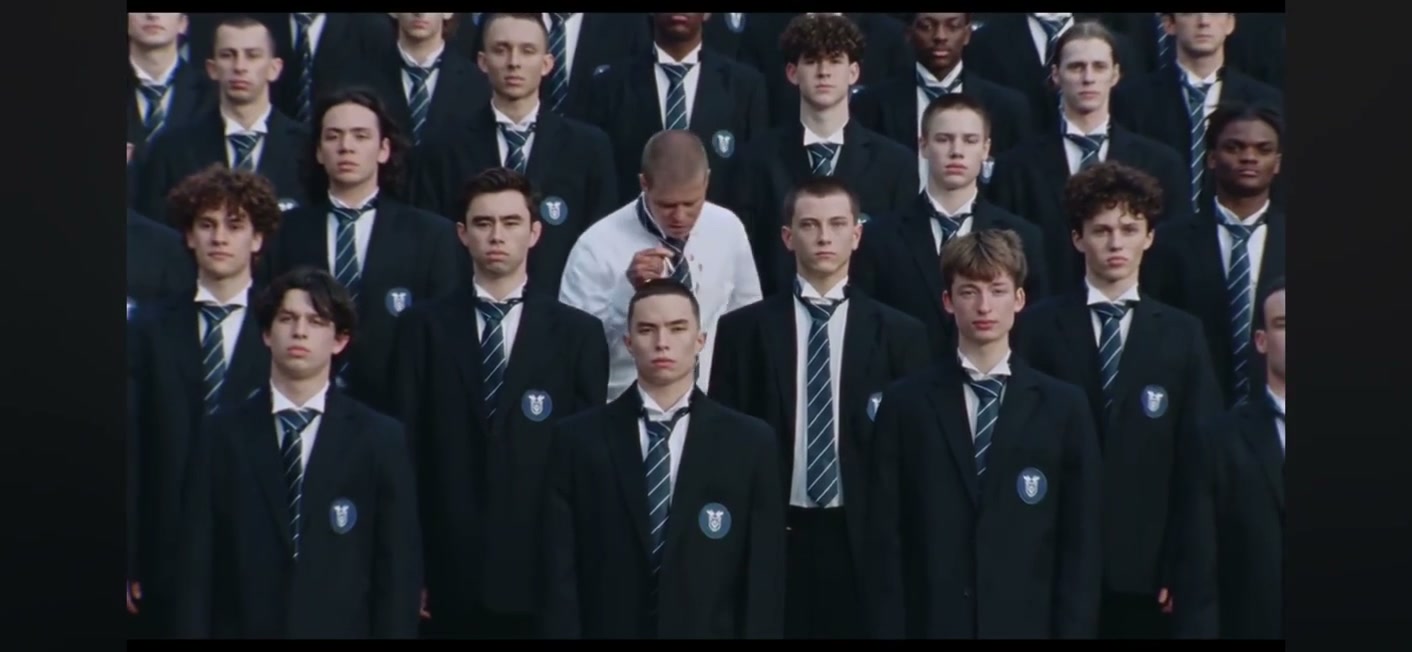
Where STORM II and the crowd dance come from
The crowd dance comes from STORM II by GENER8ION and Yung Lean, part of the STORM I & II music film directed by Romain Gavras, with choreography by Damien Jalet. Its school-portrait formation transforms into coordinated group movement.
That shift from a still-looking formation to a crowd moving together gives the scene its impact. The AI version keeps the performance as its motion reference and changes the cast. An unexpected lead or a new look across the rows can make the familiar formation feel like it belongs to a different story.
This guide uses the prepared crowd-and-bow excerpt shown above. You provide two appearance references, one for the lead and one for the surrounding cast, without filming or arranging a group dance yourself.
Give the formation a new cast
The unlikely front person
Put yourself or a willing friend in front of a sharply dressed crowd. Pick a lead outfit that stands apart from the supporting cast so the joke reads immediately.
A shared team look
Use the surrounding-cast photo to suggest a coordinated outfit, such as matching jackets or team colors. Treat it as guidance for the group’s appearance; it does not assign every friend to an exact place in the rows.
An original character and their world
Cast your own character as the lead and choose a supporting group with a matching visual style. Repeating clothing shapes or colors can tie the crowd together while keeping the main character distinct.
Two photos do two different jobs
Photo 1 controls the lead
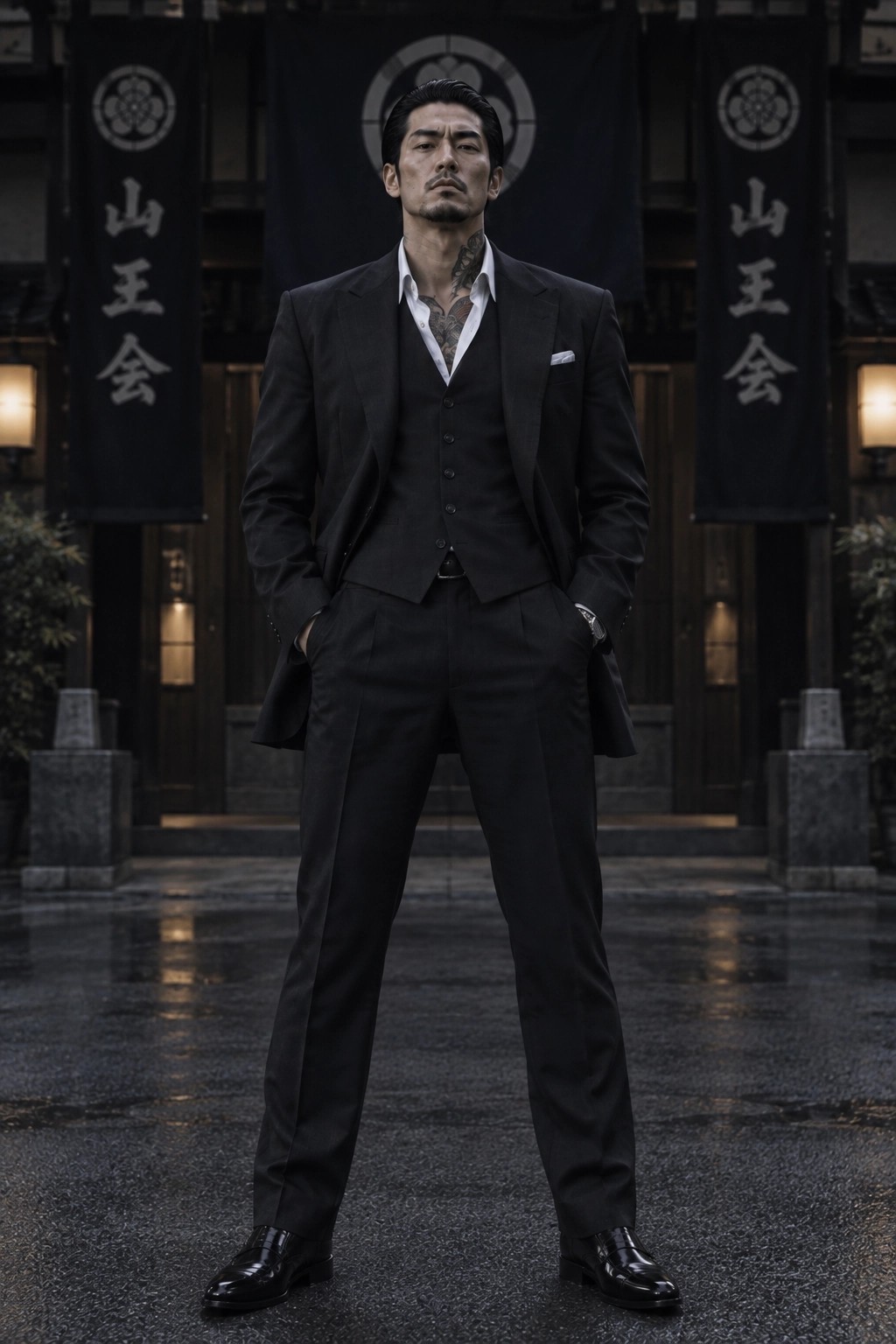
Use the person you want in the foreground. This image supplies their face, hairstyle, body, and clothing. It should remain separate from the appearance of the surrounding performers.
Photo 2 guides the surrounding cast
Use a clear image showing how the people around the lead should look. It can be a group shot. This is an appearance reference for the crowd, not a photograph of a building or an empty background.
The loaded video supplies the rows, the synchronized movements and bow, the camera, and the roughly 28-second timing. You are recasting an existing performance. Uploading a crowd photo does not turn its arrangement into a new choreography or guarantee that every person in it will occupy a particular row.
Both photos are required on this page. A tutorial for a one-photo lead swap may use a different effect. Here, prepare the supporting-cast reference as deliberately as the lead photo.
Choose references that make the lead easy to distinguish
For Photo 1, choose a sharp, well-lit picture with the face and outfit visible. A full-body image is useful when you want the trousers and shoes specified; a waist-up image still gives more clothing information than a face-only crop. Avoid another person overlapping the lead or covering the face.
For Photo 2, pick an image where the desired clothing, headwear, and overall look are easy to read. If you use a group picture, check that small or hidden faces are not the details your result depends on. The model can interpret the group’s appearance without preserving every individual face exactly.
A visible difference in outfit or silhouette helps you check whether the lead has stayed distinct. You do not need to copy the white shirt from the source: the first photo supplies your lead’s look. Use images and likenesses you have permission to transform.
Make the STORM II crowd video
1Preview the motion reference
Open the STORM II workspace and watch the loaded crowd clip. The motion reference and community example are separate videos; the reference defines what your edit follows. If you open a saved draft, check its restored media and settings before continuing.
2Upload the lead, then the crowd reference
Add Photo 1 for the lead and Photo 2 for the surrounding performers. Use JPG, PNG, or WebP files. Review the previews and use Replace to correct either role without changing the motion clip. Wait for the reference and both photos to be ready.
3Review settings and credits
This page uses Seedance 2.5 Edit and begins at 480p. Choose 480p, 720p, or 1080p in Settings and read the current estimate beside Generate. The video follows the reference length and framing; there is no separate duration picker. More pixels do not guarantee more accurate crowd faces or synchronization.
4Generate and inspect My creations
Sign in when prompted and select Generate once the setup is ready. Previewing, uploading, or changing settings does not submit a generation. Track the job in My creations, then play the complete result with sound before downloading it.
Check the lead, the rows, and the bow separately
A crowd can look convincing at thumbnail size while faces, hands, or spacing change during motion. Start with the foreground, then move your attention into the rows. Compare the same moment in the supplied reference when you are unsure which movement belongs to the lead.
The lead starts looking like the crowd
Check firstPause at the opening and during the group bow. Compare the lead’s face, hairstyle, and clothing against Photo 1.
NextCheck the two-file order. Try a clearer lead photo with a distinct outfit and keep the crowd reference unchanged.
The surrounding people lose their intended look
Check firstCheck the front rows and then the smaller figures at the back. Look for clothing changes, original faces that remain, or features from the lead appearing in the crowd.
NextReplace Photo 2 with a cleaner view of the intended supporting cast. Judge overall consistency without expecting a reliable one-to-one copy of every face in a group photo.
The formation breaks during the bow
Check firstPlay the whole movement instead of checking a single still. Watch the spacing, overlapping bodies, hands, and whether the lead follows the source lead’s motion.
NextKeep the reference and prepared motion instructions. If you changed the prompt, remove conflicting requests for a different dance, camera move, or formation before trying again.
Want to customize more?
The ready-made template comes with the motion reference and prompt prepared. Upload the role photos shown above to make this version with fewer steps. The original reference soundtrack is included.
For a different background, supporting cast, or performance, open the Motion Transfer workspace on the homepage. Upload your own motion video and reference images, choose a compatible model, and adjust the prompt to describe what should change and what should stay. Available inputs depend on the selected model.
What to expect from AI video generation
AI video results can vary, even with the same photos and prompt. Faces, hands, and spacing can change across the crowd, and synchronized movements may not stay consistent throughout. Consistency remains a limitation of current AI video models, so a good result may take more than one attempt.
Start with clear reference images and review the full video. If something looks wrong, change one image or instruction at a time. Another attempt can produce a different result, but it does not guarantee an improvement.
STORM II reference and result questions
Can I use only one photo?
This tool requires two photos: a lead reference followed by a reference for the surrounding performers. The existing example photo illustrates the lead role and does not fill a slot for you.
Is Photo 2 a background image?
No. Photo 2 guides the appearance of the surrounding people. The motion reference supplies the scene, crowd arrangement, and choreography.
Will every face in a group photo be preserved?
That is not guaranteed. The second image guides the supporting cast’s appearance. Individual faces, hands, outfits, and spacing can change, especially in small or overlapping figures.
Prepare your lead and supporting cast
Check both photos and the crowd reference, then review the current estimate before generating.
Open the STORM II tool