
Hotel Lobby AI Trend: Origin & How to Make It
The Hotel Lobby AI trend puts new people and pets into Quavo and Takeoff’s orange-studio performance. Make your own with two photos in our Hotel Lobby AI tool, or follow the steps below.
Make a Hotel Lobby videoWhere did the Hotel Lobby AI trend come from?
It starts with Quavo and Takeoff’s COLORS performance of “Hotel Lobby,” released in June 2022. The orange room, hanging microphone, and back-and-forth gestures became the template for AI remixes in September 2026. Quavo reshared the original on September 23.
The joke is the unexpected pairing: two cats, a person and their dog, or familiar film characters doing the same performance. A two-cat clip was among the early reported examples, but who started the trend is still unclear.
Hotel Lobby AI trend ideas: choose the pairing first
For the Hotel Lobby AI trend, start with a pairing viewers will recognize without an explanation. Decide what makes the duo funny before choosing the photos.
Community remixes, not generated on Motion Transfer.
Friends or family
Choose a pair with a shared story: siblings who argue, friends with opposite personalities, or a couple in matching outfits. The joke should come from who they are together. You do not need to invent a different studio or add extra characters.
Pets or fictional characters
A cat beside its owner makes the size difference part of the joke. Two pets can work through contrasting expressions or coats. For original fictional characters, pick a recognizable duo and one consistent drawing style so viewers can read both characters quickly.
Choose photos for your Hotel Lobby AI trend video
People or original characters
Choose one subject per photo, with a clear face and visible outfit. A waist-up or full-body view gives more useful detail than a tight headshot. The backgrounds can differ—the template supplies the studio. If you start with a group photo, crop each intended performer into a separate image, keeping enough of their body visible. Avoid a collage of several angles in one slot: it leaves multiple versions of the same subject to interpret. Use photos or artwork you have permission to transform.
Pets
Choose a sharp photo with the animal’s head and body visible. Avoid cropped ears, hidden legs, or several animals in one image. You need separate files for the two slots, even when the subjects were photographed together. For a pet version of the Hotel Lobby AI trend, compare the photo against the standing reference: a sleeping animal curled into a ball gives little information about its body. Choose a view where you can distinguish the chest, front legs, and head.
We have not tested pet inputs for this guide; the suggestions above are preparation tips.
How to make a Hotel Lobby AI trend video
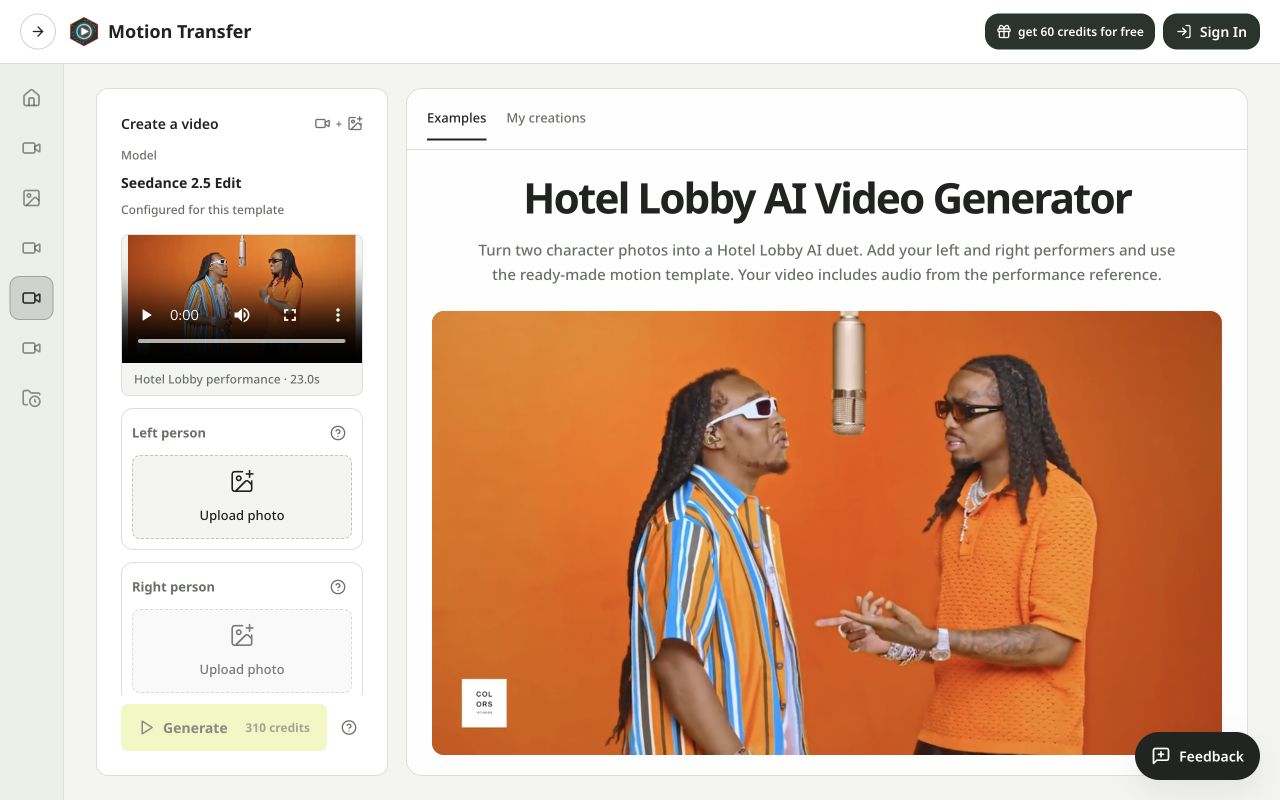
The Hotel Lobby AI trend template in Motion Transfer comes with the performance clip and Seedance 2.5 Edit selected. You only need two photos; there is no prompt to write.
1Add your two photos
Open Hotel Lobby AI. Watch the loaded reference to decide which role suits each subject. Upload the first photo to Left person, then the second to Right person. Check the previews: these slots decide who appears on each side. Use one JPG, PNG, or WebP per slot, up to 30 MB each. If the reference does not load, reload the page before adding your photos.
2Choose resolution and check the cost
Open Settings to choose 480p, 720p, or 1080p. Read the credit estimate beside Generate after making your choice; the number in the screenshot is not a fixed price. If you are still testing your photo choice, consider the lower-resolution option first. Higher resolution adds detail; it cannot fix an unclear face or a distorted pose.
3Generate
Sign in, check that you have enough credits, and click Generate. Uploading photos alone does not start a job. Follow its progress in My creations. If a job is already processing, check that entry before submitting again; a second submission can create another paid attempt.
4Watch, then download
Review your Hotel Lobby AI trend result in My creations from start to finish. A good opening frame can hide problems later: look for a face changing during a turn, an outfit switching, or limbs merging when the performers overlap. Then listen with sound enabled and download the result you want to keep.
Fix a Hotel Lobby AI trend video before trying again
The characters are on the wrong sides
Check firstCompare the Left person and Right person previews with your intended pair.
NextUse Replace on the affected slot. To clear both photos, remove the right one first.
A face or outfit changes
Check firstLook for blur, a hidden face, or multiple subjects in the input.
NextTry a clearer photo of that subject. AI can still alter details; an exact likeness is not guaranteed.
Extra limbs or merged bodies
Check firstCheck whether the input cuts off limbs or shows a tangled pose.
NextTry a photo with a simpler pose and more of the body visible. Review the full result, especially when the performers overlap.
No sound
Check firstUnmute the player, then check the downloaded file.
NextIf the result shows an original-audio warning, choose Restore original sound. If restoration fails or no restore option is available, keep the task details and contact support before generating again.
Make the next attempt easier to judge
Change one input
When improving a Hotel Lobby AI trend video, change one input at a time. If only the left character looks wrong, replace that photo and keep the right photo and resolution unchanged. Changing both subjects and the settings together makes it harder to identify what helped.
Compare the same moment
Compare the same moment in both results, such as a head turn or the closest overlap. Keep a short note of the photo you changed and the problem you wanted to fix. AI results can vary between attempts, so one better clip is useful feedback, not proof that a photo choice will always work. Keep the earlier file until you have checked the replacement.
Prepare your Hotel Lobby AI trend video for sharing
Choose a cut that keeps the joke
Start where both subjects are recognizable and keep enough of the exchange for their reactions to make sense. If you trim the clip, play the edit once with audio before exporting: a cut in the middle of a vocal phrase can feel abrupt. Save the full download separately so you can make another edit later.
Keep both performers in frame
For a vertical post, check the whole crop rather than its first frame. A subject can leave the crop when they lean or gesture. If both will not fit, place the complete landscape video on a vertical canvas with space above and below it. Position captions in that space instead of across faces.
Choose a cover showing the pair clearly, and describe the clip as an AI remix when posting it. For celebrity or film-character versions of the Hotel Lobby AI trend, avoid presenting the scene as a real performance or endorsement. Play the exported file once to catch missing sound or an unintended crop before uploading.
Before you start
Can I make a shorter or vertical Hotel Lobby AI trend video?
The template follows the 23-second reference and its landscape frame. There is no duration or aspect-ratio setting here. To make a shorter or vertical version, trim or crop the downloaded video in an editor.
Does the Hotel Lobby AI trend template use the original song?
The original performance audio is added to the generated video. It does not create new lyrics or music, and mouth movements may not line up exactly with the vocals.
Make your own Hotel Lobby AI trend video
Use the built-in performance template when your two photos are ready.
Make a Hotel Lobby video