Create a video

Required photos1
Settings
Mode
Video length30s
Resolution

Goodbye GTA 5 AI Video Generator

Make a Goodbye GTA 5 AI video with one photo. Join a sunset farewell, receive the keys and drive away in a cinematic scene.

0:00 / —:—

Goodbye GTA 5 AI video ideas

These community examples were created elsewhere using the same farewell scene. They show different people and are not results generated on this page.

What is Goodbye GTA 5 AI?

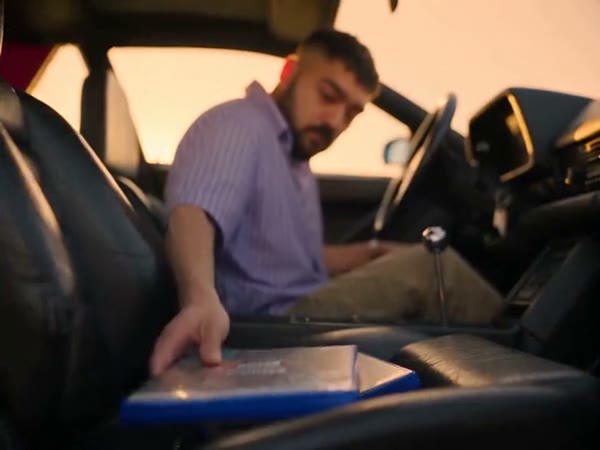
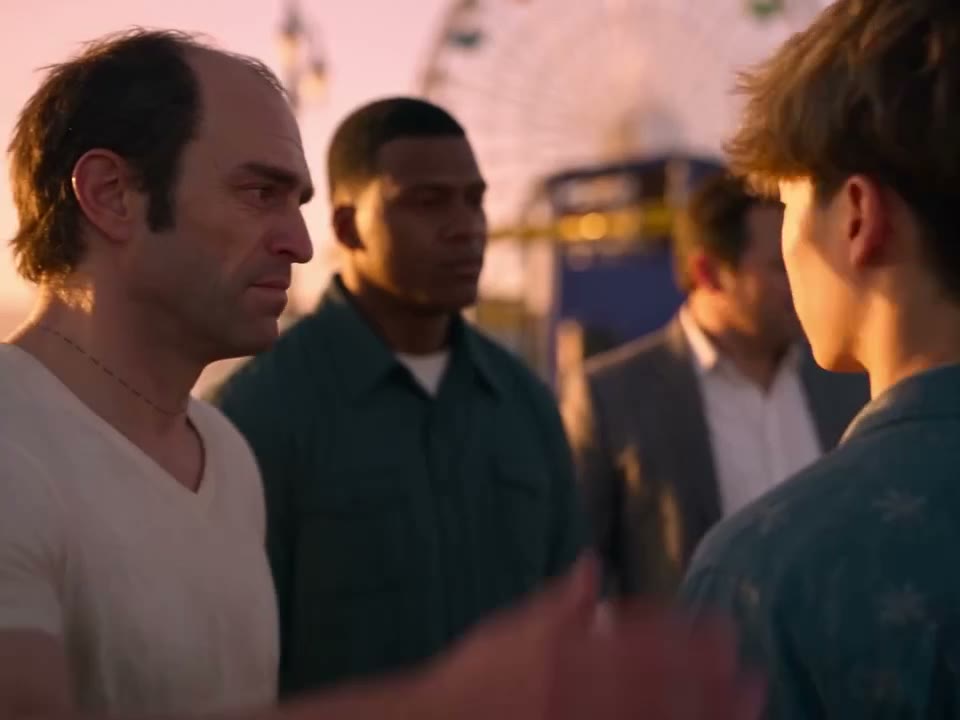
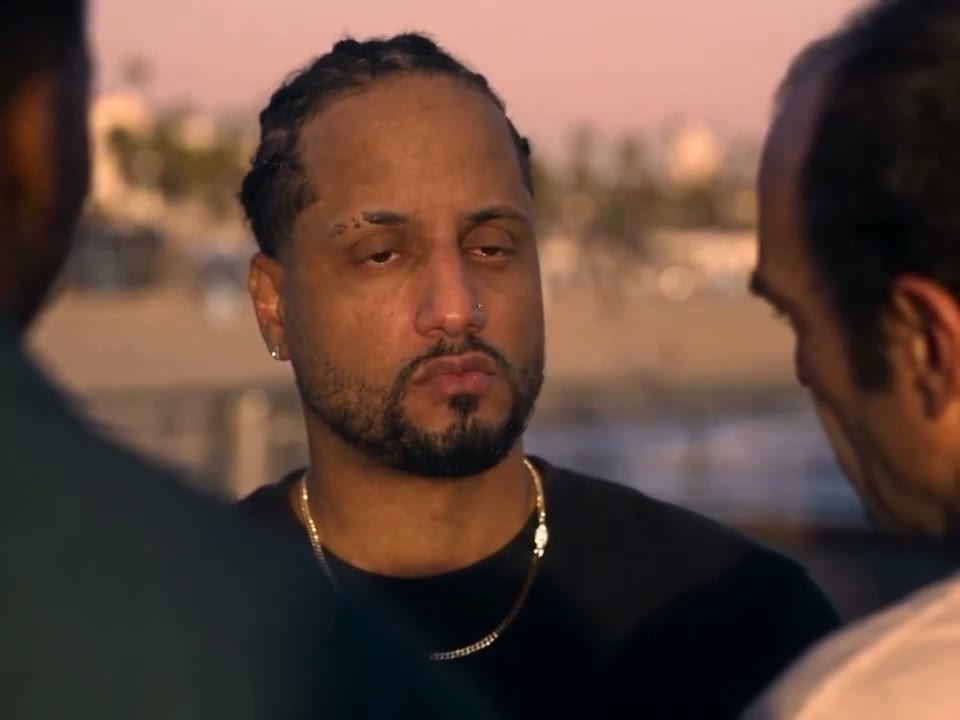
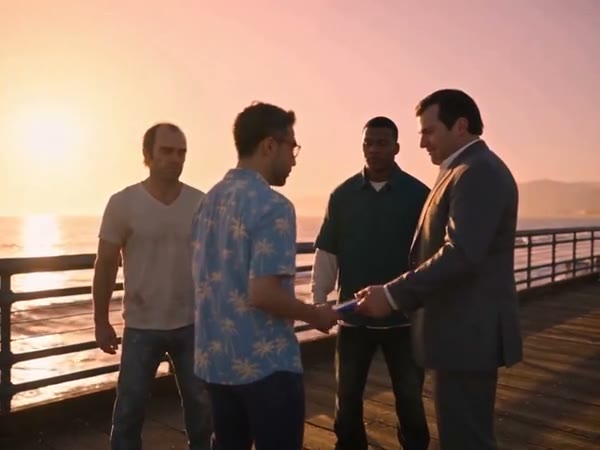
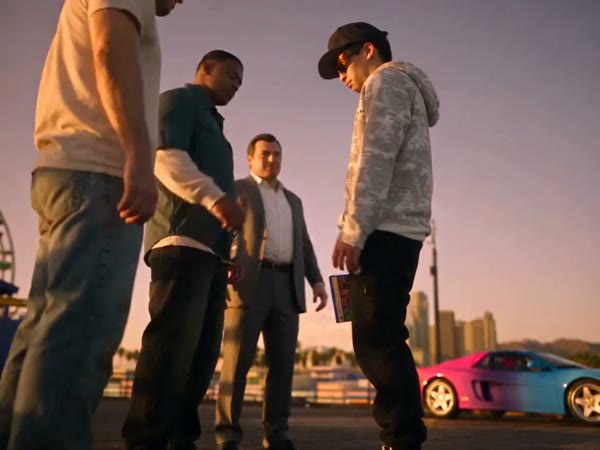
Goodbye GTA 5 AI is a photo-to-video template built around a cinematic farewell at a sunset pier. In the full reference, a traveler meets three familiar figures, receives a game case and car keys, shares an emotional goodbye, then gets into a car and drives away. Upload one photo to guide the traveler’s appearance. The Goodbye GTA 5 AI video generator uses the prepared scene for the setting, timing and camera cuts, so you can try this particular story without editing each shot by hand. The main preview shows the reference footage; the community examples show other interpretations created elsewhere. You may also see farewell edits called Goodbye GTA AI, Goodbye GTA V AI or GTA 5 Farewell AI.

A community example of the traveler in the sunset farewell scene

How to make a Goodbye GTA 5 AI video

Pick a clear photo, choose the reference length and review your result.

  1. STEP 1

    Upload one person photo

    Add a clear photo for the traveler in the Goodbye GTA 5 AI scene. Use an image you have the right to use.

  2. STEP 2

    Choose the scene length

    Choose Economy or Standard for the later highlight, or Original for the full Goodbye GTA 5 AI reference.

  3. STEP 3

    Generate and review

    Check the credit estimate, generate, then watch the finished video with sound in My creations before downloading.

See different interpretations of the farewell

The main Goodbye GTA 5 AI preview is the fixed reference. Community examples were created elsewhere; your result can differ.

Choose your photo for Goodbye GTA 5 AI

Choose one clear image showing a single person, preferably with their face, hair and clothing easy to see. A waist-up or full-body photo gives Goodbye GTA 5 AI more information for both the close-ups and the wider shots. Even lighting and an unobstructed face can help; a small, blurry or heavily covered face gives the model less detail to work with. The prompt asks the model to keep the person’s outfit and accessories from the photo consistent. Motion and scene lighting may change how those details appear, so review the whole clip rather than judging one frame. Only upload a photo you have permission to use.
Choose your photo for Goodbye GTA 5 AI

A Goodbye GTA 5 AI sunset farewell

The full Goodbye GTA 5 AI reference moves from a group meeting to the case and key exchange, a close-up goodbye and the drive along the coast. The reference guides the other people, location, car, lighting and camera angles. Your image guides the traveler; it does not provide separate controls for the other characters or the setting. Because the Goodbye GTA 5 AI scene has several cuts and overlapping people, faces, hands, objects and clothing can shift between shots. Watch the full preview to check whether its story fits your idea, then inspect the finished video before sharing it.

A Goodbye GTA 5 AI sunset farewell

Choose a short or full Goodbye GTA 5 AI video

Economy and Standard use a continuous 14.9-second segment from the later part of the Goodbye GTA 5 AI reference. It includes the emotional close-up, getting into the car and the start of the departure; it does not include the opening game-case and key exchange. Original uses the complete approximately 30-second reference, including the opening and the longer drive away. The displayed generation duration is rounded to whole seconds. Each mode restores the sound from its selected reference segment. Review the mode, resolution and credit estimate before generating, and make sure you can use and share any resulting video and audio.

Choose a short or full Goodbye GTA 5 AI video

What you can change in Goodbye GTA 5 AI

Use your photo to guide the traveler and select a generation mode. The reference supplies the rest of this fixed Goodbye GTA 5 AI sequence.

One featured person

One photo guides the person receiving the case and keys, saying goodbye and entering the car.

A prepared scene

The sunset pier, other people, car and shot sequence follow the video reference.

Two reference lengths

Choose the later 14.9-second highlight or the complete roughly 30-second scene.

Goodbye GTA 5 AI questions

Learn about the photo, reference, modes and sound.

How many photos does Goodbye GTA 5 AI need?

Upload one person photo for the traveler. A clear face and visible clothing provide a useful guide for the close-up and wider shots.

What happens in the Goodbye GTA 5 AI video?

The full reference shows a sunset farewell at a pier, a game case and key exchange, an emotional close-up and a drive away. The short modes begin later in the scene.

How long is the Goodbye GTA 5 AI video?

Economy and Standard use a 14.9-second highlight with a 15-second generation setting. Original follows the full reference, which lasts approximately 30 seconds.

Does Goodbye GTA 5 AI include sound?

The sound from the selected reference segment is restored after generation. There is no separate soundtrack or custom dialogue control on this page; check your permission before sharing the audio.

Can I change the other people or the car?

This fixed template has one photo slot for the traveler. The other people, car and setting follow the selected reference; separate replacements are not offered here.

Are the examples generated on this page?

The main preview is the reference video. The four community examples were created elsewhere and illustrate different appearances. Your result can vary, particularly across cuts and close-ups.

Is Goodbye GTA 5 AI an official GTA product?

This is an independent fan-inspired template. Motion Transfer is not affiliated with or endorsed by Rockstar Games or the owners of Grand Theft Auto. GTA and related marks belong to their respective owners.

How do I download a Goodbye GTA 5 AI video?

After generation finishes, open My creations, review the complete clip and its audio, and use the download control on the result.

Make your Goodbye GTA 5 AI video

Add one photo and choose the highlight or the complete sunset farewell.

Goodbye GTA 5 AI