
Smalltown Boy AI: Turn Two Photos into the Cat Dance
Smalltown Boy AI gives two characters a turn at the camera: one reacts close to the lens while the other dances behind, then they exchange places and finish together. Choose two separate photos for your own pairing. The Smalltown Boy AI tool already contains the performance and soundtrack. This guide shows how to assign the roles, prepare the photos, and review the dance beyond its opening frame.
Make a Smalltown Boy AI video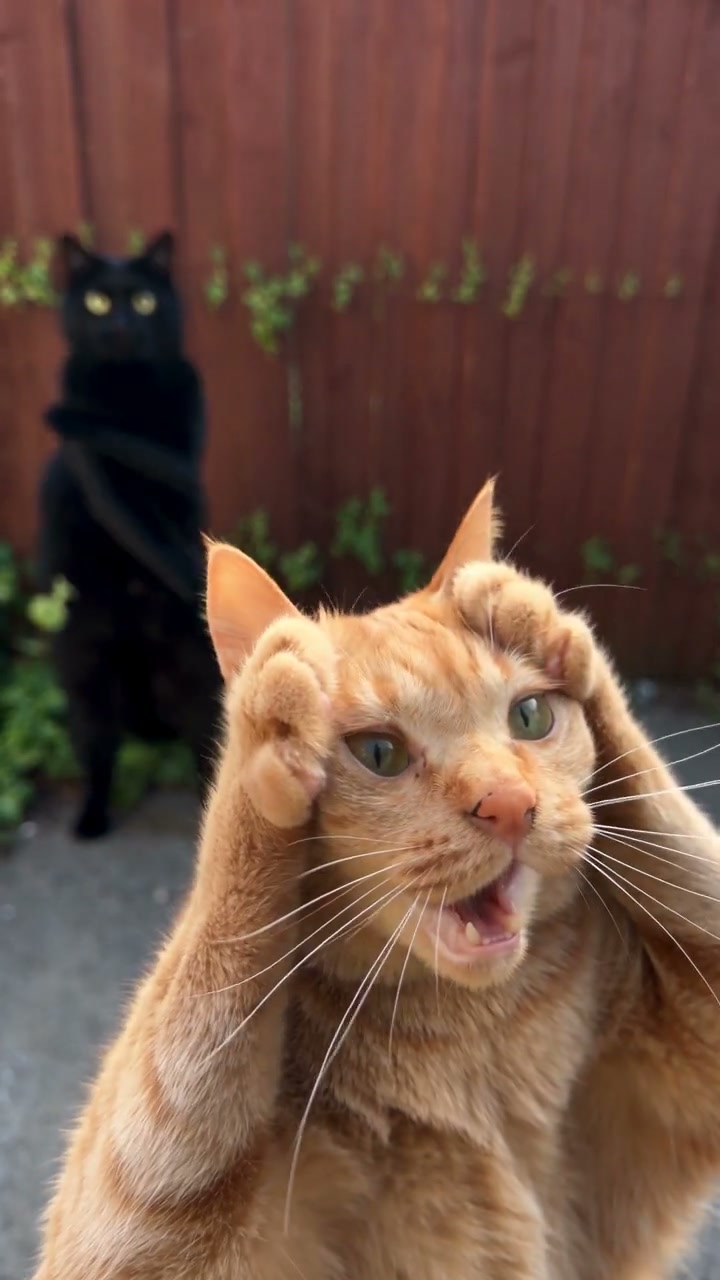
What happens in the Smalltown Boy AI dance?
The loaded reference is a roughly 21-second vertical clip with an orange cat and a grey cat beside a wooden fence. The orange cat opens in close-up, holding its paws near its head and reaching toward the lens. The grey cat performs behind it. The next close-up gives the grey cat the foreground, with the orange cat now dancing farther back. Later, both appear side by side, including a low-angle view, before reaching toward the camera together.
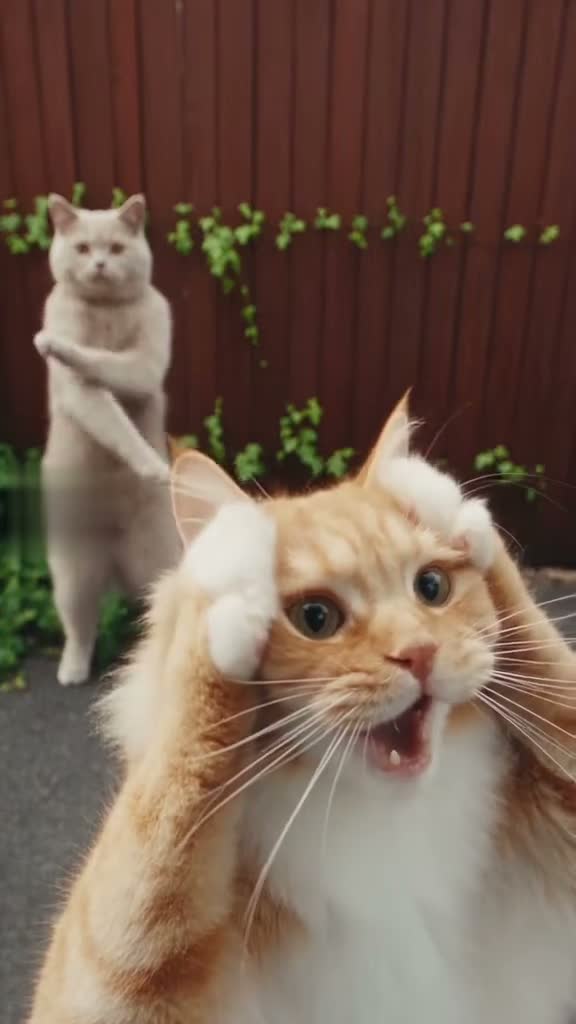
That exchange is the central joke of the Smalltown Boy AI cat dance. Both subjects get an exaggerated reaction and a full-body performance. A result can look convincing in the first thumbnail yet change one subject when the positions reverse, so the second close-up matters just as much as the first.
The name also points to Bronski Beat’s song “Smalltown Boy.” The band’s official anniversary release traces the song to 1984. That music history is separate from the modern AI cat-dance format. On this page, the prepared two-cat performance defines the movements you will recreate; you do not need to search for a music video or film the routine yourself.
Choose who goes first before uploading
Smalltown Boy AI requires exactly two photos, with one subject in each. The slot names describe the opening positions. They remain attached to the same source characters throughout the performance, even when the foreground and background reverse.
Photo 1: the opening foreground character
Opening foreground · Photo 1 replaces the orange cat. This subject gets the first close-up, moves behind the second character, and stands on the left during the side-by-side dance. Choose the pet or person you want viewers to meet first.
Photo 2: the opening background character
Opening background · Photo 2 replaces the grey cat. This subject starts dancing behind Photo 1, comes forward for its own reaction, and stands on the right in the paired dance. Give this photo the same care as the first: its face will also fill the screen.
Check both thumbnails before generating. To change one subject, use Replace in that slot; the other photo keeps its assignment. To reverse your chosen pairing, replace the photos in the opposite slots before you submit. There is no need to upload a new reference video when the characters change positions.
Prepare two photos for close-ups and full-body movement
A useful Smalltown Boy AI photo shows a clear face and enough of the body to establish the character’s proportions. For pets, keep the ears, muzzle, fur pattern, and paws visible where possible. For people, show the hairstyle and outfit you want in the dance. The images provide complete appearances, so a tight face crop leaves much of the body and clothing unspecified.
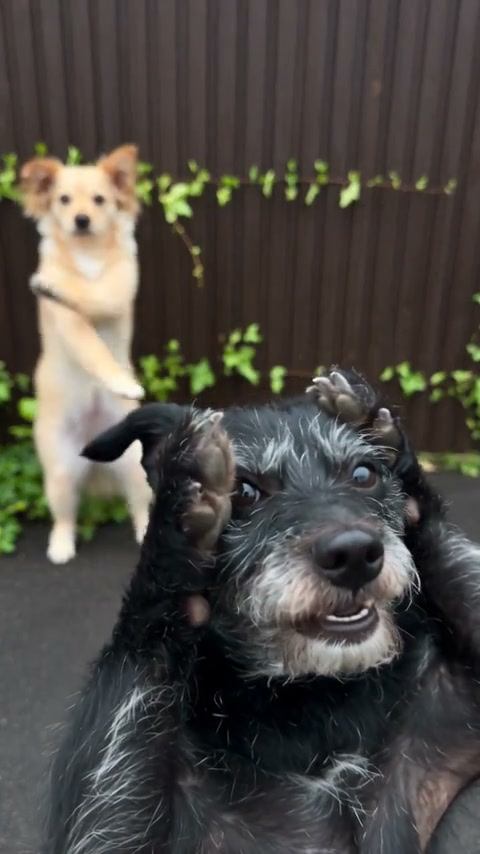
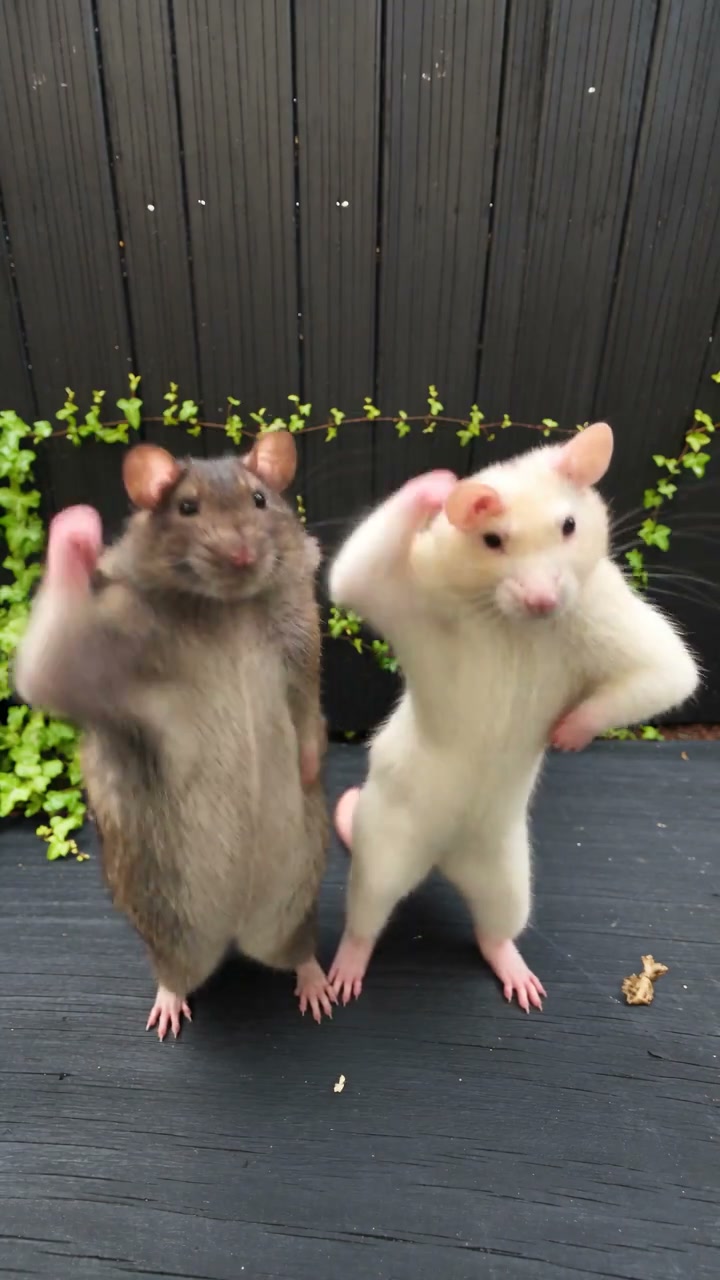
Watch how the dog and rat examples translate the same gestures into different ears, muzzles, paws, and silhouettes. They illustrate appearance choices, not a guarantee that every species will move equally well. A long muzzle or very small limbs create different contact points when the character holds its head or reaches toward the lens.
Make each subject easy to identify
Use a well-lit image without motion blur or another subject covering the face. Distinctive coat colors, markings, or outfits help you follow the two roles. If your pets look similar, select photos that clearly show the features you use to tell them apart; changing their appearance just to create contrast is unnecessary.
Keep the reference simple
Use one subject per photo, without collage borders, text labels, or a second animal in the background. You can crop two separate images from a group picture if each subject remains clear, but the workspace still needs two individual uploads. A single shared picture does not fill both roles.
Let the video supply the pose
Your pets do not need to stand upright, touch their heads, or pose beside a fence. A clear everyday photo is enough to provide an appearance reference. The Smalltown Boy AI template supplies the dance; there is no reason to make an animal perform the gestures for a photograph.
Make your Smalltown Boy AI video
1Open the two-character template
Open the Smalltown Boy AI generator and play Original video to check the complete routine and hear its sound. The reference and role instructions are already loaded. You do not need to paste a prompt, download the source, or prepare an audio file.
2Fill Photo 1 and Photo 2
Upload the first subject to Opening foreground · Photo 1, then the second to Opening background · Photo 2. Confirm their order and use Replace if either image is wrong. The existing fence, plants, ground, and camera changes come from the video, so no scene photo is required.
3Generate, preview, and download
Choose 480p, 720p, or 1080p in Settings, sign in when asked, and select Generate. The button shows the credit cost before submission. Find the completed video in My creations, play it through with sound, and download it when you are happy with the result.
The finished Smalltown Boy AI video uses the loaded reference soundtrack automatically. Page examples play muted; listen in Original video before generating and in your completed result afterward. Uploading or replacing a photo alone does not start a paid job. A new generation uses credits, while replaying a completed result does not create another generation.
Check both identities through the swap and finale
AI video results can vary with the same photos. Clear images provide more appearance detail, but they cannot guarantee consistent faces, anatomy, or clothing in every frame. Watch the Smalltown Boy AI result at normal speed first, then revisit these three moments if something looks wrong.
The second character takes the foreground
Follow a distinctive ear shape, face marking, or garment as the characters exchange places. Photo 1 should stay with its original character in the background; Photo 2 should carry its own appearance into the new close-up.
If the opening roles are reversed, check the upload order. If the order is correct but the faces blend during the transition, review whether either photo contains another subject or hides defining features. A clearer replacement may help, but another attempt is not guaranteed to fix the swap.
Paws or hands overlap the face
Look around the ears, cheeks, and eyes when the character holds its head. Watch for a paw becoming part of the face, extra fingers, or a muzzle changing shape. Brief motion blur can be part of the movement; a feature that stays distorted across several frames is more noticeable.
Prefer a photo where the face is unobstructed and the body is distinguishable from the background. You do not need to copy the raised-arm pose. Judge the visible defect before deciding whether another paid attempt is worthwhile.
Both characters dance and approach together
Check the left and right identities, body proportions, and number of limbs in the paired section. As they reach toward the lens, their appearances should remain separate even when the bodies overlap.
Compare this passage with Original video to distinguish its low camera angle and close perspective from a new distortion. If the result is only convincing in the opening close-up, review the full-body detail available in both photos before changing either input.
Choose a different performance when your idea changes
Use this template for the two-character swap and shared dance. For a single pet with human backup dancers, the Single Ladies Dog AI guide explains that different role arrangement. For two people in a seaside performance, see the Raindance AI guide. Picking a reference with the right cast is easier than trying to remove a required role.
For your own setting or routine, open the Motion Transfer workspace, choose a supported reference-video model, and supply a video and character images for that task. Custom instructions can describe the replacement, but the reference should contain the performance you want. Use images and media you have permission to edit, and share the result as an AI-created video.
Smalltown Boy AI photo and dance questions
Does Smalltown Boy AI only work with cats?
The template accepts character photos for both roles, including people and other animals. Cats, dogs, and rats are shown in the examples. Different anatomy can change the quality of hand, paw, or body movements, so inspect the full result rather than assuming every pairing will behave identically.
Do both photos need the same background?
No. Each photo supplies one character’s appearance. They can be taken in different places; the reference supplies the outdoor scene. Keep each subject clear of overlapping people, animals, or clutter that hides the body.
Can I replace just one cat and leave the other unchanged?
This Smalltown Boy AI page requires two photo references and recasts both roles. There is no leave-one-cat-unchanged switch. For a one-subject template, try Single Ladies Dog AI; for custom replacement instructions, use the main Motion Transfer workspace.
Will choosing 1080p fix a character that changes identity?
Resolution controls output dimensions. It does not guarantee correct identity, limbs, or contact between paws and faces. Check the photos and role assignments first, then choose the resolution you need and review the displayed credit cost.
Give your duo a turn at the camera
Choose two clear photos, assign the opening roles, and bring your pairing into the full dance.
Make a Smalltown Boy AI video