Create a video

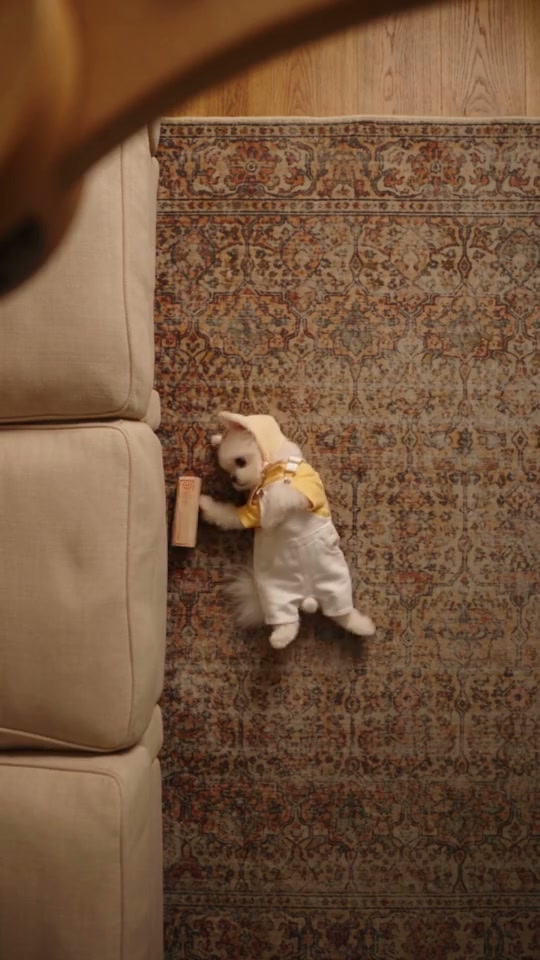
Look 1 · Photo 1
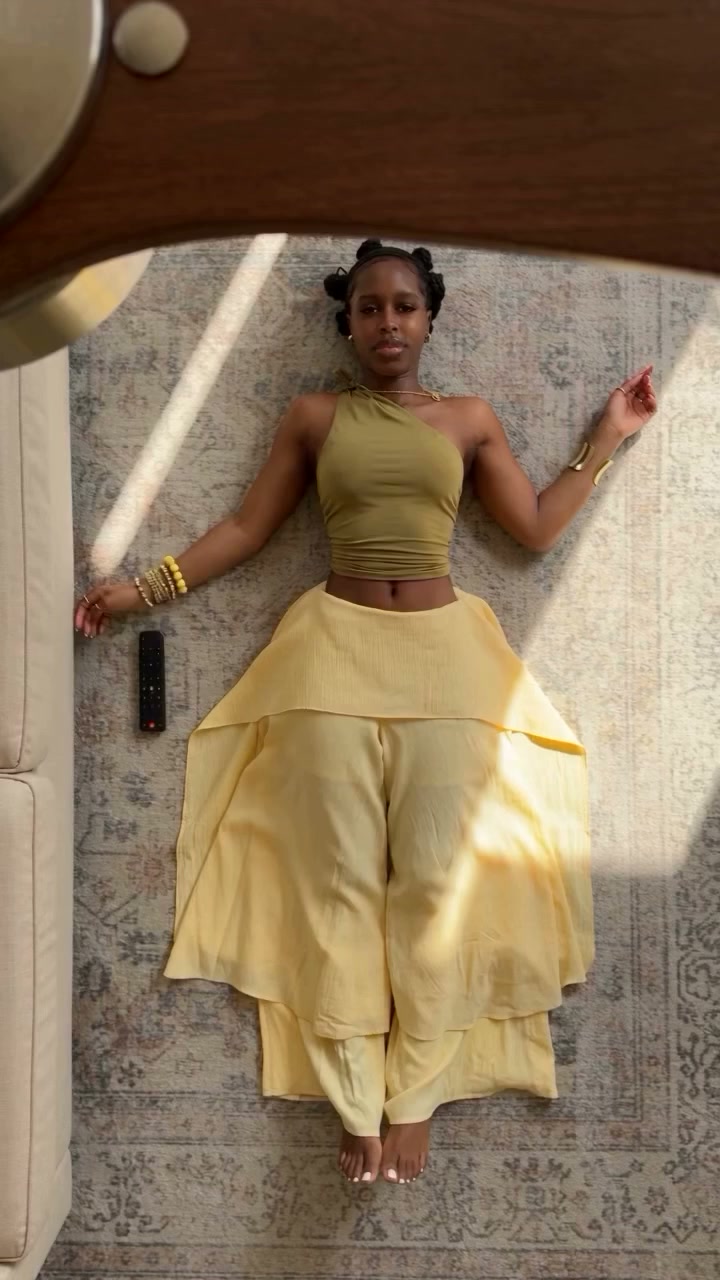
Look 2 · Photo 2
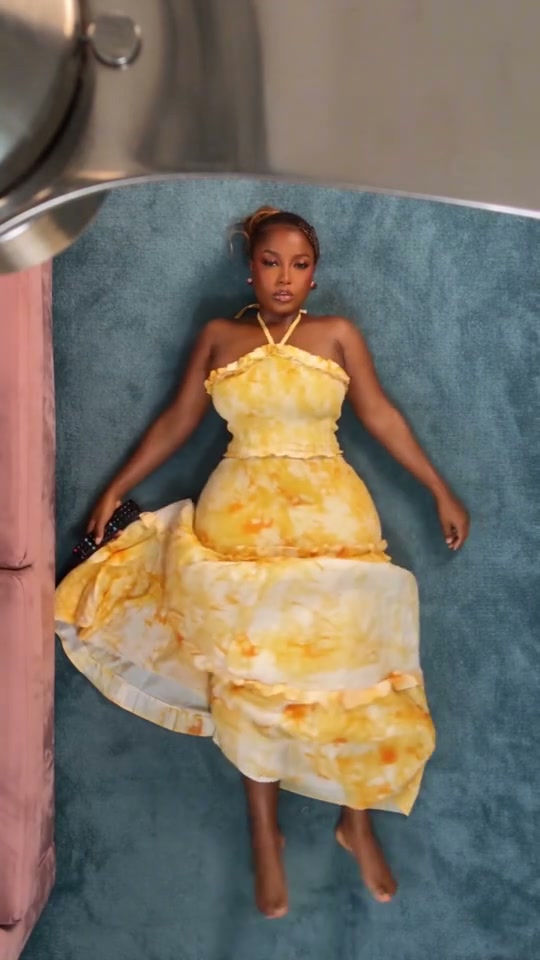
Look 3 · Photo 3
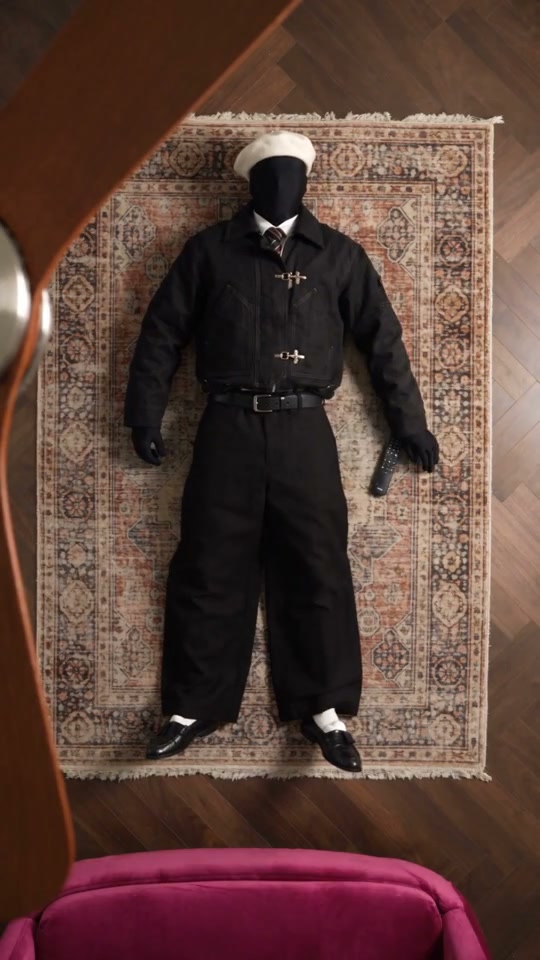
Look 4 · Photo 4

Ceiling Fan AI Video Generator

Four photos. Four looks. One Ceiling Fan AI outfit transition. Upload a person or pet wearing each outfit in appearance order; the overhead performance, fan wipes and original soundtrack are ready.

What is Ceiling Fan AI?

Ceiling Fan AI turns four outfit photos into an overhead transformation video. A performer lies beneath the camera while a passing fan blade hides each change. Your photos supply the person or pet and their complete appearance; the loaded clip supplies the poses, transitions and room. Use one subject in four outfits or introduce a different character at each change.

Four colorful dresses appear in sequence beneath a metallic fan over a blue rug

Create your Ceiling Fan AI video in three steps

Choose your four looks, generate the transition, then preview and download.

  1. STEP 1

    Upload four outfit photos

    Fill Look 1 through Look 4 in appearance order. Each photo should show one person or pet with the intended outfit, face and body visible. The reference video is already loaded; no filming or fan setup is required.

  2. STEP 2

    Generate the outfit transition

    All four slots are required. Sign in and select Generate when your sequence is ready. The button displays the credit cost for the selected settings. Uploading photos alone does not start a Ceiling Fan AI generation.

  3. STEP 3

    Preview and download

    Open My creations and watch the full video with sound. Check all four looks and the three changes between them, then download the result you want to keep. Review the final look as carefully as the opening.

Explore the Ceiling Fan AI outfit change

Dressy looks, streetwear or pet costumes: choose four complete appearances for the same fan-wipe performance.

Make every outfit your own

Each Ceiling Fan AI photo controls a complete look, including face, hair or fur, body proportions, clothing and accessories. For a single-person outfit reel, upload that person wearing four different outfits. The tool does not combine one identity photo with three loose garments. A clear full-body picture gives the model more information about trousers, shoes, sleeves and the shape of the outfit. Use distinct silhouettes or colors when you want each reveal to read clearly after the fan passes.
Make every outfit your own

Four looks, in the order you choose

Look 1 is the opening appearance. Look 2 follows the first outfit transition, Look 3 follows the next, and Look 4 closes the video. Ceiling Fan AI uses these as successive moments, with one main subject visible at a time. The prepared instruction keeps each appearance through its segment until the next transition. Decide your sequence before uploading: start simple and finish with a statement outfit, or alternate contrasting colors. Use Replace within a slot if you want to change just that part of the reveal.

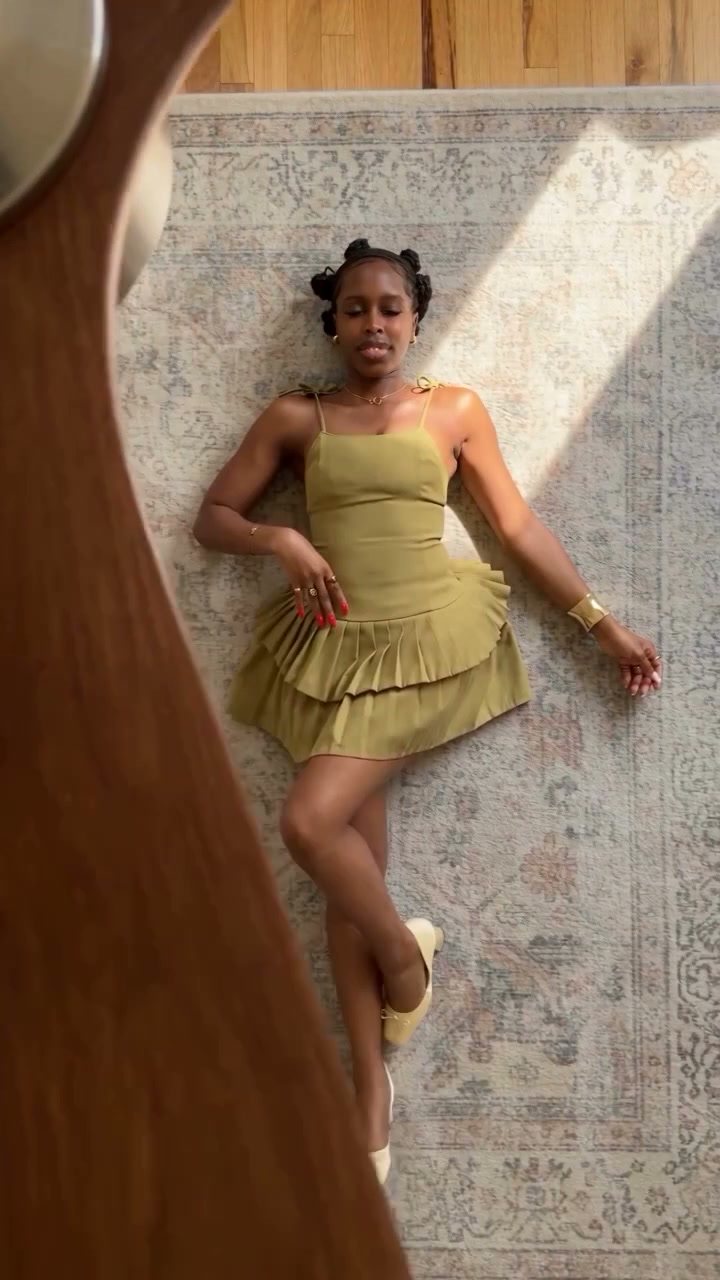
The fourth green outfit in the source sequence after the final fan transition

Bring pets into the fan-wipe trend

Ceiling Fan AI also accepts pet photos for all four looks. Show the animal’s face, ears, coat, body and any costume you want to see. A small accessory can create a gentle change; a bright costume makes a larger reveal. Your pet does not need to lie under a real fan or perform the reference movements. The model adapts the performance to the uploaded appearance. Check paws, ears, tails and costume edges in the finished clip, especially when the blade crosses the body.

Bring pets into the fan-wipe trend

Plan a Ceiling Fan AI reveal that feels like you

The four-photo sequence gives you control over the visual progression. Pick a clear idea for the looks before filling the slots.

One person, four outfits

Keep the face visible in every reference, even when hats, glasses or hairstyles change. A casual opening, layered second look, dressy third look and bold final outfit give your Ceiling Fan AI wardrobe sequence a clear progression.

Four different characters

Change the person or pet along with the clothing for a character reveal. They appear successively in Ceiling Fan AI. Large differences in size or anatomy may affect poses and framing, so compare the full-body references before choosing their order.

A pet costume collection

Favor costumes that leave the animal’s face recognizable. For Ceiling Fan AI, separate single-pet pictures make the intended subject clearer than group photos or costume collages. Check ears and tails are visible rather than hidden behind props.

What your Ceiling Fan AI video includes

Four ordered photo references, a fixed overhead performance and the reference soundtrack.

Complete appearance references

The instruction uses each image for the full person or pet, including clothing and accessories. Photos supply the looks; the loaded video supplies the performance. Fine patterns, jewelry and small lettering can vary, so check them before using a result to represent a particular item.

The fan-wipe transition

Ceiling Fan AI follows the source’s poses, movements, fan passes and camera work. The blade provides the visual cover for each change. The page has no separate transition-speed or fan-direction control; those moments follow the loaded reference.

About 15 seconds in portrait

The reference uses a 9:16 vertical frame and runs for about 15 seconds. Generated output follows that source composition and duration. Choose images that show the full outfit, because a close-up face alone leaves much of the visible body and clothing unspecified.

Original audio after generation

Seedance 2.5 Edit generates the picture with new audio disabled. The reference soundtrack is added afterward. Page examples play muted; listen with the original reference player or open your completed video in My creations to check its sound.

Ceiling Fan AI credits and plans

The cost depends on the reference duration and selected resolution. Use the credit amount on Generate for this video. Plan examples may use different models or lengths; each new generation is a separate attempt.

Starter

For your first ideas.

$8.3/month

$100.0 charged yearly

2,400 credits/year

Up to 400 images

GPT Image 2Nano Banana Pro

Up to 133 videos

Seedance 2.5Kling 3.0 Motion Control
  • Up to 4K images and HD videos, depending on the model
  • Image editing, video creation & motion transfer
  • Watermark-free image & video downloads
  • Generation history in your account
Popular40% OFFSave $238.8

Pro

For a steady creative flow.

$30.0/month$49.9/month

$360.0 charged yearly

21,600 credits/year

Up to 3,600 images

GPT Image 2Nano Banana Pro

Up to 1,200 videos

Seedance 2.5Kling 3.0 Motion Control
  • Up to 4K images and HD videos, depending on the model
  • Image editing, video creation & motion transfer
  • Watermark-free image & video downloads
  • Generation history in your account
  • Use credits across image and video models
Best Value50% OFFSave $599.8

Business

For more creations, more often.

$49.9/month$99.9/month

$599.0 charged yearly

48,000 credits/year

Up to 8,000 images

GPT Image 2Nano Banana Pro

Up to 2,666 videos

Seedance 2.5Kling 3.0 Motion Control
  • Up to 4K images and HD videos, depending on the model
  • Image editing, video creation & motion transfer
  • Watermark-free image & video downloads
  • Generation history in your account
  • Use credits across image and video models

Basic

$0

Try before you subscribe

  • 18 one-time signup credits
  • Generation history included
  • Watermarked previews & downloads
  • Up to 3 images or 1 video
  • Watermark-free downloads require payment

Prices in USD; taxes and total shown at checkout. Subscriptions renew automatically; cancel in Billing settings. Subscription credits expire each period; one-time credits never expire.

Refunds: request within 72 hours. Used purchased credits and applicable non-refundable processing costs (up to 6%) are deducted. Terms · Refund Policy

Ceiling Fan AI questions

Photo order, complete outfits, pets and your finished fan transition.

How many photos does Ceiling Fan AI need?

Exactly four photos, one for each look in order of appearance. The first is the opening outfit and the fourth is the final outfit. All four slots must be filled before generating. You do not need a fifth identity photo, background picture or separate video upload.

Can I upload only pictures of clothes?

Use pictures of the person or pet wearing the intended outfit. This workflow uses each photo as a complete appearance reference. A product-only garment photo does not identify the wearer, their face, hair or body. Include the whole outfit and footwear when those details matter to your video.

Do my photos need to be taken from above?

No overhead shoot is required for Ceiling Fan AI. The source supplies the top-down framing and room. Choose sharp, unobstructed photos that show the subject clearly, preferably from head to feet or paws. Avoid extreme angles that hide the face or clothing you want the model to reproduce.

Is this the under-the-fan outfit change trend?

Yes, Ceiling Fan AI follows the overhead fan-wipe format: a blade passes in front of the camera and reveals another look. This particular template uses four uploaded appearances and the supplied reference performance. It is designed for a short outfit sequence without recording separate takes beneath a real ceiling fan.

Will the final video include sound?

The workflow adds the original reference audio after generating the video with model sound disabled. No separate music upload is needed. The body examples are silent previews. Listen through the reference player, then check your completed result in My creations before downloading or sharing it.

Do I need to write a Ceiling Fan AI prompt?

No. The prepared prompt already maps Images 1–4 to the four appearances and follows the source performance. The model and audio workflow are configured for the template. Focus on clear photos and the order of the looks; there is no separate outfit text field on this page.

What if an outfit changes before the fan passes?

Review the frames immediately before and after each blade crossing. Check for early clothing changes, mixed colors or accessories carried into the next look. Sharper single-subject references can make the intended appearances clearer, though precise timing and consistent details are not guaranteed. Replace an unclear photo before trying another generation.

Can I change one photo without starting over?

Before generating, use Replace in the relevant look slot to choose another photo while keeping the others in order. A completed Ceiling Fan AI clip is a finished result; changing its inputs and generating again creates a new attempt. Keep a downloaded copy of any version you want to retain.

What should I check before sharing?

Watch the complete clip with sound. Check the face or fur, body shape, hands or paws, footwear and clothing in each segment. Confirm the four looks appear in your chosen order and that the fan crossings do not merge bodies or leave pieces of the previous outfit. Use photos and audio you have permission to publish, and present the video as AI-created.

Create your Ceiling Fan AI outfit reveal

Choose four complete looks, place them in order and let the fan transition bring them together.

Ceiling Fan AI reference with four outfits revealed beneath a rotating wooden fan