Create a video

Male role · Photo 1
Female role · Photo 2

Zombie AI Video Generator

Put two people into the Zombie AI story. Upload clear portraits with hair and clothing visible; a normal portrait works for the woman. The template creates her infected appearance in the dark scenes and brings her back to healthy memories.

What is the Zombie AI trend?

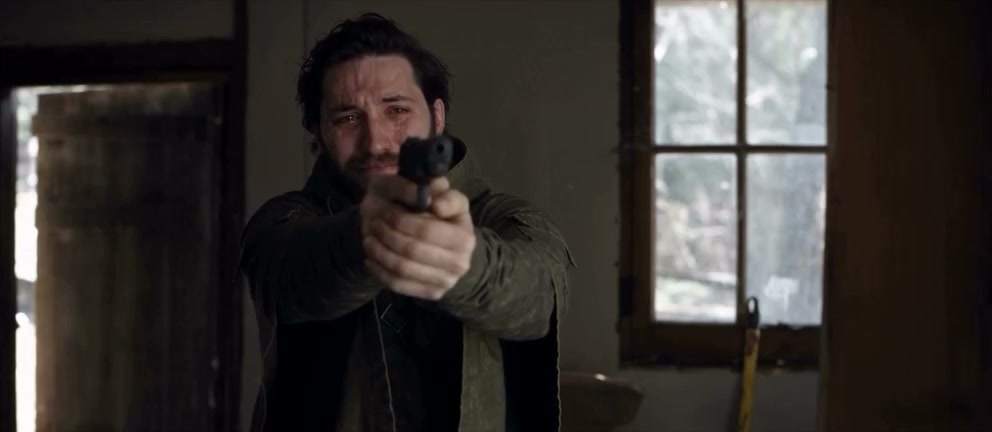
Zombie AI turns two photos into the characters of a cinematic story. In a cold, dim room, a distressed man holds a gun as he faces an infected woman. The edit then moves into warm memories of the same couple outdoors. Your pictures supply their appearances; the loaded video supplies the acting, camera framing, cuts, and pace. This Zombie AI template follows that specific story, with no filming or manual scene assembly required.

Zombie AI community adaptation with a dark indoor confrontation and golden-field memories

Make a Zombie AI video in three steps

Add both portraits, generate your scene, then watch and download the finished video.

  1. STEP 1

    Upload both characters

    Add the male role in Photo 1 and the female role in Photo 2. Show their faces, hair, and clothes clearly. Photo 2 can be a normal healthy portrait; no infection effect needs to be added beforehand.

  2. STEP 2

    Generate your Zombie AI clip

    The performance and instructions are already loaded. Sign in and select Generate when both pictures are ready. The button shows the credit cost; uploading pictures alone does not start a generation.

  3. STEP 3

    Preview and download

    Open My creations and play your Zombie AI result with sound. Review both the infected scenes and healthy memories, then download the clip you want to keep.

Your photos in the Zombie AI story

Choose the two people. The reference already provides the performance, setting, and transition into memories.

Two photos, two Zombie AI roles

Photo 1 becomes the gun-holding man. Photo 2 becomes the woman. Those assignments stay with them across close-ups, reverse angles, and outdoor memories, even when their screen positions change. For your Zombie AI edit, choose separate single-person pictures with visible faces, hairstyles, and clothes. The reference provides the room and landscape, so the uploaded backgrounds do not need to match.
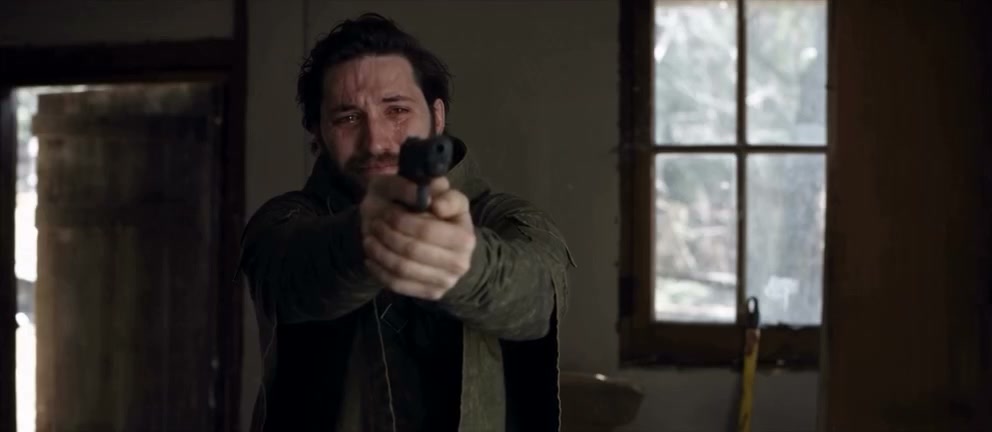
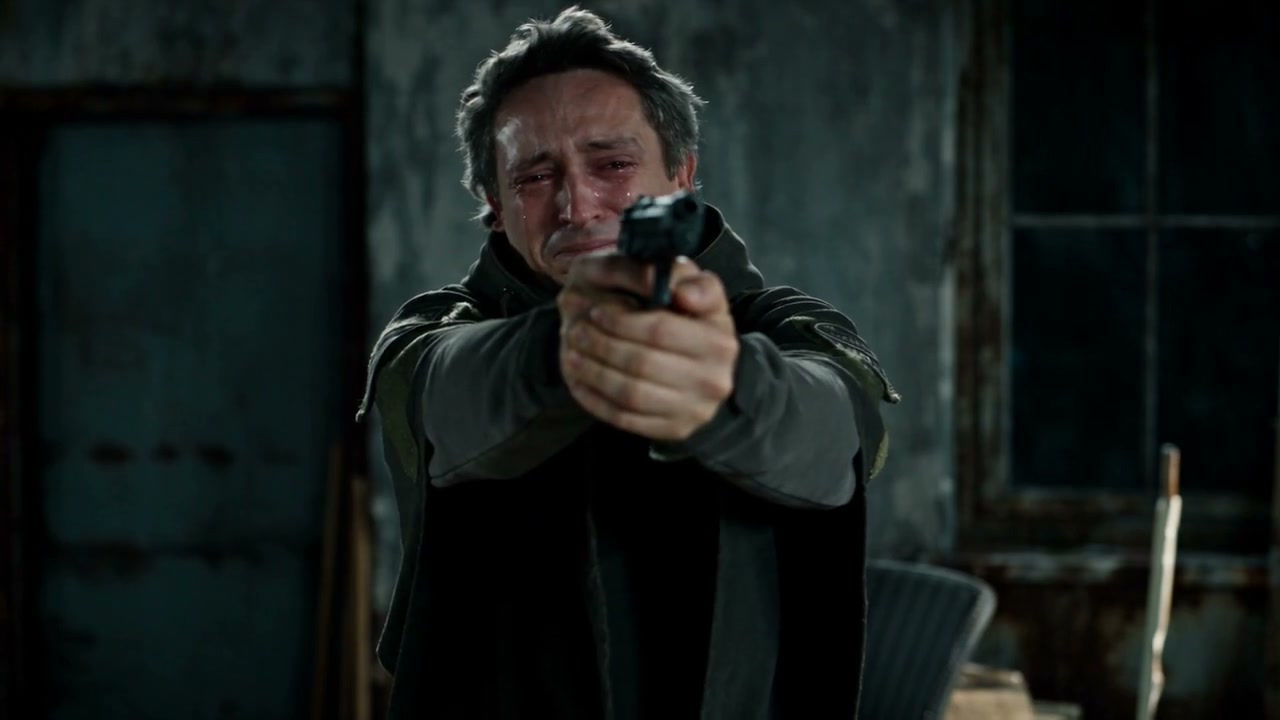
The male role in the reference, with his face, hairstyle and upper body visible
Photo 1 · the male role in the reference

A normal portrait becomes the infected character

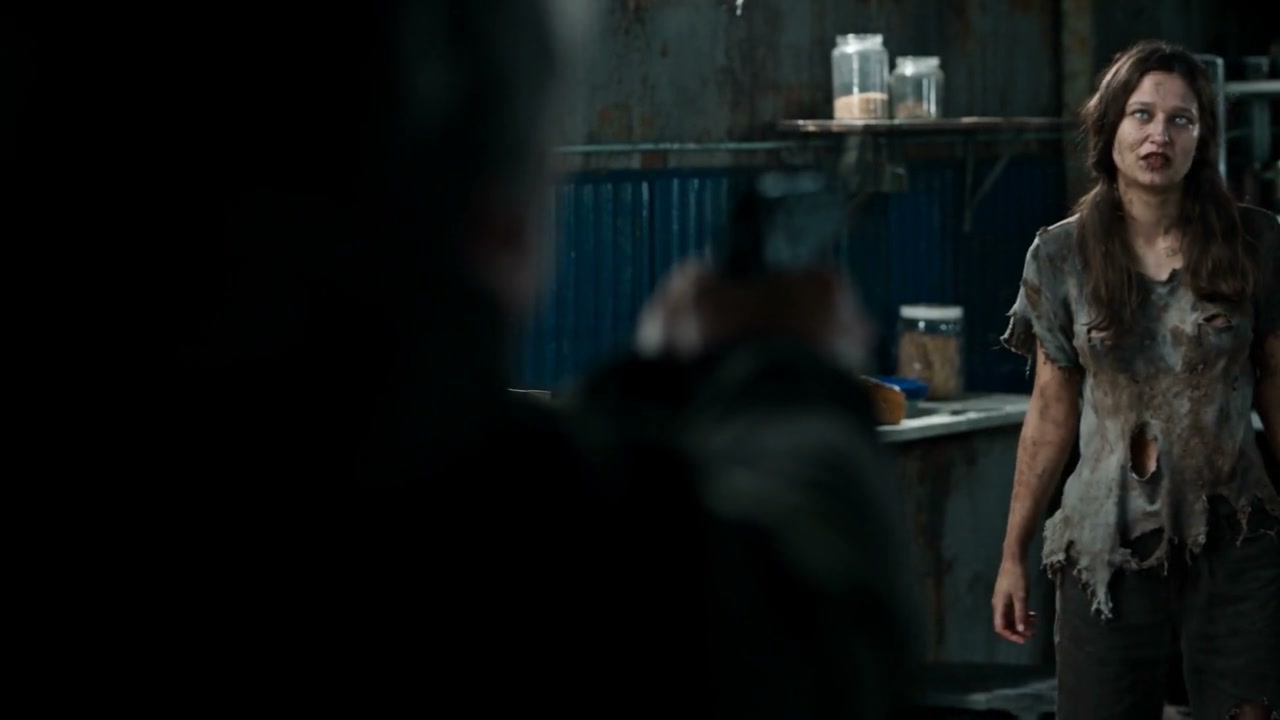
Use a healthy portrait for Photo 2. Zombie AI creates the infected version during the dark scenes while retaining the woman’s recognizable identity. No zombie makeup or second damaged-looking portrait is needed. Her face, hair, body, and clothing come from the same image used for the memories. Check the return to daylight as carefully as the horror close-up: both should still look like your chosen character.

Same community example · dark-scene excerpt

Keep the Zombie AI memory transition

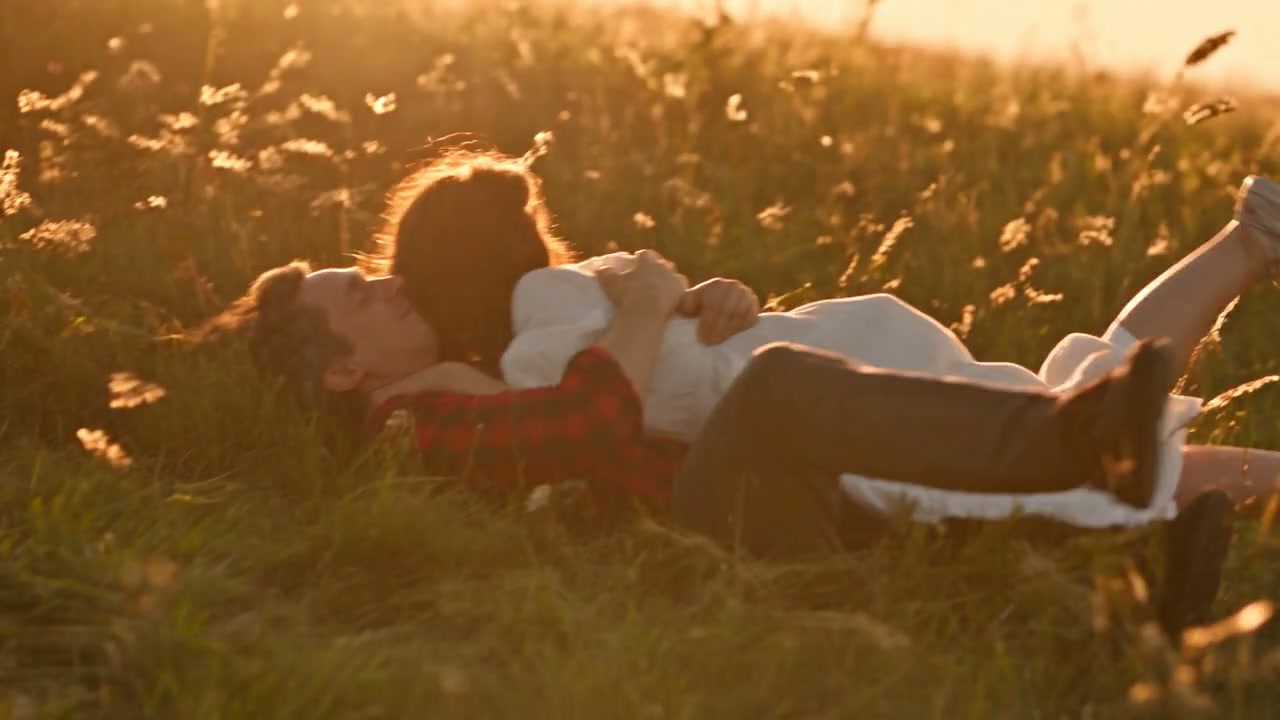
The Zombie AI reference moves from a tense confrontation to healthy faces, running together, and an embrace in warmer light. The prepared instruction follows this shot sequence and its timing. Your photos remain the appearance references on both sides of the transition. Preview the full Zombie AI result to check expressions, movement, and the moments when one person partly obscures the other.

Same community example · warm-memory excerpt

Choose photos that tell your Zombie AI story

The two uploads control the cast’s complete appearance. Choose them with the close-ups and wider outdoor scenes in mind.

A recognizable face and hairstyle

Choose an unobstructed face with the hairstyle in frame. Zombie AI includes emotional expressions and changing angles; avoid extreme side views, heavy filters, and dark silhouettes. You do not need to imitate the source expression.

Clothing that is actually visible

A waist-up or three-quarter photo gives more outfit detail than a tightly cropped selfie. Show the desired clothing’s color and shape. Jewelry, lettering, and fine fabric patterns may vary during movement. There is no separate wardrobe upload.

Two distinct, authorized subjects

Use one person per upload so each Zombie AI role has a clear reference. A couple photo in both slots makes the assignment ambiguous. Choose authorized portraits and present the result as a fictional AI scene.

What this Zombie AI template keeps

A fixed story makes the input simple: two character photos, with the scenes already prepared.

The source performance

Zombie AI follows the original gestures, expressions, camera framing, cuts, and scene order. It does not offer alternate endings or a new screenplay. For a different story, start a separate video in the general workspace.

A wide cinematic frame

The reference runs for about 26.5 seconds in a wide landscape frame. Your Zombie AI video follows that duration and composition. This fixed page does not offer a portrait crop or an independent duration selector.

The original soundtrack

Seedance 2.5 Edit creates the picture without generating new audio. The reference soundtrack is then added to the video. Body examples play muted; use the reference player or your completed result in My creations to listen.

Saved results to review

Return to My creations or video history to play and download available Zombie AI results. Keep a downloaded copy of clips you want to retain. Previewing an existing result does not submit another generation.

Zombie AI credits and plans

Creating a video uses credits. The reference duration and selected resolution determine the amount shown on Generate. Plan examples can use different models and lengths, so check the price for this clip in the workspace.

Starter

For your first ideas.

$8.3/month

$100.0 charged yearly

2,400 credits/year

Up to 400 images

GPT Image 2Nano Banana Pro

Up to 133 videos

Seedance 2.5Kling 3.0 Motion Control
  • Up to 4K images and HD videos, depending on the model
  • Image editing, video creation & motion transfer
  • Watermark-free image & video downloads
  • Generation history in your account
Popular40% OFFSave $238.8

Pro

For a steady creative flow.

$30.0/month$49.9/month

$360.0 charged yearly

21,600 credits/year

Up to 3,600 images

GPT Image 2Nano Banana Pro

Up to 1,200 videos

Seedance 2.5Kling 3.0 Motion Control
  • Up to 4K images and HD videos, depending on the model
  • Image editing, video creation & motion transfer
  • Watermark-free image & video downloads
  • Generation history in your account
  • Use credits across image and video models
Best Value50% OFFSave $599.8

Business

For more creations, more often.

$49.9/month$99.9/month

$599.0 charged yearly

48,000 credits/year

Up to 8,000 images

GPT Image 2Nano Banana Pro

Up to 2,666 videos

Seedance 2.5Kling 3.0 Motion Control
  • Up to 4K images and HD videos, depending on the model
  • Image editing, video creation & motion transfer
  • Watermark-free image & video downloads
  • Generation history in your account
  • Use credits across image and video models

Basic

$0

Try before you subscribe

  • 18 one-time signup credits
  • Generation history included
  • Watermarked previews & downloads
  • Up to 3 images or 1 video
  • Watermark-free downloads require payment

Prices in USD; taxes and total shown at checkout. Subscriptions renew automatically; cancel in Billing settings. Subscription credits expire each period; one-time credits never expire.

Refunds: request within 72 hours. Used purchased credits and applicable non-refundable processing costs (up to 6%) are deducted. Terms · Refund Policy

Zombie AI questions

Photo preparation, role assignment, the transformation, and your finished clip.

How many photos does Zombie AI need?

Exactly two: one single-person photo for each role. Both slots must be filled. Zombie AI already has its reference video; you do not need footage, a background picture, or a third image for the infected appearance.

Which Zombie AI role does each photo replace?

Photo 1 replaces the gun-holding man; Photo 2 replaces the woman. These Zombie AI assignments apply in the warm memories too. Follow the role labels, even when the characters swap screen positions.

Does Photo 2 need to show a zombie?

No. Upload a normal portrait with her face, hairstyle, and clothes visible. Zombie AI creates the infected look in dark scenes and the healthy version in memories. A heavily altered zombie picture gives less useful information about her ordinary appearance.

Can I use two selfies for Zombie AI?

Prefer waist-up or three-quarter portraits. A tight face-only selfie gives Zombie AI little clothing or body information. If a selfie is your only option, include the hairstyle, shoulders, and as much of the outfit as possible.

Will Zombie AI change just the faces?

The prepared instruction uses each photo for the character’s full appearance, including hair, body, and clothing. The reference supplies acting and camera work. Exact likeness is not guaranteed: check facial features in both lighting conditions and the outfit in wider shots before sharing the finished video.

Can I change the Zombie AI ending or add another character?

This Zombie AI page follows the loaded story, with no ending selector or extra cast slots. Use the general AI Video Generator to describe a different scene instead of following this reference.

Does Zombie AI include sound?

The finished clip uses the reference’s original audio, with model-generated sound switched off. You do not need to upload music. The body examples are muted; listen in the reference player and check your completed video in My creations. Confirm that your intended publication is permitted to use the soundtrack.

How long is a Zombie AI video?

This Zombie AI template follows the approximately 26.5-second reference and its wide composition. The preview shows the complete sequence, including the dark opening, outdoor memories, and closing frames.

Do I need to write a Zombie AI prompt?

No. The Zombie AI instruction already maps both photos to their roles and describes the infected and healthy states. Seedance 2.5 Edit is preconfigured; no shot descriptions or audio-generation settings are needed.

What should I check in my Zombie AI result?

Watch all the way through. Check whether Photo 1 remains recognizable while holding and lowering the gun, and whether Photo 2 looks like the same woman before and after the memory transition. Look at fingers, facial expressions, overlapping arms, clothing edges, and the outdoor embrace. These details can drift even when an opening frame looks convincing.

Is Zombie AI free to generate?

You can explore the page and preview the reference before generating. Creating a video requires an account and sufficient credits for the displayed cost. Resolution changes the price. A new attempt is a separate generation, so review your photos and role order before submitting again.

How can I improve an inconsistent Zombie AI character?

If hair or clothing was cropped out, replace the picture with a clearer, wider view. Keep one person per image and avoid face-obscuring filters. Better references may help Zombie AI, though they cannot guarantee perfect tracking across every shot.

Make your Zombie AI story

Choose two clear portraits and bring your cast into the cold confrontation and warm memories. Start with healthy photos; the reference guides the transformation.

Zombie AI reference: a man faces an infected woman before the story shifts to warm memories