
Money Spread AI: Make the Cash-Fan Video with One Photo
Money Spread AI puts your chosen character into a short performance that moves from thick cash stacks to a wide fan of bills. One photo supplies the appearance; the loaded clip supplies the gestures, room, and soundtrack. Open the Money Spread AI tool when your photo is ready, or use this guide to compare examples and learn which moments deserve a closer look.
Make a Money Spread AI video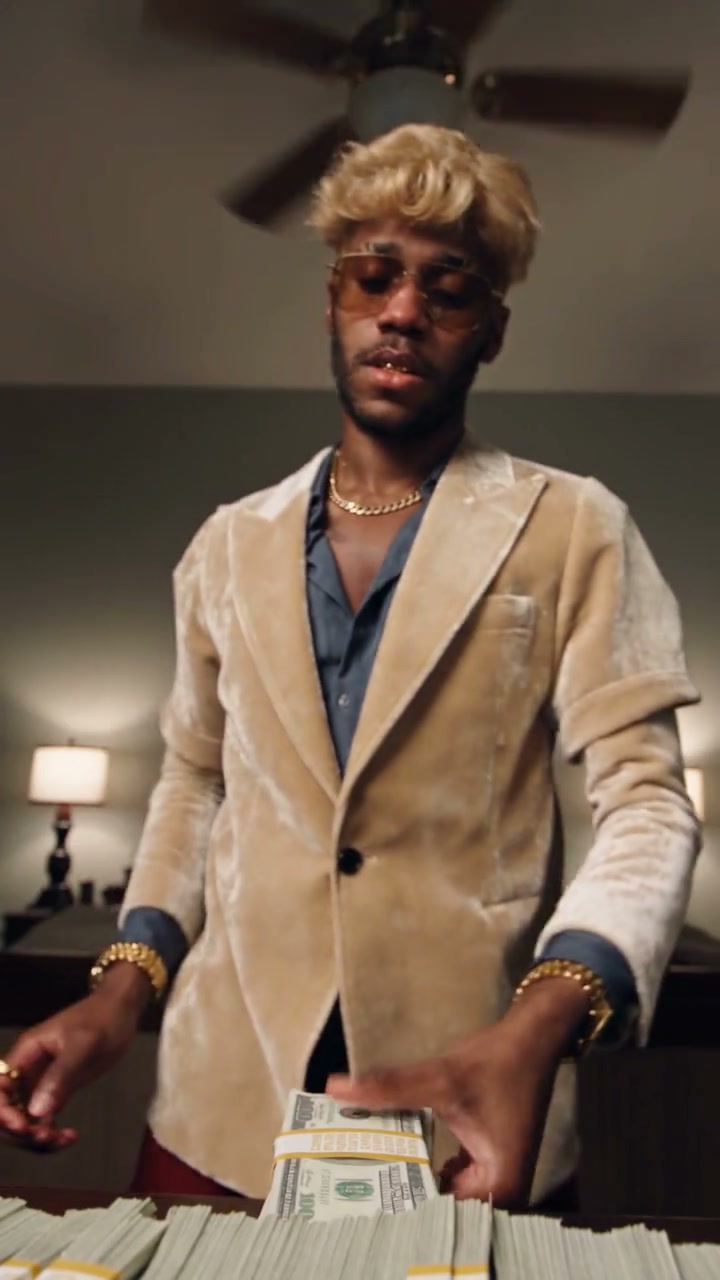
What is the Money Spread AI video?
This version of Money Spread AI follows a roughly 15-second vertical performance in a bedroom. The person bends a thick stack between their hands, brings the cash toward the camera, reaches forward, and then opens another stack into a fan. The final fan covers part of the face while the eyes remain visible above it. The bed, lamps, and ceiling fan establish the same room throughout.
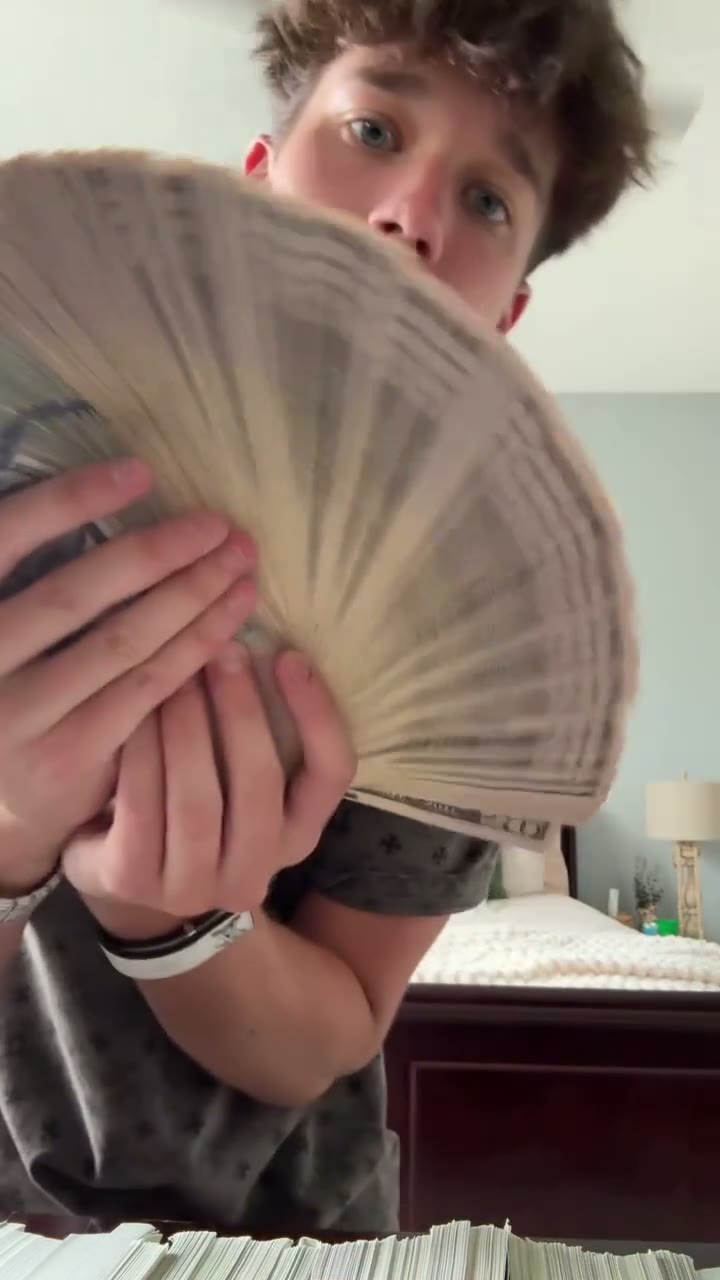
A still money-fan portrait only needs one convincing pose. This video needs the same character to stay recognizable while hands turn, props pass close to the lens, and bills hide the mouth. Watch the full reference before choosing this template: the sequence stays fixed when you change the person. You do not need to film any of the cash gestures yourself.
Choose one photo that shows the look you want
The Main character · Photo 1 slot supplies the complete appearance for Money Spread AI: face, hair, body proportions, clothing, and accessories. Use one clear person in the frame. An upper-body photo with visible shoulders and sleeves gives the edit more useful information than a tightly cropped face, especially when the performer extends both arms toward the camera.
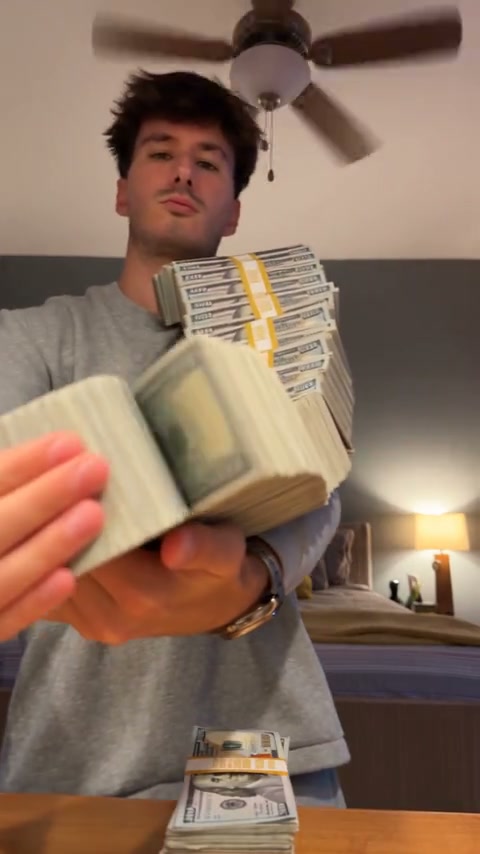
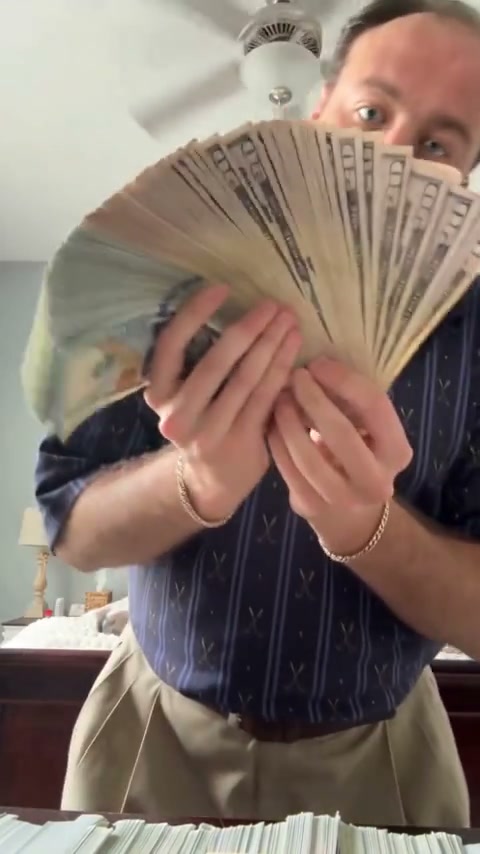
Compare the grey sweater, navy shirt, and cream jacket examples. They retain the cash-display idea while changing the silhouette and clothing around it. Use that comparison to choose your reference image: a loose sleeve, jacket cuff, or bracelet can become important where the wrist touches a stack. These examples show possible appearance changes; they do not guarantee matching results for every uploaded photo.
Keep the face unobstructed
Choose an image without a phone, hand, or another person covering the face. Even though the finished performance includes a money fan, a clear input gives the model facial detail for the moments before and after that overlap. Avoid heavy blur and lighting that hides one side of the face.
Show the clothes in the same image
Choose the desired outfit before uploading. There is one appearance slot, with no separate wardrobe image. If only the face is visible, the missing sleeves and torso will have to be inferred. Small logos, jewelry, and fabric patterns can still change, even when clearly photographed.
Leave cash and choreography to the reference
You do not need to hold money in your photo or match the original performer’s pose. A simple portrait can provide the appearance. Avoid assembling a collage of a face, outfit, and banknotes: it makes the intended character less clear and adds no extra role to this single-photo template.
How to make a Money Spread AI video
1Open the prepared performance
Go to the Money Spread AI generator and play Original video to see the sequence and hear its soundtrack. The reference and instructions are already loaded. No source download, pasted prompt, or separate music upload is needed.
2Add the character to Photo 1
Upload your single-person photo in Main character · Photo 1. Check that the thumbnail shows the correct person and outfit. Use Replace if you selected the wrong image. Your photo’s room does not need to match the bedroom; the video supplies the scene.
3Generate, preview, and download
Choose 480p, 720p, or 1080p in Settings, sign in when prompted, and select Generate. The button shows the credit cost before submission. Open the completed video in My creations, play it with sound, and download the result you want to keep.
Page examples play muted. Listen to Original video in the tool before generating, then check the soundtrack in your completed result. The template automatically uses the reference audio. Uploading or replacing a photo alone does not launch a paid request; generating a new result uses credits. Replaying an existing video does not submit it again.
Three moments to check before sharing
Review Money Spread AI in motion, starting at normal speed. A strong opening frame can hide a later problem with the fingers or face. AI results can vary with the same input, and a clearer photo cannot guarantee a clean result throughout. These checks help you decide whether to keep a clip or change the reference before considering another paid attempt.
The thick stack bends between the hands
Follow the fingertips around the stack’s edges. The hands should grip the cash without merging into the paper, and the stack should stay continuous as it bends. Watch the cuffs and wrists as well as the money.
Compare the same gesture in Original video. A changing camera perspective is expected; a finger remaining fused to the stack is a visible defect. If a sleeve or hand was hidden in your input, consider a clearer upper-body photo.
The performer reaches toward the camera
Around the middle of the clip, the arm comes close to the lens and part of the body leaves the frame. Check that the outfit and face remain consistent when the performer returns. Nearby hands naturally appear larger in this perspective.
Judge the transition on both sides of the reach. Do not reject normal close-camera enlargement solely because the hand is big; look for extra fingers, a disconnected wrist, or an abrupt outfit change that persists after the arm moves back.
The fan opens across the lower face
Near the end, watch the bills spread and overlap the mouth. The eyes, hair, and visible upper face should still belong to the same character. Check whether fingers pass naturally behind the fan and whether the paper edges remain separate.
If the identity changes at this overlap, inspect the unobstructed face in your input photo. If the face stays recognizable but the money looks wrong, changing the portrait may not resolve the prop interaction. Higher resolution alone does not guarantee either fix.
When to use a different reference
Keep this Money Spread AI template when you want the same room, solo performer, cash sequence, and vertical framing. For a different location or action, use the Motion Transfer workspace with your own reference video, character image, and a compatible model. Custom instructions can describe the intended edit, but they cannot guarantee an arbitrary new scene or flawless prop handling.
For a performance with people around the lead, the Bulin 47 AI guide explains a single main-character role within a crowd. For this cash-display clip, use an image you have permission to edit and label shared results as AI-created. Treat the video as entertainment, not evidence of someone’s wealth or a real transaction, and check soundtrack permissions for your intended use.
Money Spread AI photo and video questions
Will Money Spread AI keep the original shirt?
The prepared instruction uses Photo 1 for the whole character, including clothing. Choose a photo showing the outfit you want. Clothing may still drift during movement; inspect the sleeves and torso when the performer reaches toward the camera.
Can I choose a different currency or exact cash amount?
This fixed template preserves the reference’s cash props and gestures. It has no currency or amount selector. Banknote lettering, denominations, and stack counts may change in a generated result, so do not use it to represent an exact amount.
Does 1080p prevent warped fingers or bills?
No. Resolution controls output dimensions and changes the displayed credit cost. It does not guarantee correct anatomy, contact, or paper detail. Review those interactions at any resolution and choose the output size that suits your use.
Do I need to write a Money Spread AI prompt?
No. This page already has instructions linking Photo 1 to the single performer while retaining the cash, room, timing, and camera. If you want to supply another video or write custom instructions, start from the main Motion Transfer workspace.
Bring your look to the cash-fan performance
Choose one clear photo, preview the original sequence, and make your own character edit.
Make a Money Spread AI video