
Peaky Blinders AI Video Generator
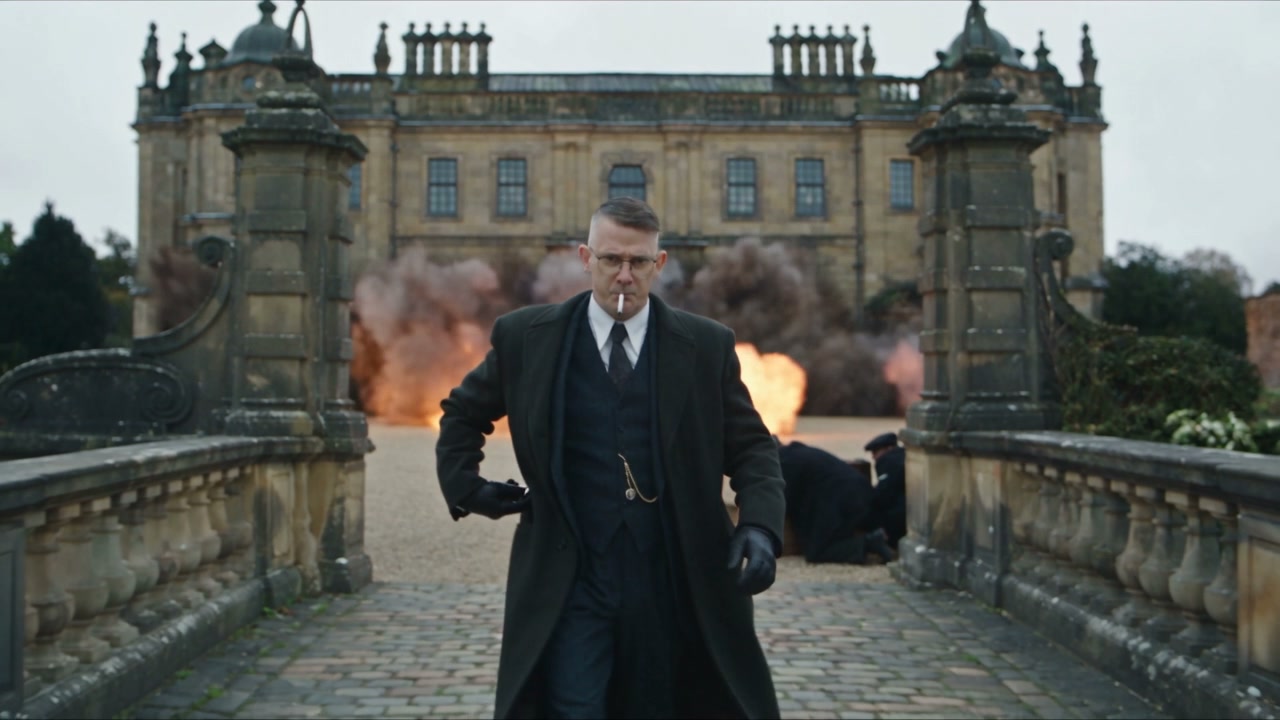
Walk away as the estate erupts behind you. Peaky Blinders AI puts your complete character and outfit into the prepared cinematic sequence, using one photo and the reference sound.
0:00 / —:—
Peaky Blinders AI video ideas
Explore community remixes of this performance. Open a video for a closer look.
Alternate estate community variant
What is Peaky Blinders AI?
Peaky Blinders AI is a photo-to-video template for the estate-explosion walk: a foreground lead advances toward a retreating camera, handles a lighter and cigarette, then continues as the mansion explodes behind them. On Motion Transfer, one person photo supplies the complete face, hair, body, clothing, shoes and accessories. The approximately 29-second landscape scene keeps the background people, location, timing and reference audio. This page offers that specific sequence, without an official connection to the television series. The reference defines the prepared scene. Labeled external community examples illustrate different leads and scenery; they are not verified Motion Transfer outputs.
How to create a Peaky Blinders AI video
One photo defines the lead; the estate sequence is prepared.
STEP 1
Choose your Peaky Blinders AI lead
Upload one clear person photo showing their full appearance and intended outfit. Avoid group images or crops that leave the body and clothing unclear.
STEP 2
Preview and check the quote
Watch the Peaky Blinders AI sequence with sound. Select an available resolution in Settings and check the quote on Generate. Sign in and submit when ready; choosing a photo alone starts no paid job.
STEP 3
Review your Peaky Blinders AI result
Open My creations and inspect the full scene, including the lighter gesture, walk and explosion. Download the checked clip; returning to an existing result does not create another generation.
Create a cinematic character moment with Peaky Blinders AI
Cast your complete look, follow the dramatic walk and keep the scene’s wide-screen payoff.
Make the Peaky Blinders AI entrance your own
Peaky Blinders AI gives a character portrait a sustained on-screen role. Your uploaded look carries through the approach, hand gestures and walk away, so you can introduce a personal character or stage a dramatic outfit reveal. Choose one clear person image with the outfit you want represented, including visible footwear and accessories. You can use your own look rather than preparing a costume matching the example. Peaky Blinders AI changes the lead as a complete character; the people working behind them remain part of the reference. There are no extra casting slots. Fine details such as glasses, buttons or gloves may drift, so inspect them across the moving sequence. The estate-walk community example preserves the approach and explosion sequence, with a softer 480p image.
Get a dramatic scene without planning a shoot
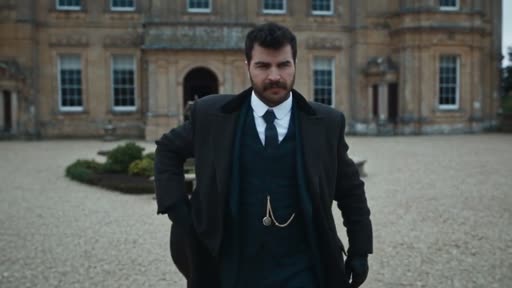
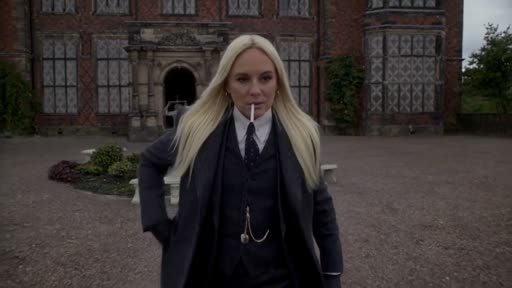
The Peaky Blinders AI reference already combines a slow forward walk, close hand movements, a retreating camera and a large background explosion. That gives you a clear progression from a quiet approach to a dramatic reveal without recording the action or assembling separate shots. Watch the timing before choosing your photo: the lead continues moving while the background changes, which suits a calm character introduction. Peaky Blinders AI follows this prepared performance. It has no explosion-strength slider, cigarette-removal control or alternate estate selector. Choose another reference if those details do not fit your idea; this template keeps them in the scene. The alternate-estate community variant changes the lead and the mansion background. Its timing and scenery differ slightly from the prepared reference.
Build a longer cinematic moment with sound
Peaky Blinders AI provides an approximately 29-second, 16:9 scene with enough time for the approach, explosion and continuing walk. The wide frame preserves the estate and surrounding activity while keeping your lead in front. Use the result as a character introduction, a playful cinematic edit or one part of a longer project. The finished clip includes the reference sound. Play your Peaky Blinders AI result all the way through before downloading, especially where the hands rise toward the face and smoke fills the background. Reframing for a vertical post is a separate editing choice and can crop the mansion or supporting people.
Is Peaky Blinders AI right for your idea?
Choose this sequence when the slow walk and explosion suit your character.
A focused character introduction
Peaky Blinders AI keeps one lead in the foreground, making it useful when the person and their reaction carry your idea. Supporting people stay as recorded in the reference.
A prepared dramatic payoff
The estate explosion creates the turning point. Peaky Blinders AI keeps that moment and the walk that follows, without asking you to plan a new scene.
Use your own reference for another story
For a different location, movement or cast arrangement, start on the Motion Transfer homepage with your own reference. Browse AI Trends for other prepared scenes.
Peaky Blinders AI credits and plans
Generation requires an account and enough credits for the displayed quote. The selected resolution and reference duration affect that quote. General plan examples may use other models or video lengths.
Starter
For your first ideas.
$8.3/month
$100.0 charged yearly
2,400 credits/year
Up to 400 images
GPT Image 2Nano Banana Pro
Up to 133 videos
Seedance 2.5Kling 3.0 Motion Control
- Up to 4K images and HD videos, depending on the model
- Image editing, video creation & motion transfer
- Watermark-free image & video downloads
- Generation history in your account
Popular40% OFFSave $238.8
Pro
For a steady creative flow.
$30.0/month$49.9/month
$360.0 charged yearly
21,600 credits/year
Up to 3,600 images
GPT Image 2Nano Banana Pro
Up to 1,200 videos
Seedance 2.5Kling 3.0 Motion Control
- Up to 4K images and HD videos, depending on the model
- Image editing, video creation & motion transfer
- Watermark-free image & video downloads
- Generation history in your account
- Use credits across image and video models
Best Value50% OFFSave $599.8
Business
For more creations, more often.
$49.9/month$99.9/month
$599.0 charged yearly
48,000 credits/year
Up to 8,000 images
GPT Image 2Nano Banana Pro
Up to 2,666 videos
Seedance 2.5Kling 3.0 Motion Control
- Up to 4K images and HD videos, depending on the model
- Image editing, video creation & motion transfer
- Watermark-free image & video downloads
- Generation history in your account
- Use credits across image and video models
Basic
$0Try before you subscribe
- 18 one-time signup credits
- Generation history included
- Watermarked previews & downloads
- Up to 3 images or 1 video
- Watermark-free downloads require payment
Prices in USD; taxes and total shown at checkout. Subscriptions renew automatically; cancel in Billing settings. Subscription credits expire each period; one-time credits never expire.
Refunds: request within 72 hours. Used purchased credits and applicable non-refundable processing costs (up to 6%) are deducted. Terms · Refund Policy
Peaky Blinders AI questions
Photo requirements, output choices and what to expect before generating.
How many photos does Peaky Blinders AI need?
Peaky Blinders AI uses one photo for the foreground lead. Their complete face, hair, body proportions, outfit, shoes and accessories come from that image. Background people retain their original roles; there is no second-person upload slot.
Does Peaky Blinders AI change the clothing too?
Yes. Supply the complete look you want on the lead, including the clothing. A clear full-person photo gives more information than a face crop. The scene’s lighter and cigarette actions remain, so review how the generated hands interact with those props.
Can Peaky Blinders AI change the explosion or location?
This fixed template keeps the estate, supporting people, explosion and camera movement. It does not include controls for replacing the building or changing the explosion timing. Use your own motion reference from the homepage for a different scene.
Does Peaky Blinders AI include sound?
The completed Peaky Blinders AI video includes the supplied reference audio. Enable sound in the preview before submitting. There is no music picker or custom soundtrack upload in this template; confirm the rights needed for your intended use.
How long is the Peaky Blinders AI video?
Peaky Blinders AI follows the approximately 29.04-second, 16:9 reference. Settings offers available output resolutions, while duration and aspect ratio follow the source. A shorter cut or portrait crop can be made in your own editor after download.
What should I check in a Peaky Blinders AI result?
Watch the hand near the lighter and cigarette, the feet on the path, and the outfit silhouette as the camera retreats. Check that the same lead remains recognizable after the explosion. Prompted consistency is a target, and individual results can contain distortions.
Is Peaky Blinders AI free to generate?
You can preview Peaky Blinders AI before spending credits. Generation requires signing in and having enough credits for the quote shown on Generate. Resolution and reference duration affect that quote. A fresh submission is a separate job; replaying an existing result adds no new generation.
Is this an official Peaky Blinders tool?
No. Motion Transfer is an independent service. The name identifies the scene style and template; it does not imply approval by the show, its cast or rights holders. Check permissions for the person, photo, footage and audio before sharing or commercial use.
Create your Peaky Blinders AI scene
Choose one photo with your complete character look and step into the prepared estate walk.