
Cheba Man AI Trend: How to Make the Dance from One Photo
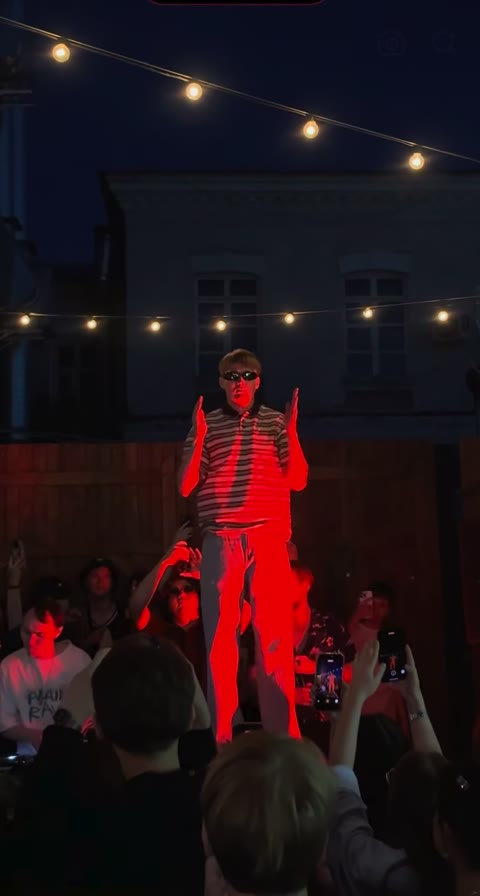
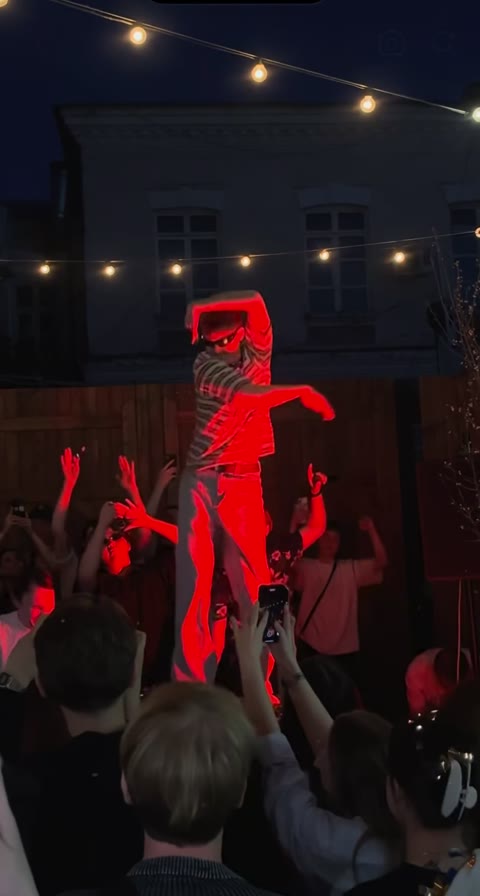
The Cheba Man AI trend puts a new person at the center of a red-lit dance performance, with spectators filming around the stage. Your photo supplies the performer’s appearance; the loaded video supplies the moves. Start with one photo in the Cheba Man AI tool, or follow this guide to choose your image and check the result.
Make a Cheba Man AI video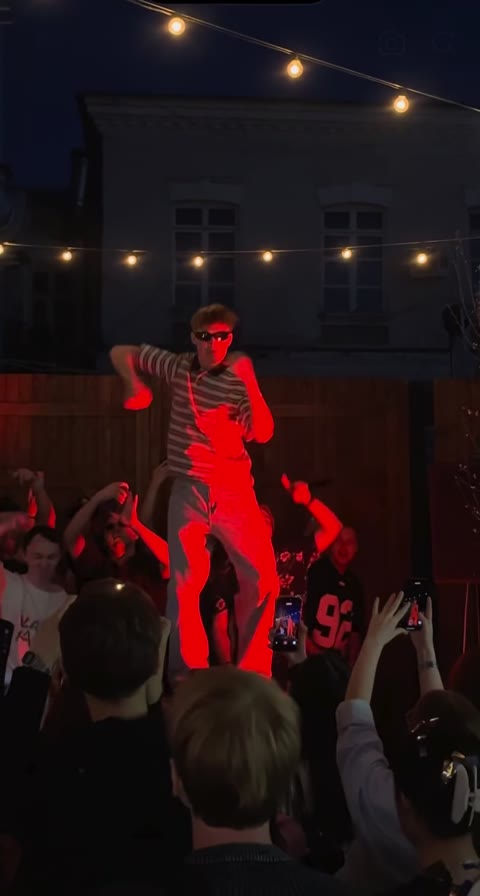
What is the Cheba Man AI trend?
This is a character replacement dance: the recognizable setting and performance stay, while someone unexpected takes the central role. In this version, one dancer stands above a close crowd under strong red light and strings of bulbs. The arm movements and confident stage presence make the contrast work, whether you cast yourself in everyday clothes or choose a sharply dressed original character.
The Cheba Man AI template on Motion Transfer follows an approximately 17-second vertical reference. Only the central dancer is meant to change. Spectators, raised phones, their positions, and the camera’s view come from that reference. The finished video includes the reference soundtrack, so you do not need to assemble a separate music track for this template.
Your photo decides the appearance
The face, hair, skin tone, clothing, and body shape in the photo guide the replacement. Choose an image of the person as you want them to appear. A photo in a jacket and a photo in a T-shirt give the model different visual information.
The reference decides the performance
You do not have to pose with your arms in the same position or record yourself dancing. The video already supplies the choreography, rhythm, camera movement, crowd, and stage. A simple, readable photo is more useful than an attempt to imitate a complicated dance pose.
Choose who takes the Cheba Man AI stage
Decide what makes the casting interesting before you upload. A familiar face in an unexpectedly confident performance is enough for a personal remix. For a character you have designed, a distinctive jacket, hairstyle, or silhouette helps viewers recognize them during the faster moves. Use a photo you are comfortable transforming and have permission to use.
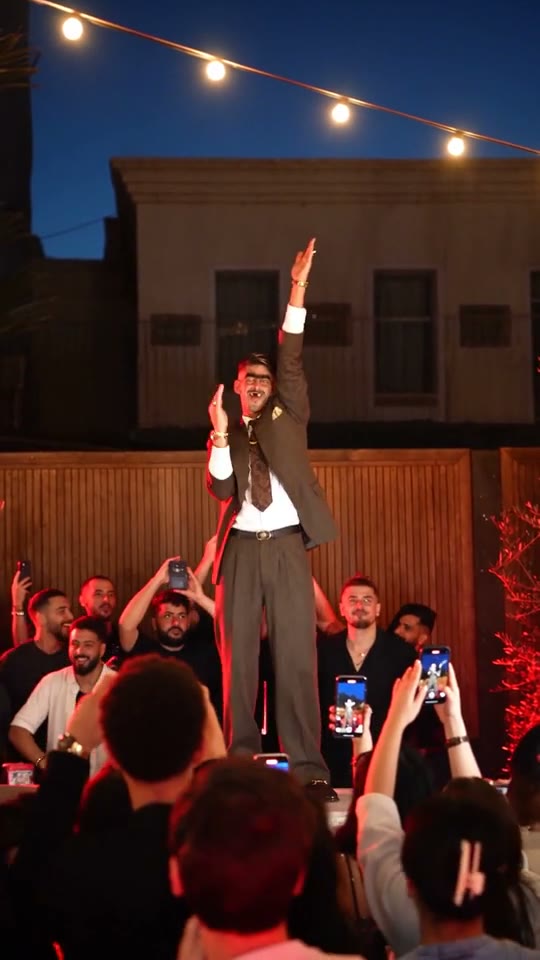
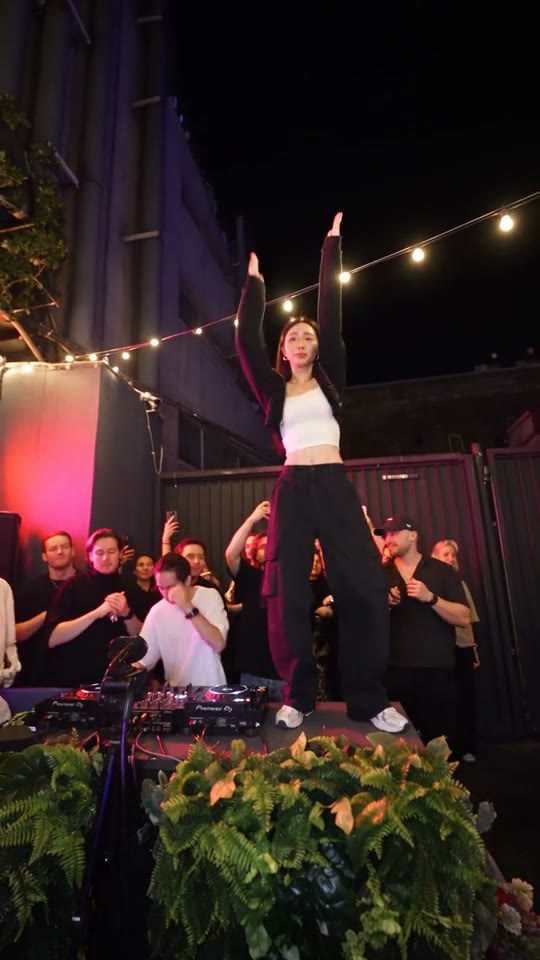
Treat these looks as casting ideas. The tool preview shows the performance your own clip will follow. You need one person in one image, with no separate photo for the audience. If your idea depends on replacing several spectators or changing the location, use the custom workspace described below.
Choose a clear face and a complete outfit
Keep the face readable
Choose a sharp, well-lit view with recognizable facial features. Avoid motion blur, heavy filters, or a hand covering the face. Dark glasses in the source performance do not mean you need to hide the face in your own photo; visible features give the model more information about the replacement.
Show the outfit and body
A full-body photo gives the model information about trousers, shoes, and proportions. A waist-up image can still provide useful detail, but anything outside the frame must be inferred. A tight headshot leaves most of the dancing body and outfit unspecified.
Prefer a relaxed, separated pose
Look for visible shoulders and arms that can be distinguished from the torso. Crossed limbs, someone leaning across the subject, or a prop covering the body can make the source image harder to interpret when the dancer raises their hands.
Use one clear version of the person
Skip group photos and collages of multiple angles. Before uploading, identify the one subject and check that their outline is easy to follow. The photo’s background does not need to match the stage; the loaded reference supplies the scene.
How to make a Cheba Man AI video
The Cheba Man AI page has the motion reference, Seedance 2.5 Edit, and the default prompt prepared. You do not need to download the dance clip, trim it, select a model, or write a prompt to get started.
1Open the reference and add one photo
Open the Cheba Man AI workspace. Watch the loaded reference, then upload your image to Main character · Photo 1. Check the photo preview before continuing. The slot targets the central performer, and uploading the image alone does not start a generation.
2Review Settings and the estimate
Choose 480p, 720p, or 1080p in Settings and read the current credit estimate beside Generate. Leave Custom prompt off for the prepared instructions. Higher resolution changes output detail; it cannot resolve an unclear input face or guarantee better choreography.
3Generate when the inputs are ready
Sign in, confirm that the reference and your photo are loaded, and submit with Generate when you are ready. The page uses the reference’s duration. Follow the task in My creations and check an existing in-progress task before starting another attempt.
4Watch the whole result before downloading
Play the finished clip from the first frame to the last. Look at the performer during fast arm movements and turns, then listen with sound enabled. Download the version you want to keep from the result. The reference soundtrack is included without a separate audio-generation step.
Three moments to check in your Cheba Man AI result
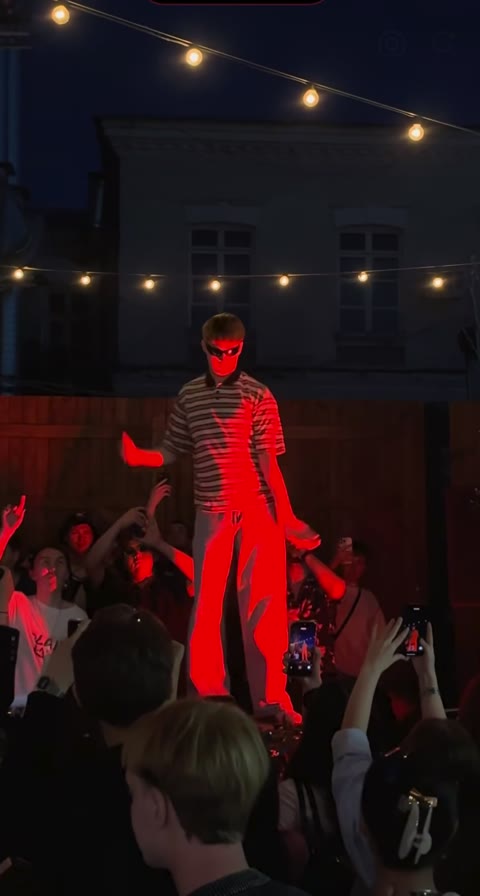
The face changes as the hands pass it
Compare a clear moment before the gesture with the next clear view of the face. Strong red light changes color, so also compare the shape of the face and hair.
If the input is blurred or obscured, choose a clearer photo. Keep the rest of the setup steady so you can judge whether that change helps.
Arms, clothing, or body shape drift
Watch the shoulder line, elbows, sleeves, and torso during the quickest movement. A good still frame can miss a brief extra hand or an outfit change.
Use a photo with a simpler pose and more of the body visible. If a custom instruction asks for a new gesture or costume, remove that conflicting request before another attempt.
The crowd starts to resemble the lead
Look at people next to and below the dancer. The intended change is limited to the central performer; spectators should stay distinct.
Use a single-subject image and keep the central-character-only instruction. A group photo or a prompt describing everyone as the same person makes the requested role less clear.
Why Cheba Man AI results can vary
AI video generation can produce different results from the same image and prompt. Appearance, hands, clothing, and timing may lose consistency during movement or overlap. This is a limitation of current generative video models, and the busy crowd and moving arms in this scene make those details worth checking. A clear photo helps communicate your intent, but it cannot guarantee a stable result every time.
If you choose to try again, change one thing with a purpose: a sharper photo for an unclear face, a fuller body view for missing clothing detail, or a simpler prompt for conflicting actions. Compare the same moment in both clips and keep the earlier version until you have reviewed the replacement. Another attempt can be different without being better.
Want a different scene or more characters?
The prepared Cheba Man AI template is the convenient route for this one-person replacement. If you turn on Custom prompt in Settings, start with the supplied wording and keep its role boundary: change the central dancer’s appearance, preserve the performance, and leave surrounding people in their own roles. Instructions for different choreography compete with the reference you are asking it to follow.
For a different background, supporting cast, or dance, open the Motion Transfer workspace on the homepage. Upload your own motion video and reference images, choose a compatible model, and adjust the prompt to describe each role and what should stay. Available image and video inputs depend on the model. This gives you more control over the request, while the same consistency limits still apply.
Cheba Man AI questions before you start
Why does another Cheba Man AI tutorial show a different length?
Different tools can use different reference clips. This page follows the approximately 17-second performance shown in the Cheba Man AI tool. Check that preview rather than assuming a 16-second or 30-second tutorial describes the same version.
Do I need to generate music for the Cheba Man AI dance?
No. This template adds the original reference soundtrack to the generated video. You do not write lyrics, enable an audio-generation switch, or upload a separate music file for this workflow.
Will my photo’s background replace the stage?
The template asks to keep the reference scene and replace only the main character. Choose your photo for its subject and outfit. For a different setting, use the homepage workspace with your own reference material and prompt.
Can I choose a longer duration on the Cheba Man AI page?
The fixed template follows its loaded reference. Resolution is adjustable, while the performance length comes from the source video. Start a custom project on the homepage if you want to work from a different clip.
Try the Cheba Man AI dance with your photo
Choose one clear person photo. The reference performance and default prompt are ready.
Make a Cheba Man AI video