
Create a video

Required photos1
Customize more (optional)0/3
Settings
Mode
Video length10s
Resolution

AI Car Configurator Video Generator

Create an AI Car Configurator Video from one vehicle photo. Follow a car falling onto a sandy setting and changing looks beside floating selection spheres. Add up to three more views of the same vehicle; the preview is a community example.

0:00 / —:—

What is AI Car Configurator Video?

AI Car Configurator Video follows a prepared vehicle reveal: a car drops onto sand, appears next to floating selection spheres and changes its look. Upload one vehicle photo and optionally add three more views of that same vehicle. The reference supplies the setting, camera and timing. This is a fixed video scene, so the spheres are part of the footage, not controls for choosing paint or parts.

AI Car Configurator Video

How to make an AI Car Configurator Video

Add the vehicle, compare three full-length modes, then check the body before you download.

  1. STEP 1

    Upload the vehicle

    Add one clear photo of the vehicle that should appear in the AI Car Configurator Video. If you have them, add up to three more views of that same vehicle. Skip a slot you do not need.

  2. STEP 2

    Compare the three modes

    Economy, Standard and Original all use the roughly 10-second reference. Read the duration, resolution and credit estimate beside Generate, then pick the version you want.

  3. STEP 3

    Check the body, then download

    Open the result in My creations. Check the vehicle shape, changing looks and any visible branding, listen to the sound, and download the clip.

A changing car scene on sand

The video and stills are one community example of AI Car Configurator Video. Your vehicle, paint and reflections can look different.

Bring one vehicle into the scene

Photo 1 guides the vehicle in your AI Car Configurator Video. A front or three-quarter view makes the body and wheels easier to identify. Photos 2, 3 and 4 can show other sides of that same vehicle. The prepared sequence changes its appearance, so paint, panels and small details may vary in the result.
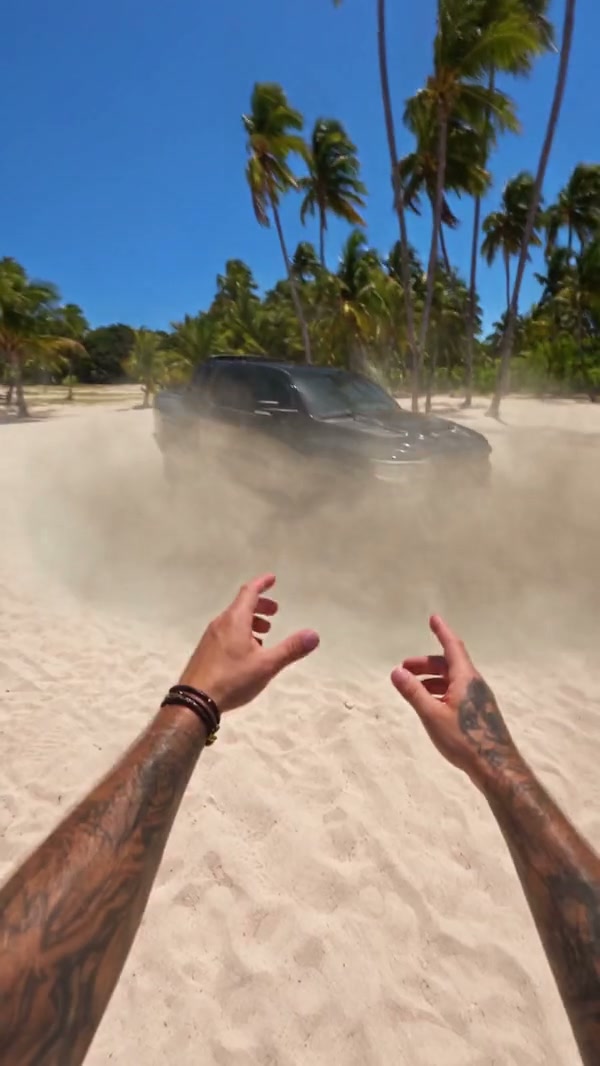
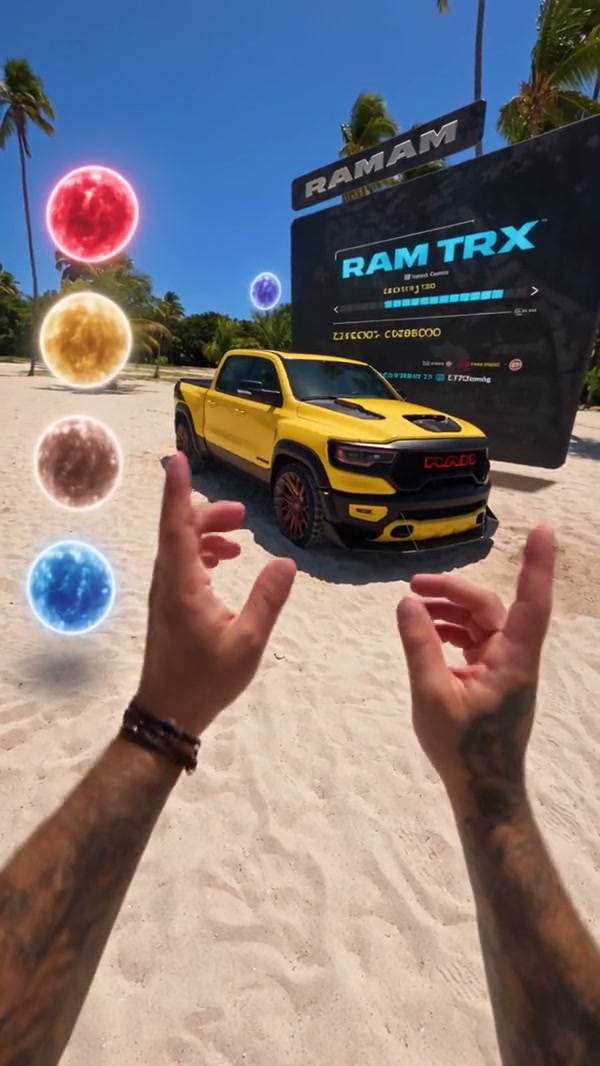
A community example of a vehicle beside floating selection spheres on sand

Follow the falling car and changing looks

The reference starts with a vehicle falling, then shows it on sand beside floating selection spheres. Its look changes as the camera moves around it. AI Car Configurator Video follows that sequence; the scene has no interactive selector for a particular color or body kit. The video and stills here show one community example.

Follow the falling car and changing looks

Use the complete reference in every mode

The prepared reference is about 10 seconds, so Economy, Standard and Original each use the full AI Car Configurator Video reference. Modes can differ in model, resolution and credit estimate. Compare the settings beside Generate before choosing a version; each follows the same prepared sequence.

Frame from the same community example after the vehicle has appeared

What you control in AI Car Configurator Video

Your photos guide the vehicle. The falling entrance, selection spheres and camera come from the AI Car Configurator Video reference.

Which views to upload

One photo is enough to start. Extra photos only describe the same vehicle from another side. They are not a lineup of different cars.

The path you cannot redraw

The sandy setting and camera timing are prepared. The floating selection spheres are shown in the video; they are not clickable controls.

The sound you will hear

The result restores the reference audio for the full clip. A still photo does not create a voice-over.

AI Car Configurator Video questions

Photo slots, the prepared car scene, modes and sound.

What photos does AI Car Configurator Video need?

One photo of the vehicle is required. You may add up to three more, and each extra photo must be another view of that same vehicle. Four photos is the maximum on this page. A set of different cars needs separate generations.

Which angle should I upload first in AI Car Configurator Video?

Start with a sharp front or three-quarter view so the body and wheels are visible. Add a side or a rear when that part should stay recognizable. A crop that shows only a badge, or a car blocked by other vehicles, gives the morph less of the body to follow.

Will AI Car Configurator Video add a brand badge?

There is no badge control. The prompt does not request added branding, but a logo from the reference or photo may appear or change. Review the generated vehicle before sharing it.

How do the AI Car Configurator Video modes differ?

Economy, Standard and Original all use the full 10 second reference, so none of them is a shorter highlight. They can differ in resolution and in the credit estimate shown beside Generate. Read that estimate before you submit.

Does AI Car Configurator Video include sound?

Yes. The beach reference has audio, and the result restores that track for the prepared clip. You do not upload a song or record a voice. Listen before you share the file, especially if you plan to replace the sound in an editor later.

Can I type a prompt or change the beach in AI Car Configurator Video?

No. AI Car Configurator Video follows the prepared sandy setting, floating spheres and timing. There is no prompt field for a different location or a selectable vehicle finish. For an indoor scene, try AI Car Showroom Video.

Will the vehicle match my photos the whole way through in AI Car Configurator Video?

A clear photo helps identify the body, but the sequence changes the vehicle’s look and the model may alter glass, wheels or panels. Compare the result with your photos; an exact match is not guaranteed.

How is AI Car Configurator Video different from the showroom page?

AI Car Showroom Video moves around a car indoors. AI Car Configurator Video follows a falling entrance and changing looks on sand. Toy Car to Real Car AI starts from a toy.

How much does AI Car Configurator Video cost?

The generator shows a credit estimate for the mode and resolution you select. An account with enough credits is required. Plan details live on the Pricing page.

Where do I download my AI Car Configurator Video?

My creations holds the finished clip. Play it with sound, check the body against your photos, and use the download control on that result.

Create your AI Car Configurator Video

Add the vehicle photo, review the AI Car Configurator Video estimate, and start from the generator.

AI Car Configurator Video