
AI Video Editor

Use the AI video editor to transform an existing clip with a prompt. Add reference images to guide the look, preview your credits and create your edit.

AI Video Editor

Edit a video

Source video
MP4 or MOV · 4–30 seconds · Up to 50 MB
Reference images · optional
Prompt is required

What is an AI video editor?

An AI video editor changes the content of an existing clip using instructions. Upload a video, describe the change and, when useful, add reference images for a person, object or style. The model creates a new video guided by your input. You can explore a different setting, change a visual detail or add an effect while asking the model to keep the movement and composition you want. Review the full result: AI edits can alter details and timing.

OriginalEdited
Sample created with Seedance 2.0 Mini video reference.

How to use the AI video editor

Prepare a clip, describe your change and review the result.

  1. STEP 1

    Upload a source video

    Choose one MP4 or MOV for the AI video editor, between 4 and 30 seconds and up to 50 MB. Select or trim a short segment with the subject clearly visible.

  2. STEP 2

    Describe your edit

    Tell the AI video editor what to change and what to preserve. Add reference images if you want to guide a person, object or style.

  3. STEP 3

    Generate and review

    Choose a resolution, check the AI video editor credit estimate and sign in to submit. Find the completed video in My creations and compare it with your source.

Make an existing video your own

Use a source clip and clear instructions to explore a new direction.

Change a scene with a simple instruction

Give the AI video editor one clear change to begin with. Describe what should appear, where it belongs and what should stay the same. For example, ask for a warmer sunset over a landscape while keeping the camera movement. For a product clip, describe the object and the setting you want to change. Specific directions make the intended edit easier to understand, although the finished video may still vary.

OriginalEdited
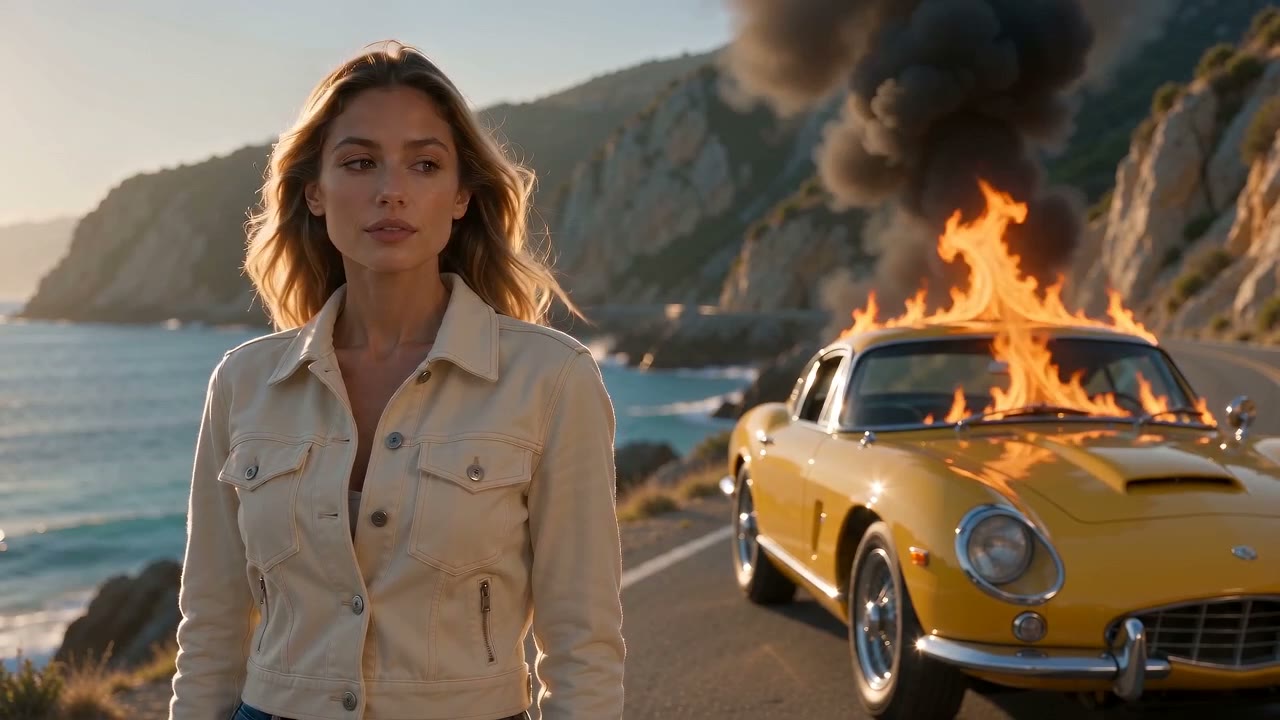
Guide the edit with reference images

Add an optional image when a particular look matters. A clear photo can guide a character, outfit, object or visual style; use your prompt to explain its role in the source video. You can add multiple reference images, but start with only the ones you need. The AI video editor interprets the complete request together, so conflicting images or unclear assignments can make the result less predictable.

OriginalEdited

Compare the original and edited video

After the AI video editor finishes, open My creations to play and download your result. Compare the edited video with its source and inspect the whole clip, especially faces, moving edges, small objects and transitions. The output follows the source aspect ratio and approximately follows its duration. Changes in motion or details can happen between frames, so watch the video rather than judging a single still.

OriginalEdited

Ways to use the AI video editor

Start with a clip you have permission to use and give the AI video editor a targeted visual change.

Explore a new setting

Ask the AI video editor for a different background or atmosphere. Describe the environment and ask to preserve the subject and camera movement.

Revise a character look

Use an optional reference image to guide clothing or appearance. Check identity, hands and outfit details across turns and occlusions.

Add a visual effect

Describe a visible effect and where it should appear. Review the result for consistency as the camera and subject move.

Plan an AI video editor task

Choose AI video editor inputs and output settings that fit your clip.

One source video

The AI video editor accepts one MP4 or MOV video up to 50 MB. Select a 4–30 second segment and check that the subject and intended changes remain visible.

Optional image references

Reference images help identify the look or object you mean. They are optional; the source video and an editing instruction are required.

Resolution and credits

Choose 480p, 720p or 1080p. The AI video editor calculates an estimate using the source duration and selected settings before submission.

A new video to review

The model generates a new file based on the original. Visual details can change, so watch the result and compare it with your source before sharing.

AI video editor questions

Inputs, prompts, credits and results.

What can I do with the AI video editor?

Upload a source video and describe a change to its scene, subject, objects or style. Add reference images when they help explain the desired appearance. Results depend on the input and instructions.

What video can I upload?

Upload one MP4 or MOV video between 4 and 30 seconds, with a maximum size of 50 MB. Other media requirements may apply when the server checks the file.

Are reference images required?

No. The AI video editor requires a source video and prompt. Reference images are optional and can help guide a specific appearance or object.

How do I write an editing prompt?

Name the change, identify where it belongs, and describe what should remain consistent. If you add an image, explain which person or object it should guide.

What resolutions are available?

The AI video editor offers 480p, 720p and 1080p. The output follows the source aspect ratio. Check the estimate when changing resolution.

Does the result keep the same duration?

The model follows the source video duration. The returned clip can be slightly shorter, so review the complete result before placing it into a longer edit.

How many credits does an AI video editor task use?

The estimate depends on the source duration, resolution and selected settings. The workspace displays the current estimate before submission.

Can I compare my AI video editor source and result?

Yes. Once your video is ready, open its comparison in My creations and drag the divider to inspect the two videos.

Do I need an account for the AI video editor?

You can prepare your inputs in the workspace. Sign in and have enough credits to submit a generation task.

Will every detail stay unchanged?

Not necessarily. AI video editor results can change faces, text, objects or motion. Use a clear source, describe what to preserve and inspect the full output.

Ready to use the AI video editor?

Upload a clip and describe the change you have in mind.

A coastal car scene gains fire and smoke