
Create a video

Required photos1
Settings
Mode
Video length11s
Resolution

AI Pampered Cat Video Generator

Make an AI Pampered Cat Video from one clear photo of the cat. The preview is a community example of a pink setting with a snack and a phone. This page does not take a second animal or a caption you can type.

0:00 / —:—

What is AI Pampered Cat Video?

AI Pampered Cat Video puts one cat in a pink setting with a snack and a phone. You upload one photo of that cat. The prepared reference supplies the room, the snack, the phone, the timing and the audio, and the result is a short vertical clip you can download without filming the setup or typing a prompt. There is no slot for a second animal, a person or a separate phone photo, and there is no caption field.

AI Pampered Cat Video

How to make an AI Pampered Cat Video

Add one cat, compare the full-length modes, then check the face before you download.

  1. STEP 1

    Upload the cat

    Use one clear photo of the cat whose face and markings should carry the clip. Do not add a second animal or a person.

  2. STEP 2

    Compare the three modes

    All three modes keep the full pink setup. Read the duration, resolution and credit estimate beside Generate.

  3. STEP 3

    Check the cat, then download

    Open the result in My creations. Look at the face and the fur, play the sound, and do not expect a caption editor.

One cat, a snack and a phone

The video and stills are one community example of AI Pampered Cat Video. Your cat, fur and markings can look different.

One photo defines the cat

The photo should show the face, the fur and the markings you want carried through the clip. A clear, well-lit face gives AI Pampered Cat Video more to follow than a tiny crop. You do not upload the pink room. A community post used two images and a conflicting note; this recipe keeps a single cat photo so the subject stays unambiguous.
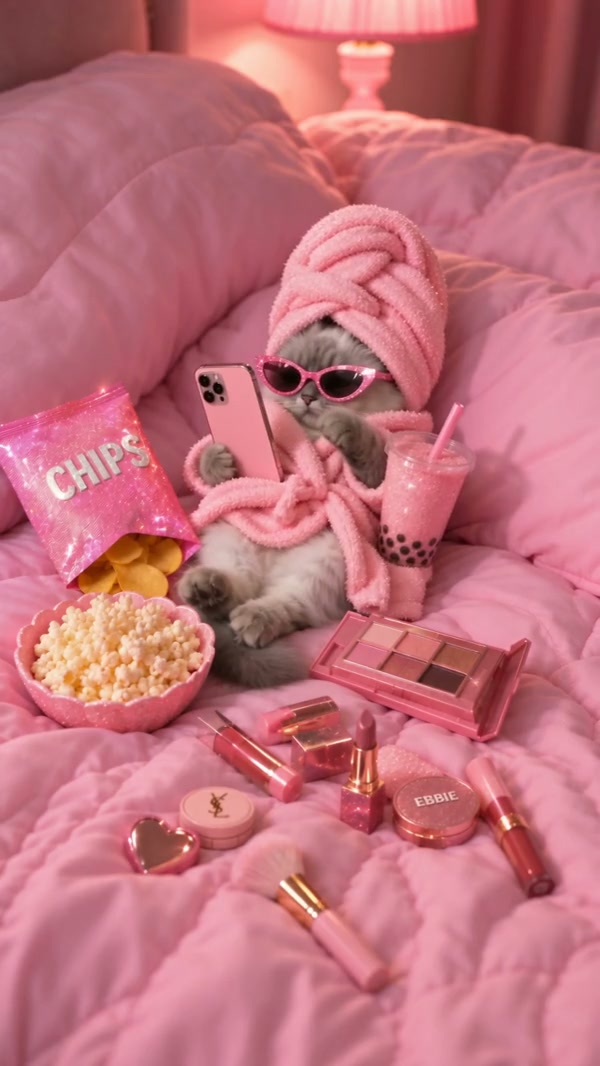
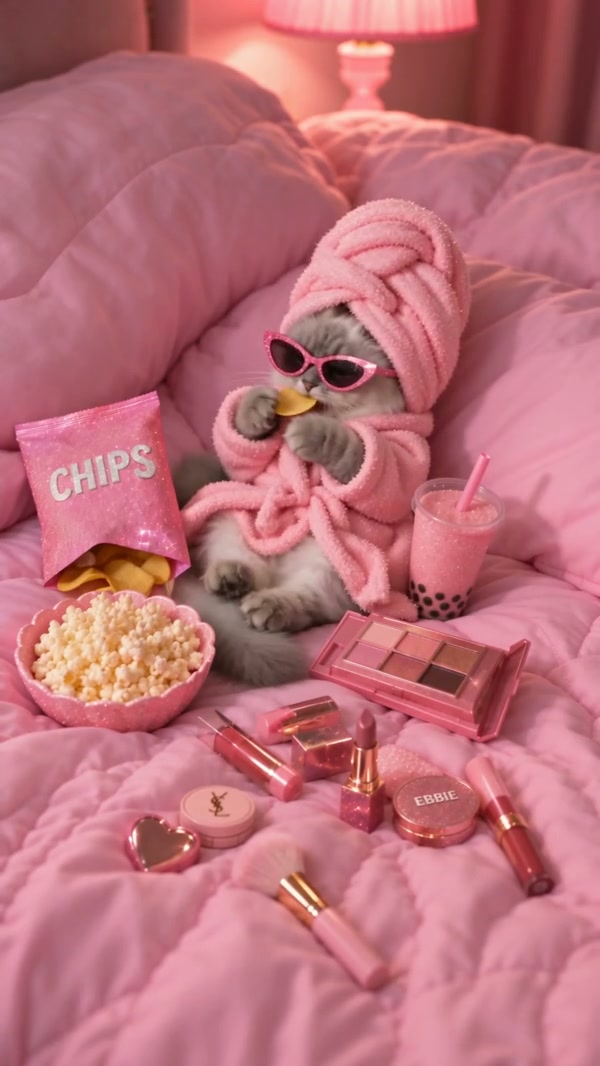
A community example of a cat in a pink setting with a snack and a phone

Keep the pink setting and the snack

The prepared motion is the cat reacting in that pink setup, with the snack and the phone already in the scene. You do not choose a different room. The video and stills are frames from one community example of that moment. Words that appear in a community clip are not a caption this page lets you type. Fur and markings in your result can still differ from the example.

Keep the pink setting and the snack

Play the full pink moment in every mode

The prepared reference is about 11 seconds, already inside the short-mode limit, so Economy, Standard and Original each play the full AI Pampered Cat Video. A lower-cost mode does not cut the reaction. The duration beside Generate can show 11 seconds after the output length is rounded. The restored audio is the reference track. The cat photo does not become a new voice.

Frame from the same community example as the cat reacts

What you control in AI Pampered Cat Video

The cat comes from one photo. The pink room, the snack, the phone and the audio stay with the AI Pampered Cat Video reference.

A single cat photo

There is no optional slot. A second file does not add another pet.

A room you do not rebuild

There is no prompt box for a different set, a person or a new prop. The snack and the phone stay prepared.

No caption to type

The page does not offer a caption field. The result restores the reference audio instead.

AI Pampered Cat Video questions

The single cat photo, the pink setup, captions, modes and sound.

What photo does AI Pampered Cat Video need?

One clear photo of the cat. There is no slot for a second animal, a person, the snack or the phone. Those objects come from the prepared scene.

Why not the two images from the community post in AI Pampered Cat Video?

That post paired two images with a conflicting instruction. This page uses one cat photo so the subject stays one animal. Upload the cat you want featured and leave the second file out.

Can I add a caption to AI Pampered Cat Video?

No. There is no caption field. The page does not promise that words in a community example will appear on your result. Add text afterward in an editor if you need it.

How do the AI Pampered Cat Video modes differ?

Economy, Standard and Original each use the full reference, about 11 seconds. None of them is a shorter highlight. The duration beside Generate is the length you will receive. Resolution and the credit estimate are what change with the mode.

Does AI Pampered Cat Video include sound?

Yes. The reference has audio, and the result restores that track. You do not upload a song. Listen before you share the clip.

Can I type a prompt or change the pink room in AI Pampered Cat Video?

No. AI Pampered Cat Video keeps this pink setting, this snack and this phone. There is no prompt field for a knight scene or a kung-fu routine. Use Knight Cat AI or Kung Fu Cat AI when you want those different setups.

Will the fur and the face match my photo in AI Pampered Cat Video?

A clear photo helps the model follow the face and the markings, but fur can shift as the cat reacts. The page does not promise a perfect match. Compare the result with your upload before you download it.

How is AI Pampered Cat Video different from the pet podcast?

Pet Podcast AI replaces a podcast speaker. This page is one cat with a snack and a phone in a pink room. Use the preview here when that setup is the clip you want.

How much does AI Pampered Cat Video cost?

The generator shows a credit estimate for the mode and resolution you select. An account with enough credits is required. Plan details live on the Pricing page.

Where do I download my AI Pampered Cat Video?

My creations holds the finished clip. Play it with sound, check the cat, and use the download control on that result.

Create your AI Pampered Cat Video

Add one cat photo, review the AI Pampered Cat Video estimate, and start from the generator.

AI Pampered Cat Video