
How to Make a Hop Hop Hop AI Dance
The roles belong to the opening frame only. After the cut, the same two people exchange foreground and background. Name the photos by that opening, or the second half will wear the wrong face.
Open Hop Hop Hop AI Dance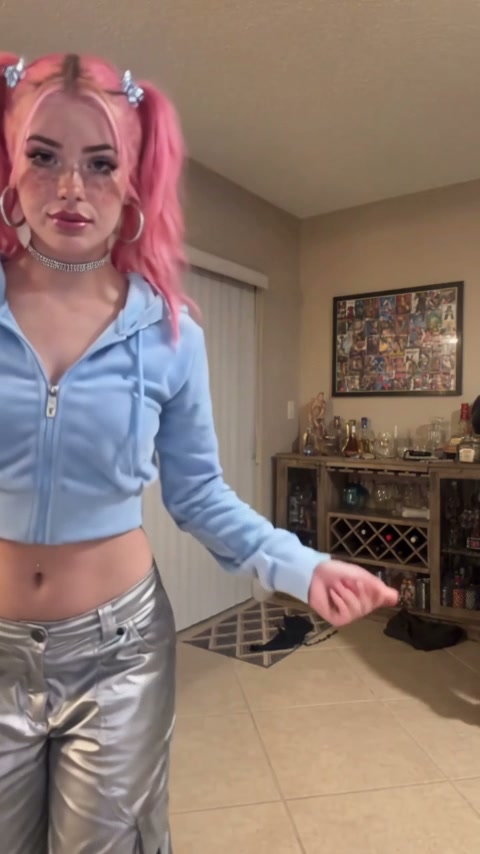
1. Prepare the reference video
Download the example used in this tutorial. It is about 8.2 seconds, 480 by 854, with audio. At the start the pink-haired person in the light-blue outfit is in front and presses the dance forward. The man in the orange vest is the person farther back. The clip then hard-cuts and those depths swap. Do not label either person as foreground for the whole file. A related public clip uses a purple-and-black outfit in the opening foreground and dark clothes behind, and its cut falls near 4.4 seconds. This download keeps the same kind of exchange. Place any split on the cut you can see in this file.
Prefer one edit of the full clip so both people and the cut stay in one pass. Split only if the faces fail to travel with the bodies. Each piece must still meet the model’s minimum duration. Do not push a very short fragment into a single-shot model.
2. Prepare 2 separate character photos
Image 1 is the opening foreground in this download: pink hair and the light-blue outfit in the example. Image 2 is the opening background: the man in the orange vest. After the cut, Image 1 is no longer the close person and Image 2 is. Your own photos replace those outfits. They still have to follow that opening map.
| Upload | Opening role in this file | After the cut |
|---|---|---|
| Image 1 | Foreground, pink hair and light blue in the example | Same person, now farther from the camera |
| Image 2 | Background, orange vest in the example | Same person, now in front |
Use two full-body photos. The background person is small at the start and large after the cut, so a blurry face will show up in the second half.
3. Choose a video generation model
Choose an editor that takes one video and two images and can hold identities across a cut. Kling 4.0 and Seedance 2.5 are both documented for video reference, image reference and audio. A single-person motion mode, including Kling 2.6 or Kling 3 Motion Control, does not cover this two-character swap. If you split at the cut, keep each half long enough for that model.
Compare input support and price in the video model guide by scene and budget.
4. Prepare the prompt
Point the video tag at this download and the image tags at the two photos. Replace the tags if your editor uses different names.
Edit @Video1 with @Image1 as the person in the foreground at the opening and @Image2 as the person in the background at the opening. Use each photo’s complete hair, face, body, clothing and shoes. When the clip hard-cuts, keep those identities and let them exchange foreground and background. Follow the palm motion, the crouch farther back, and the swap that is in this file. Preserve the room and camera. Do not add people, captions or new text.
5. Generate the video and choose its sound
Use a vertical frame. The file is about 8.2 seconds. If the editor asks for whole seconds, generate 9 seconds and trim the extra tail so the ending still matches the audio. Do not stretch the dance to fill the ninth second.
Keep the reference audio by restoring it or by placing the downloaded track under the new picture with generated sound muted. Check the cut, not only the first frame. The swap is where timing usually slips.
Audio: room tone and light footsteps through the dance. No new song, no cloned voices and no spoken countdown.
Use that line only when you want newly generated ambience. It does not reproduce the song that is already in the download.
Optional: split this download at the hard cut
If one full edit already keeps both faces through the cut, leave the clip whole. When the faces jump, split this download at the hard cut you can see, after the palm press and the crouch. Use the same two photos for both pieces. In the first piece, Image 1 is in front and Image 2 is behind. In the second piece, Image 2 is in front and Image 1 is behind. Generate the two pieces separately, join them on that cut, and put the original audio back on the same timeline. Keep each piece long enough for the model you use.
Use the prepared Hop Hop Hop AI Dance template
The Hop Hop Hop AI Dance template asks for the same two opening roles and restores reference audio. Its generator follows the purple-and-black reference, which is a little over eight seconds and bills as nine. This guide’s download is the pink-hair example so the positions above match the file. You do not upload either clip or paste the prompt on the template page.
Make my videoBefore you start
Which file is the tutorial download?
The pink-hair, light-blue outfit example. Image 1 starts in front. Image 2, the orange vest in that example, starts behind. They swap on the hard cut.
Is the foreground label permanent?
No. It describes only the opening. After the cut the same photos stay with the same people in the other depth.
Do I have to split the clip?
No. One full edit is the default. Split at the visible cut only when identities jump, and keep each half long enough for the model.
Or use the prepared template
Two photos cover the opening foreground and background. The reference and the audio are already attached.
Open Hop Hop Hop AI Dance