
How to Make a Bicep Heart Trend AI Video
The arm on the viewer’s right bends. The other hand completes a half heart against that upper arm. Keep both arms inside the frame. The words “I try” are already on screen. Keep them, or cover them later in an editor.
Open Bicep Heart Trend AI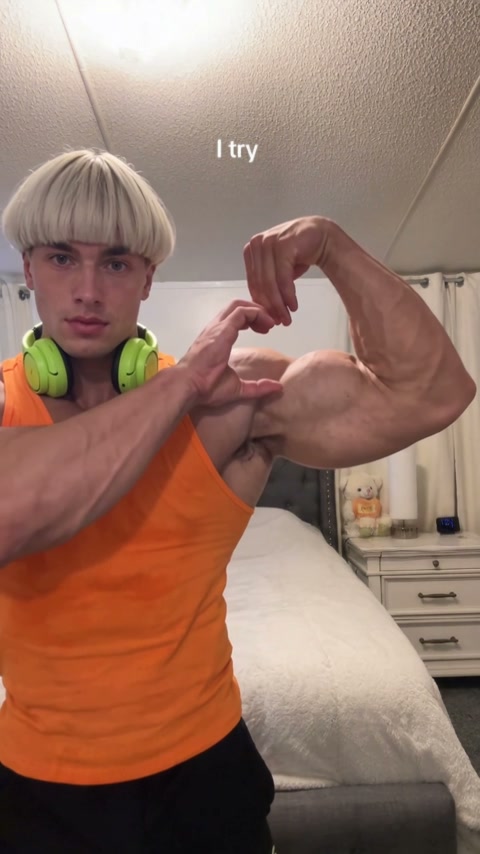
1. Prepare the reference video
Download the example this tutorial describes. It is 6.9 seconds, 480 by 854, with audio. The person wears an orange tank top and green headphones, with a light bowl-cut hairstyle, in a bedroom. The arms extend, the viewer-right arm bends, and the other hand meets that upper arm as a half heart. The words “I try” are already on screen, and a small heart graphic appears later. A second public clip shows the same room and the same words with a person in a red sleeveless top. The on-site generator follows that red-top reference. This download is the orange-top example, so the prompt below matches this file.
Keep the bent arm inside the frame when you upload the clip. “I try” is already on screen. Keep those words, or cover them later in an editor.
2. Prepare 1 character photo
Image 1 is the only person. Include the face, the hair and enough of both upper arms that the heart can form without the body leaving the picture. The orange tank and green headphones are the example, not a costume you must copy. Put the outfit you want in the same photo.
| Upload | Role | What the photo should show |
|---|---|---|
| Image 1 | The only person | Face, hair, torso and both upper arms, with a little room overhead. |
3. Choose a video generation model
This is one person in one continuous shot of under seven seconds. A video-edit mode with a single image is the direct fit. Kling 4.0 and Seedance 2.5 support video reference and audio. Kling 2.6 or Kling 3 Motion Control, which target a single subject, can also be a reasonable candidate here. A single-subject mode does not cover a two-person dance.
Read the video model guide by scene and budget for input limits.
4. Prepare the prompt
Upload this orange-vest example as the video and one photo as the person. Change the @ tags to match your editor.
Edit @Video1 with @Image1 as the only person. Use the photo’s complete hair, face, body, clothing and shoes. Follow the single continuous shot: the arms extend, the arm on the viewer’s right bends, and the other hand forms a half heart against that upper arm. Keep both arms inside the frame. Keep the existing on-screen words “I try” and the later heart graphic. Do not add people or new captions. Preserve the bedroom and camera.
5. Generate the video and choose its sound
Stay vertical. The file is 6.9 seconds. If the tool wants a whole number, use 7 seconds and trim the extra tail so “I try” and the heart still line up with the audio. Do not split the flex into extra shots.
Restore the downloaded audio under the new picture, or use the editor’s original-audio control and mute generated sound. If you want different ambience, generate it separately. New audio is not a copy of the reference track and not a voice cloned from the photo.
Audio: quiet bedroom room tone only. Keep it free of new dialogue and free of a copied song.
Use the prepared Bicep Heart Trend AI template
The Bicep Heart Trend AI template uses the red-top reference, which is also 6.9 seconds and also shows “I try”. One photo, three modes, and reference-audio restore. You do not upload this orange-vest file or paste the prompt. The output setting rounds to 7 seconds.
Make my videoBefore you start
Which clip does this prompt describe?
The orange tank top, green headphones and light bowl cut. The red sleeveless clip is the generator’s reference and shows the same pose and the same on-screen words.
Does the video contain text?
Yes. “I try” is on screen in this download. Keep those words, or cover them later in an editor.
Do I need two photos or a split edit?
No. One photo and one continuous shot are enough.
Or use the prepared template
One photo with the arms visible is enough. The flex and the reference audio are already attached.
Open Bicep Heart Trend AI