
Which AI video model fits your reference clip?
One dancer, two actors handling props, and a band filmed from several angles need different controls. Start with what your clip asks the model to preserve, then choose the lowest-cost route that supports it.
Browse video templates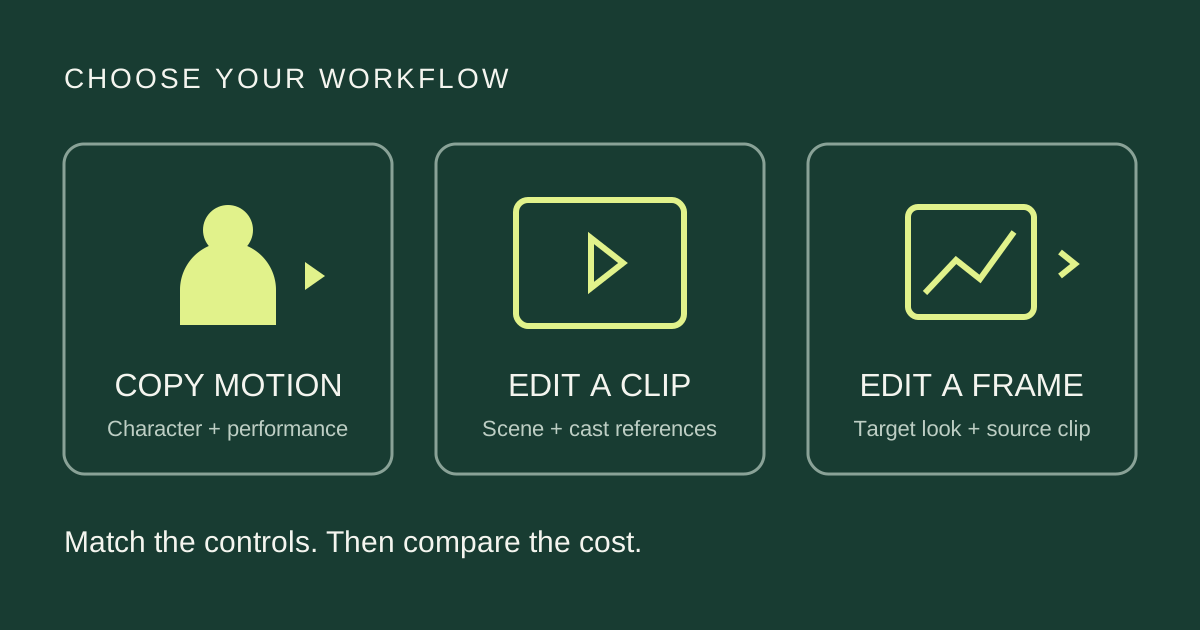
Choose by the scene you want to make
One person, one continuous shot
Start with a motion-control mode when the goal is to make your character perform a reference action. Kling 2.6 Motion Control is a lower-cost candidate within Kling’s published motion-control pricing.
Keep the scene and replace its cast
For an End of Watch remake, the room, partner and prop sequence all matter. Start with video editing that accepts character references, such as Kling 4.0 Omni Reference. Seedance 2.5 also offers reference-based editing; confirm the mode in your chosen interface.
Several camera angles or a full band
For a Tiny Desk-style performance, consider separate continuous shots first. Choose a suitable editor for each shot and reuse the cast references. A single shot with several interacting people still needs multi-character control.
Capabilities and published pricing checked November 2, 2026. These are workflow recommendations based on documentation; we have not run a matched footage benchmark across these models.
Compare the mode, not just the model name
| Model and mode | Useful starting point | Main trade-off |
|---|---|---|
| Kling 2.6 Motion Control | One character photo + one continuous action clip | Lower listed cost; single-subject motion, not separate casting for a group. |
| Kling 3.0 Motion Control | Character motion with optional facial-element references | Additional identity control; a facial element does not specify the outfit. |
| Kling 4.0 · Omni Reference editing | Edit an existing clip using separate character images | Use an edit instruction; reference generation is a different task. |
| Seedance 2.5 · reference-based editing | Multimodal references and edits to existing footage | Controls vary by platform; confirm video and image inputs together. |
| Runway Aleph 2.0 · keyframe editing | Edit a selected frame, then apply that change to the clip | Adds a still-image editing step and its cost. |
Motion control borrows a performance to animate a character. Video editing starts from a scene you want to keep. Ordinary image-to-video starts with a still and does not, by itself, reproduce another video’s action or prop timing. Check the mode before comparing prices.
When is the cheaper model enough?
A clear single-person performance is a useful place to start with a compatible lower-cost mode. Multiple people, props crossing faces and shot changes add demands, but paying more does not automatically resolve them. First decide whether you can simplify the clip without losing the effect.
| Kling motion mode | Standard / second | Professional / second |
|---|---|---|
| 2.6 Motion Control | 5 Kling credits | 8 Kling credits |
| 3.0 Motion Control | 9 Kling credits | 12 Kling credits |
For a 10-second Standard generation, these listed rates give 50 versus 90 credits. These are Kling platform credits, not Motion Transfer credits or equivalent dollar amounts. Check the current quote; subscriptions, resolution and platform pricing can change what you pay.
Try a short, complete action containing the hardest turn or interaction, within the model’s duration limits. Keep the same mode and character assignments you intend to use for the final clip. Change one input at a time if you retry. Include every attempt, edited still and manual assembly step when comparing the cost of a usable result.
Cost example, not a benchmark: three attempts at 50 credits total 150; one at 90 costs 90. This arithmetic does not predict either model’s success rate.
For multiple camera angles, work shot by shot
When the reference cuts between a singer, a keyboard player and the full band, split it at those cuts. Each job then has one continuous camera view, and a failed shot can be redone without regenerating everything. This is a practical way to reduce the scope of each edit; it does not guarantee consistent faces across the finished sequence.
1Cut at the actual shot changes
Keep complete actions and record each segment’s original start and end. If a shot is shorter than the model’s minimum input, choose a compatible mode or another shot.
2Reuse the cast, update the positions
Use the same identity and clothing references across shots. Describe where each person appears in this view; the singer may move from the center to one side after a cut.
3Assemble against one audio track
Place the outputs at their original positions on the timeline and keep the continuous source soundtrack. Correct duration differences before exporting so cuts and beats stay aligned.
Keep a continuous take together when it already fits your editor. Splitting adds assembly work and may add minimum charges. It also cannot separate people who overlap within one shot; that shot still needs an appropriate editing workflow.
When an edited frame gives clearer direction
If direct generation struggles with the cast or clothing, edit a frame from the clip with the replacements already in place. The video model receives a concrete target for appearance and composition alongside the original performance, reducing the changes it must infer from separate portraits. This can help with difficult edits, but it does not establish that every lower-cost model will improve.
1Select a frame with a clear view
Capture a frame showing the person or detail you want to change. If the video mode requires a first frame, use the actual opening frame; for timed keyframes, record the frame’s position in the clip.
2Edit the cast in place
Give the frame and character portraits to an image-editing model such as GPT Image 2.5. Describe each replacement and keep the original pose, scale, camera and props.
3Apply the edit to the video
Upload the edited image and corresponding reference clip to a compatible video mode. Assign the image to the supported keyframe or appearance-reference input, and describe the movement to preserve.
A selected middle frame is not automatically a first frame: keep its time position in a mode that supports timed keyframes, or use the actual opening frame in a first-frame workflow. Preserve the aspect ratio and composition. Image-to-video alone does not copy a reference clip’s performance.
Skip this step when your chosen model already gives you the result you want. It adds image-generation costs, and an error in the edited still can carry into the video. A clearer still cannot guarantee better motion or solve every occlusion. It also does not turn a single-person motion mode into multi-person control.
Put the choice into practice
Use the End of Watch tutorial for a downloadable reference, two explicit roles and copyable editing prompts. For camera cuts and a larger cast, see the Tiny Desk guide and apply the shot-by-shot method above to your chosen clip.
On Motion Transfer, prepared trend templates handle the reference setup. For your own clip, open AI Video and check the selected model’s available inputs and quote. The external workflows compared here do not imply that every mode or control is available in this workspace.
Common model-selection questions
Can one group photo replace everyone in the video?
Only if the chosen workflow supports assigning and controlling those roles. A group image alone cannot add multi-character control to a single-subject model. Use separate role references where supported, or an edited keyframe with a compatible video editor.
Should I always upgrade for a complex scene?
First check the task and inputs. A better-matched mode, a clearer photo or a shorter continuous shot may be more useful than a higher price tier. Upgrade when the next option provides a control you need or your own comparable attempts justify it.
Will the model keep my reference soundtrack?
Choose whether to generate new sound or retain the reference track. Audio-generating modes in Kling 4.0 and Seedance 2.5 can create sound with the video; describe the effects, ambience or dialogue you want. For the exact reference soundtrack, use original-audio preservation where available or align the source audio in an editor. Controls depend on the selected mode, and generated sound is not an exact copy.
Start with a prepared reference
Choose a scene, add your cast and review the generation quote. Each template provides its own reference setup.
Browse video templates