
How to make a Tiny Desk AI band video
A singer laughs into a close-up, the camera cuts to a saxophone solo, and the band returns. This guide shows how to recast that desk-side performance with your own characters. You can follow the workflow in a video-reference editor or use the prepared template. The important preparation is a clear cast list: one image for each role you want to change.
Try Tiny Desk AI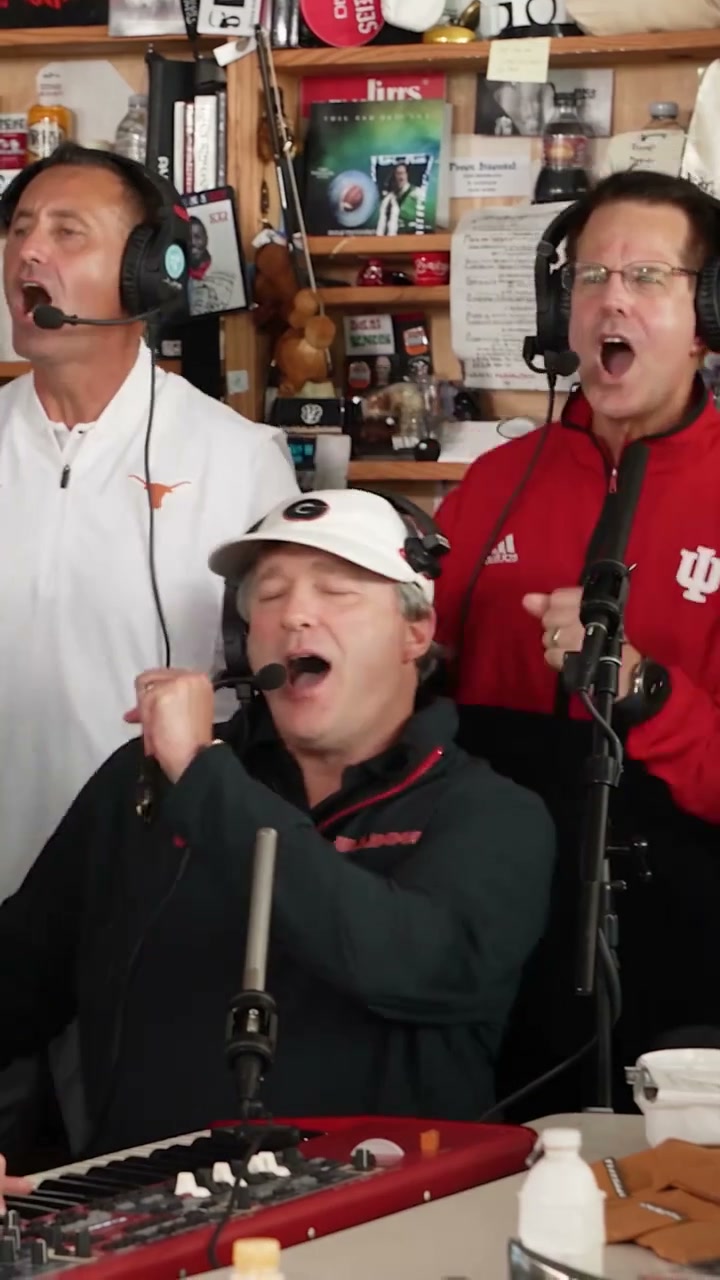
What are you making?
Tiny Desk AI here means a character recast of a compact band performance, with shelves, microphones, a keyboard and a saxophone around the performers. A photo provides a character’s full appearance and outfit. A motion reference provides the gestures, camera cuts and playing actions. The supplied performance and music stay separate from the uploaded photos: a new appearance does not create that person’s singing voice.
Choose between recreating a particular clip and inventing a new concert scene. An image-to-video prompt can invent a desk concert, but matching the laugh, solo and return shots requires an editor that accepts a video reference alongside character images. This tutorial focuses on that reference-based workflow.
Prepare a cast list before uploading
Lead singer — required in the template
Use a clear individual photo with the head, hair, shoulders and intended outfit visible. The lead is the red-cap singer in the prepared reference. A distant group photograph gives too little detail for the close-up.
Saxophonist and keyboard player — independently optional
The saxophonist wears a navy-and-white top in the reference. The seated keyboard player wears a white cap. Supply separate character images only for the players you want to recast; the instruments come from the motion clip.
Two backing singers — independently optional
Identify them from the band shot: white shirt on the viewer’s left behind the keyboard, red shirt on the right. Leave either slot empty to keep that performer. Distinct clothing helps separate nearby people.
Your motion file
Use your own performance recording or a clip whose creator permits editing and downloading. Keep the original file, its aspect ratio and its soundtrack. Avoid a screen recording with captions or playback controls. If you record a replacement, capture a lead close-up, a band view and a saxophone shot with clear cuts.
Name files by role, such as lead.jpg, sax.jpg and keys.jpg. Avoid a collage: separate files let the editor bind each character to one role. Keep the same wardrobe across any additional views of that character.
Copy a prompt and adapt the image numbers
Example with three uploaded photos: Image 1 is the lead, Image 2 the saxophonist, and Image 3 the keyboard player. The backing singers remain unchanged. Use your editor’s attachment picker to bind these references; some editors use different image tokens.
Recreate the desk-side band performance in @Video 1. Use @Image 1 for the red-cap lead singer, @Image 2 for the saxophonist in the navy-and-white top, and @Image 3 for the seated keyboard player in the white cap. Transfer each reference’s complete appearance, hair, body proportions, clothes and accessories. Keep each person consistent through the lead close-ups, saxophone solo and band shots. Preserve the two backing singers. Match the gestures, expressions, instrument interactions, camera cuts and timing. Keep the room, shelves, desk, microphones, keyboard and saxophone. Do not swap roles, duplicate people or change outfits.
For a lead-only version, delete the Image 2 and Image 3 assignments and ask to preserve every other musician. If you replace only the lead and keyboard player, upload two files and assign the keyboard player to Image 2. Do not leave a reference to an image that was never uploaded.
Generate it in a video-reference editor
1Check the editor’s input capabilities
Choose video editing or video-reference generation with separate character images. Confirm its image count and maximum reference length before buying a generation. A five-person cast needs five independent image references; an editor that accepts only one portrait cannot express that cast list.
2Attach and bind the reference files
Attach the motion clip, then the photos in your written role order. Keep the reference aspect ratio. Paste the prompt, checking that every image token resolves to the correct thumbnail.
3Choose a complete musical moment
If the editor accepts the full clip, preserve its length and cut timing. If its limit is shorter, prepare one continuous excerpt containing the moment you want, and export its audio from the same start and end points. A lead-only passage and a sax solo teach the model different actions.
4Review the picture before adding sound
Generate a silent visual version if the editor offers that option. Watch it once at normal speed and again around every cut. If a role is wrong, fix the assignment or simplify the cast before spending on another run.
5Align sound and export
In a timeline editor, place the generated video and the permitted reference audio at time zero. Mute any unwanted generated audio. Check the first vocal gesture and the saxophone entrance. If alignment drifts, use a closer timing match or adjust picture timing in small sections; shifting the entire track only fixes a constant offset. Export an MP4 at the working frame rate and original aspect ratio.
Check the cuts, instruments and returning people
A musician changes after a cut
Compare the first and last band shots, including clothing and hair.
Use stable role descriptions across shots. Remove ambiguous descriptions such as “the man on the left” when the camera angle changes.
A hand merges with the saxophone or keys
Pause at the saxophone close-up and the keyboard player’s hands.
Choose a reference where the interaction is visible. Keep the instrument in the scene and avoid asking the character to hold an extra prop.
One person appears twice
Count the cast in wide shots and inspect the two backing singers.
Give each uploaded photo exactly one assignment, and explicitly preserve the unassigned performers.
The laugh matches but the solo does not
Compare the start of the solo against the original audio.
Check whether the generator changed shot lengths. Do not stretch the whole soundtrack to correct one mistimed cut.
These are preparation and review methods, not a guarantee of likeness or musical synchronization. AI can alter hands, clothing and timing even with correctly assigned inputs. A still frame alone cannot confirm that the whole performance works.
Using the Motion Transfer template
Open the Tiny Desk AI tool. Upload the required lead image and any of the four optional roles you want. The template handles the role-specific prompt. Original uses the full reference; Economy and Standard use the prepared shorter excerpt. Preview the selected mode before generating. The result includes the corresponding reference sound, and completed work is available in My creations. You do not upload or trim a video on this fixed-play page.
For a simpler two-person practice exercise, try the Alors on Danse duet. Fewer changing characters can make it easier to identify where an image assignment went wrong.
Tiny Desk AI questions
Does my photo also change the singer’s voice?
No. The photo defines appearance and clothing. Reference audio or separately supplied music defines the soundtrack; this process does not clone your voice.
Can I replace only the singer and one musician?
Yes. In the template, the lead is required and each supporting role is optional. In another editor, upload only the chosen photos, number them consecutively, and explicitly preserve the remaining band members.
Can I make it without an existing performance clip?
You can record your own simple band scene and use that as the motion reference. A text-only concert prompt may create a new performance, but it will not reliably reproduce the same cuts, laugh and solo.
Use the prepared Tiny Desk AI template
The template supplies the motion reference and role mapping. Bring a lead photo and any optional musician photos.
Try Tiny Desk AI