
How to make an Alors on Danse AI duet
One person plays the keyboard while a partner reacts beside the laptop, approaches the camera and joins the final dance. The joke depends on their different jobs. Prepare two separate photos and keep those jobs fixed through the close-up. Here is a workflow you can use in a video-reference editor, plus a shortcut with the prepared template.
Try Alors on Danse AI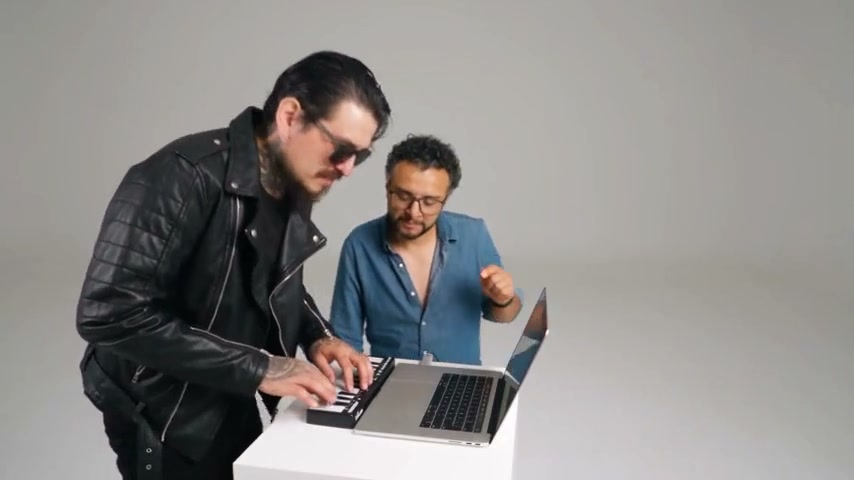
The duet, the sketch and the AI remake
The AI version replaces the two performers’ complete appearances and outfits while following a supplied studio clip. It needs more than two people dancing: the keyboard performance, the partner’s interruptions and the move toward the camera are the recognizable sequence.
The original keyboard-and-laptop sketch appears in Jamel TV’s “Alors on danse, le tube” from Made in Jamel (2010). That identifies the earlier sketch, not the first person to make an AI remix. The example here is an adapted performance. A song title alone does not give you the gesture timing or the two-role choreography.
Prepare two photos and a usable reference clip
Image 1: keyboard player
Choose one person with their face, hair, torso and intended outfit clear. Their hands will interact with the keyboard in the video; a photograph holding a large object can make that interaction harder to interpret.
Image 2: expressive partner
Use a separate photo with a clear face and clothing. This role comes close to the camera, so avoid a tiny face cropped out of a group picture. A different outfit silhouette helps you detect accidental role swaps.
Video 1: the performance
Use an editable, downloadable remake with the creator’s permission, or record your own version: keyboard player at the table, partner next to the laptop, partner approaching the camera, then a shared dance. Keep the entire action visible and save the matching audio separately if your editor requires it.
A group image is not a substitute for two independent image inputs. Label your files keyboard-player.jpg and partner.jpg. Before generating, write down who does what and compare that list with the attachment thumbnails.
A two-person prompt you can copy
Bind the motion clip to Video 1 and the individual photos to Image 1 and Image 2. Use the editor’s actual attachment tokens if they differ from these labels.
Recreate @Video 1 with @Image 1 as the keyboard player and @Image 2 as the expressive partner beside the laptop. Use each reference’s complete appearance, hair, body proportions and clothing. Keep both people and their assigned roles consistent, including when the partner approaches the camera. Match the gestures, expressions, lip movements, interactions, shot timing and camera work. Preserve the white studio, table, keyboard and laptop. Keep clothing stable through the final dance. Do not swap roles, merge people or add performers.
If your own reference has a different room, replace “white studio” with that room description. Keep the role assignments specific. Asking for “two friends doing the meme” gives the model much less information about which image belongs to the person at the keyboard.
Make the video in another editor
1Select the right kind of workflow
Use a video-reference or video-editing workflow that accepts at least two independent character images. Check the maximum input clip length and supported output duration. A single-image animation tool cannot bind both roles in this way.
2Choose the whole routine or one complete moment
Preserve the full sequence when the model supports it. For a shorter limit, cut a continuous excerpt that includes the partner’s approach and a clear reaction; do not cut through the gesture you want to keep. Export the matching soundtrack from the same start and end points.
3Generate with fixed roles
Attach the files, paste the role prompt and retain the reference’s landscape aspect ratio. Choose a supported output duration near the reference excerpt. Begin with the available lower-cost setting if you are still testing the cast, then inspect the downloaded result before increasing quality.
4Put the music back on the timeline
If the visual result is silent, import it into a timeline editor and place the permitted reference audio below it. Mute unwanted generated sound. Align the partner’s first reaction and check the final dance. A constant delay can be shifted; changing delay across the clip usually means the picture timing needs correction or a new generation.
5Export and watch once outside the editor
Export MP4 at the project frame rate. Keep both performers in frame; a vertical crop can remove the keyboard player or the approaching partner. Check the exported file with sound rather than relying only on the editor preview.
Check the moment when the partner comes forward
The people exchange roles
The person playing the keyboard starts making the partner’s gestures.
Rebind the images and remove left/right-only descriptions. Use “keyboard player” and “partner beside the laptop” consistently.
The close-up becomes a different person
The partner looks right in the wide shot but changes near the camera.
Use a sharper individual photo and retain an explicit identity instruction for the approach. Remove extra style changes from the prompt.
The keyboard or laptop changes shape
Hands, keys or the laptop lid merge as the performer leans forward.
Use a reference with an unobstructed table and ask to preserve the props. Inspect those frames before sharing.
The two-person dance is cut off
The clip ends during the approach or never returns to the wide shot.
Choose an excerpt with the complete ending, or use a workflow that supports the whole sequence. Longer output alone does not restore missing reference actions.
These checks help you choose a usable take; they do not guarantee consistent people, hands or synchronized mouth movements. Changing the people’s appearance does not synthesize their own voices.
Use the prepared duet on Motion Transfer
The Alors on Danse AI tool has two required uploads: Keyboard player and Expressive partner. Original uses the full 30-second reference. Economy and Standard use its prepared 15-second highlight. Choose the mode and resolution, review the quote and generate; an account and sufficient credits are required. The reference sound is restored for the selected version. Find the completed video in My creations.
For a larger cast with independent optional musicians, read the Tiny Desk AI tutorial. The same one-image-to-one-role discipline applies.
Alors on Danse AI questions
Can I use the same photo for both people?
You can assign it to both roles, but similar characters make mistakes harder to spot. For your first test, use two distinct appearances and clearly different outfits.
Can I make a vertical version?
A separate vertical composition needs both people and the table to remain visible. Start with the source framing; after generation, try a crop and inspect the close-up and final dance. Do not assume a center crop will keep both roles.
Does the prompt create a new recording of the song?
No. This workflow transfers the visual performance. Add audio you have permission to use, or use the template’s corresponding reference sound. A photo does not supply the person’s voice.
Use the prepared Alors on Danse AI template
The template supplies the motion reference and role mapping. Bring one photo for the keyboard player and one for the partner.
Try Alors on Danse AI