
How to Make a Fancy Cafe AI Video
A person sips coffee from the wrong perch. Another guest arrives, sits lower, and makes the mistake obvious. To remake the Fancy Cafe scene, keep the furniture and the slow realization intact while changing the two people.
Open Fancy Cafe AI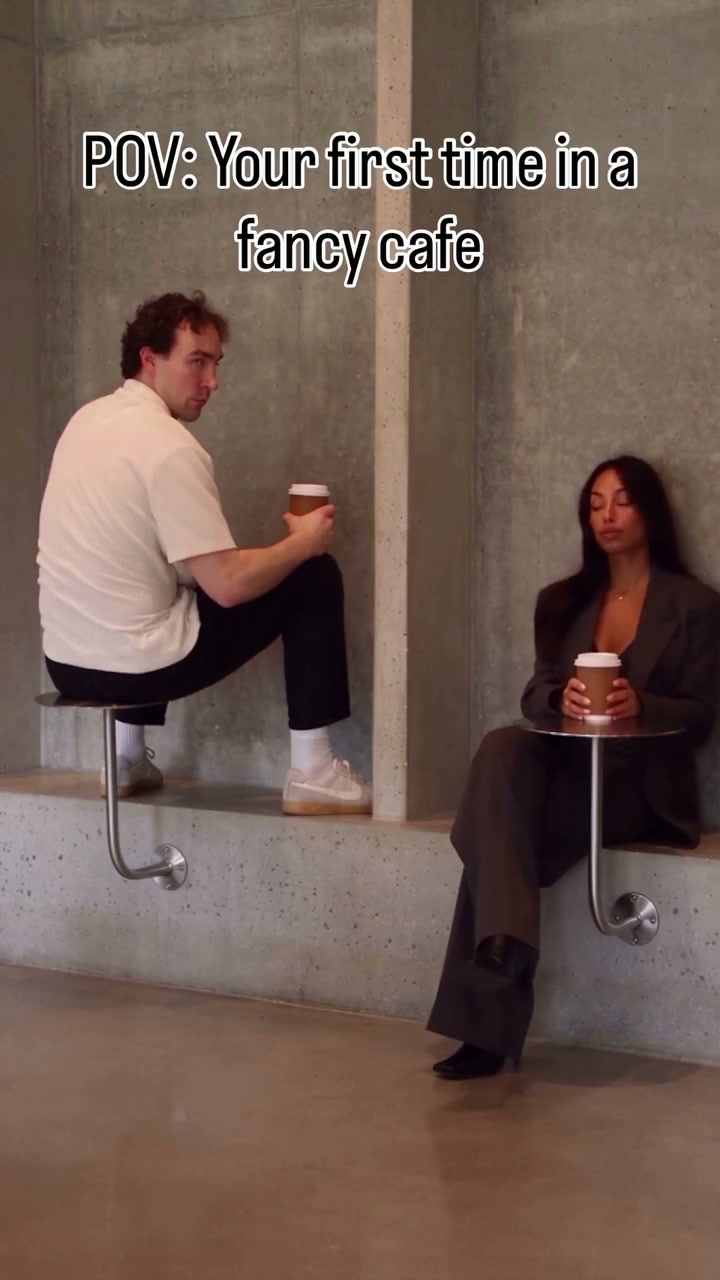
1. Prepare the reference video
Download the complete 20.9-second vertical example. The opening establishes the mistake; the guest enters around six seconds, and the first visitor climbs down near the final third. Keep the lower seat and both table surfaces visible. The source has an on-screen caption, so plan any replacement text separately.
Do not cut out the guest’s entrance and leave only the final seated view. For a shorter version, keep a little of the mistaken posture, the arrival and the climb down in that order. Add exact captions in a normal editor after generation so the joke is readable even if the source lettering changes.
2. Prepare 2 separate character photos
Assign Image 1 to the person perched on the left at the opening. Assign Image 2 to the guest entering from the right. Use a full-body image for each, with the clothes and shoes you want in the finished scene. Keeping the two pictures separate makes the seated roles easier to distinguish.
| Upload | Role in the opening | What the photo should show |
|---|---|---|
| Image 1 | First visitor | The person initially perched high on the left. Include the full outfit and shoes for the climb down. |
| Image 2 | Second visitor | The person who enters from the right and sits normally. Use a separate full-body photo. |
Use the intended clothing in the same photo as each person. The reference supplies the setting and body movement, so a simple standing portrait is enough. A clear face and visible body are more useful than trying to imitate an exact pose with an obscured face.
3. Choose a video generation model
Choose a video editor that can preserve existing objects while accepting both character images. The seat, table and person must maintain their spatial relationship during the climb down. A generic text-to-video prompt can invent a different cafe and lose the reveal; the actual clip provides the geometry and pacing. Kling 4.0 Omni Reference and Seedance 2.5 video editing are options for this combination of a clip and multiple character images.
Use a mode that accepts the actual source clip together with all of your character images. Compare input support and the current quote before generating; the model name alone does not tell you which editing controls an interface exposes. For a fuller comparison, read our video model guide by scene and budget.
4. Prepare the prompt
Upload the clip as Video 1 and the 2 photos in the order above. Add the editor’s uploaded-asset references so the names in the prompt point to the correct files. This example uses Kling-style @Video1 and @Image1 tags; replace those tags with your chosen editor’s equivalents.
Edit @Video1 with @Image1 as the first visitor, initially perched on the high round surface on the left, and @Image2 as the second visitor who enters from the right and sits at the adjacent table. Use their complete appearance, hair, body, clothing and shoes from the assigned photos. Keep these identities fixed when both are seated. Follow the cup lifting, sideways glances, second visitor’s entrance and seating, first visitor’s realization, climb down and final seated reaction with the original timing. Preserve the concrete cafe, wall-mounted furniture, cups, camera and vertical framing. Keep the furniture geometry and each person’s contact with it. Do not add people or new text.
If you use a different clip or a shorter selection, update the opening positions and remove actions that are no longer present. Keep the appearance assignments explicit instead of asking the editor to replace every person in the scene.
5. Generate the video and choose its sound
Use a 9:16 canvas and an available 720p or 1080p output. Keep the source duration when editing mode follows it automatically. If the interface requires whole seconds, allow 21 seconds and trim any surplus ending. Keep the original action speed so reactions and sound remain aligned.
To keep the reference soundtrack, use original-audio preservation if the mode supports it. Otherwise place the downloaded reference audio beneath the generated picture in an editor, mute generated sound and align the action. If the model changed the timing, align the affected movement as well as the opening; matching the start alone is not enough.
For a different sound treatment, select an audio-generating mode in Kling 4.0 or Seedance 2.5 and describe the desired sound. Enable its audio control if the interface provides one. You can add:
Audio: subdued cafe room tone and gentle cup contacts, following the scene timing. No new dialogue or music.
Newly generated sound is an alternative to the existing track. It does not copy a song or clone a person’s voice from their photo. Export the finished picture and chosen audio together as MP4.
Optional: settle the seated poses in a still first
If the first visitor floats above the furniture or the two identities blend when seated, edit a clear frame where both people are visible. Give that screenshot and the two portraits to an image model, asking it to replace the people while preserving their body positions, furniture edges and contact points. Use the edited frame with the original video in a compatible editing mode. It clarifies what the new cast should look like in this unusual arrangement; it cannot guarantee the later climb-down motion.
An edited still must be supported by the selected video mode. Use the actual opening frame for a first-frame input; a timed keyframe stays at its source time. An ordinary image-to-video mode without the reference clip will not automatically reproduce this performance. This extra step may clarify the target appearance, but it adds work and does not guarantee better motion.
Use the prepared Fancy Cafe AI template
The Fancy Cafe AI template prepares the reference, role instructions and soundtrack. Upload 2 separate photos in the labeled slots, choose a mode and resolution, and review the credit quote. Sign in to generate; the result appears in My creations.
Original uses the complete 20.9-second reference. Economy and Standard use a 14.9-second selection starting at about 6 seconds, with a fifteen-second output setting. The fixed template does not ask you to upload a clip or paste the tutorial prompt.
Make my videoBefore you start
Is Fancy Cafe AI the First Time in a Fancy Cafe AI trend?
Yes, this page recreates the awkward wall-mounted-table scene shown in the preview. The longer phrase describes the first visitor misunderstanding the seating. Fancy Cafe AI uses the same setup with your chosen two-person cast.
Why does Fancy Cafe AI ask for two photos?
Both the mistaken visitor and the arriving guest are editable roles in this version. Each needs a separate photo so the model can keep their appearances distinct. There is no optional guest slot in this prepared template.
Must my photo show me sitting in a cafe?
No. A clear standing photo works and often shows the outfit better. Fancy Cafe AI takes the sitting positions, cup gestures and cafe setting from the prepared video. Keep the feet visible because the first visitor climbs down.
Make the prepared scene with your cast
Bring 2 separate photos. The template handles the reference video, instructions and soundtrack.
Open Fancy Cafe AI