
How to Make a Closing Door Prank Video
The door swings just as the runner reaches it, then opens again. A few seconds later the two people switch jobs. To remake this Closing Door Prank, preserve that timing and keep the same two identities through both turns.
Open Closing Door Prank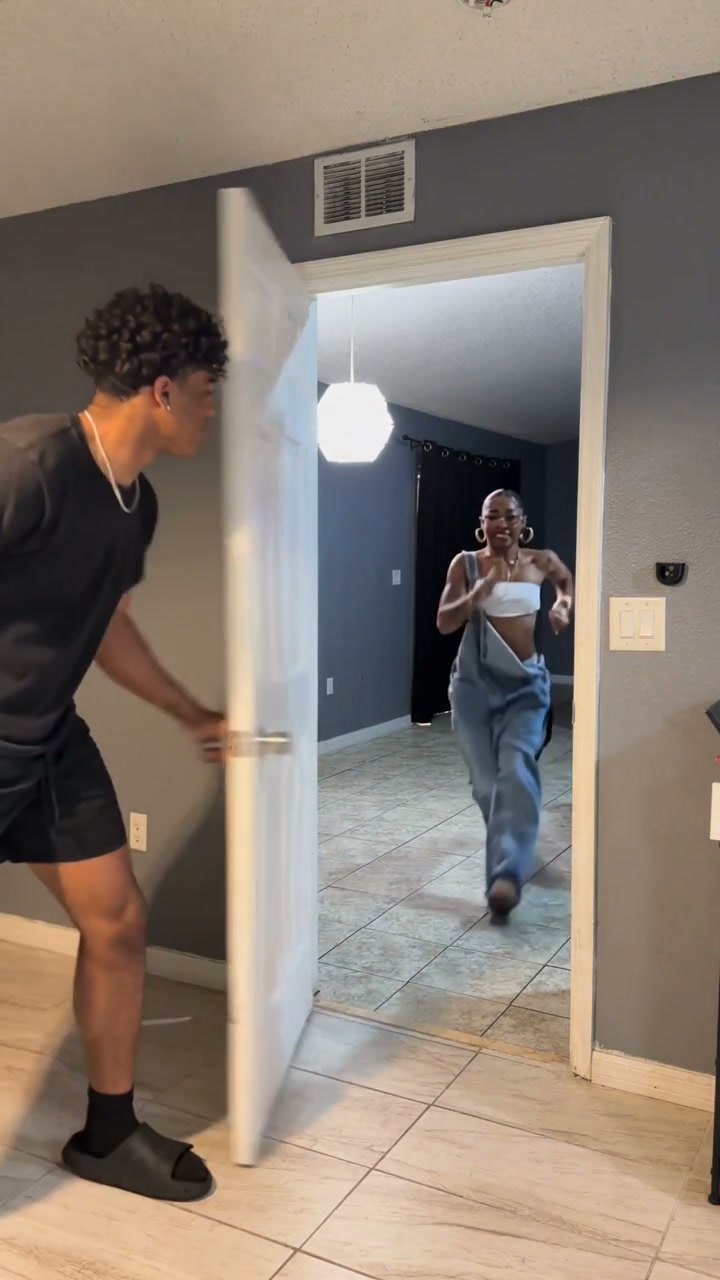
1. Prepare the reference video
Download the full ten-second reference. The first approach happens in the opening four seconds. There is a brief empty-doorway pause before the roles reverse. Keep the door’s full swing and the runner’s approach visible; a tight face crop hides the mechanism of the joke.
The key instruction is to preserve the original fake-out, including the reopening. Avoid adding an instruction such as “slam the door on the runner,” which changes the action into a different scene. If a generated door sticks to a person, retry the affected turn with simpler appearance instructions before adding more effects.
2. Prepare 2 separate character photos
Image 1 is the person holding the door at the left of the opening frame; this person runs during the second turn. Image 2 is the first runner from the back room, who later becomes the door holder. Give each role a separate full-body photo, including shoes, and keep that mapping for the entire video.
| Upload | Role in the opening | What the photo should show |
|---|---|---|
| Image 1 | First door holder | The person on the left holding the door at the start. This same character runs toward the door in the second turn. |
| Image 2 | First runner | The person approaching from the back room first. This same character holds the door during the second turn. |
Use the intended clothing in the same photo as each person. The reference supplies the setting and body movement, so a simple standing portrait is enough. A clear face and visible body are more useful than trying to imitate an exact pose with an obscured face.
3. Choose a video generation model
This is short, but the door repeatedly hides part of a body and the characters exchange jobs. Choose video editing with two image references, using Kling 4.0 Omni Reference or Seedance 2.5 editing. The source should control the door geometry and action; the photos should control the cast. A single-person motion mode does not preserve the complete two-person interaction.
Use a mode that accepts the actual source clip together with all of your character images. Compare input support and the current quote before generating; the model name alone does not tell you which editing controls an interface exposes. For a fuller comparison, read our video model guide by scene and budget.
4. Prepare the prompt
Upload the clip as Video 1 and the 2 photos in the order above. Add the editor’s uploaded-asset references so the names in the prompt point to the correct files. This example uses Kling-style @Video1 and @Image1 tags; replace those tags with your chosen editor’s equivalents.
Edit @Video1 with @Image1 as the first door holder at the left of the opening shot and @Image2 as the first runner approaching from the back room. Use each person’s complete appearance, hair, body, clothing and shoes from their photo. Keep their identities continuous when they exchange roles: @Image2 holds the door in the second turn while @Image1 runs forward. Match both approaches, feigned door closures, flinches and relieved reactions with the original timing. Preserve the doorway, hinge, handle, tiled floor, rooms, lighting and camera. Keep both people clear of the swinging door as in the reference, with no impact or injury. Do not add people, contact, captions or new text.
If you use a different clip or a shorter selection, update the opening positions and remove actions that are no longer present. Keep the appearance assignments explicit instead of asking the editor to replace every person in the scene.
5. Generate the video and choose its sound
Use a 9:16 canvas and an available 720p or 1080p output. Keep the source duration when editing mode follows it automatically. If the interface requires whole seconds, allow 11 seconds and trim any surplus ending. Keep the original action speed so reactions and sound remain aligned.
To keep the reference soundtrack, use original-audio preservation if the mode supports it. Otherwise place the downloaded reference audio beneath the generated picture in an editor, mute generated sound and align the action. If the model changed the timing, align the affected movement as well as the opening; matching the start alone is not enough.
For a different sound treatment, select an audio-generating mode in Kling 4.0 or Seedance 2.5 and describe the desired sound. Enable its audio control if the interface provides one. You can add:
Audio: natural footsteps and a brief door-handle and hinge sound at each fake closure, followed by light relieved laughter. No impact sounds, dialogue or music.
Newly generated sound is an alternative to the existing track. It does not copy a song or clone a person’s voice from their photo. Export the finished picture and chosen audio together as MP4.
Optional: generate the two turns separately
If identities swap after the empty-doorway pause, split there and edit each turn separately with the same two photos. Keep each piece long enough for the selected model’s minimum input. The second prompt must say that Image 2 now holds the door and Image 1 runs forward. Reassemble the shots at the original pause, using the reference audio as one continuous track. This natural break makes a more practical join than cutting while the door is covering a runner.
Use the prepared Closing Door Prank template
The Closing Door Prank template prepares the reference, role instructions and soundtrack. Upload 2 separate photos in the labeled slots, choose a mode and resolution, and review the credit quote. Sign in to generate; the result appears in My creations.
Original uses the complete 10.0-second reference. All three modes use the full short reference; they do not select a different part of the action. The fixed template does not ask you to upload a clip or paste the tutorial prompt.
Make my videoBefore you start
How many photos does Closing Door Prank need?
Two. Each photo defines one person across both turns. You do not need four photos when the roles switch, and a single group photo does not replace the two required uploads.
Who runs first in Closing Door Prank?
The character in Photo 2 approaches from the back room first. Photo 1 starts beside the door, then runs during the second turn. The slot labels use the opening roles so you can assign the cast before generation.
Can I make only one turn of Closing Door Prank?
The fixed template follows the full two-turn reference. You can trim the downloaded result to the turn you prefer. The tutorial also explains where to divide the source for a one-turn DIY edit.
Make the prepared scene with your cast
Bring 2 separate photos. The template handles the reference video, instructions and soundtrack.
Open Closing Door Prank