
How to Make a Celebrity Kitchen AI Video
The coffee hits the counter, the two partners glance at one another, and the next attempt makes things worse. Recreating this scene depends on keeping the people, props and reaction timing connected. Here is a two-photo workflow for the full kitchen clip.
Open Celebrity Kitchen AI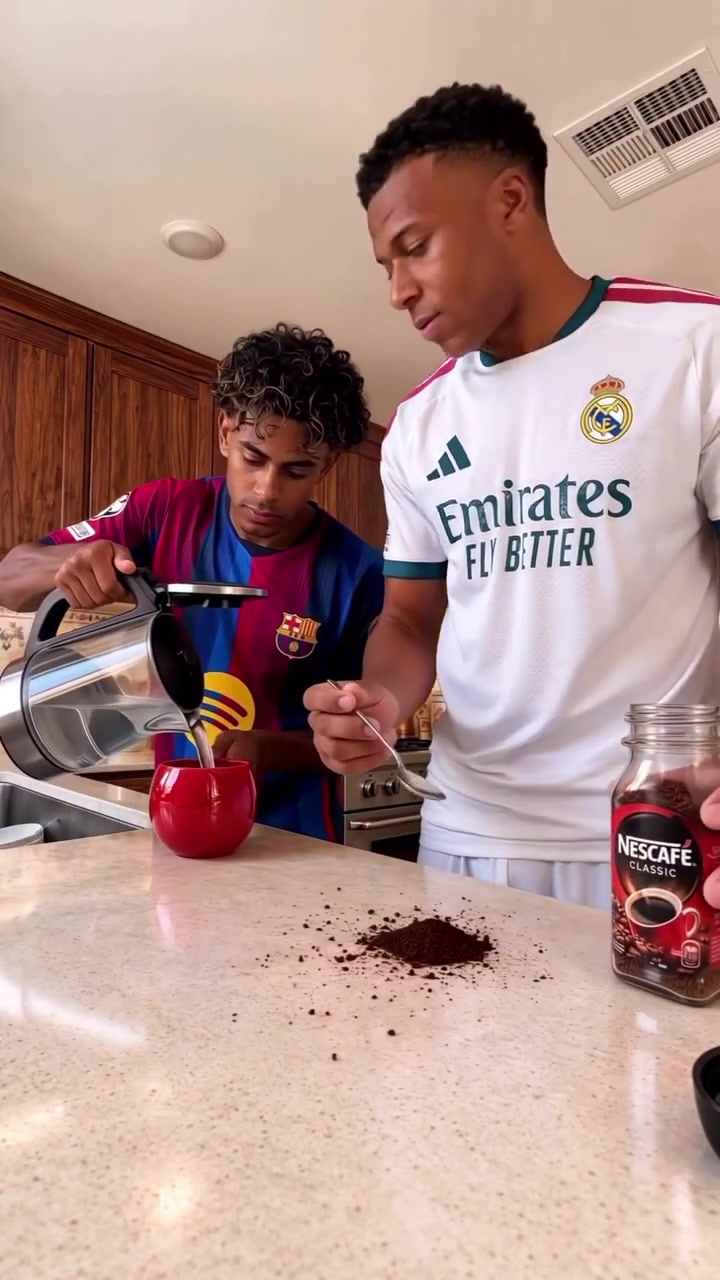
1. Prepare the reference video
Use the full 17.1-second example for your first attempt. Keep the countertop and both people in frame: the spill and the partner’s reaction need to remain visible together. A crop around the foreground face would remove much of the joke.
Keep each pouring action and its reaction together when shortening the clip. Cutting directly into a spill removes the setup, while splitting in the middle of the pour makes continuity harder. A complete shorter exchange is more useful than isolated close-ups of the mess.
2. Prepare 2 separate character photos
Image 1 is the foreground coffee maker on the right. Image 2 is the kettle partner behind on the left. Those labels describe their roles in this particular clip. Do not assign the same photograph to both slots unless you intentionally want two versions of the same character.
| Upload | Role in the opening | What the photo should show |
|---|---|---|
| Image 1 | Coffee maker | The foreground person on the right, holding the spoon and coffee jar. Show the face, upper body and intended outfit. |
| Image 2 | Kettle partner | The person behind on the left, pouring from the kettle. Use a separate photo with a clear face and outfit. |
Use the intended clothing in the same photo as each person. The reference supplies the setting and body movement, so a simple standing portrait is enough. A clear face and visible body are more useful than trying to imitate an exact pose with an obscured face.
3. Choose a video generation model
The hardest moments combine hands, a small spoon, the red mug and moving liquid. Choose video editing that retains the supplied scene, rather than a single-person motion mode that focuses on one body. The two reference photos should change the cast while the source keeps responsibility for the props and timing. Kling 4.0 Omni Reference and Seedance 2.5 video editing are options for this combination of a clip and multiple character images.
Use a mode that accepts the actual source clip together with all of your character images. Compare input support and the current quote before generating; the model name alone does not tell you which editing controls an interface exposes. For a fuller comparison, read our video model guide by scene and budget.
4. Prepare the prompt
Upload the clip as Video 1 and the 2 photos in the order above. Add the editor’s uploaded-asset references so the names in the prompt point to the correct files. This example uses Kling-style @Video1 and @Image1 tags; replace those tags with your chosen editor’s equivalents.
Edit @Video1 with @Image1 as the foreground coffee maker on the right and @Image2 as the kettle partner behind on the left. Use each person’s complete appearance, hairstyle, body and clothing from their assigned photo throughout. Follow the original spoon movements, kettle pouring, spilled coffee grounds, liquid spill, sideways looks and frustrated reactions at the same times. Preserve the red mug, coffee jar, kettle, kitchen counter, cabinets, camera and framing. Keep each prop with its original hand and person. Keep exactly two performers, with no role swaps or added text.
If you use a different clip or a shorter selection, update the opening positions and remove actions that are no longer present. Keep the appearance assignments explicit instead of asking the editor to replace every person in the scene.
5. Generate the video and choose its sound
Use a 9:16 canvas and an available 720p or 1080p output. Keep the source duration when editing mode follows it automatically. If the interface requires whole seconds, allow 18 seconds and trim any surplus ending. Keep the original action speed so reactions and sound remain aligned.
To keep the reference soundtrack, use original-audio preservation if the mode supports it. Otherwise place the downloaded reference audio beneath the generated picture in an editor, mute generated sound and align the action. If the model changed the timing, align the affected movement as well as the opening; matching the start alone is not enough.
For a different sound treatment, select an audio-generating mode in Kling 4.0 or Seedance 2.5 and describe the desired sound. Enable its audio control if the interface provides one. You can add:
Audio: quiet kitchen room tone, kettle pouring and small utensil contacts aligned with the reference actions. No dialogue or music.
Newly generated sound is an alternative to the existing track. It does not copy a song or clone a person’s voice from their photo. Export the finished picture and chosen audio together as MP4.
Optional: establish both people in one reference frame
If the editor confuses the two faces or outfits, extract a clear frame before the pouring starts. Give that frame and both portraits to an image-editing model. Ask it to replace the right foreground person and left rear person while preserving their positions, poses, hands, counter and props. Use that edited frame alongside the video in a mode that accepts both. It gives the video model an explicit view of the intended pair. This adds an image-generation step; skip it if direct editing already works.
An edited still must be supported by the selected video mode. Use the actual opening frame for a first-frame input; a timed keyframe stays at its source time. An ordinary image-to-video mode without the reference clip will not automatically reproduce this performance. This extra step may clarify the target appearance, but it adds work and does not guarantee better motion.
Use the prepared Celebrity Kitchen AI template
The Celebrity Kitchen AI template prepares the reference, role instructions and soundtrack. Upload 2 separate photos in the labeled slots, choose a mode and resolution, and review the credit quote. Sign in to generate; the result appears in My creations.
Original uses the complete 17.1-second reference. Economy and Standard use a 14.9-second selection starting at about 2.1 seconds, with a fifteen-second output setting. The fixed template does not ask you to upload a clip or paste the tutorial prompt.
Make my videoBefore you start
Is Celebrity Kitchen AI the Coffee Fail or Cofi Trend?
Those names describe the coffee-making mishap format used here. This version follows the two-person kitchen sequence in the preview. Other clips can use similar names, so use the preview to choose the actual action you want.
Do I have to use celebrities?
No. Celebrity Kitchen AI is the template name. You can choose your own photos or original characters you are allowed to use. The two uploads determine the cast; the template does not supply a celebrity library or require a famous person.
Can I change just one kitchen partner?
This prepared version requires two separate character photos. It does not have a keep-original-partner toggle. For a one-character edit, download the reference from the tutorial and use a compatible video editor with a prompt that leaves the other role unchanged.
Make the prepared scene with your cast
Bring 2 separate photos. The template handles the reference video, instructions and soundtrack.
Open Celebrity Kitchen AI