
Phone Stuck to Train AI: Put Yourself in the Subway Run
Phone Stuck to Train AI puts your character into a subway-platform performance: approach the window, turn toward the camera, then run as the viewpoint pulls away. One photo supplies your face, outfit, and body shape. Open the Phone Stuck to Train AI tool to use the prepared performance, or watch the examples below before choosing your photo. You can create the edit from home without filming near a train.
Make a Phone Stuck to Train AI video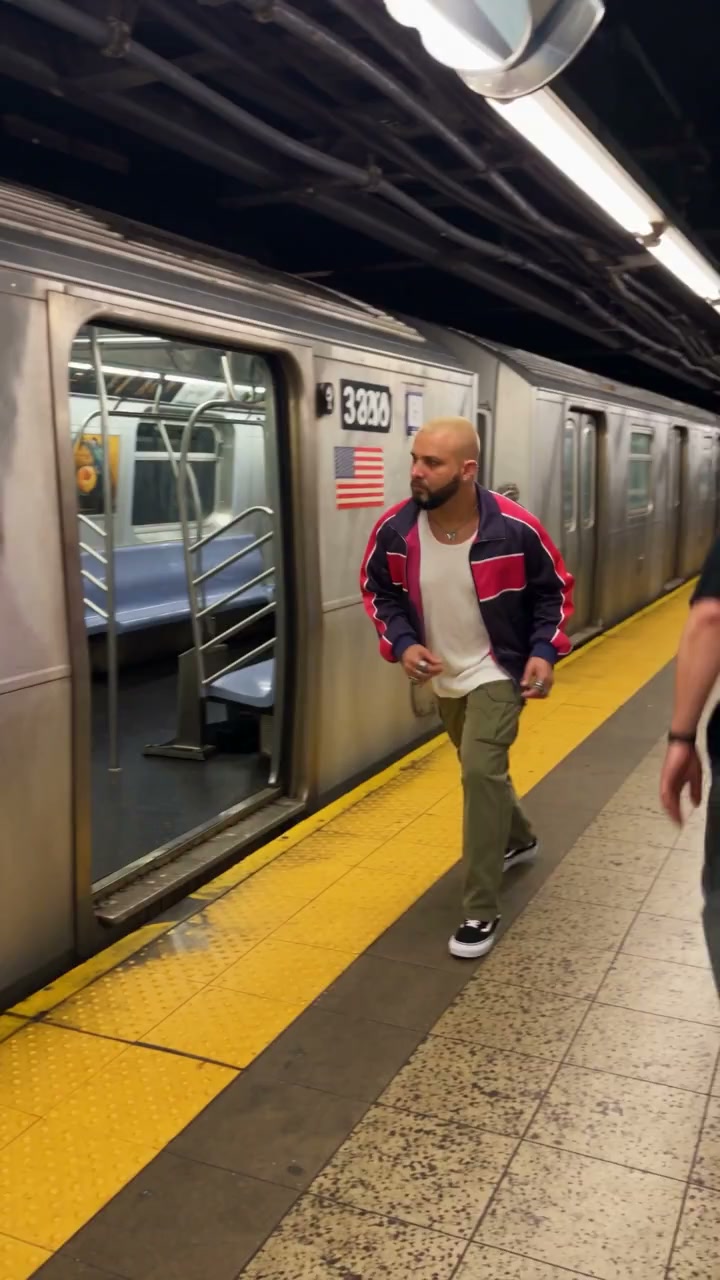
How the Phone Stuck to Train AI effect works
The visual idea depends on a change of viewpoint. The opening shows a person beside a silver train, reaching toward its window. After the cut, the camera faces outward toward the platform. The person performs close to that viewpoint, then runs to keep up as it moves along the station. Near the end, the performer drops out of view and the platform continues sliding past.
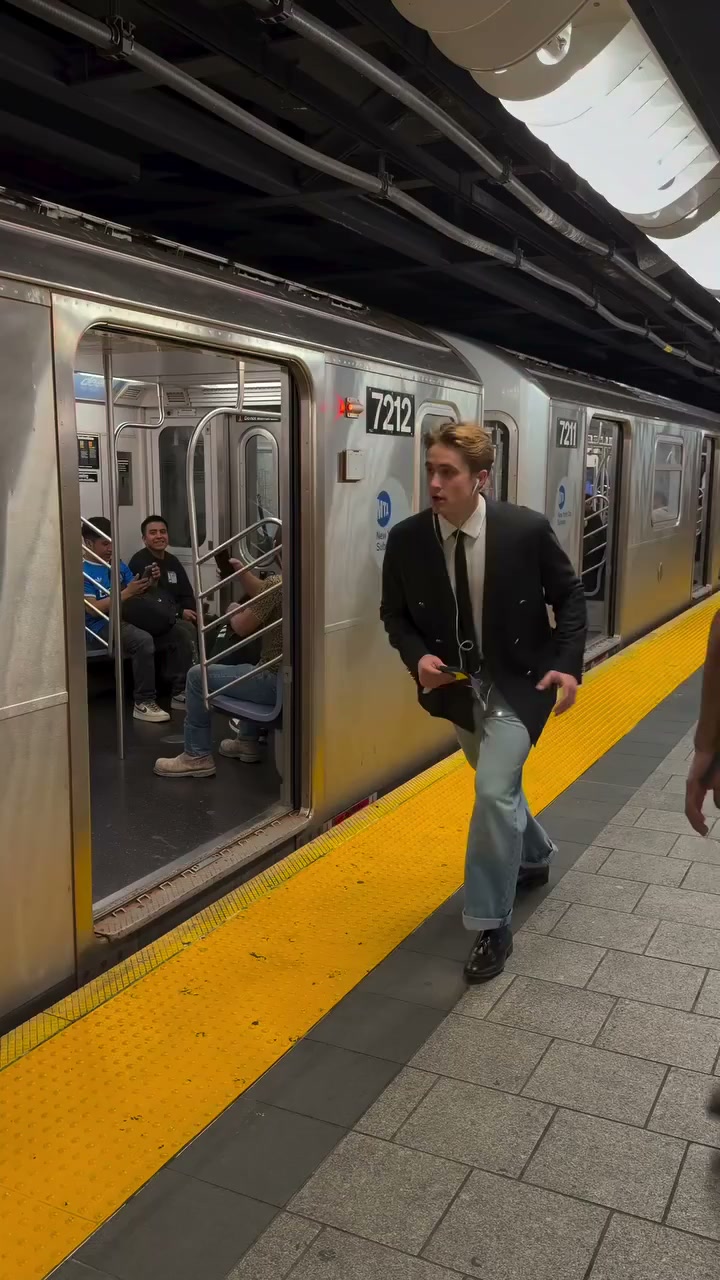
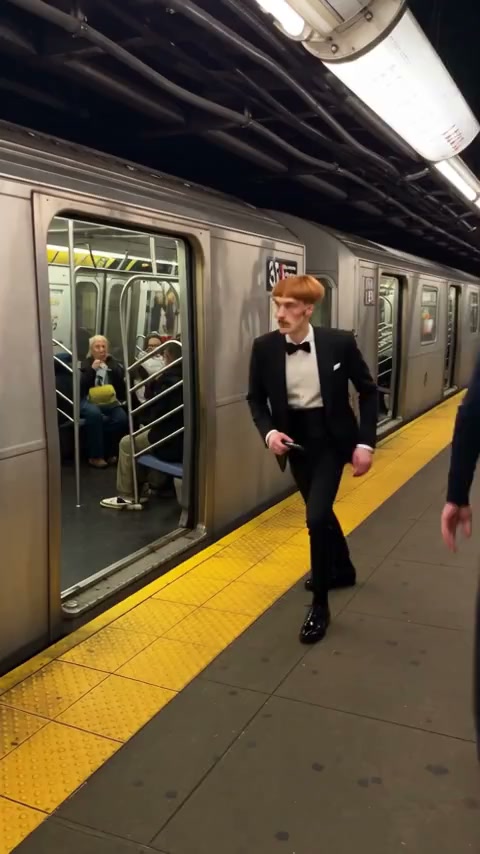
Watch the source and tuxedo adaptation through the shot change. The outfit changes the character, while the window, station, and sideways-moving view make the scene recognizable. This is a complete-character edit: your image supplies more than the face. The prepared instruction also asks to retain the train, phone, passengers, and other people.
The loaded Phone Stuck to Train AI reference is approximately 14 seconds and vertical. It already contains the gestures, mouth movements, running sequence, and closing exit. You do not have to write a shot list or arrange a camera. Do not attach a phone to a train or run beside a moving train to create your version; the tool needs only your character photo.
Choose one photo for the face and the running silhouette
Phone Stuck to Train AI has one Main character · Photo 1 slot. Choose a single-person image that shows the appearance you want throughout the clip. A clear standing portrait with the outfit and legs visible is useful because the sequence moves from a close face to a side-on run. A three-quarter photo is an alternative when the face is too small in a full-body shot, though it supplies less detail about shoes and lower legs.
Keep the face readable across turns
Use good light and a front-facing or gently angled view. Avoid heavy blur, hair covering the face, or a second person overlapping the subject. The character turns away from the window and later runs in profile, so a clear appearance reference matters beyond the opening frame.
Wear the outfit you want to see
The same photo supplies clothes and accessories; there is no separate wardrobe upload. Show the jacket, trousers, and shoes when they are important to your idea. A tightly cropped selfie leaves those details unspecified. You do not need to copy the source performer’s blazer, tie, or jeans.
Keep the pose simple
A relaxed standing pose makes the body easier to distinguish than crossed limbs or a crouch behind furniture. The reference supplies the movement, so your photo does not need a running pose, a phone, or a subway background. Crop out unrelated people rather than using a group shot or a collage.
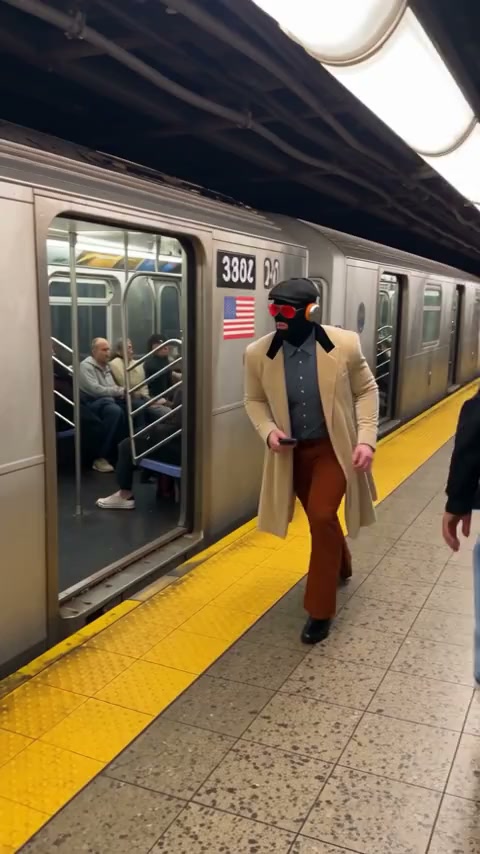
Compare the sports jacket with the longer trench coat. Both follow the same broad sequence, but the coat hem introduces another moving edge to inspect during the run. Distinctive glasses and headwear can make a costume recognizable while also adding details that may shift. Use these examples to decide what matters most in your own result: a readable face, a particular outfit, or a comic silhouette.
Make your Phone Stuck to Train AI video
1Open the prepared performance
Go to the Phone Stuck to Train AI generator. Play the Original video to check the sequence and hear its sound. The reference and replacement instructions are already set up; there is no prompt to paste or source clip to download.
2Add your character to Photo 1
Upload one photo to Main character · Photo 1. Check the thumbnail for the correct person and outfit. Use Replace to choose another picture before generating. The passengers and station stay in the reference, so you do not need additional photos for them.
3Generate, preview, and download
Choose 480p, 720p, or 1080p in Settings, sign in when asked, and select Generate. The button displays the credit cost before submission. Open the finished result in My creations, play the whole video with sound, and use its download control when you want to keep it.
The finished Phone Stuck to Train AI clip uses the reference soundtrack. You do not need to upload music or manually add it in another editor. Marketing previews play muted; use the tool’s Original video player to listen beforehand and the completed result to check the final sound. Uploading a photo alone does not start a generation. A new attempt uses credits; replaying an existing result does not create another job.
Review the cut, the run, and the final exit
Watch the Phone Stuck to Train AI result once at normal speed, then revisit the moments below. The source intentionally changes camera position and eventually loses sight of the performer. Judge whether the edit follows those events coherently rather than expecting a continuous close-up. AI results can vary even with the same photo, and clear input cannot guarantee consistent faces, hands, or clothing in every frame.
Hands meet the train window
In the opening, check the hands and phone where they approach the glass. Look for fingers merging into the window, a phone changing shape, or the arm becoming part of the train. Compare the moment before and after contact instead of judging only one blurred frame.
A photo with clearly separated arms can provide a better body reference. If the uploaded image is already clear, another identical attempt still may not fix contact details. Decide whether the defect is visible at normal playback speed before choosing to try again.
The view switches toward the platform
Check that the same face, hairstyle, and outfit survive the cut. The background should now move relative to the performer as the viewpoint travels along the station. A sudden selfie-style view or a new outfit can break the effect even when the first shot looks convincing.
Compare this transition with the loaded source. If an important garment was missing from your photo, choose an image that shows it. The dedicated template already supplies the camera instructions, so you do not need to hunt for a camera setting on the page.
The performer accelerates and leaves the frame
Watch the knees, feet, jacket edges, and profile during the faster movement. Limbs should remain connected to one body, and the character should leave the frame without an extra copy remaining behind. The empty platform at the end is part of the source sequence.
A full-body reference gives more appearance information than a headshot. It cannot guarantee perfect running physics. Check the complete saved clip before downloading; an intentional exit should not be confused with a video ending early.
Want a different setting or performance?
Use the dedicated Phone Stuck to Train AI page for this prepared subway clip. For another performance or camera angle, open the Motion Transfer workspace, choose a supported reference-video model, and add your own footage and character photo. Custom instructions can describe the replacement, but the footage should already contain the movement and scene you want.
For a stationary-camera routine, the Boxing AI guide focuses on quick punches and a single performer. For a run involving a ball and other players, see the Ozil Goal AI guide. Choose the reference around the action you want to show, then prepare an appearance photo for that action.
Share your train clip as an AI edit, with permission to use the character image and media. Avoid presenting it as proof that someone performed a real railway stunt. The attraction of this workflow is trying the visual idea without recreating the filming situation.
Phone Stuck to Train AI questions
Do I need a multi-view character sheet?
No. This tool asks for one character photo. A clear single-person portrait showing the desired outfit is the starting point. You do not need to assemble front, side, and back views or upload a separate clothing reference.
Can I use a selfie for Phone Stuck to Train AI?
A clear selfie can show the face, but it gives less information about the body, trousers, and shoes visible during the run. Prefer a wider portrait when the full outfit matters. The background in your photo does not need to match the station.
Why does my character disappear near the end?
The reference viewpoint moves ahead until the performer leaves the frame. That exit belongs to the sequence. Compare your result with the source: a matching exit is expected, while disappearing halfway through the performance or leaving a duplicate behind is a detail to review.
Do I have to add the song after generating?
The finished video uses the loaded reference audio automatically. Page examples are muted previews. Listen in the Original video player or open your finished clip in My creations; review the soundtrack there before downloading or sharing.
Bring your character to the subway run
Choose one clear photo, use the prepared performance, and check the full moving-camera sequence.
Make a Phone Stuck to Train AI video