
Boxing AI Trend: Make a Person or Pet Throw the Punches
The Boxing AI trend turns one character photo into a quick shadowboxing routine behind a sofa. You can try a person, a pet, or an original character: the photo supplies the look and the loaded video supplies the punches. Start with the Boxing AI tool, or use this guide to choose your photo and spot the moments that deserve a closer look.
Make a Boxing AI video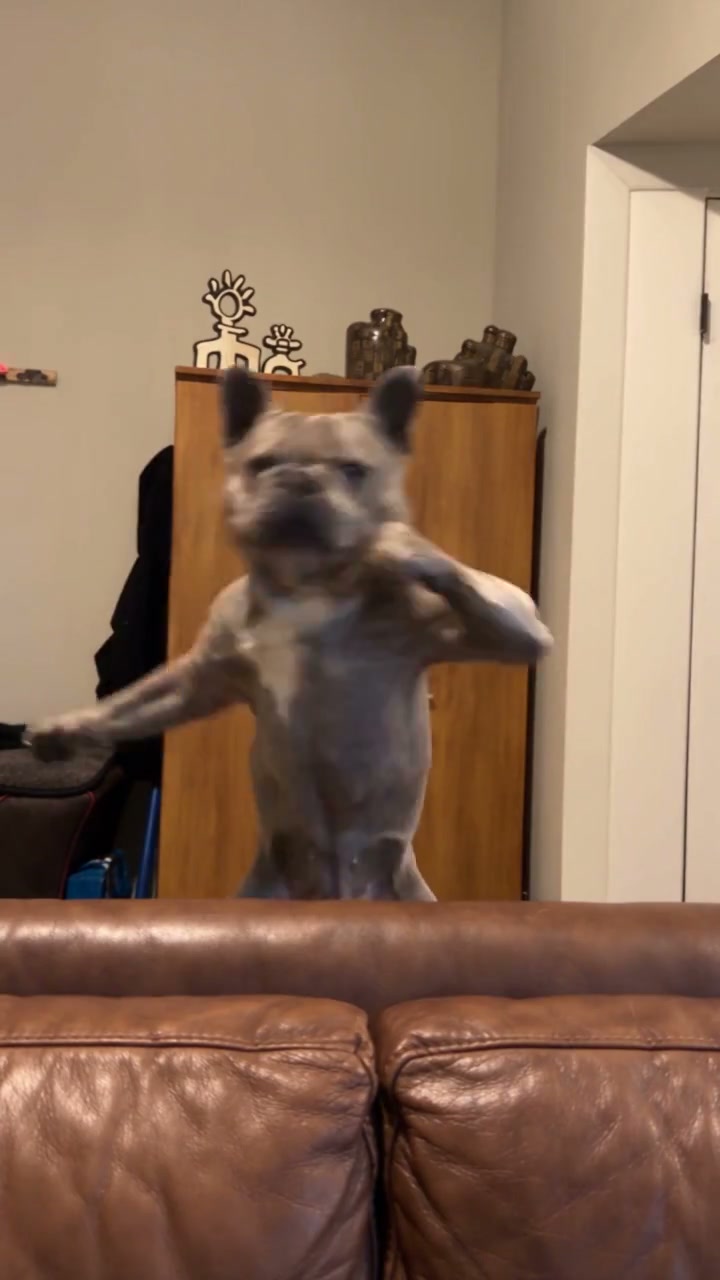
What happens in the Boxing AI trend?
One performer stands behind a brown sofa in a living room, throws punches, brings their hands back toward their face, and moves from side to side. The original wears a green shirt and backward cap. The approximately 17-second vertical reference keeps the room and camera framing recognizable throughout. There is no opponent, boxing ring, or second character to cast.
The appeal is the contrast between that energetic routine and your chosen character. A smartly dressed person doing the same combination creates a different joke from a dog raising its paws. This guide covers that specific character-replacement template. It does not teach boxing technique or assess someone’s sporting ability.
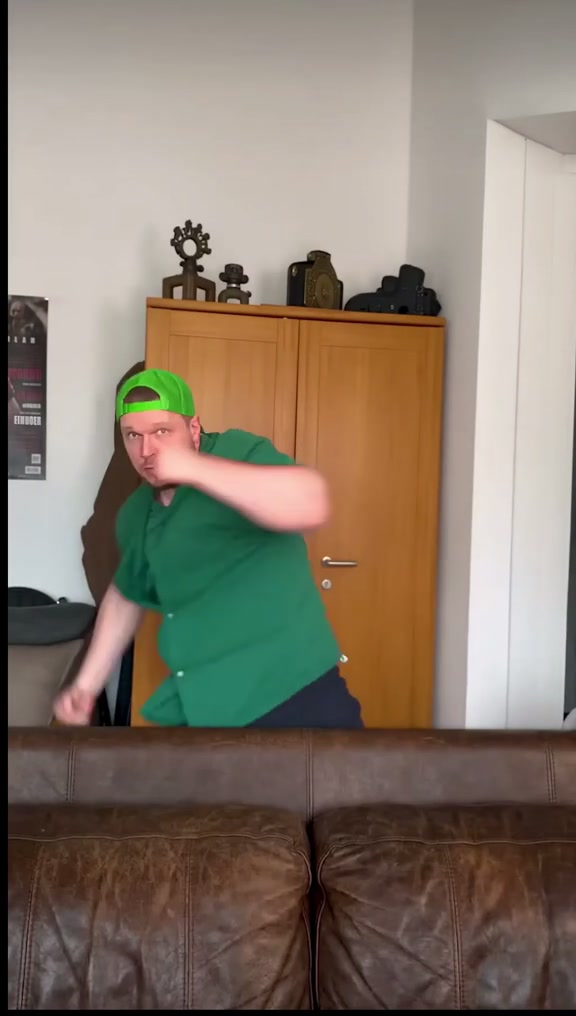
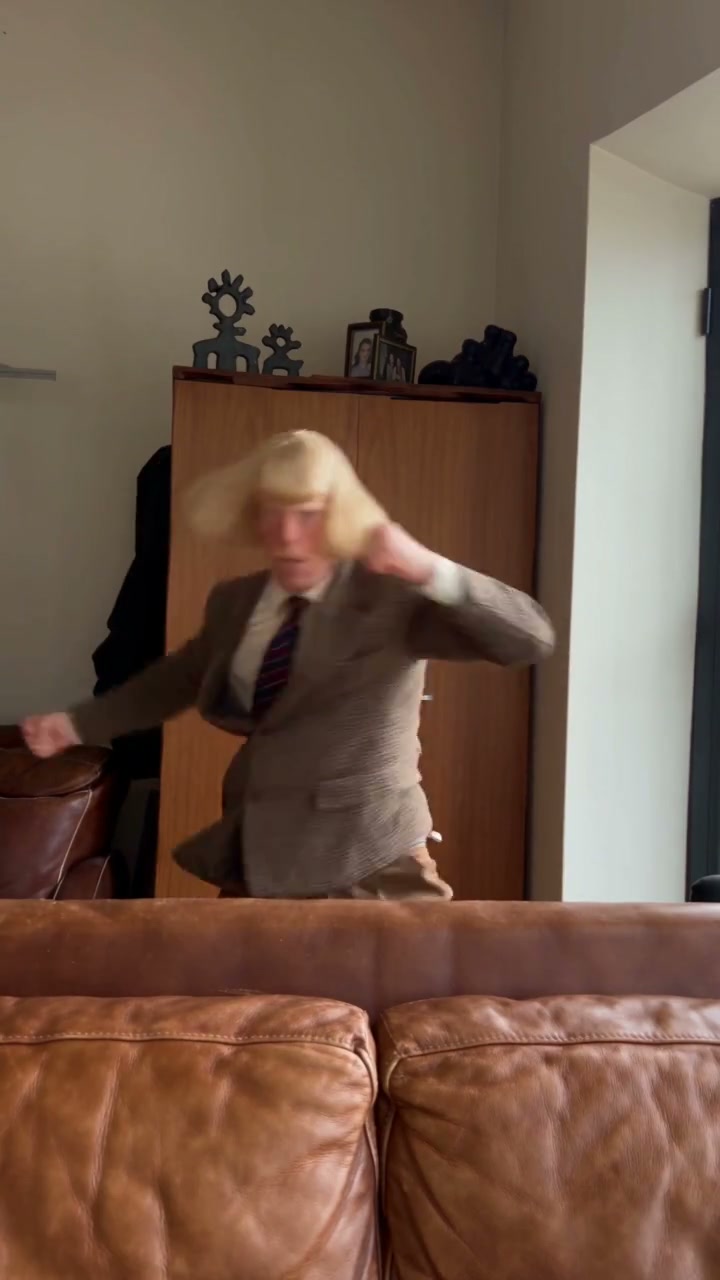
The photo changes the complete character, including face, hair or fur, body proportions, clothing, and accessories. The template asks to preserve the source performance, room, sofa, framing, and timing. Think of it as casting a new lead in a prepared scene. Uploading an outdoor portrait does not ask the template to move the punches outdoors.
Choose a photo that can carry the movement
Boxing AI has one Main character · Photo 1 slot. Choose one clearly visible subject, with enough of the body to explain how the arms or front paws connect to it. An ordinary still is fine. You do not need a fighting pose, gloves, a green shirt, or a sofa in your photo.
For a person: include shoulders and arms
Use a sharp front or gentle three-quarter view with the face, torso, and both arms visible. Leave space around the head and elbows. A face-only crop says little about the outfit and body that must turn during the combination. A full-body image is useful when it still leaves the face large enough to recognize.
For a pet: show the face, coat, and front paws
Pick a clear single-animal image. Keep the ears and distinctive markings in frame, and include the chest and front legs when possible. Avoid a blanket covering most of the body or a person holding the pet across its torso. The model has to reinterpret human movement for the animal’s anatomy, so unusual proportions need especially careful review.
Choose the clothes with the character
If a person should box in a suit or a hoodie, use a photo showing that outfit. For an animal, fur is part of its appearance; clothes are optional. Tiny lettering, loose accessories, and patterned sleeves can change as the arms move. A simpler look makes those changes easier to notice.
Keep the reference unambiguous
Use your own image or one you have permission to transform. Avoid collages, outfit grids, group photos, motion blur, and an object covering the face. Crop out competing subjects before uploading. One clear reference is more useful here than a sheet of several different angles or characters.
How to make a Boxing AI video
The tool already has the reference performance and instructions ready. You do not need to download the original clip, copy a prompt, or add a music file. Your main choice is the character photo.
1Open the template
Go to the Boxing AI generator. Play the loaded reference to see the punches and the sofa covering the lower body. Use that motion to decide how much of your subject the photo should show.
2Add one character photo
Upload your image to Main character · Photo 1 and check the thumbnail. If you chose the wrong person, pet, or outfit, use Replace. This only prepares the input; generation starts when you submit it.
3Generate the clip
Choose 480p, 720p, or 1080p in Settings, then click Generate and sign in if prompted. The current credit cost is shown before submission. The template follows the source length; there is no need to configure a new punch sequence or enable audio generation.
4Preview and download
Open the finished video in My creations. Watch it through with sound, then pause around fast punches and the sofa edge. Download the version you want to keep. Keep the input photo nearby while reviewing so you can compare the appearance at more than the opening frame.
The Boxing AI template is set up to include the original reference soundtrack in the delivered clip. The page examples play muted. Check sound in the reference player or your completed video, rather than looking for a volume control on the decorative examples.
What changes when the boxer is an animal?
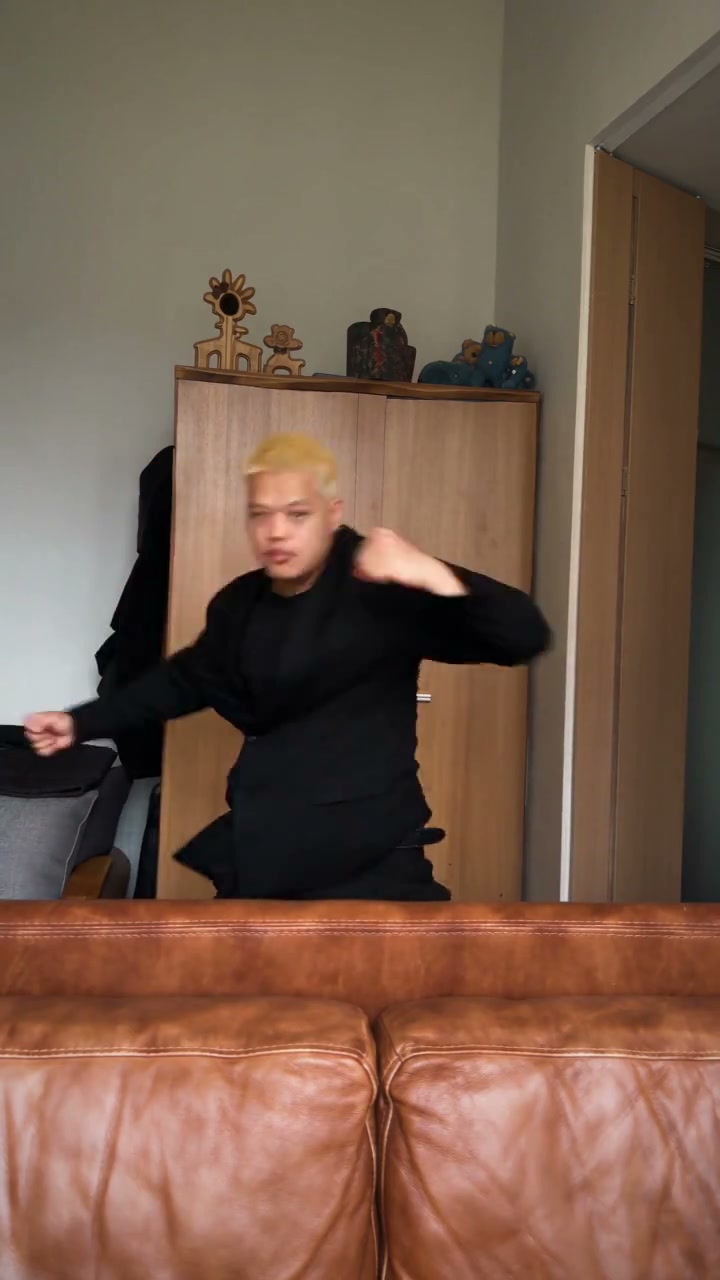
These community adaptations show two ways to interpret the scene. With a human character, the raised guard and arm swings remain familiar body movements. With the dog, the front paws take the expressive role of the hands while the face, ears, and coat carry the identity. Choose the visual idea you want before selecting the photo.
The prepared instructions explicitly allow a human or animal and ask for motion adapted to its anatomy. That supports trying a pet photo, but it does not guarantee natural paws or poses for every species. A successful-looking opening frame can still develop human-shaped fingers, a stretched shoulder, or changing coat markings later in the clip.
You do not need to make an animal stand upright or imitate punches for the photo. Use a comfortable, clear reference and review the generated interpretation. This is a playful visual edit; the photo is not evidence that the animal performed the action.
Review the punches, the guard, and the sofa edge
Watch your Boxing AI video once at normal speed to judge its overall rhythm. Then pause at the following moments. AI results can vary even with the same input, and a clearer photo cannot guarantee every frame will stay consistent. These checks help you decide whether the result is ready to share or which input detail to improve.
An arm or paw reaches across the body
Follow the limb from shoulder to hand or paw. Check for extra joints, a disappearing forearm, or fingers changing shape during a fast punch. For a pet, make sure the paw still looks like part of that animal.
If the limb is unclear, choose a reference where the arms or front legs are separated from the body and visible. Do not judge the anatomy from a blurred punch frame alone; also check the frames just before and after it.
The guard comes back toward the face
Compare the face before and after the hands pass nearby. Look at hair, ears, muzzle shape, and any glasses or accessories. In a human result, check that the source cap and green shirt have not appeared unexpectedly.
A clearer face and less clutter around the head give the next attempt a more readable reference. Keep the intended outfit consistent in that photo rather than changing several appearance choices at once.
The body dips behind the sofa
The sofa should remain in front of the lower body. Check that clothing or fur does not merge into the leather, and that the character reappears with the same proportions after a dip or side movement.
A floating body or a jumping sofa edge is a visible edit defect. Compare several moments along that boundary before choosing the clip to share. A new generation may introduce different defects, so make another attempt only with a specific improvement in mind.
Want a different boxing scene or a different pet performance?
The Boxing AI shortcut is built around this solo routine. For an outdoor setting, a ring, or another camera angle, start with a reference video that already shows that scene in the Motion Transfer workspace. Choose a compatible model, upload your own motion and character references, and use custom instructions for the replacement you intend. Changing the wording alone does not guarantee a new scene or believable contact between two fighters.
For a different one-pet performance with two human backup dancers, try the Single Ladies Dog AI guide. For two independently chosen characters, the Smalltown Boy AI tool has separate foreground and background photo roles. Pick the template whose action and number of characters already fit your idea.
Boxing AI photo and video questions
How many photos does Boxing AI need?
One photo of the replacement character. There is a single boxer in this template and no opponent slot. Use the photo for the complete appearance, including the visible body and outfit.
Can I use a dog or another animal?
Yes, the template accepts an animal reference and asks the motion to adapt to its anatomy. The dog adaptation shows the idea. Other animals may be harder to interpret, so inspect the paws, proportions, and face throughout your own result.
Do I have to write a Boxing AI prompt?
No. The tool has prepared instructions that use the loaded performance for motion and your photo for appearance. There is no prompt-writing step in the fixed template. Use the homepage workspace for custom instructions or a different source video.
Do I need to upload the soundtrack separately?
No. The template is configured to add the reference soundtrack to the finished video. Open your completed clip in My creations to check it with sound before downloading; the page examples stay muted.
Try the Boxing AI routine with your character
Choose one clear person or pet photo. The performance is ready; preview the full result before sharing.
Make a Boxing AI video