
How to Make a Damon Salvatore AI Video
The doorway opens, the guests turn, and the lead walks in with a knowing smile. This guide shows you how to put your own character into that entrance—and keep the same person through the car shot and close-ups that follow.
Open Damon Salvatore AI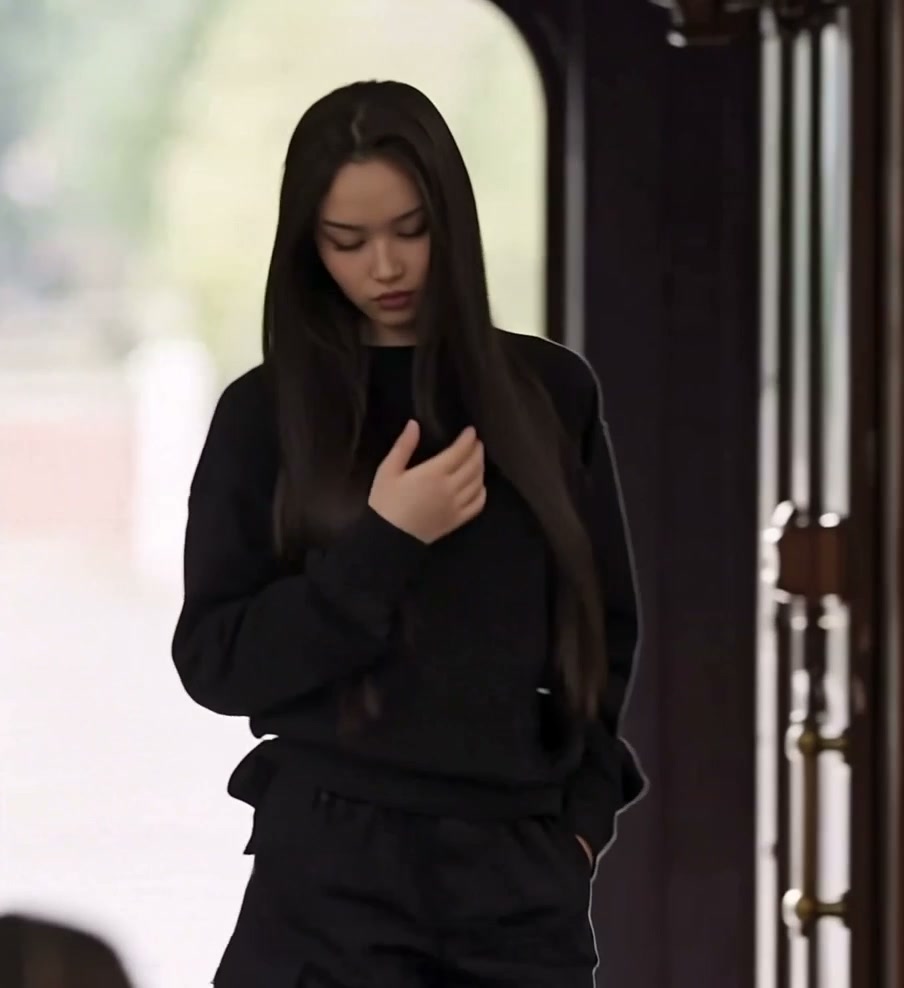
The entrance, the smirk and the edit
The name comes from Damon Salvatore, played by Ian Somerhalder in The Vampire Diaries. The downloadable example here is a community remake shown on our tool page. It already features a different lead; your photo will define the next version.
The sequence has more to it than a smile: a church establishing shot, guests looking back, a hand at the water basin, the entrance, then several short scenes. Keep those cuts and reactions to preserve the setup and payoff.
1. Prepare the reference video
Download the complete example below. It is ready to use as the video input. Keep the original frame: a tight crop can remove the basin, the entering character or the guests who make the entrance feel like a scene.
For a shorter entrance-only version, end your selection after the church smile, before the next scene at roughly 10.5 seconds. Preview the cut in your editor and export with the original frame rate and sound. The steps below use the full download.
2. Prepare your character photo
Use one sharp photo of the person you want as the entering lead. Show their face, hair and intended outfit, ideally in a standing or three-quarter-length view. The entrance needs body and clothing information; the later close-ups need a face large enough to read.
Choose a photo without sunglasses or a hand covering the face. The reference already supplies the sunglasses moment in the car. You do not need to pose at a doorway or copy the hand gesture. Keep one person in the image so the model has a clear identity to carry across the cuts.
3. Choose a video generation model
For the complete montage, use a video-editing mode that accepts both the source clip and a character image. Kling 4.0 Omni Reference and Seedance 2.5 video editing are options for this 17.2-second input. Select the editing workflow so the existing shots supply the action and timing.
This clip changes location, framing and lighting, and briefly shows people who should stay unchanged. A basic single-person motion mode gives you less control over that edit. If you only want one continuous entrance shot, you can consider Kling 2.6 or 3.0 Motion Control with a matching body photo; expect a new performance shot rather than exact preservation of the whole montage. See our model comparison by scene and budget.
4. Prepare the prompt
Upload the example as Video 1 and your character photo as Image 1. Insert the uploaded asset references in the editor. This example uses Kling-style @Video1 and @Image1 tags; use the equivalent references in another model.
Edit @Video1. Replace only the entering lead and that same lead in the later car, dark close-up and kitchen shots with the person in @Image1. Use their complete appearance: face, hairstyle, body and clothing. Keep this identity and outfit consistent across the entire edit. Preserve the seated guests and their reaction shots. Follow the lead’s walk, hand movement at the basin, hand-to-face gesture, head turns and gradual smile. Preserve the church, basin, car, other locations, camera angles, shot order, cut timing and lighting. Keep the car-shot sunglasses as a scene prop. Do not replace the guests with the lead. No subtitles or added text.
The role description matters here: “replace everyone” would also change the seated guests. If you use only the church selection, remove the car and later-scene instructions from the prompt.
5. Generate your edit and choose its sound
Keep the source aspect ratio and duration when the editing mode follows them automatically. If the interface requires a fixed canvas, fit the full 904 × 988 image inside it without stretching or cropping. Start at an available HD resolution. If a whole-second duration is required, allow 18 seconds, then trim any extra ending to match the 17.2-second source.
To retain the example’s soundtrack, choose preserve-original-audio where supported. If the model changes it, place the original audio under the generated edit, mute the generated track and align the scene cuts. If a cut has shifted, adjust that shot before exporting; matching the start alone will not align the whole montage.
You can also make a version with new sound using an audio-generating mode in Kling 4.0 or Seedance 2.5. Enable audio if the interface offers a switch, then add this instruction:
Audio: soft church room tone and footsteps during the entrance, a brief water touch at the basin, then ambience appropriate to each later shot. Keep sound changes aligned with the scene cuts. No dialogue or background music.
Optional: work on the difficult shots separately
If the character changes between scenes, split the reference at its existing cuts and edit the difficult shots separately using the same photo and outfit instruction. The doorway gesture and smile are a useful first selection: they give you a sustained view of the lead before the later rapid cuts. Leave guest-only reaction shots unchanged.
Keep each selected shot at its original speed. Some of the late close-ups are very short; if a shot is below your model’s minimum input length, include adjacent shots and trim the generated result back afterward. Assemble the pieces in their original order, retaining the original cut positions and a single continuous soundtrack. This lets you retry one troublesome portion without regenerating every scene.
For a shot that still loses the outfit, edit a clear frame from that shot with your character photo first. Keep the pose, camera angle and background, then use the edited still together with the shot in a mode that accepts both. A first-frame input needs the actual opening frame. Skip this extra image step if direct editing already works.
Use the prepared Damon Salvatore template
The Damon Salvatore AI template prepares the sequence, character instruction and reference soundtrack for you. Upload one Entrance lead photo, choose a mode and resolution, review the credit quote and generate. You do not need to upload the video or paste a prompt.
Original uses the full sequence, about 17 seconds. Economy and Standard use the prepared opening excerpt, about 15 seconds, so they omit the full ending. These template options follow their own prepared reference; the downloadable public example above is the DIY teaching clip.
Make my Damon Salvatore editBefore you make your entrance
Can I use a woman’s photo or a different outfit?
Yes. Your photo defines the replacement character’s appearance and clothes. The public example already demonstrates a different lead. You do not need to match Damon’s gender, hairstyle or costume.
Can I change the guests too?
The prepared Motion Transfer template has one lead photo slot and keeps the guests. In a custom video editor, changing another person requires a separate reference and explicit role instructions; the prompt in this guide deliberately preserves them.
Do I need to smile in the photo?
No. A relaxed, clearly visible face is enough for the appearance reference. The video supplies the changing expression, including the turn into a smile.
Your look, from entrance to close-up
Bring one character photo. The prepared template handles the sequence and reference soundtrack.
Open Damon Salvatore AI