Create a video

Front lead · required
Settings
Mode
Video length12s
Resolution

Uptown Funk AI Video Generator

Take the front spot in a street performance. Uptown Funk AI uses one photo for the lead’s complete look and outfit while keeping the supporting group and reference sound.

0:00 / —:—

Uptown Funk AI video ideas

Explore examples of this effect. Open a video for a closer look.

What is Uptown Funk AI?

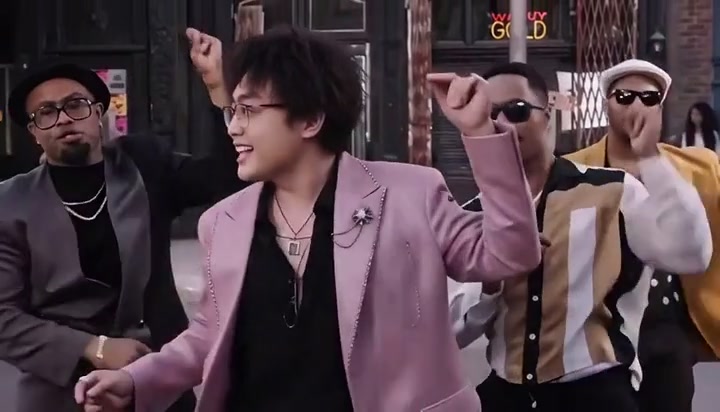
Uptown Funk AI makes the street-performance remake shown above from one person photo. The front lead moves with a supporting group through coordinated steps, shoulders and arm gestures. Your image defines that lead’s complete appearance and clothing; the background performers remain part of the scene. This Uptown Funk AI page follows a twelve-second prepared sequence with its camera cuts and source sound. It gives you a quick way to place a chosen character at the front of a group performance without assembling a cast or filming a dance.

A front lead dances on a street with supporting performers behind

How to create with Uptown Funk AI

The action is prepared. Choose the cast and review your settings.

  1. STEP 1

    Prepare your Uptown Funk AI photo

    Choose one adult in a clear full-body photo. Show the hairstyle and intended outfit, including shoes. Avoid several people competing for attention in the same image.

  2. STEP 2

    Choose your Uptown Funk AI settings

    Select Economy, Standard or Original, then an available resolution. All modes follow this same short reference, with a 12-second output setting. Review the credit quote on Generate and sign in before submitting.

  3. STEP 3

    Review and download your Uptown Funk AI video

    Open the finished clip in My creations. Follow the front lead across every cut. Check hands, clothing, lip movement and overlap with the supporting performers, then listen to the final audio with the video playing.

Uptown Funk AI in motion

Reference frames show key moments in the prepared performance.

Be the lead without casting the whole group

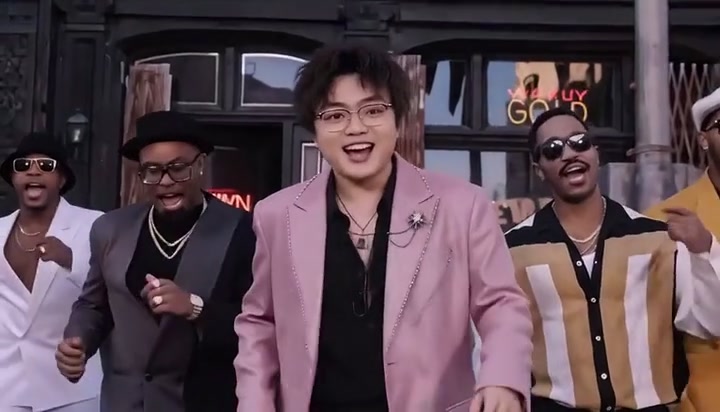
Uptown Funk AI separates one editable role from the supporting cast. Upload the person who should lead at the front; you do not need pictures for the dancers behind. Their placement helps the movement read as a group performance. Uptown Funk AI replaces the lead’s whole look, including hair and outfit, while asking the model to retain the surrounding people and setting. A group photo will not assign new identities to everyone in the video.
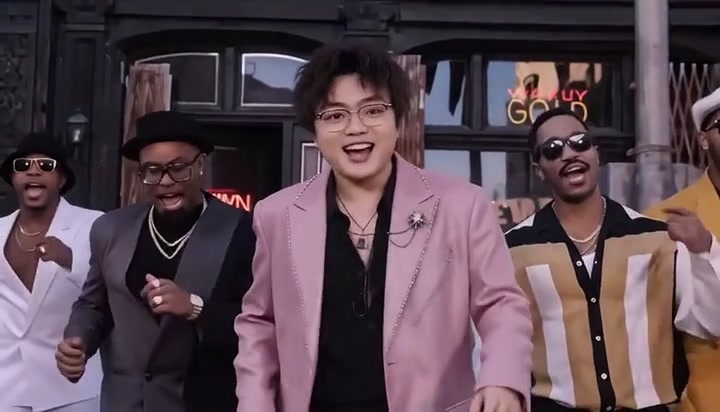
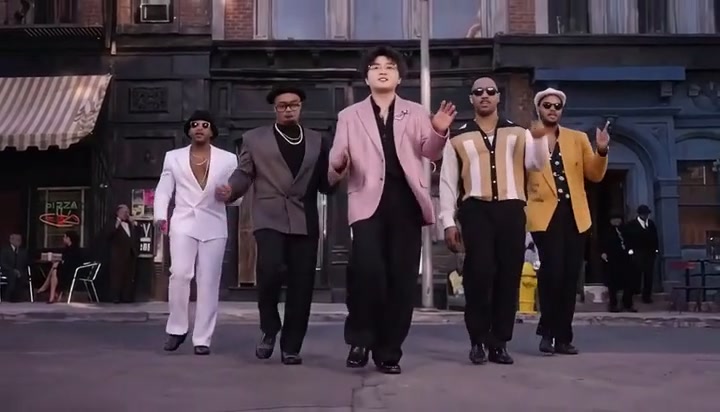
A front lead dances on a street with supporting performers behind — reference frame 1

Make the outfit part of the performance

The street scene in Uptown Funk AI gives the lead’s clothing room to be seen through steps and upper-body gestures. Choose a full outfit in the same person image: jacket, trousers and shoes can define a different character without changing the dance. There is no separate wardrobe slot. Uptown Funk AI carries that image across the cuts, although fine patterns, logos and small accessories may change as the pose and viewpoint shift.

A front lead dances on a street with supporting performers behind — reference frame 2

Keep the street rhythm and surrounding action

Uptown Funk AI supplies the street, supporting choreography and camera sequence. Your role is to choose the lead and the generation settings. The reference sound is added to the result, so you do not need to upload a track or write singing instructions. Uptown Funk AI can work as a character introduction or a short group-dance edit. Preview the entire prepared take first, then check the lead after each cut before you share the downloaded video.

A front lead dances on a street with supporting performers behind — reference frame 3

What you control in Uptown Funk AI

Your images define the cast; the reference supplies the movement and scene.

One required subject photo

Uptown Funk AI needs one person photo. There are no optional partner or background slots. The complete visible appearance comes from the assigned image.

A prepared short performance

Uptown Funk AI keeps the reference and sequence ready. There is no motion-video upload, timeline or duration selector on this page. Choose the mode and resolution, then check the displayed length and quote before generating.

Reference sound included

The sound from the prepared reference is added to the generated result. Your photo supplies appearance, not a new voice. There is no separate song or dialogue selector; listen to the preview and then check the finished clip with sound.

Uptown Funk AI credits and plans

Use the quote on Generate for your current mode and resolution. General plan examples below may use different models or lengths.

Starter

For your first ideas.

$8.3/month

$100.0 charged yearly

2,400 credits/year

Up to 400 images

GPT Image 2Nano Banana Pro

Up to 133 videos

Seedance 2.5Kling 3.0 Motion Control
  • Up to 4K images and HD videos, depending on the model
  • Image editing, video creation & motion transfer
  • Watermark-free image & video downloads
  • Generation history in your account
Popular40% OFFSave $238.8

Pro

For a steady creative flow.

$30.0/month$49.9/month

$360.0 charged yearly

21,600 credits/year

Up to 3,600 images

GPT Image 2Nano Banana Pro

Up to 1,200 videos

Seedance 2.5Kling 3.0 Motion Control
  • Up to 4K images and HD videos, depending on the model
  • Image editing, video creation & motion transfer
  • Watermark-free image & video downloads
  • Generation history in your account
  • Use credits across image and video models
Best Value50% OFFSave $599.8

Business

For more creations, more often.

$49.9/month$99.9/month

$599.0 charged yearly

48,000 credits/year

Up to 8,000 images

GPT Image 2Nano Banana Pro

Up to 2,666 videos

Seedance 2.5Kling 3.0 Motion Control
  • Up to 4K images and HD videos, depending on the model
  • Image editing, video creation & motion transfer
  • Watermark-free image & video downloads
  • Generation history in your account
  • Use credits across image and video models

Basic

$0

Try before you subscribe

  • 18 one-time signup credits
  • Generation history included
  • Watermarked previews & downloads
  • Up to 3 images or 1 video
  • Watermark-free downloads require payment

Prices in USD; taxes and total shown at checkout. Subscriptions renew automatically; cancel in Billing settings. Subscription credits expire each period; one-time credits never expire.

Refunds: request within 72 hours. Used purchased credits and applicable non-refundable processing costs (up to 6%) are deducted. Terms · Refund Policy

Uptown Funk AI questions

Inputs, roles, settings and the finished video.

How do I make an Uptown Funk AI video?

Upload one person photo to the labeled slot, select a mode and resolution, and check the quote on Generate. Sign in and submit when ready. Uptown Funk AI supplies the reference and instructions. Your finished video appears in My creations for playback and download.

How many people can I replace with Uptown Funk AI?

One: the front lead. The backing group stays with the prepared scene. There are no optional group-member slots, so supplying several people in one photo does not create separately assigned roles.

Does Uptown Funk AI use my outfit too?

Yes. Your photo defines the complete lead, including hair, body and visible clothing. Choose the intended outfit in that same picture. The background dancers keep their existing looks, and the tool has no separate clothing-image upload.

Is Uptown Funk AI a full music-video generator?

This page makes the twelve-second street sequence shown in its preview. It does not produce the full song video, build new locations or let you choose new camera cuts. The fixed performance is prepared before you upload the lead photo.

Can I choose a different supporting group in Uptown Funk AI?

No supporting-cast selector is included. The current group, positions and choreography belong to the reference. If you need to cast two or more specific people, choose a template with a matching number of named photo slots.

Can I use the second Uptown Funk AI example as my reference?

The extra community clip illustrates another interpretation. Generation on this page uses the primary prepared reference shown above the form. The examples are not alternate source buttons; the chosen mode uses the same core street performance.

How do the Uptown Funk AI modes differ?

All three modes use this same short performance with different generation approaches. The output setting is 12 seconds; actual motion timing can vary. Compare the quote on Generate.

Does Uptown Funk AI include sound?

The sound from the prepared reference is added to the generated result. Your photo supplies appearance, not a new voice. There is no separate song or dialogue selector; listen to the preview and then check the finished clip with sound.

How much does Uptown Funk AI cost?

Generate shows the quote for your mode and resolution. You need an account with sufficient credits; previewing is free. Download your completed Uptown Funk AI video from My creations and add captions in your usual editor if needed.

Create your Uptown Funk AI video

Bring your chosen photos to the prepared performance and review your quote.

Uptown Funk AI