
How to make a Wassup in a Minute AI dance video
The example below cycles through drawn characters dancing against a plain white background. The effect comes from recognizable silhouettes, relaxed swaying and cuts that land with the music. This is a tutorial for building your own version in a video-reference editor and a timeline editor. There is no dedicated one-click Wassup generator on this page.
Explore prepared trends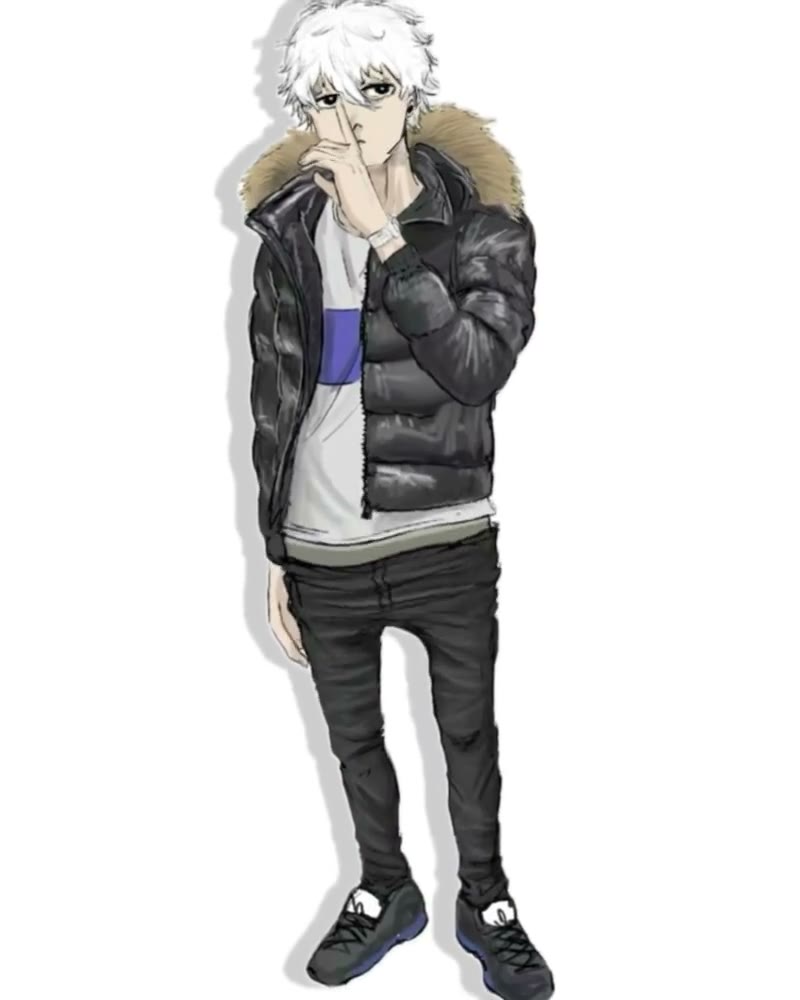
What is the Wassup in a Minute AI trend?
In this version, different characters take turns performing a short sway and arm routine. Each cut introduces another look while the plain background keeps attention on the movement. You can build a single-character loop or a small cast montage. Decide which version you want before preparing images: a montage needs a shot-by-shot cast plan.
The reference post supplied for this guide is a visual example, not a verified origin of every video using this trend name. Match the actual dance and sequence you want to recreate rather than assuming every search result uses the same choreography.
Prepare the images, movement and soundtrack
One clear image per character
Use a full-body image with visible hands, feet, hairstyle and clothing. Leave space around the body so an elbow or shoe does not end at the edge. Keep a consistent drawing or photographic style across the cast. If you want the same character throughout, use the same image for every shot.
A usable dance reference
Use a clip you can download and edit with permission, or record the routine yourself. A fixed camera, plain background and unobstructed body make the motion easier to follow. Keep an untouched copy. The example here is roughly 14 seconds and 4:5; your own recording can use a different duration or canvas.
Separate audio and a shot list
Keep the music in a separate timeline track. Note the cuts where characters change and assign one image to each interval, for example opening shot → character A, next shot → character B. Obtain audio you can use for the destination where you plan to publish; a visible reference post does not itself grant reuse rights.
You need a generator that accepts both a motion video and a character image, plus an editor that can trim clips, join them and add an audio track. Check the generator’s reference-length limit, image support and output duration before spending credits. A text-only generator will invent motion rather than closely follow the supplied dance.
Build the sequence one shot at a time
1Mark character changes on the original timeline
Play the reference slowly and place a cut at each change of character or camera shot. Keep each interval’s start and end time in your shot list. Short clips with one visible dancer give you a clearer replacement target than a full montage with several identities.
2Export clean motion segments
Export each interval at the reference frame rate and canvas size, without subtitles or editor controls. If a segment is shorter than the generator’s minimum input, include nearby movement from the same continuous shot. Avoid combining different characters simply to fill a duration requirement.
3Generate one character replacement
Attach the segment as Video 1 and its assigned character as Image 1. Paste the prompt below, then choose the source aspect ratio and the nearest supported output duration. Start with one shot at a modest resolution to check whether the chosen editor follows the pose and style.
4Review before generating the rest
Compare the first and last poses, hand movement and outfit with your reference. Keep a good result and reuse the same character image and prompt structure for the next shot. Change only the cast assignment when the plan calls for a new person.
5Assemble on the original music timeline
Place the generated clips at the recorded cut points. Mute their generated audio and add the chosen soundtrack once across the sequence. Align a visible hand or shoulder accent with the corresponding beat. If timing drifts substantially, regenerate that shot; forcing a long speed change can make the movement unnatural.
6Export and watch the complete result
Use one canvas for all clips. Preserve the frame rate where possible and export MP4 with H.264 video and AAC audio for broad compatibility. A 4:5 composition can stay 4:5; if you need 9:16, preview the crop and keep both hands and feet visible. Watch once with sound and once muted before sharing.
Copy this prompt for a single-character shot
Recreate the dance in @Video 1 using the character in @Image 1. Use the image’s complete appearance, hairstyle, body proportions, clothing and distinctive details. Keep the same character throughout this shot. Match the sway, arm gestures, foot placement, pose changes and timing. Preserve the plain background, camera framing and lighting. Keep hands and feet visible. Do not introduce extra characters, change outfits or add text.
Bind the image and video using your editor’s attachment controls; its token names may differ. For a drawn character, add “Preserve the illustration style and linework of Image 1.” For a single-character version of the whole routine, reuse that same reference in every shot. For a montage, generate each planned character separately and join the results in the editor.
If a tool supports only image-to-video, describe the sway and gestures from the reference and use your character image as the starting frame. Treat that output as a fresh interpretation: the motion and beat timing will require more editing, and it may not match the example.
Fix the problems that break the dance
The character changes halfway through
The reference segment may contain a cut or another dancer.
Separate the shots and regenerate with one character assignment per segment. Keep the same image for shots that should share an identity.
Arms or shoes disappear at the edge
The source image or export crop cuts off the body.
Use a wider full-body image and keep the reference aspect ratio. Check the entire movement before choosing a tighter social crop.
The pose is right but the beat feels late
The output starts with a pause or changes the motion timing.
Align one clear movement accent on the audio timeline. Trim unused lead-in if it preserves the routine. Regenerate when later accents still drift instead of repeatedly shifting the whole clip.
Lines, fingers or clothing flicker
Small details change between neighboring frames.
Inspect slow playback around turns and overlapping arms. Try a cleaner character image with fewer tiny details, then regenerate only the affected shot.
Choose a prepared dance when you want fewer editing steps
For a ready-made single-lead routine, explore Bby Wow AI. For a two-person performance with explicit image roles, try Alors on Danse AI. These are different routines. To create the Wassup character montage described here, follow the shot-by-shot workflow with your own reference in a compatible editor.
Wassup in a Minute AI questions
How many character images do I need?
One for a single-character version. For a montage, prepare one image per distinct character and assign it to the relevant shots. Generate each shot separately if your editor cannot bind characters across cuts.
Will uploading a character image add the music?
No. A character image supplies appearance. Add permitted music as a separate audio track and align it to the finished dance sequence.
Can I follow this guide outside Motion Transfer?
Yes. Use a video-reference generator that accepts a separate character image, followed by any timeline editor with trimming and audio tracks. The shot plan and prompt are portable; adapt attachment tokens and durations to that tool.
Is there a dedicated Wassup in a Minute generator here?
No. This page is a tutorial. The former tool entry now leads here; use the preparation, prompt and editing steps above to build your version.
Looking for a ready-made routine?
Preview the available dances and check their photo roles before choosing one.
Explore prepared trends