
How to make a Venom Car AI reveal
The black liquid gathers, a chassis takes shape and a finished car emerges in the garage. To make that reveal with your own vehicle, you need a clear car photo and a motion reference with the transformation you want. The hard part is keeping the same body, wheels and lights from formation to the final camera move.
Try Venom Car AI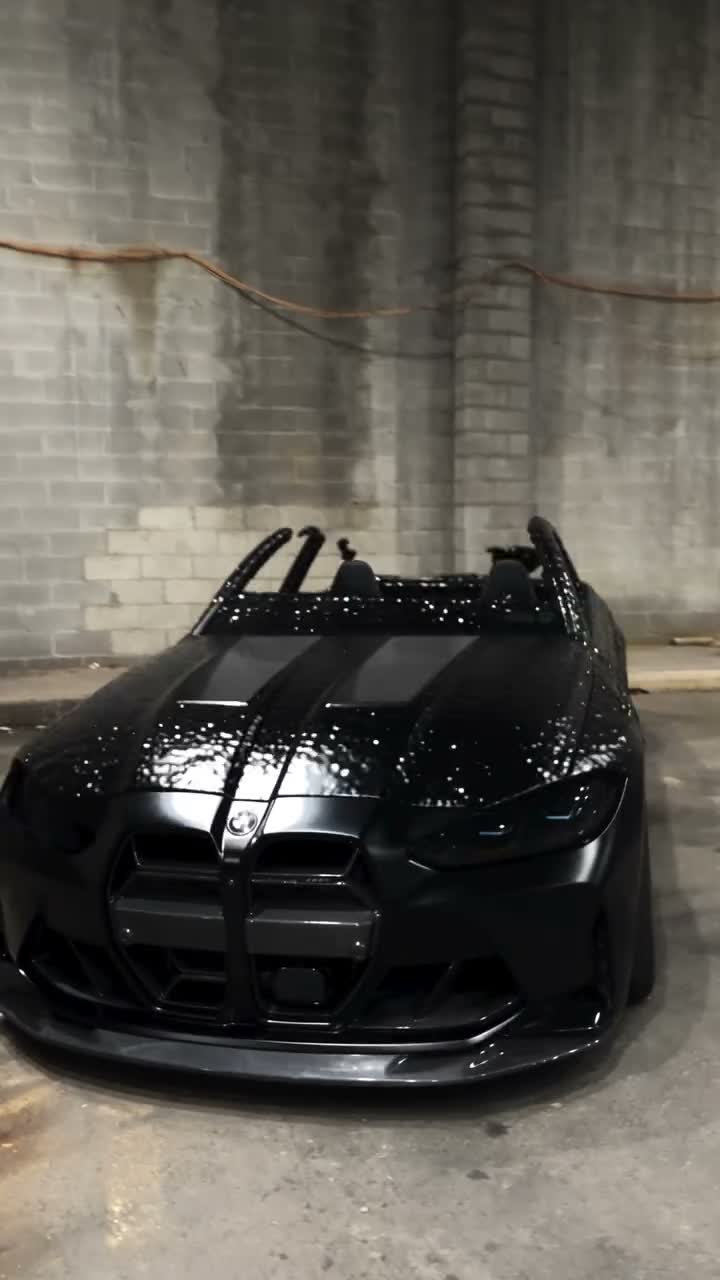
What the black-liquid car effect does
Venom Car AI is a vehicle reveal built around dark liquid and moving tendrils. In this prepared sequence, the material grows from a small form on the garage floor into a chassis, then unveils the car before the camera shows more views. Your photo provides the target vehicle; the motion reference provides the transformation and camera path.
The intended result is the same recognizable car throughout the reveal. Small badges, plate lettering and surfaces hidden in your photo may be reconstructed inaccurately. Treat the output as a stylized vehicle introduction, rather than evidence of a real transformation or a precise product render.
Choose a car photo that shows its structure
Use one complete vehicle
Keep the whole car inside the image, including wheels, roofline, mirrors and bumpers. A front three-quarter angle usually gives more useful shape information than a straight-on crop because it shows both the front and a side.
Make paint and parts readable
Choose even lighting that separates the body from the background. Strong reflections can hide a door or grille; deep shadow can make a colored car look black. A clean image with a readable silhouette is more useful than a dramatic but obscured shot.
Remove ambiguity
Use a photo with one vehicle and no overlapping people. Avoid a collage of different trims or a screenshot with interface buttons. If the picture hides the rear, expect the model to infer it during a camera move.
You do not need a separate picture of liquid, a chassis or a garage for this fixed effect. In a general editor, additional views may help only if it explicitly supports multiple references for the same object. Do not add them to unrelated subject slots: that can be interpreted as extra vehicles.
Pick the workflow before writing the prompt
To follow an existing transformation, use a video-reference editor that accepts a motion clip and a target image. Obtain a permitted remake with a clear build-up, unveiling and final view. Watch the entire clip before choosing it: a preview showing only a finished car does not demonstrate the liquid formation you want.
If you only have an image-to-video tool, prepare a car-in-garage still and ask for liquid to peel back from it. That can make a shorter reveal, but it may not reproduce the full small-form-to-chassis sequence. Choose the simpler goal deliberately instead of expecting the image alone to define every stage.
Check the tool’s reference limit. The example here is about sixteen seconds, so a tool capped at fifteen seconds needs an excerpt. Keep the formation and unveiling, then trim excess time from the final camera move. Use the same excerpt when aligning source audio later.
Copy the car-reference prompt
Attach the transformation clip as Video 1 and your car image as Image 1. If the editor uses different field names, connect the same two roles before generating:
Recreate the black-liquid car reveal in @Video 1 using @Image 1 as the complete target vehicle. Preserve its body shape, proportions, paint, wheels, lights, grille and visible distinctive details through every view. Match the liquid tendrils, chassis formation, unveiling sequence, timing and camera path. Keep the original garage, reflections and lighting. Reveal the same car throughout without changing its model details between shots, adding people or introducing unrelated vehicles.
For an image-to-video reveal from a prepared still, use a narrower instruction: “Dark glossy liquid covers the car, pulls back in tendrils and reveals the same vehicle underneath. Preserve the car’s shape, paint, wheels and lights. Keep the garage and a slow front three-quarter camera move.” Do not also request an explosion, a new location and a second car in the first attempt.
Build the reveal and export it
1Prepare the reference and car image
Crop out interface elements while keeping the complete vehicle. If needed, trim the motion reference to the editor’s supported length. Keep a copy of the selected clip and its soundtrack.
2Set up a reference-based generation
Upload both files and paste the car-reference prompt. Keep the reference aspect ratio and choose a supported output duration near the selected sequence. Use an economical draft setting first if the tool offers one.
3Check the formation before the glamour shots
Watch the liquid become a chassis and the body emerge. Wheels should settle into coherent positions, and the roofline should belong to the target car. A beautiful ending cannot fix a completely different car in the middle.
4Compare the final vehicle with your photo
Pause at the front and side views. Compare paint, headlights, grille, wheel design and body proportions. Regenerate with a clearer image if the main silhouette is wrong; a longer list of brand details rarely compensates for a hidden body.
5Add sound and export
Put the generated clip in a video editor and add audio you are permitted to use. Align a build-up or impact with the unveiling. If you use audio from the motion reference, align it to the selected excerpt and check the ending for an abrupt cut. Export MP4 in the same aspect ratio, then play the saved file.
What to fix in an unsuccessful take
It reveals the wrong vehicle
The ending has a different roofline, grille or wheelbase.
Use a complete three-quarter photo and keep the request to one target vehicle. Check that Image 1 is bound to the car rather than a style reference.
The liquid never reveals a solid body
Tendrils keep moving but the car stays amorphous.
Use a reference with an unmistakable transition to a finished car. Ask for that ordered sequence instead of only “a liquid car.”
Details change between views
Lights, wheels or paint change as the camera moves.
Compare a clearer reference photo and simplify extra styling instructions. Consider a shorter camera move if unseen surfaces keep changing.
Badges or plate text are garbled
Small lettering looks plausible but is incorrect.
Do not use the generated text as a product claim. For precise branding, finish those details in an editor or choose framing where they are not prominent.
If the reference and output have different timing, inspect the transformation first and align audio afterward. A soundtrack can emphasize a clean reveal; it cannot repair disappearing wheels or a changing vehicle.
Use the prepared Venom Car template
The Venom Car AI page supplies the garage transformation. Upload one car image, choose a mode and resolution, review the credit quote and generate. Original uses the approximately sixteen-second reference; the shorter modes use a prepared excerpt from that same sequence. The reference sound is added to the result. An account and sufficient credits are required, and the completed clip appears in My creations. There is no need to upload or trim a video in the fixed template.
If you prefer a driving stunt to a liquid reveal, explore Roadster AI. For a change of scale, Toy Car to Real Car AI carries a vehicle from a miniature into a full-sized road scene.
Venom Car AI questions
How many car photos do I need?
The prepared template uses one image. Choose a complete vehicle with clear body shape, wheels and lights. Extra views are only useful in another editor if its reference workflow explicitly supports them.
Does the car have to be black?
No. The liquid is dark, while the target vehicle comes from your photo. Use an evenly lit picture so the paint color is clear, then check that the reveal preserves it.
Can I make the effect in another AI video tool?
Yes. For the full sequence, use a video-reference editor with your car image and a permitted transformation clip. For a simpler image-to-video version, start from a car-in-garage still and ask liquid to peel away, then add sound and export in a video editor.
Use the prepared Venom Car AI template
Bring one clear car photo. The template supplies the liquid transformation, garage scene and reference sound.
Try Venom Car AI