
How to make a Thriller AI zombie dance
A zombie dance works when the lead and the crowd move together. For this version, replace the center-front performer with one photo, or add two more photos for the nearest dancers behind them. This guide shows how to assign those roles and keep the same outfits through the shoulder accents, turns and claw-like gestures.
Try Thriller AI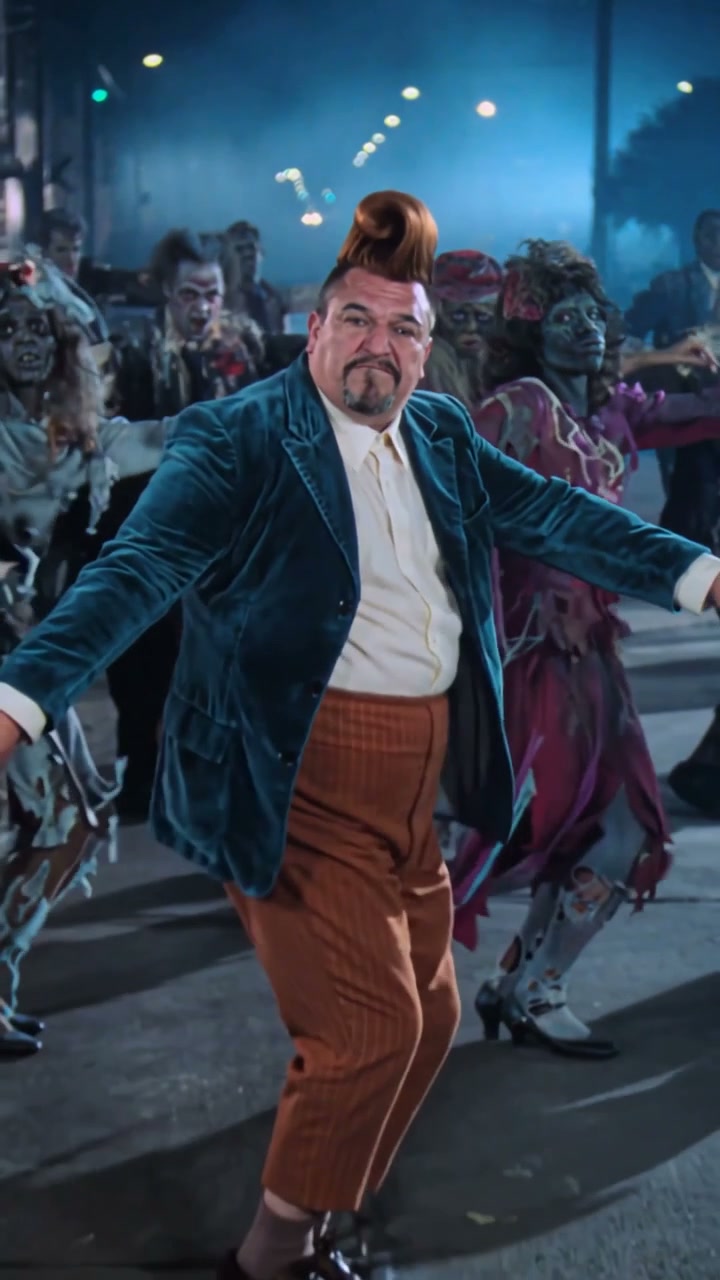
What this version changes
Thriller AI here means a prepared zombie ensemble dance in a nighttime street scene. The main character performs bent-knee steps, shoulder movements and raised, claw-like hands while the background dancers follow the routine. Your photos define complete character appearances and clothing. The video reference supplies the movement, framing, fog and lighting.
The example above is an AI remake, not a recording of a result generated from your photos. Use it to judge the choreography and framing. A single good frame does not prove that an outfit or identity will stay consistent through a whole generated clip.
Prepare one, two or three separate photos
Center-front lead: required
Choose one sharp photo with the person’s hair, body, clothes and shoes visible. A standing pose with separated arms gives the model more useful shape information than a tightly cropped headshot.
Rear-left dancer: optional
This is the nearest dancer behind the lead on the viewer’s left at the opening. Use a separate photo with a distinct outfit. The opening position defines the person even after the group turns.
Rear-right dancer: optional
This is the nearest dancer behind the lead on the viewer’s right at the opening. Leave the slot empty if you want that source dancer to remain. You can replace either rear dancer without replacing the other.
Give the people visually different clothing where possible: a dark jacket, a light shirt and a colored outfit are easier to distinguish than three matching black silhouettes. Avoid sunglasses or props that hide most of the face, and avoid another person overlapping the body. A group photo makes the assignment less clear than individual images.
Choose a reference with readable group movement
Outside a fixed template, use a permitted remake or record your own short routine with a lead and two people behind. Keep all assigned dancers visible at the opening, leave room for their hands and feet, and retain enough of the turns to make the sequence recognizable. You do not need to reproduce a film scene or a particular performer to practice the workflow.
Check your editor’s accepted reference duration before uploading. If the clip is too long, select a continuous phrase that starts with a readable formation and ends after a complete gesture. Export that excerpt with its matching audio so you have a consistent timeline for the final edit.
Copy a prompt for your chosen cast
For one photo, attach the dance clip as Video 1 and the lead as Image 1:
Recreate the zombie dance in @Video 1 with @Image 1 as the center-front lead. Use the person’s complete appearance, hair, body, clothing and shoes. Keep that person and outfit consistent through turns and partial occlusions. Match the bent-knee steps, shoulder accents, claw-like arm gestures, timing and camera work. Preserve all other dancers, the nighttime street, fog and lighting. Keep natural hands and feet. Do not add people, change the choreography or transfer the lead’s appearance to the crowd.
For three photos, replace the opening assignment with the following and keep the movement instructions:
Use @Image 1 for the center-front lead, @Image 2 for the nearest dancer behind the lead on the viewer’s left at the opening, and @Image 3 for the nearest dancer behind the lead on the viewer’s right at the opening. Transfer each photo’s complete appearance and outfit. Follow those same people throughout turns and occlusions; opening positions define their roles. Preserve unassigned dancers. Do not swap roles, outfits or identities, duplicate people or add dancers.
If you replace only one rear dancer, upload two images and name the intended side explicitly. For example, Image 2 can be the rear-right dancer. Remove the unused Image 3 instruction. Number attachments in the order your chosen tool actually sends them.
Generate, review and add sound
1Use a video-reference editing workflow
Choose a tool that accepts your motion clip and the required number of subject images. A tool that only animates one still may invent a new dance instead of preserving this ensemble’s timing. Bind the files to the role names in the prompt.
2Generate a first take
Keep the reference aspect ratio and select a supported length close to the reference. Start with one lead if you want to assess motion quality before spending on a larger cast. Keep the first prompt focused on appearance and the existing routine.
3Inspect three moments
Pause at the opening formation, the deepest bend or turn, and the final pose. Then watch at normal speed. Check which body belongs to each face and outfit when shoulders overlap. Also check that feet stay on the street.
4Restore or choose the soundtrack
If the generated video is silent, put it on a video-editor timeline and add music or source audio you are allowed to use. Align a clear shoulder accent or footstep with the intended beat. If timing drifts later, try another take or a small whole-clip speed adjustment before cutting up every movement.
5Export and rewatch
Export an MP4 using the timeline aspect ratio and frame rate. Check the exported file rather than relying on the editor preview. Keep hands, shoes and the rear dancers inside the final crop.
Solve the problems specific to a group dance
Two dancers exchange outfits
A sleeve or whole costume changes after a turn.
Use more distinct photos and anchor roles to the opening formation. Keep each assignment in one short sentence.
A rear dancer inherits the lead’s appearance
The same face or hair appears on two bodies.
Limit the prompt to the assigned performers and explicitly preserve the remaining crowd. Check whether the editor supports multiple subject references.
Hands or feet deform
Claw gestures produce extra fingers or feet slide across the ground.
Use a less blurred reference and a clear full-body image. Compare another take around the exact gesture before replacing a good entire clip.
The crowd falls out of sync
The lead moves well but behind them the routine changes.
Use a reference-edit mode that retains the ensemble, and remove instructions that introduce new dance moves or a different camera path.
No prompt guarantees every frame. Choose the take with the cleanest movement and role continuity; sharpening a still frame cannot fix a person changing identity during a turn.
Use the prepared template on Motion Transfer
The Thriller AI tool supplies an approximately ten-second reference and its soundtrack. Upload the center-front lead, optionally fill either or both rear-dancer slots, choose a mode and resolution, check the credit quote and generate. The template prepares the role prompt from the slots you fill. An account and sufficient credits are required, and the finished video appears in My creations. You do not need to upload a motion clip or trim one here.
For a duet with very different roles, read the Alors on Danse guide. For a larger band, the Tiny Desk guide explains optional musicians and instrument contact.
Thriller AI questions
Do I need three photos for the zombie dance?
No. One lead photo is required. The nearest rear-left and rear-right dancers are optional and can be replaced independently.
Does left mean my left or the dancer’s left?
Use the viewer’s left and right in the opening frame. Track those people through the rest of the clip instead of reassigning them when the formation turns.
Can I follow this tutorial in another generator?
Yes. Use a video-reference editor that accepts your clip and the number of subject images you need. Assign the roles in the prompt, choose a supported clip length, review the movement and add permitted audio in a video editor if needed.
Use the prepared Thriller AI template
Bring one lead photo, plus separate photos for either optional rear dancer. The template supplies the zombie dance and soundtrack.
Try Thriller AI