
How to make the Window Peeper AI video
The camera approaches a window. Inside, a character is eating a burger, notices the viewer and pulls the curtain. That small sequence makes the Window Peeper video work: the glance has to happen before the curtain closes. Use one clear character photo and a reference that contains the complete joke.
Try Window Peeper AI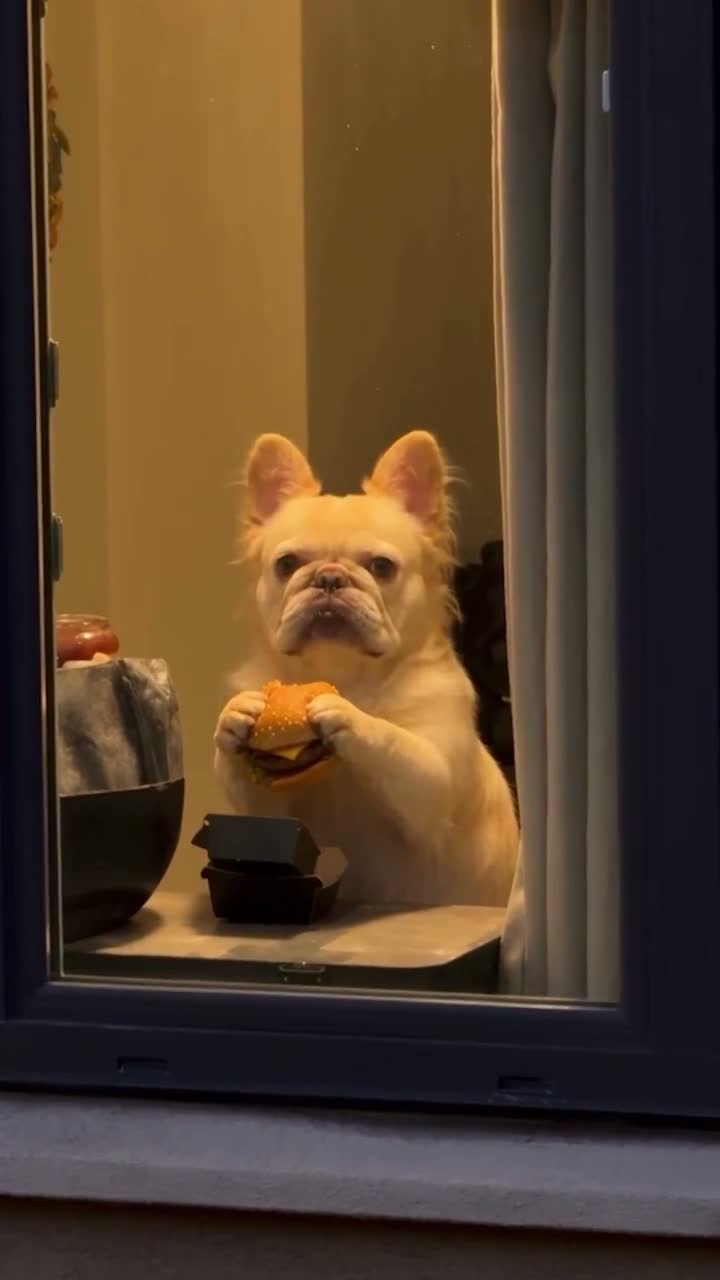
The burger, the glance and the curtain
Window Peeper AI is a short character scene viewed from outside a window. Pet versions give a cat or dog human-like gestures while preserving recognizable fur, ears and markings. Human versions follow the same eating-and-hiding sequence. The main edit replaces the character inside; it does not need a second photo for the burger or the room.
Decide whether you want to follow an existing clip or invent a new window scene. A video-reference editor is the better fit when the camera approach and curtain timing matter. An image-to-video tool can create a new scene from a prepared image, but it may need several attempts to put the three actions in order.
Choose a photo that survives the paw-to-hand action
One visible character
Use a sharp single-subject image with the face, ears or hair and upper body visible. For a pet, choose recognizable markings and a clear chest outline. Heavy blankets, cages or another animal covering the body make the silhouette ambiguous.
A complete motion reference
Use a permitted community remake or your own recording. For a homemade reference, film from outside a window while a performer holds a safe prop, notices the camera and closes a curtain. Keep the eating, glance and closure in one continuous shot. The supplied example uses a burger.
Consistent framing
Keep the source portrait ratio if you want the entire window and the character’s body. If you make your own scene, leave enough room for the arm or paw to reach the curtain. A tightly cropped face gives the action nowhere to happen.
Save a clean copy of the photograph without stickers or text. A pet does not need to pose with food, stand upright or perform the action for the photo. The motion file supplies that behavior. Keep real pets out of staged human actions; a person can record the movement reference.
Copy the reference-based prompt
Attach your clip as Video 1 and the character photo as Image 1. If your editor calls them reference video and subject image, bind those fields before pasting the instruction.
Recreate the window scene in @Video 1 with @Image 1 as the only character inside. Use the reference image’s complete appearance, fur or hair, body proportions, outfit and accessories. Follow the original sequence: eat the burger, notice and look toward the camera, then pull the curtain closed. Keep the same character throughout. Match the exterior camera approach, action timing and framing. Preserve the window, burger, room, curtain and lighting. Keep paws or hands connected naturally to the food and fabric. Do not add characters or close the curtain before the glance.
For an invented scene without a video reference, first create a still of your character visible through a window holding a burger, with an open curtain within reach. Then animate the still with “take a bite, look toward the approaching camera, then pull the curtain shut.” That is a different workflow: you are designing the scene and timing yourself, so it will not necessarily match the example.
Build and export the scene
1Check video-reference and subject-image support
Use a workflow that accepts both a motion video and one character image. Check its clip-length limit. Keep the entire eating–glance–closure sequence within that limit; an arbitrary cut after the bite loses the punchline.
2Bind the image and keep the shot simple
Attach the photo, reference clip and prompt. Retain the reference aspect ratio and choose a supported output length close to the clip. Avoid adding a camera orbit, another pet or a changing room to the same request.
3Review the action order
Generate a draft and watch without sound. The character should already be eating, notice the viewer, then reach for the curtain. Check the arm from shoulder to fabric and look for a burger that remains a single object.
4Add or preserve the soundtrack
If the tool returns silent video, put it on a timeline with audio you are allowed to use. For a matching source soundtrack, start both at zero and check the curtain-close moment. If the generated gesture is late, align that sound cue or regenerate a better-timed take; moving all audio may throw earlier cues out of sync.
5Export the whole window
Export MP4 at the timeline’s frame rate and aspect ratio. Watch the final file to check that the curtain closes within the frame and that no editing handles or captions cover the reaction.
Fix the details that break the joke
The curtain closes too early
The viewer never sees the character notice the camera.
Use a reference with a distinct pause before the reach, and keep the three actions in sequence in the prompt.
A paw becomes an extra hand
A new limb appears near the burger or fabric.
Use a clearer body photo and an unobstructed movement reference. Remove extra props and inspect the entire reach, not just the last frame.
The pet becomes a different animal
Fur pattern, muzzle shape or ears change after the bite.
Choose a sharper photo with visible markings. Ask to preserve the same complete appearance through the glance and closure.
The room moves instead of the curtain
Window edges stretch or the whole scene fades away.
Keep the camera path simple and ask to preserve the window and room. The fabric should move across an otherwise continuous scene.
Treat the result as an AI character animation. Paws, food contact and fabric are difficult interactions; clear inputs reduce ambiguity but do not guarantee a clean take.
Use the fixed Window Peeper template
The Window Peeper AI page supplies the motion scene. Upload one pet or character image, choose a mode and resolution, review the credit quote and generate. An account and sufficient credits are required. The reference is about 13 seconds; preview the chosen mode to see the prepared scene. Its sound is added to the generated result, available in My creations. You do not need to upload or trim a video in this template.
For a different animal performance, the Otsukare Summer Dog guide explains choosing a full-body pet image for a dance routine.
Window Peeper AI questions
Can I use a dog instead of a cat?
Yes, the template takes one pet or character image. Choose a clear body silhouette and visible markings. The result may interpret human-like arm actions differently for different animals.
Do I need a photo of my pet holding a burger?
No. Use a normal clear photo of the pet. The motion reference supplies the burger interaction and curtain action.
Can I make this without the prepared template?
Yes. Use a permitted reference clip or record the three actions yourself, then combine it with one character image in a video-reference editor. For a fresh scene, prepare an image of the window and character first, then animate the bite, glance and curtain pull.
Use the prepared Window Peeper AI template
The template supplies the window scene and soundtrack. Bring one clear pet or character photo for the burger, glance and curtain sequence.
Try Window Peeper AI